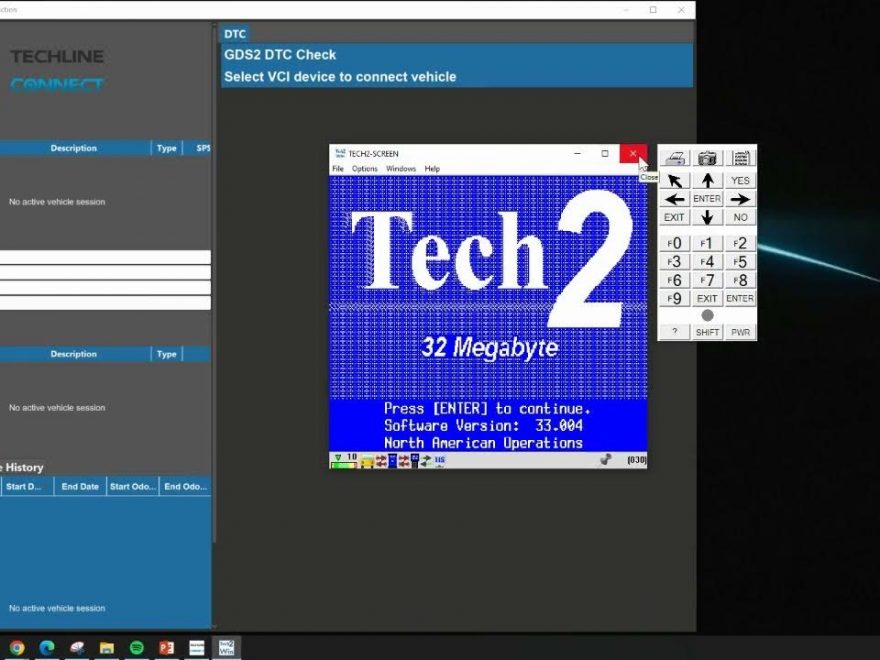
How to Update Modes in Tech2Win
Step 1: Start Tech2Win
If Tech2Win is not already running, start the program from the desktop by clicking on the Tech2Win start symbol or from the start menu: Start >> Programs >> General Motors >> Tech2Win.
Step 2: Perform a Software Download from TIS2Web
Perform a Tech2 software download from TIS2Web as if downloading to a Tech2. This will activate your license and update your QuickStart Tech2 software to the current version.
Step 3: Select Custom Update Mode
When performing the download, use the update mode ‘Custom’ instead of ‘Standard’ to overwrite the demonstration software with the newest diagnostic software.
Step 4: Specify the COM Port
Use ‘Search’ as the COM Port or specify the COM Port you chose Tech2Win to create. On the Tech2Win screen, you should see the familiar blocks running from left to right, similar to Tech2.
Step 5: Save Your Configuration
Save your configuration by pressing the “Save” button at the lower left of the configuration screen.