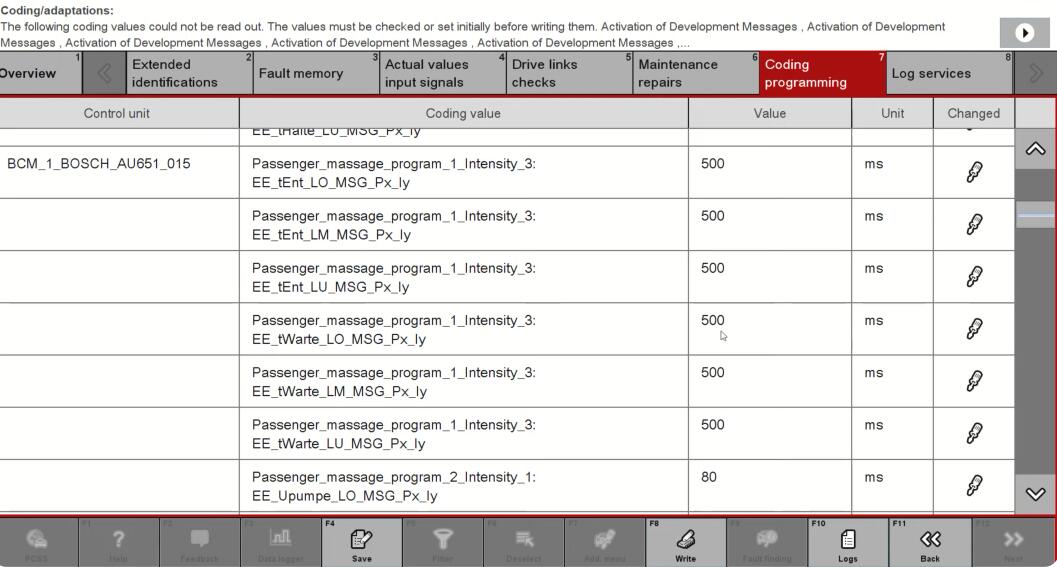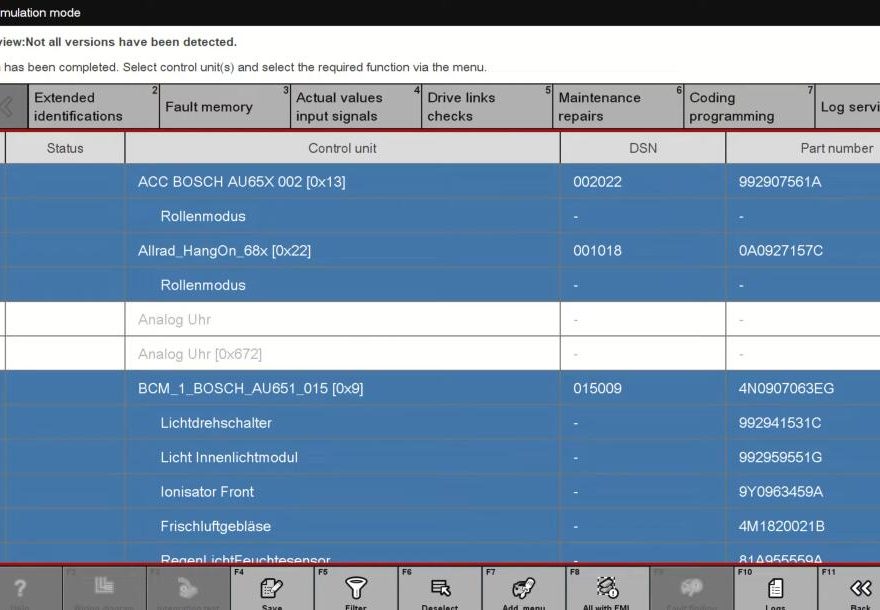
How to make simulation file on PIWIS 3 from own car and used it later to simulate coding before real coding done on car.
Step 1: Connect and Start Recording
Connect your diagnostic tool to the car.
Go to the Overview Menu.
Ideally, do this before identifying all modules.
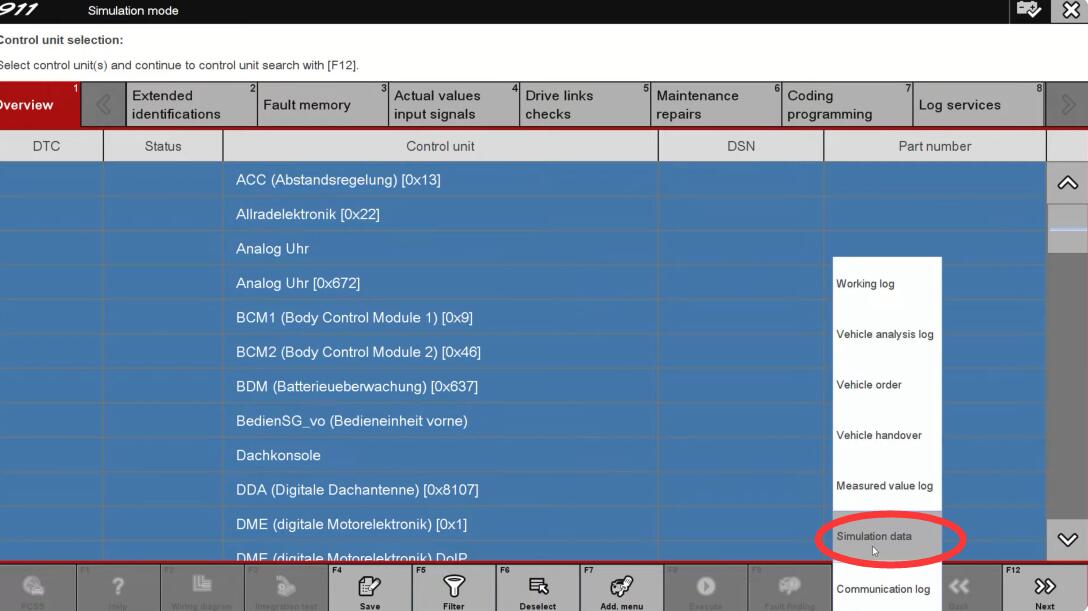
Select All modules in the menu.
Press F10 (Logs) → Select Simulation Data.
Choose Start Recording → Execute.
A red dot will appear in the top right corner, indicating that recording has started.
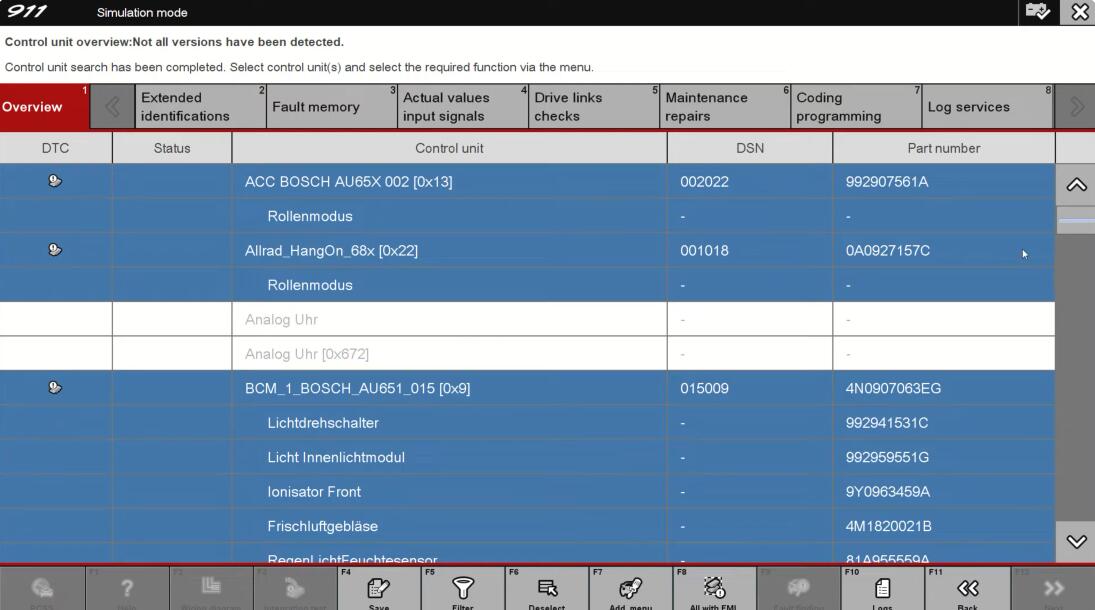
How-to-Create-and-Save-a-Simulation-File-2
Step 2: Read Control Modules
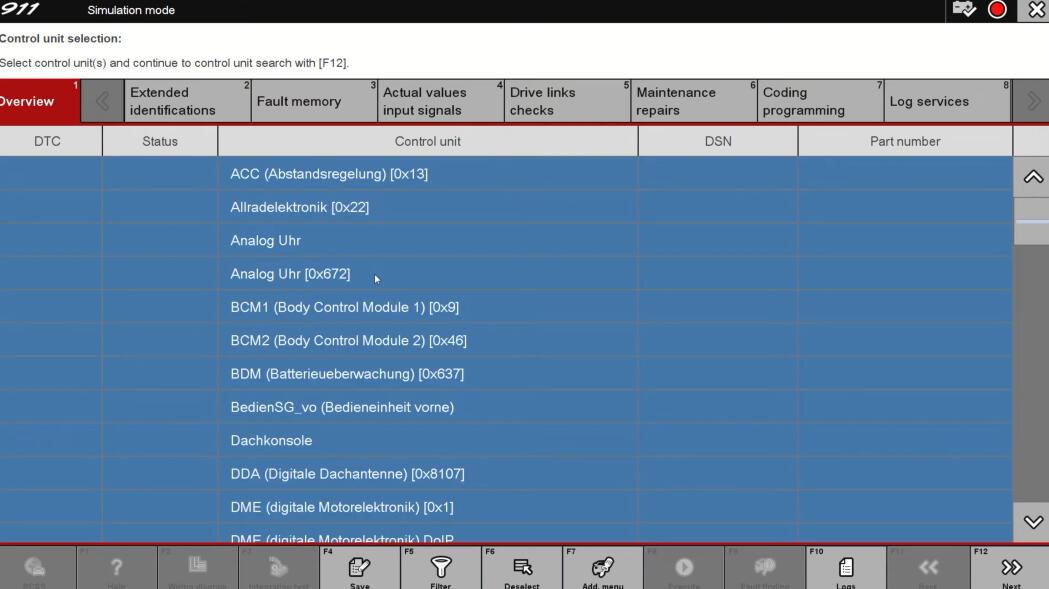
Go back and select the Audio Module (as an example).
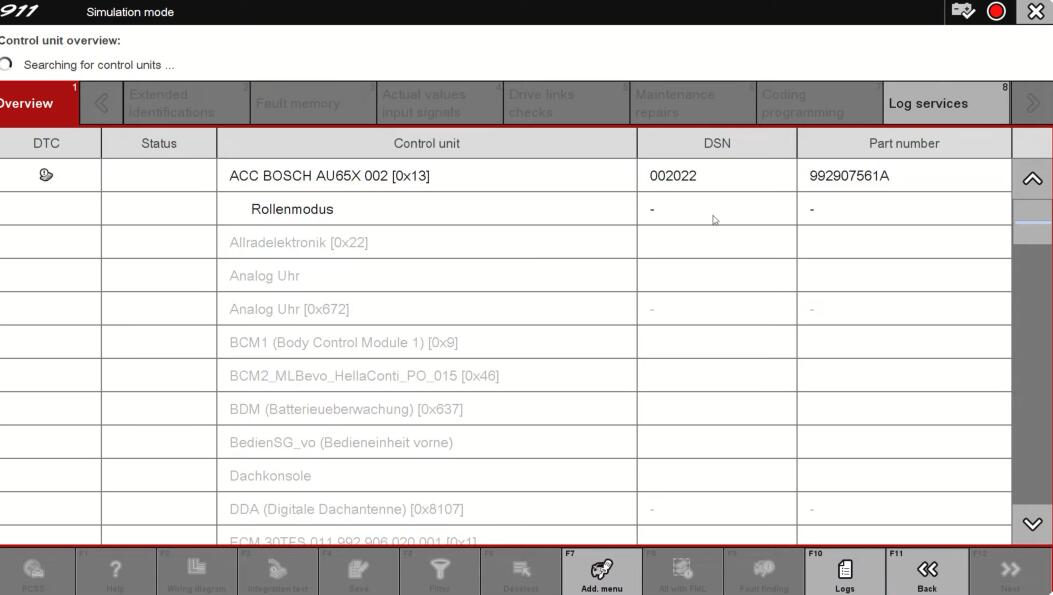
Press F12 to initiate communication with the car’s control modules.
Once modules are identified, the data will populate.
Continue pulling more data by clicking through each tab (one after another).
You may select all to capture complete data from your car.
⚠️ If not connected to a car, no data will appear (simulation mode only).
Step 3: Access Coding Values
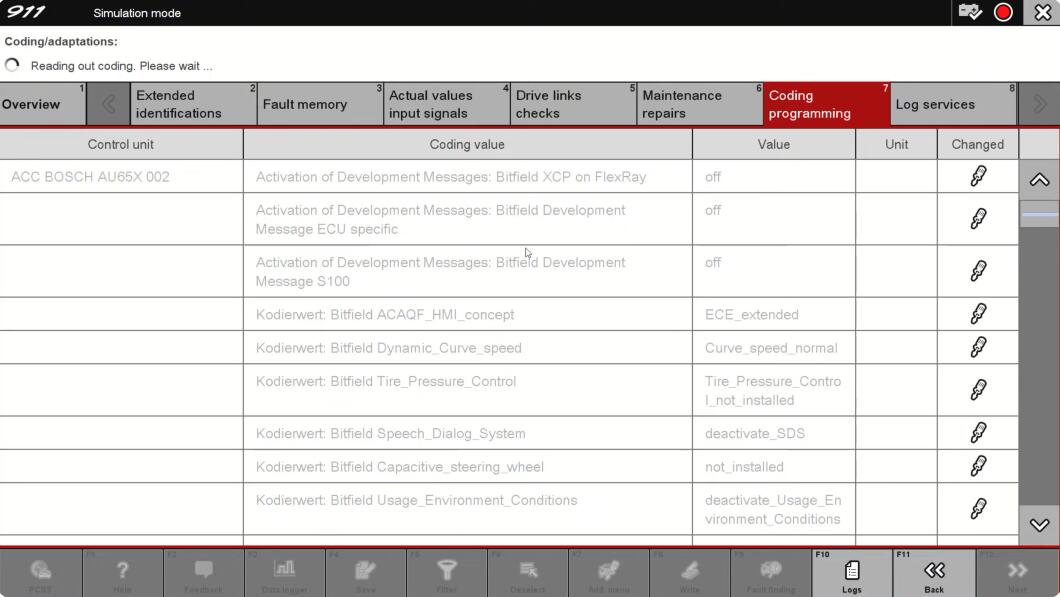
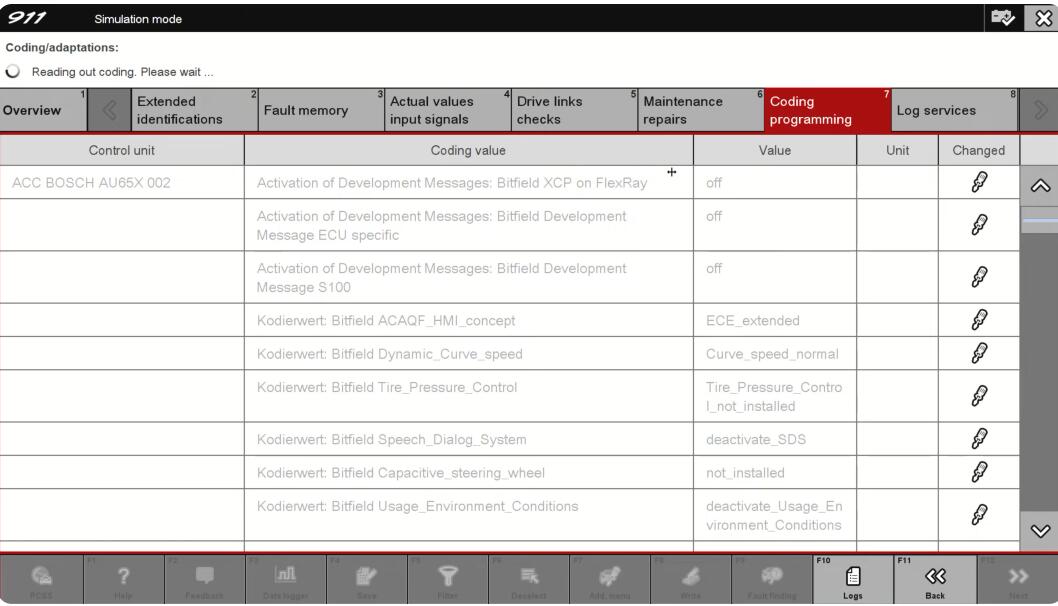
Open another tab (e.g., Coding).
Select All, then continue forward.
You will now see your car’s coding values.
After finishing this process:
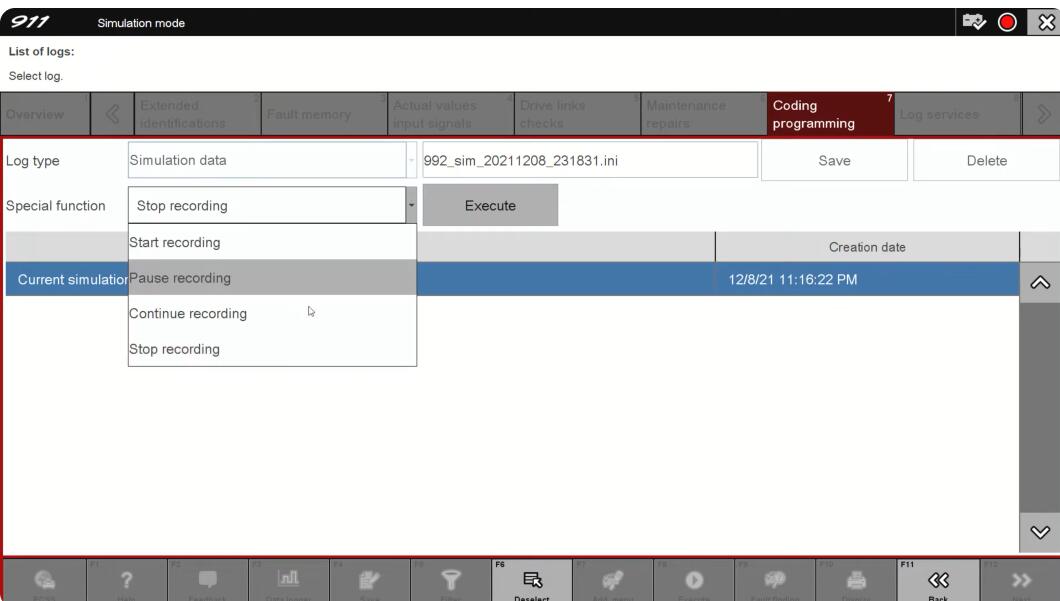
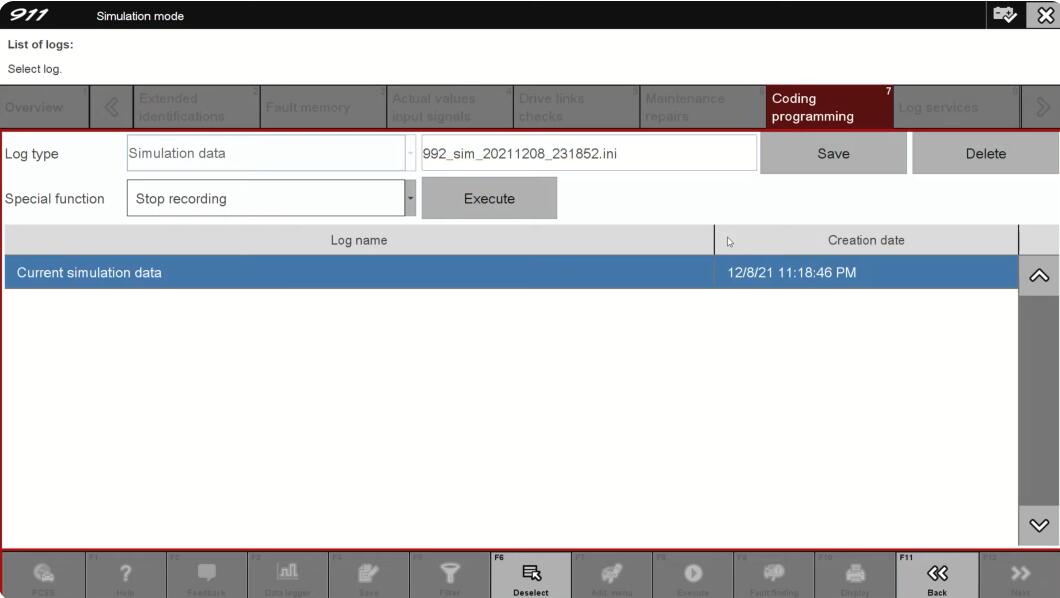
Press F10 → Simulation Data → Stop Recording → Execute.
How-to-Create-and-Save-a-Simulation-File-7
Step 4: Save the Simulation File
Once recording stops, you’ll be prompted to save the file.
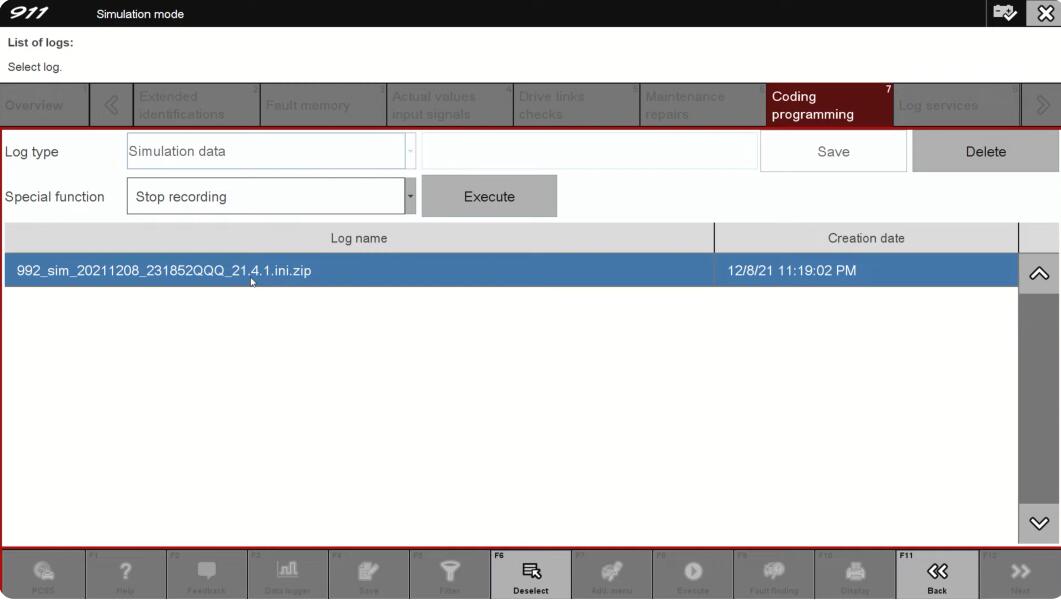
Rename it as you wish, then click Save.
The simulation file will be stored at:
E:\PV\User Data\PIDT\Simulation Data
You can:
Send the file directly.
Compress it into a .zip file for easier sharing.
Step 5: Use the Simulation File in Your Project
Place the saved file into your 992 project folder.
Rename it if needed (e.g., MyCarFIN).
Update your Default Simulation INI to reference this file:
Change the existing entry to match your new file name.
If you want multiple selectable simulations, create additional groups in the INI file.
Example:
[DefaultSimulation]
Name=MyCarFIN
File=MyCarFIN_Simulation.xml
Save changes. Now you’ll have multiple simulation options available.
Final Notes
Always ensure you’re connected to the car before recording (otherwise no data will be collected).
Keep backups of your simulation files.
For convenience, use .zip format when sharing.