When working with BMW diagnostic tools like the ICOM interface, users sometimes encounter startup problems with the included software SSD. Recently, one of our customers shared their experience after purchasing the BMW ICOM adapter with an SSD from obd2tool.
Customer Experience
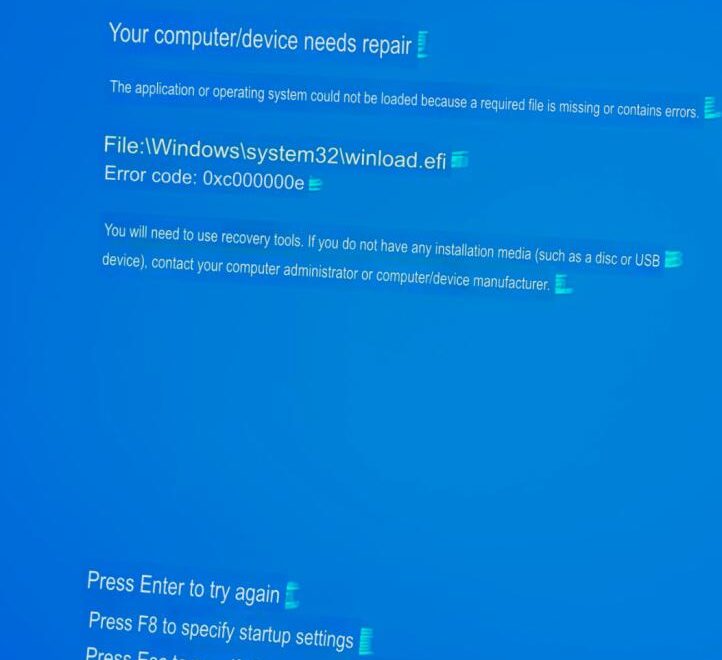
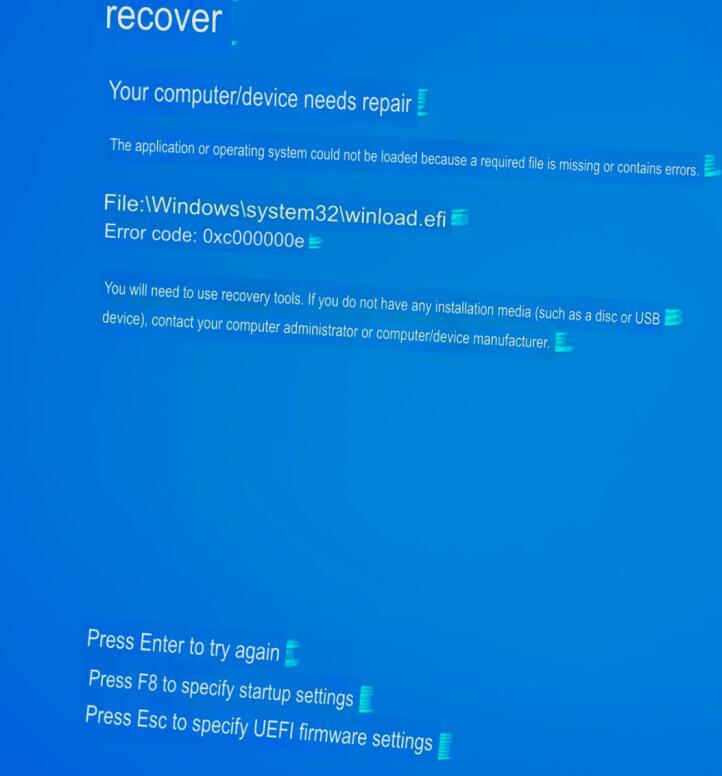
The customer reached out asking how to install the ICOM software on their PC. After inserting the SSD, they noticed that the Windows system failed to boot, displaying a blue screen message saying:
“Your computer/device needs repair.”
Why the Problem Happens
The BMW ICOM SSD provided by obd2tool is an internal system disk, not an external one. It’s pre-installed with the diagnostic software and Windows environment required for ICOM use. Therefore, it must be installed directly inside a compatible laptop and not connected via a USB adapter or enclosure.
In this case, the blue screen appeared because the BIOS boot mode of the customer’s laptop was set to UEFI, while the SSD was configured for Legacy boot. When the BIOS and disk boot modes don’t match, Windows cannot start properly.
The Solution
To fix the issue, Obd2tool support advised the customer to:
- Enter the BIOS setup menu during startup (usually by pressing F2, DEL, or ESC, depending on the laptop brand).
- Locate the Boot Mode or CSM setting.
- Change the setting from UEFI to Legacy.
- Save the changes and restart the laptop.
After adjusting the BIOS settings, the laptop successfully booted from the SSD, and the BMW ICOM diagnostic software started working normally.
Final Tips
If you encounter similar issues, always check your BIOS mode first before assuming there’s a hardware fault. The Legacy boot mode is required for the BMW ICOM SSD to operate correctly.
For further assistance or additional technical support, feel free to contact our team directly:
sales@obd2tool.com