How to Set Up Nissan VCI with Consult-3 Plus Software
Many users receive the Nissan VCI but are unsure how to connect it to the Consult-3 Plus software. The most common questions are: Should I use USB or WiFi first? Do I need to install the driver? Why does the software not detect the VCI?
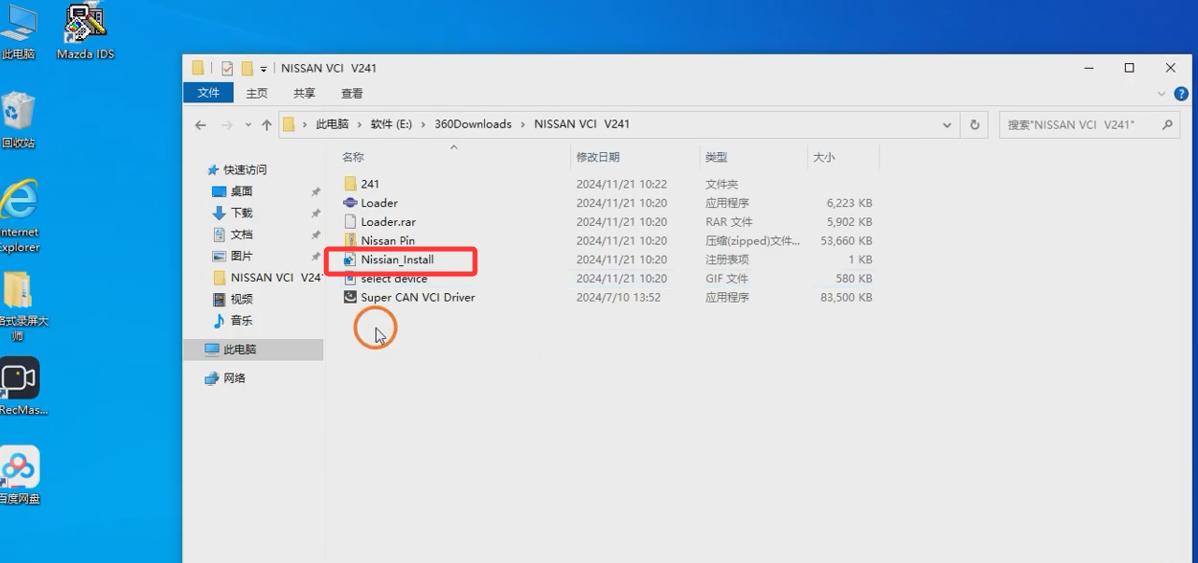
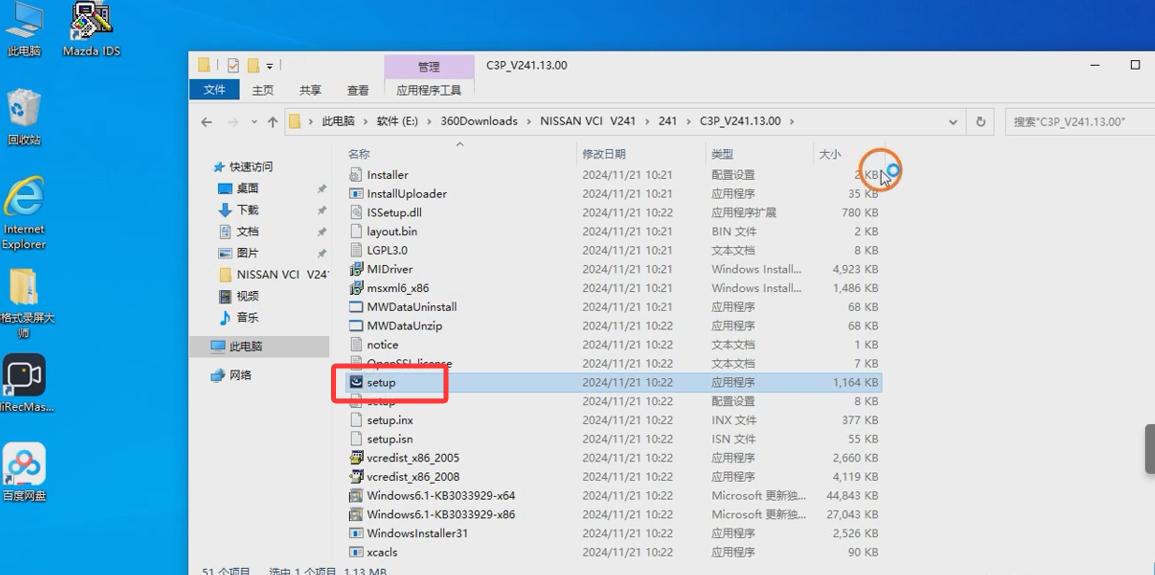
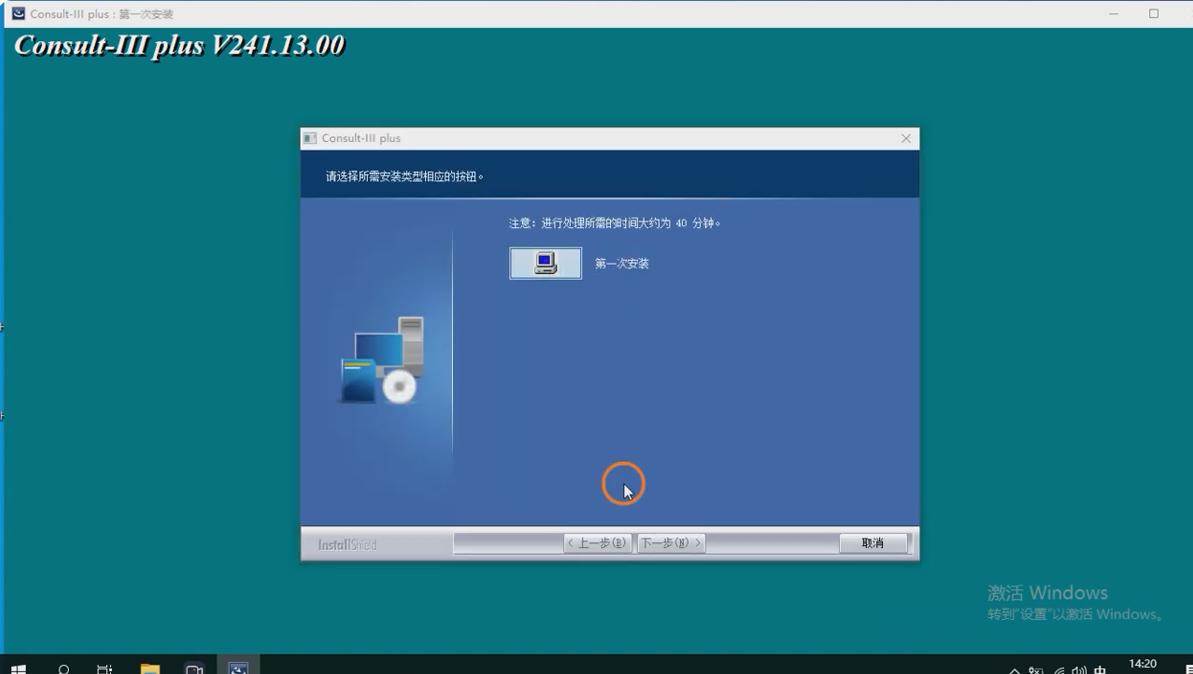
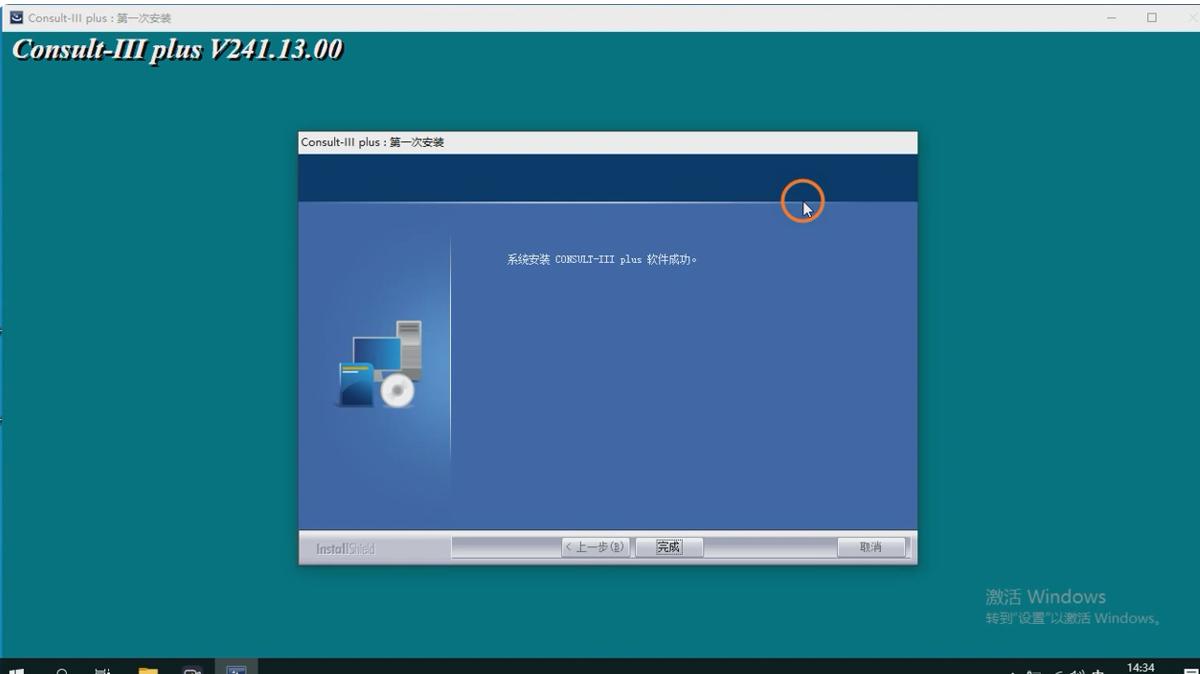
First, install the Consult-3 Plus software on your laptop.
Recommended installation tips:
· Run the installer as administrator.
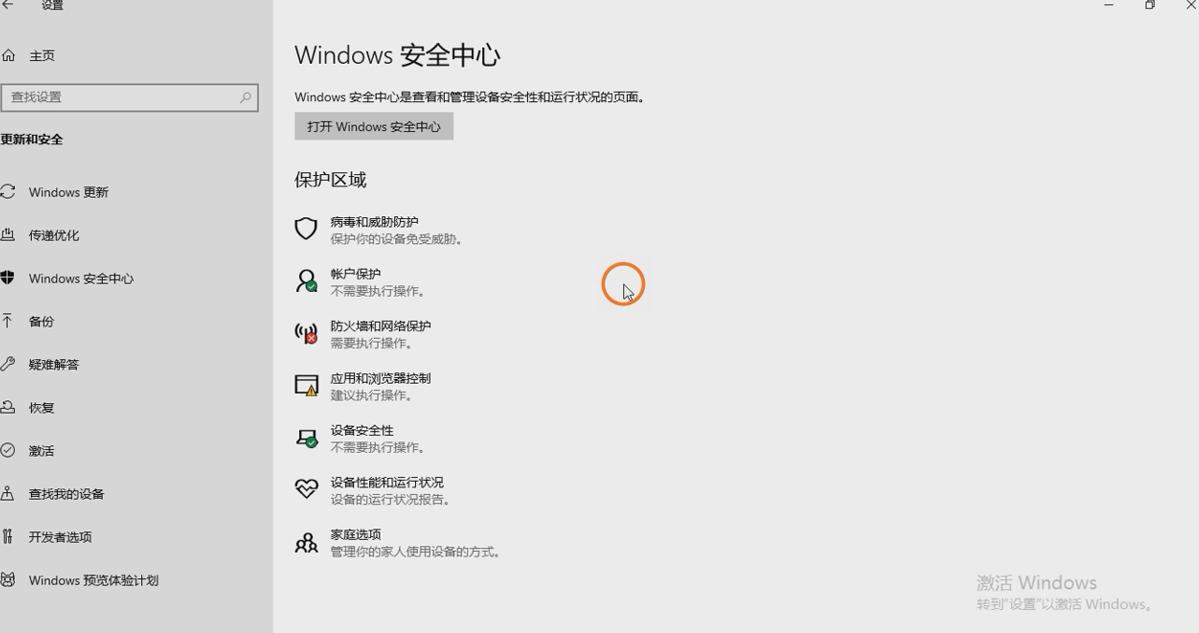
· Turn off antivirus temporarily if it blocks installation files.
· Do not connect the Nissan VCI before the software and driver are installed.
· Restart the computer after installation.
After installation, you should see the Consult-3 Plus shortcut on the desktop or in the Start menu.
Step 2: Install the Nissan VCI Driver
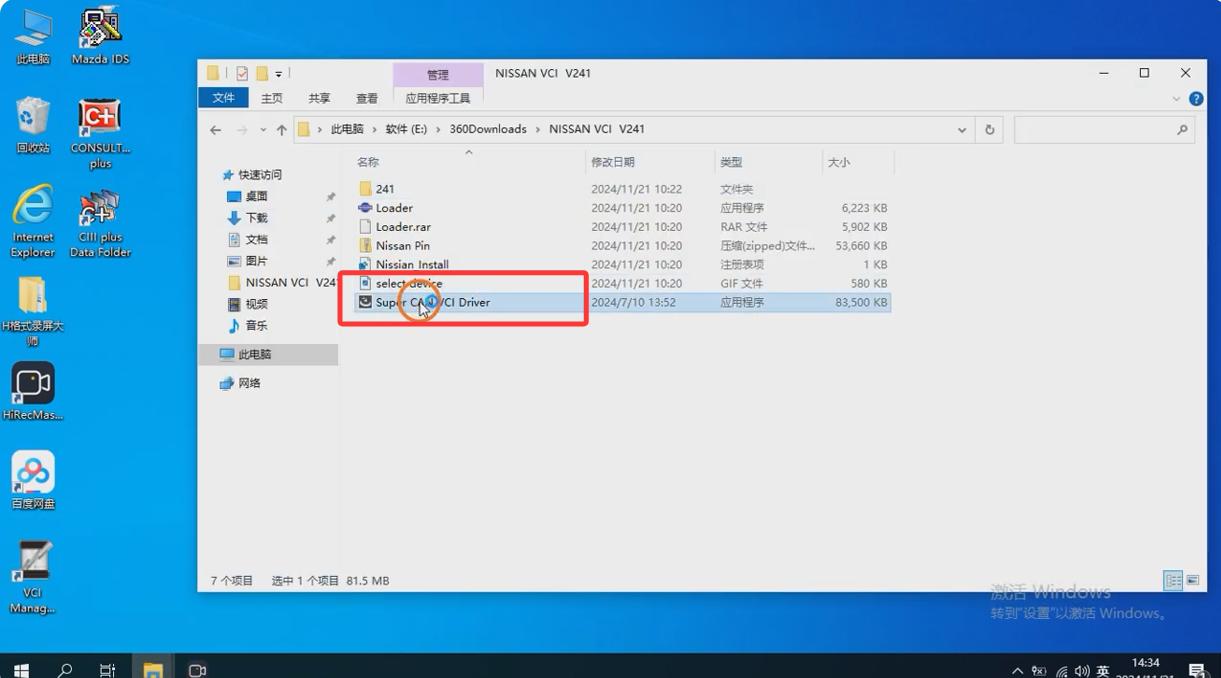
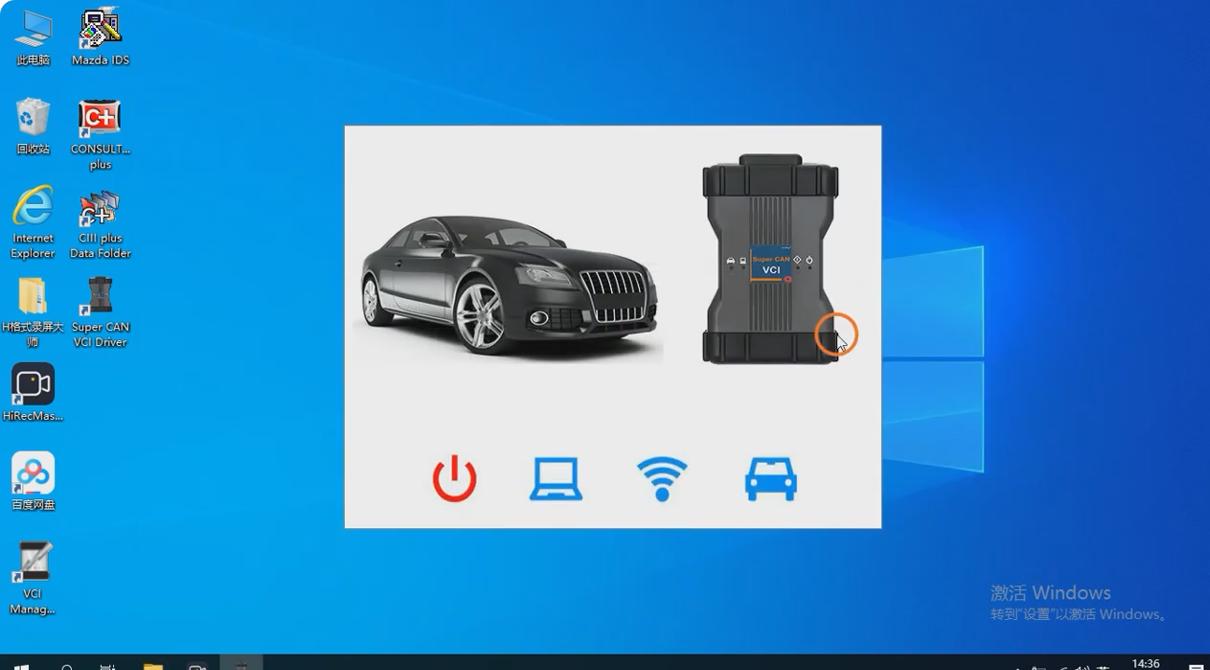
After installing the software, install the Nissan VCI driver.
Steps:
1. Open the driver folder.
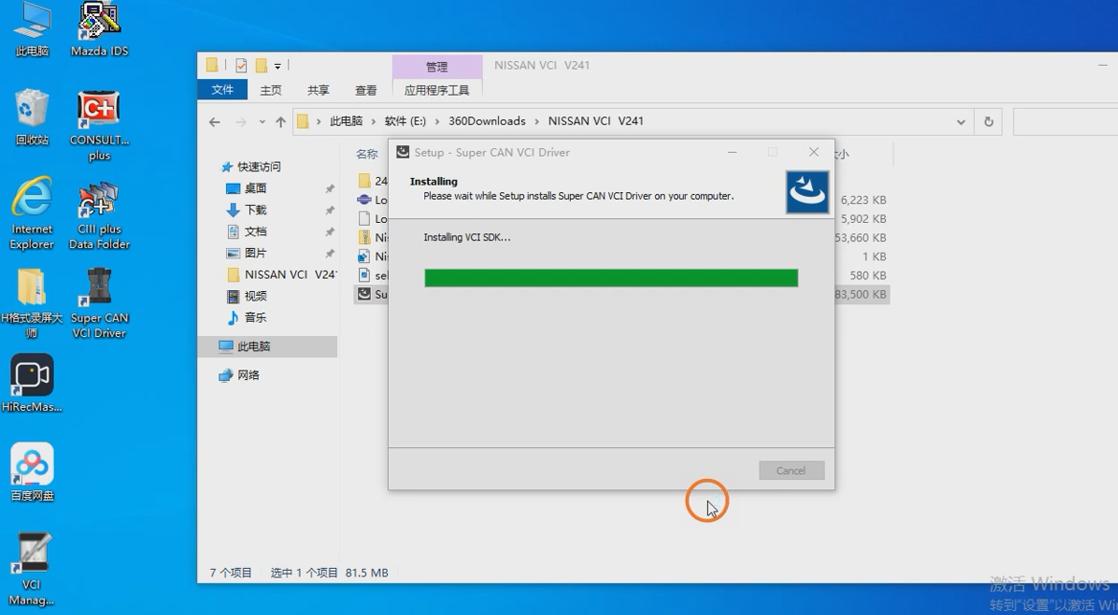
2. Run the driver setup file as administrator.
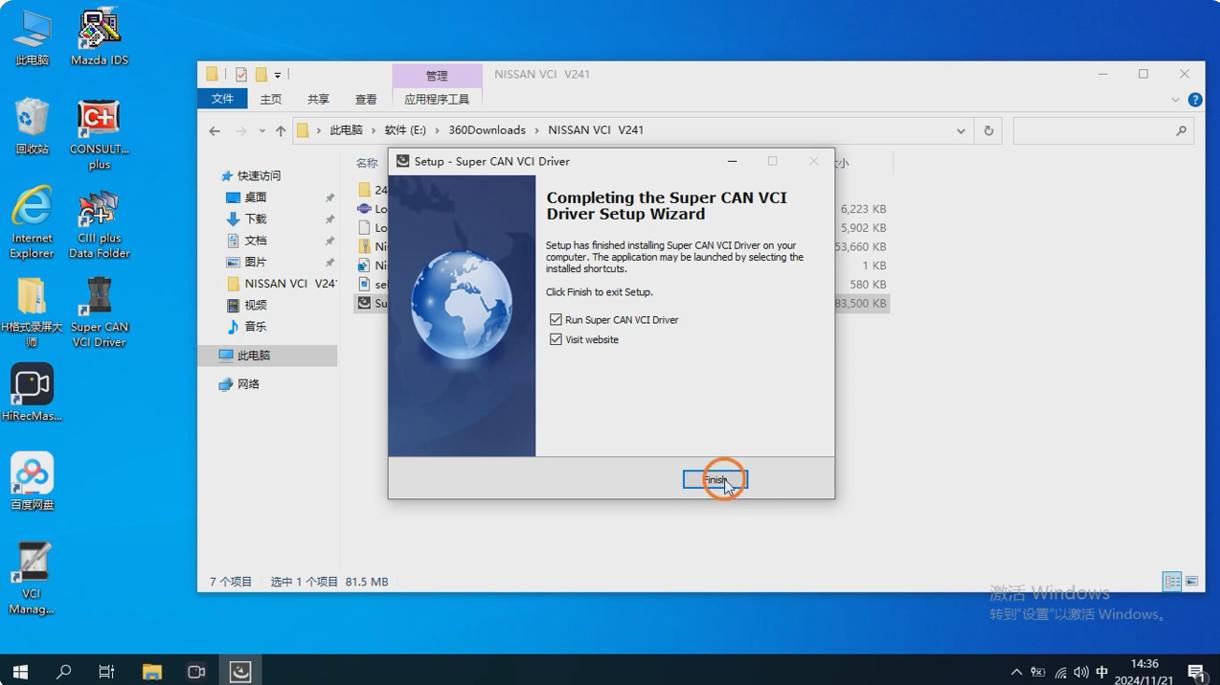
3. Follow the installation wizard.
4. Restart the laptop.
5. Connect the Nissan VCI to the laptop via USB.
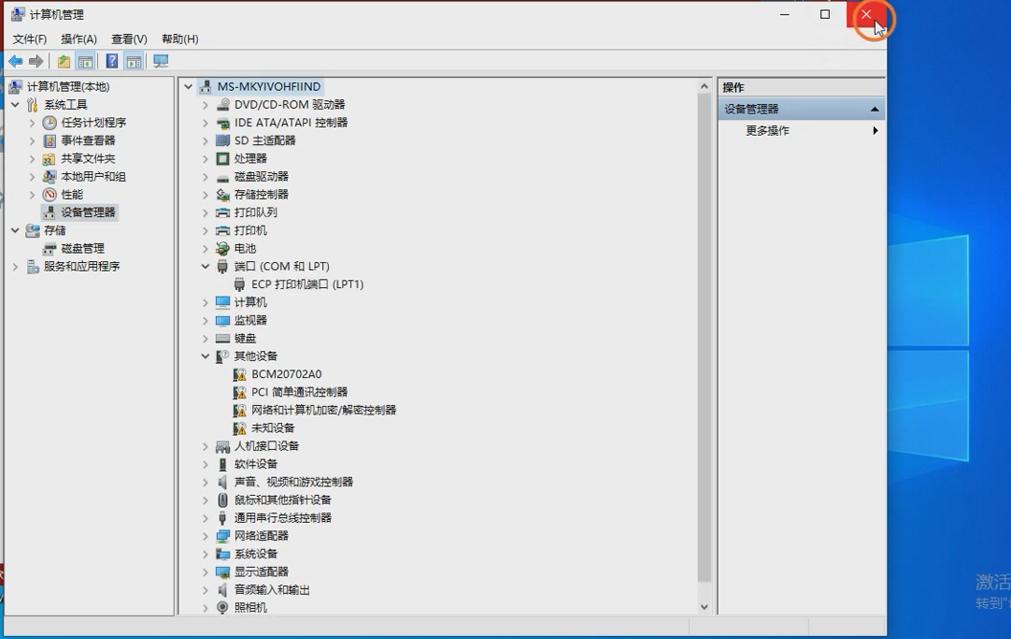
6. Open Device Manager and check whether the VCI is detected correctly.
If the device shows a yellow warning icon, the driver is not installed correctly. Uninstall the incorrect driver, reconnect the VCI, and reinstall the correct driver.
Step 3: Connect Nissan VCI to the Vehicle
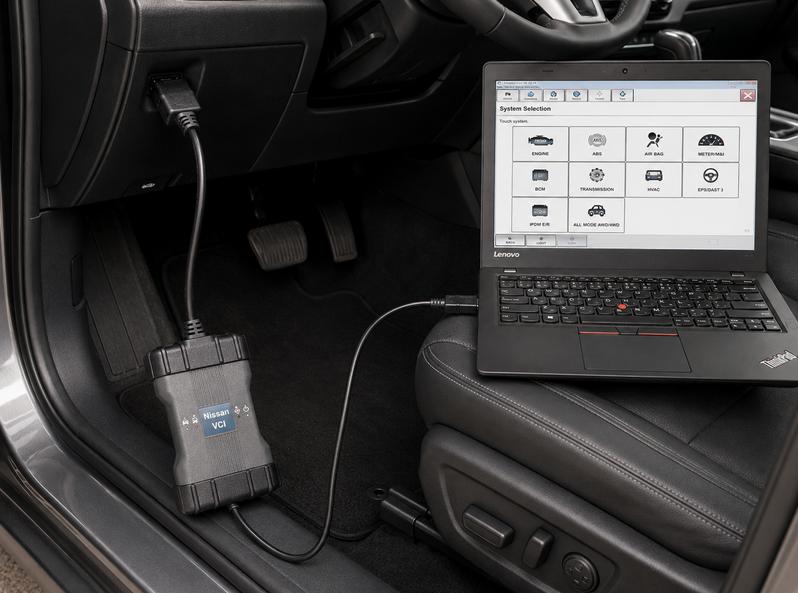
Connect the Nissan VCI to the vehicle as follows:
1. Plug the OBD2 cable into the vehicle’s OBD diagnostic port.
2. Connect the other end to the Nissan VCI.
3. Connect the Nissan VCI to the laptop by USB.
4. Turn the vehicle ignition ON.
5. Keep the engine OFF unless the software asks you to start it.
6. Make sure the vehicle battery voltage is stable.
For programming or coding work, always connect a battery maintainer. Low voltage may cause programming failure or module communication errors.
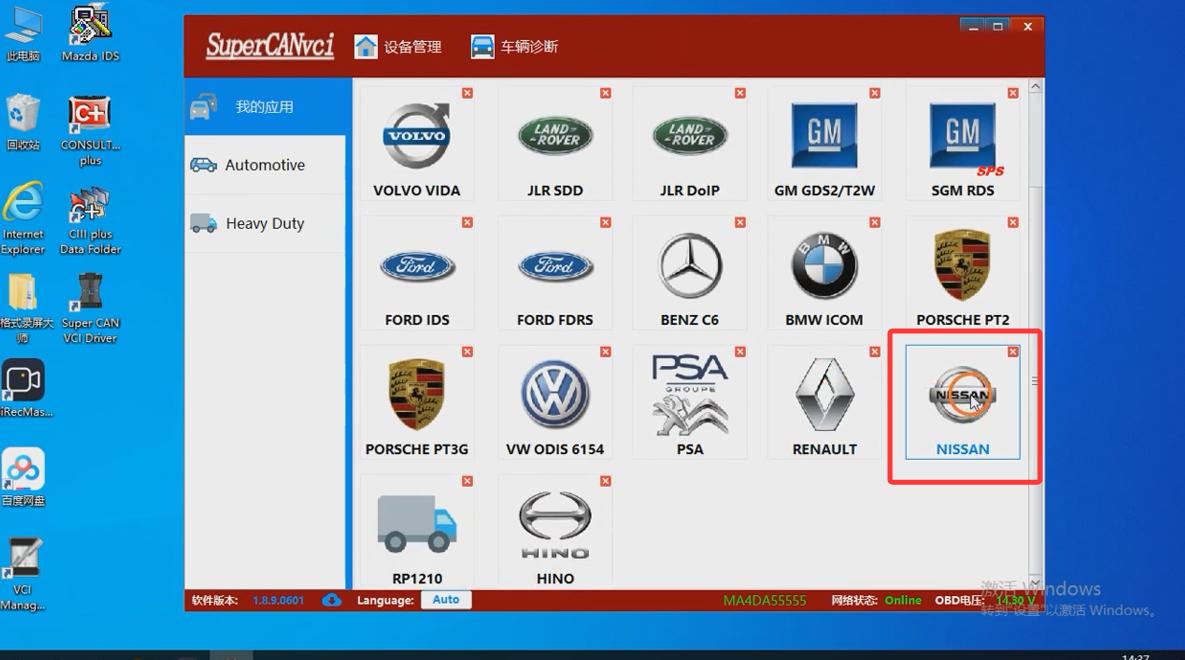
Step 4: Open Consult-3 Plus Software
After the hardware is connected:
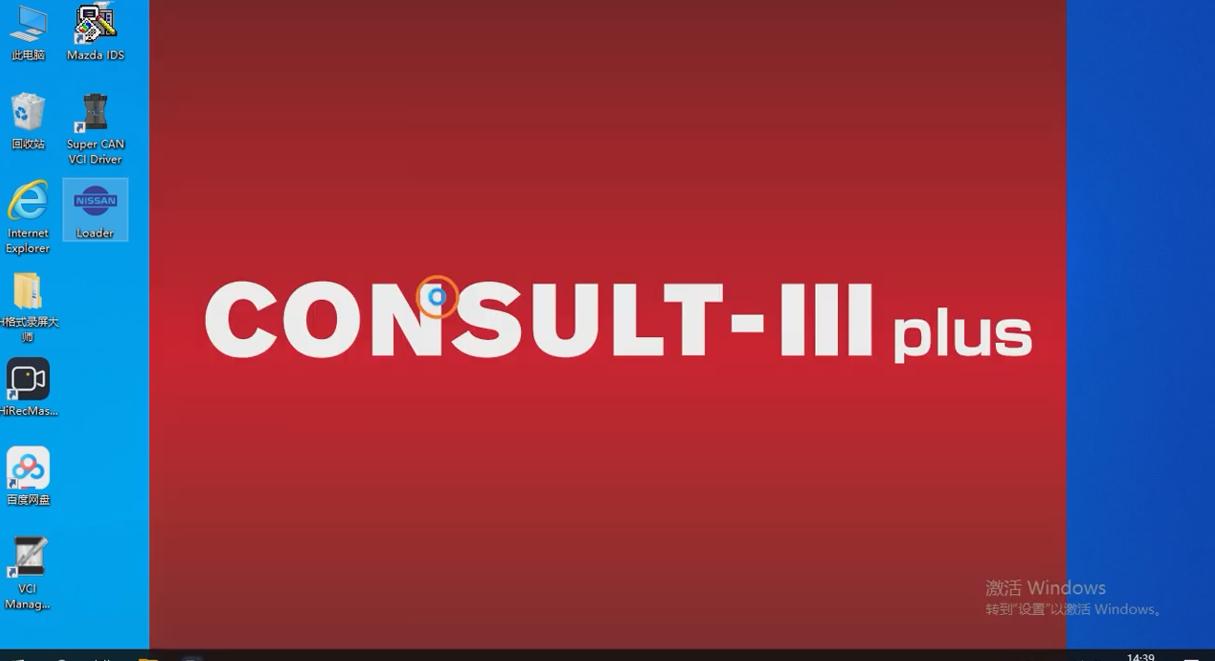
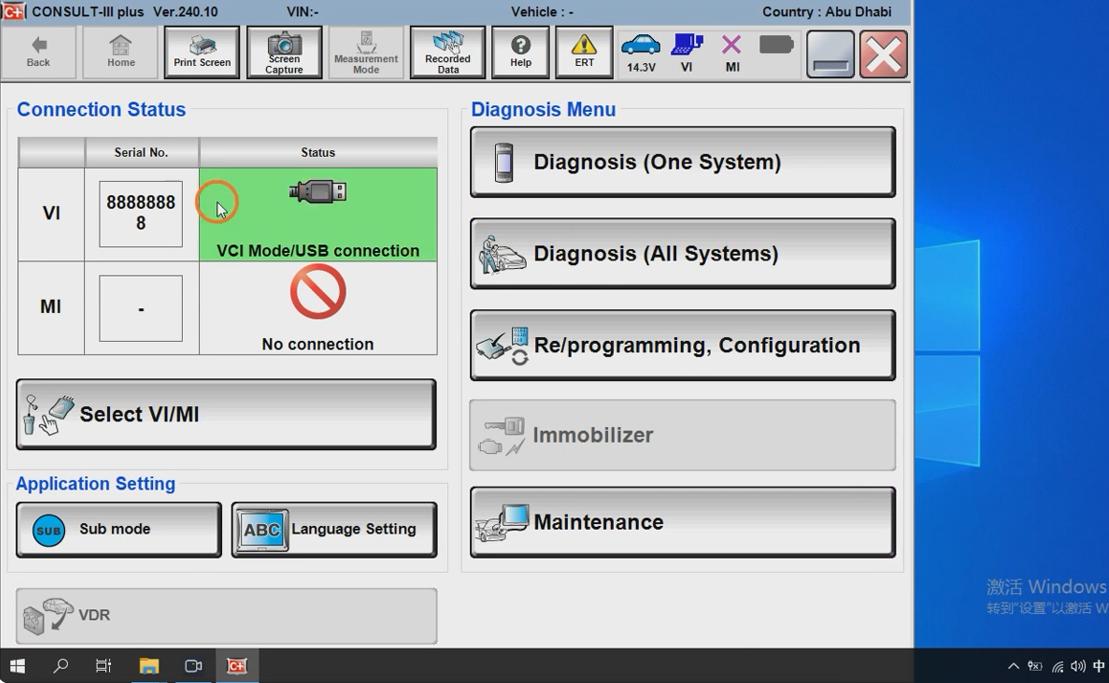
1. Open Consult-3 Plus.
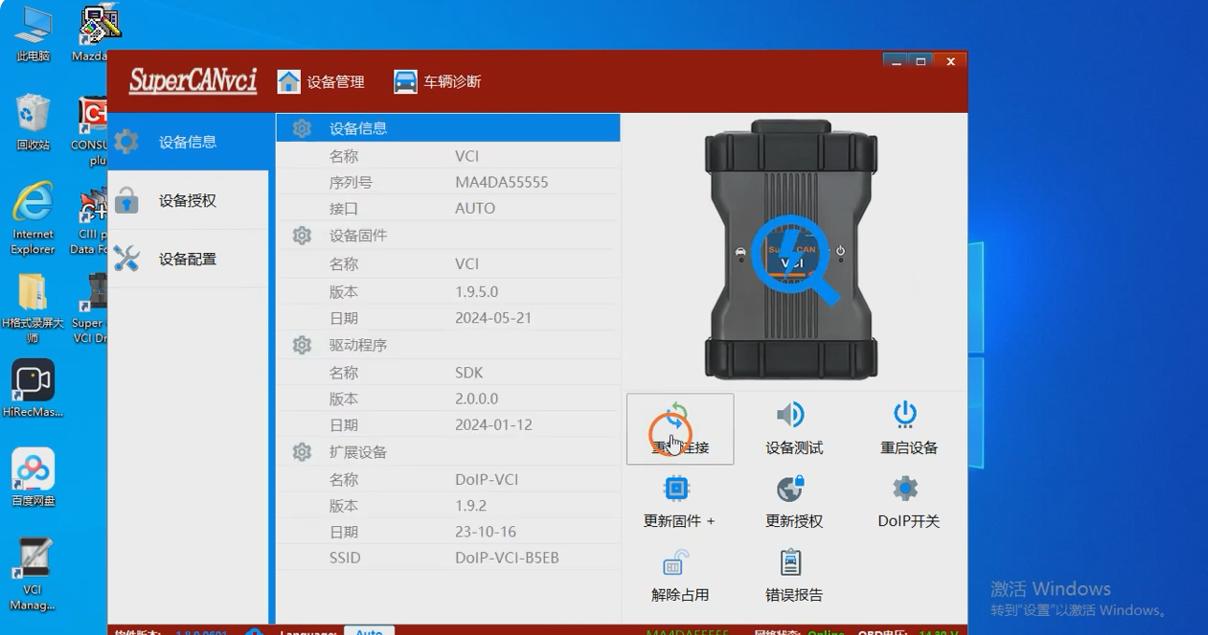
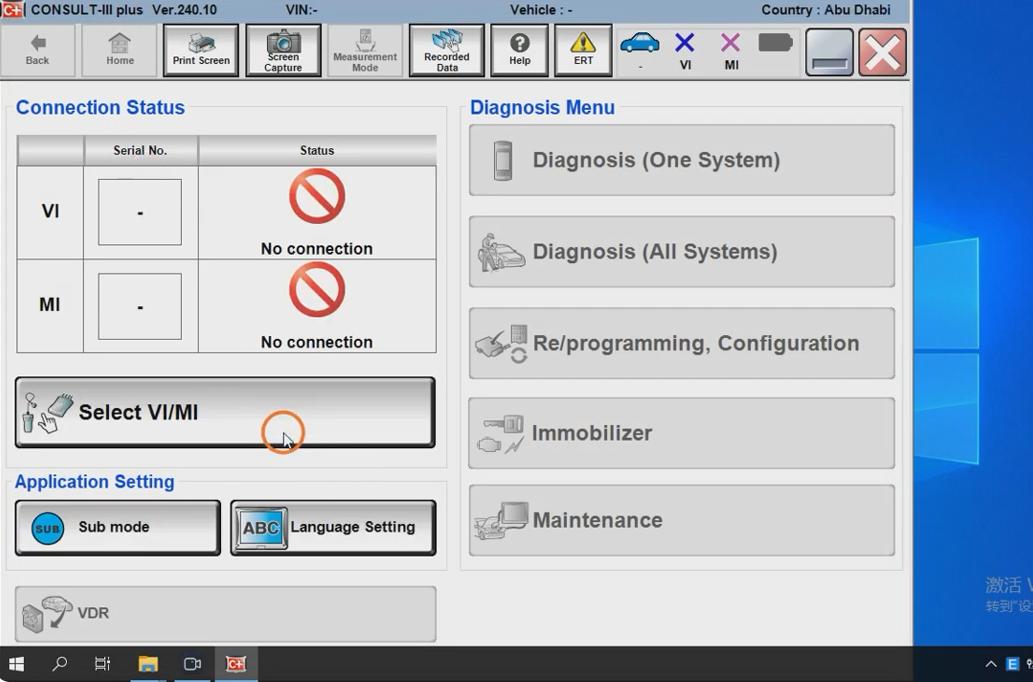
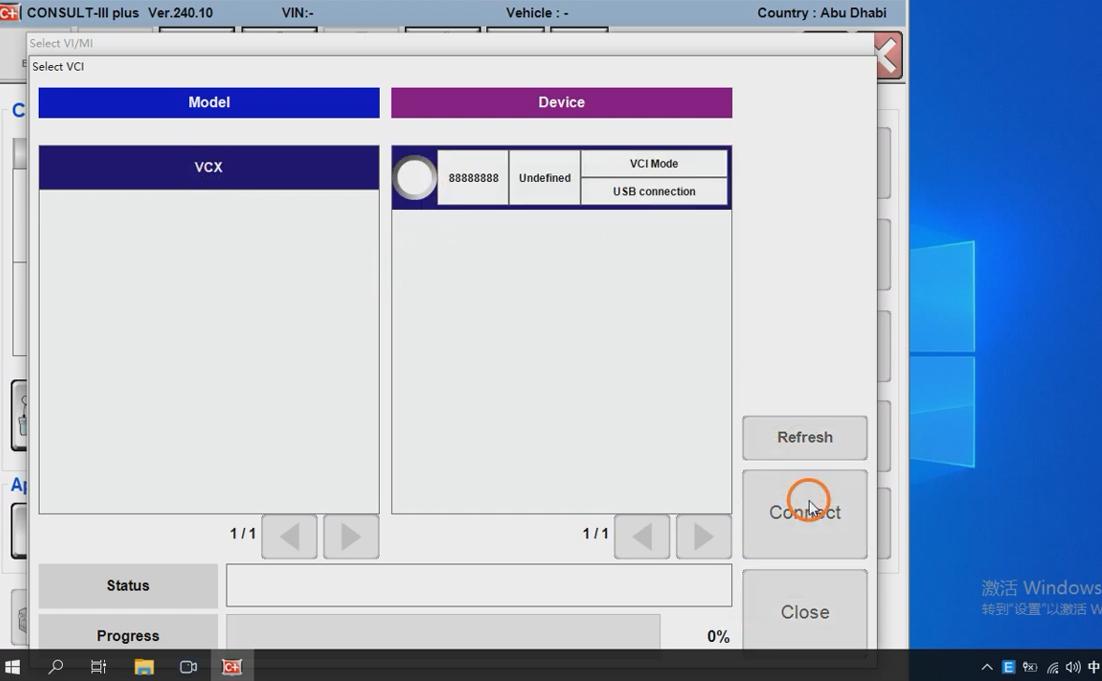
2. Wait for the software to detect the VCI.
3. Select the correct vehicle interface.
4. Confirm the connection status.
5. Enter the vehicle diagnosis menu.
6. Allow the software to read the VIN automatically.
If the VIN is not detected, you can manually select the vehicle model, year, and system.
Step 5: Run a Basic Diagnosis Test
After the vehicle is connected successfully, start with a basic diagnosis.
Recommended first test:
1. Select one system, such as Engine, ABS, Airbag, or TCM.
2. Read fault codes.
3. Save or take photos of the fault codes before clearing.
4. View live data if needed.
5. Clear fault codes only after inspection or repair.
Tip: If the software freezes when selecting all systems, restart the software and test one module at a time. This is safer and more stable, especially on older laptops or unstable connections.
Step 6: Set Up WiFi Connection
The Nissan VCI supports both USB and WiFi connection. For first-time setup, USB is recommended. After USB communication works normally, you can try WiFi.
Basic WiFi setup:
1. Power on the Nissan VCI through the vehicle OBD port.
2. Open the laptop WiFi settings.
3. Connect to the Nissan VCI WiFi network.
4. Open Consult-3 Plus.
5. Select the VCI connection option.
6. Confirm that the software can detect the interface.
For ECU programming, a USB connection is usually more stable than a WiFi connection.
Common Problems and Solutions
Problem 1: Consult-3 Plus Cannot Detect Nissan VCI
Possible causes:
· Driver not installed correctly
· USB cable not connected well
· Wrong USB port
· VCI not powered by the vehicle
· Software and driver mismatch
Solution:
· Reinstall the VCI driver.
· Try another USB port.
· Check Device Manager.
· Reconnect the OBD2 cable.
· Restart the laptop and software.
Problem 2: VCI Is Detected but Cannot Communicate with Vehicle
Possible causes:
· Ignition is not ON
· OBD port has no power
· Vehicle battery voltage is low
· Wrong vehicle model selected
· Unsupported vehicle system
Solution:
· Turn ignition ON.
· Check OBD port power.
· Connect a battery charger.
· Select the vehicle manually.
· Test one control module first.
Problem 3: Software Freezes When Reading All Systems
Possible cause:
· Too many systems selected at the same time
· Laptop performance issue
· Unstable communication
Solution:
· Restart Consult-3 Plus.
· Select only one module first, such as Engine or ABS.
· Use USB instead of WiFi.
· Keep the vehicle voltage stable.
Setup Notes
· Use USB connection for first-time setup.
· Do not disconnect the VCI during diagnosis or programming.
· Do not turn off the ignition during ECU programming.
· Save fault codes before clearing them.
· Online programming and coding functions may require authorized access.
· Some newer Nissan models may require newer software or CONSULT 4 instead of CONSULT-III Plus. Nissan lists CONSULT 4 as applying to selected newer model years, while CONSULT-III Plus remains necessary for other models.
Conclusion
Setting up a Nissan VCI with Consult-3 Plus software is simple when the software, driver, and vehicle connection are installed in the correct order. For the first setup, install the software and driver, connect the VCI via USB, and then test vehicle communication with one control module.
For professional Nissan diagnostics, key programming on supported models, live data reading, fault code clearing, and ECU coding, the Nissan VCI with Consult-3 Plus is a practical tool for repair shops and technicians.nd technicians.
Need a Hassle-Free Turnkey Solution?
If you don’t want to spend hours tweaking firewall permissions, troubleshooting registry errors, or running custom patches, we offer a ready-to-work alternative.