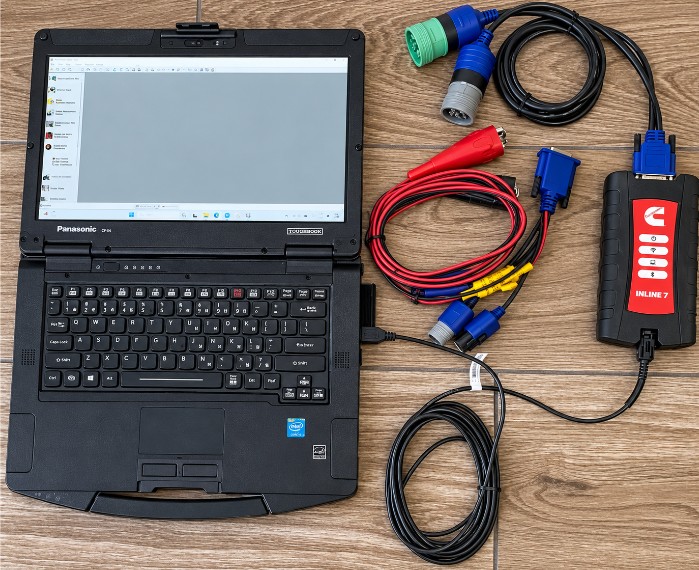
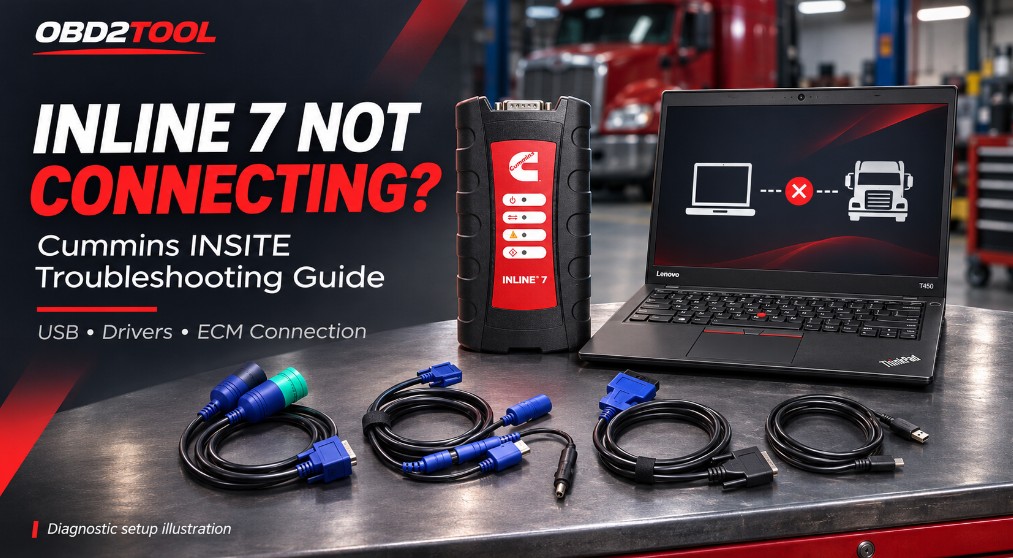
If your Cummins INLINE 7 is not connecting to INSITE, the first job is to find out where communication stops. It can fail between the laptop and the adapter, or between the adapter and the engine ECM. Reinstalling INSITE straight away often leaves the real cause untouched.
This guide walks through the checks in a practical order, explains what INSITE errors 5202 and 5204 point to, and helps you decide whether the problem is the laptop, the adapter, the cable, or the vehicle.
Quick Answer: What to Check First
- Check that the INLINE 7 is powered and its indicator lights are on.
- Connect it directly to the laptop with a known-good USB cable (no hub or dock).
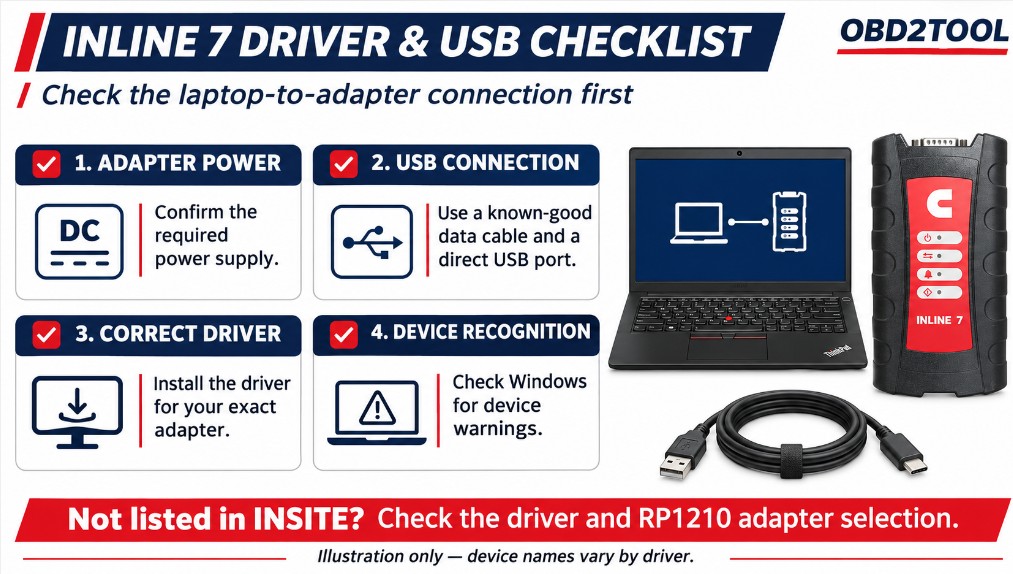
- Check that Windows recognizes the adapter and the driver is installed.
- Confirm the correct adapter is selected in INSITE.
- Turn the ignition on and check the diagnostic cable connection at the vehicle.
- Close any other diagnostic software that may be using the adapter.
Do not attempt ECM calibration while the connection is unstable. Get reliable communication first.
Which Part of the Connection Is Failing?
| Symptom | Where to look first |
|---|---|
| Adapter has no lights or power | Vehicle connection, diagnostic cable, fuse, USB cable |
| Windows does not recognize the adapter | USB cable, USB port, driver |
| INSITE cannot find the INLINE 7 | Driver, adapter selection in INSITE |
| INSITE finds the adapter but not the ECM | Ignition, cable, protocol, ECM power, vehicle wiring |
| Connection drops during use | Loose connectors, unstable power, laptop power settings |
| One vehicle fails, others work | That vehicle’s connector, wiring, or ECM supply |
These patterns help you narrow the search. They do not prove a specific part has failed.
What Do INSITE Errors 5202 and 5204 Mean?
| Error | Meaning | Start here |
|---|---|---|
| 5202 | Communication could not be established between the computer and the datalink adapter | USB connection, adapter power, driver, adapter selection |
| 5204 | Communication could not be established between the datalink adapter and the ECM | Vehicle cable, ignition, protocol, ECM power, vehicle network |
Cummins describes these errors in its INSITE release notes. An error code tells you which stage of communication failed, not which part is faulty. In particular, a 5204 does not mean the adapter is bad, and it is not a reason to replace the ECM.
For related background, see our article on INSITE connection errors 5204, 5202, 5201 and 5200. Note that it covers a DPA5 case, so its workaround should not be treated as a general INLINE 7 procedure.
Step 1: Check Power and Physical Connections
Start with hardware before touching software settings. Inspect:
- The INLINE 7 power and status lights
- Both ends of the diagnostic cable
- Bent, recessed, loose, or corroded connector pins
- Cable strain reliefs for damage
- Any extra connector adapters in the chain
If there are no lights at all, suspect the cable, the USB port, or missing power at the vehicle’s diagnostic connector. Use the vehicle’s wiring information to identify the correct supply circuit and fuse. Never bridge unknown pins or apply external voltage to an unidentified terminal.
Step 2: Use a Direct USB Connection
- Close INSITE and any other diagnostic applications.
- Connect the adapter to the vehicle.
- Plug the USB cable directly into the laptop.
- Open INSITE and try again.
If the adapter is still not detected, try another USB port, swap in a known-good USB data cable, and remove hubs, docks, and extension cables. If your kit supports wireless connection, test over USB first to rule out wireless variables.
Step 3: Verify the Adapter Driver
Installing INSITE does not guarantee the adapter driver is installed and working.
- Open Windows Device Manager.
- Look for the adapter, or for an “Unknown device” or an entry with a yellow warning symbol. The name and category vary by driver package.
- If the device is not recognized correctly, install the driver intended for your exact adapter, restart Windows if prompted, then reconnect.
For genuine Cummins hardware, see the Cummins INLINE support page. If you bought an OBD2TOOL kit, use the driver supplied with it, or contact our support team before changing the installation.
Avoid installing several unrelated driver packages hoping one works. That tends to create conflicts that are harder to clear.
Step 4: Check the INSITE Connection Settings
INSITE may still be using a connection profile created for a different adapter. Open the connection settings (menu names vary by INSITE version) and confirm:
| Setting | What to confirm |
|---|---|
| Connection type | A datalink adapter connection is selected |
| Adapter vendor | Matches the installed driver |
| Adapter / device | Matches the connected INLINE 7 |
| Connection method | Matches how you are connected (USB or supported wireless) |
| Datalink protocol | Matches the engine and vehicle |
If the INLINE 7 is missing from the adapter list, go back to Step 3: the driver is the likely cause, not the vehicle.
Also try running INSITE as administrator, since permission problems can stop the software from reaching the driver. For a full walkthrough, see How to Connect Cummins INSITE to a Cummins Engine.
[Image 3: INSITE connection settings showing vendor, adapter, and protocol fields]
ALT: Selecting the datalink adapter and communication protocol in Cummins INSITE
Step 5: Confirm the Vehicle and ECM Are Ready
If the laptop sees the INLINE 7 but INSITE cannot reach the ECM, the problem is probably on the vehicle side. Check:
- Ignition: For a basic connection test, ignition ON with the engine OFF is the usual starting point. Follow the vehicle’s service instructions if they differ.
- Battery: A weak or discharged battery can cause unstable communication.
- ECM power and grounds: Check the relevant fuses and supply circuits.
- Battery isolation switch: Make sure it is in the required position.
- Diagnostic connector: Confirm it is the correct one for the application and that the pins are in good condition.
A powered adapter does not prove the ECM is powered or that the datalink wiring is intact.
Step 6: Verify the Cable and Protocol
A connector that fits is not necessarily compatible. Confirm the cable and the selected protocol match the engine and vehicle. Depending on the application, this may involve J1939 or J1708/J1587. If automatic detection fails, select the documented protocol manually where supported, rather than guessing from the truck’s model year.
Also check the cable part number and intended application, connector keying and pin condition, and whether any extension or conversion adapters are adding problems.
Step 7: Close Competing Software
Only one program should use the adapter at a time. Close other truck diagnostic programs, adapter utilities, and duplicate INSITE sessions, then retry. If the adapter still seems “busy,” restart the laptop to release it. Also check whether security software is blocking the driver or INSITE, and follow your IT policy before changing any security settings.
Never disconnect or reset the adapter during ECM programming.
Step 8: Isolate the Fault by Swapping One Component at a Time
| Test | What it tells you |
|---|---|
| Known-good USB cable | Whether the original USB cable is at fault |
| Known-good diagnostic cable | Whether the vehicle cable is at fault |
| Same setup on another compatible vehicle | Whether the problem follows the diagnostic setup or stays with the first vehicle |
| Known-good setup on the original vehicle | Whether vehicle-side investigation is needed |
| Same adapter on another correctly configured laptop | Whether the original laptop’s software environment is the cause |
Change one variable at a time and note each result. Replacing the laptop, cable, and driver all at once makes the cause impossible to identify.
What If the INLINE 7 Connects but Keeps Disconnecting?
- Loose or damaged connections: See whether dropouts coincide with moving the cable or laptop. Check connector retention.
- Unstable power: Look for a weak battery or an intermittent supply.
- Laptop power settings: Windows may be suspending the USB connection or putting the laptop to sleep. Adjust the settings for the diagnostic session and keep the laptop on a suitable power source.
- Wireless vs. USB: If USB is stable but wireless keeps failing, the cause is likely the wireless setup or environment rather than the vehicle.
Common Mistakes to Avoid
- Reinstalling INSITE before checking cables and driver recognition
- Using a connection profile created for a different adapter
- Assuming every INLINE 7 unit has the same wireless features
- Applying an INLINE 6 or DPA5 workaround to an INLINE 7
- Replacing the ECM based only on error 5204
- Starting calibration before the connection is stable
Need an INLINE 7 Kit or Setup Help?
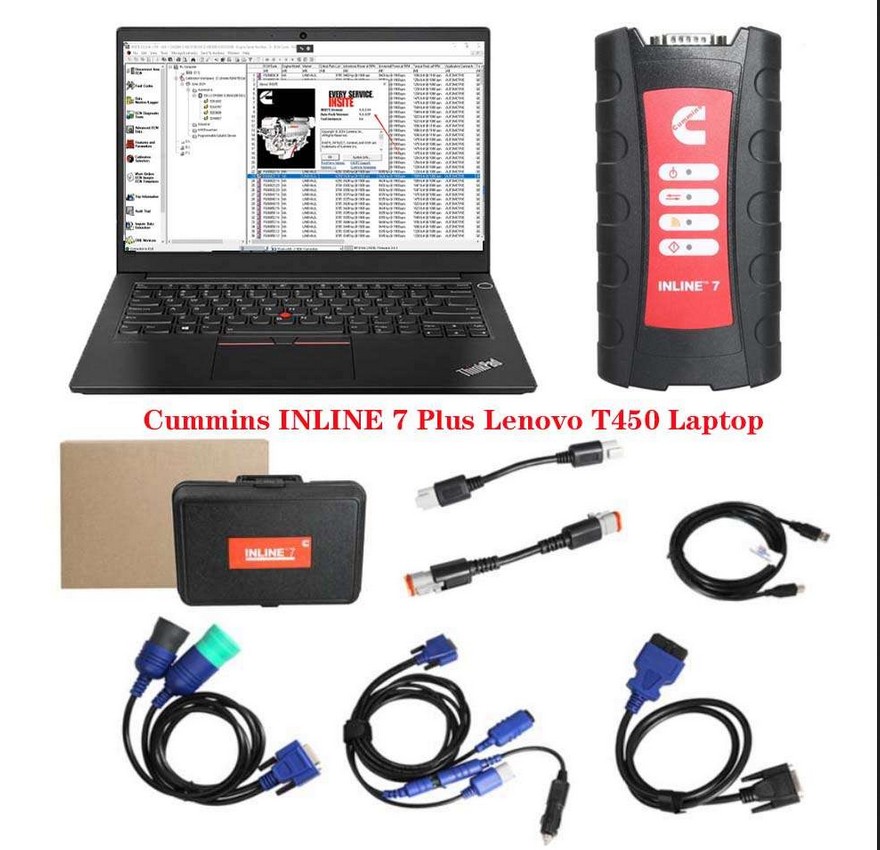
If your tests point to a faulty adapter, missing cable, or unsuitable laptop setup, see the Cummins INLINE 7 Data Link Adapter with INSITE at OBD2TOOL. Before choosing a package, confirm:
- Your engine model, year, and ECM information
- The diagnostic connector on your vehicle
- Your laptop’s Windows version
- The INSITE version and licensing included
- The cables supplied and the installation support offered
For an overview of the equipment, read our Cummins INLINE 7 with INSITE Diagnostic Tool Guide.
Already have a kit? Send OBD2TOOL support a screenshot of the full error message, your INSITE connection settings, your INSITE, Windows, and driver versions, and clear photos of the adapter and cable connections. This helps us pinpoint the problem before any hardware is replaced.
Frequently Asked Questions
Why does INSITE show error 5202 with the INLINE 7?
It means communication between the computer and the adapter could not be established. Start with adapter power, the USB connection, driver installation, and the selected adapter in INSITE.
Why does INSITE detect the INLINE 7 but not the engine ECM?
The computer-to-adapter link may be fine while the vehicle side is failing. Check the ignition state, diagnostic cable, protocol selection, ECM power, and vehicle wiring.
Does error 5204 mean the INLINE 7 is faulty?
No. It indicates a failure between the adapter and the ECM. A cable, configuration, or vehicle-side problem can cause it just as easily.
Should I reinstall INSITE if the INLINE 7 won’t connect?
Check the physical connections, driver recognition, and connection settings first. Reinstall or repair INSITE only if testing points to a software installation problem.
Can I use an INLINE 6 driver for the INLINE 7?
Use the driver specified for your actual adapter and software environment. Do not assume drivers for a different adapter generation are interchangeable.
Can I program an ECM if the connection sometimes drops?
No. Fix the unstable connection first, and verify power supply, communication setup, software authorization, and the engine-specific programming procedure before any calibration.
What information should I give support when asking for help?
The exact error message, engine and ECM details, INSITE, Windows, and driver versions, your connection settings, and photos of the cable connections. Also tell us whether the setup ever worked and what changed before it failed.