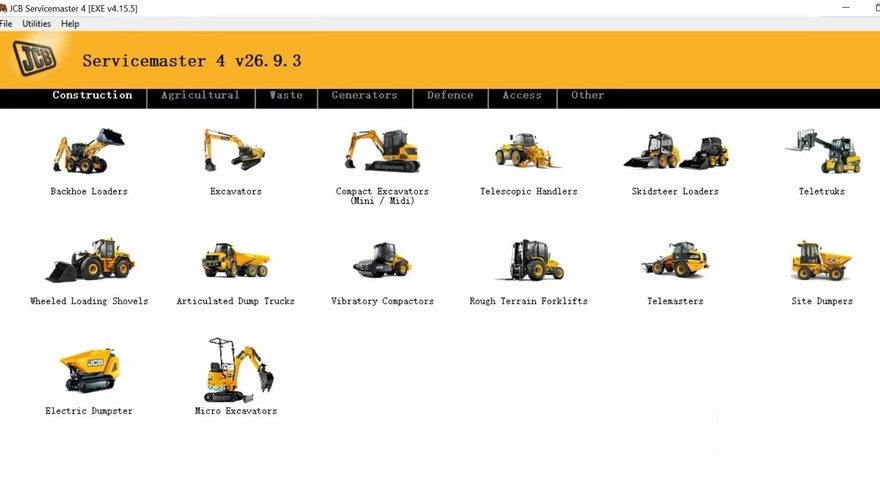
JCB ServiceMaster can display live operating data from supported machine controllers. Depending on the machine, that might include engine readings, input states, temperatures, transmission information, and some electronically measured hydraulic values.
The key point is that ServiceMaster only shows what the machine actually reports. If the sensor or controller data doesn’t exist, the software can’t create it, so what you can see depends on the machine, not just the tool.
This guide covers what live data you can expect, how to view it, how to read hydraulic and transmission values sensibly, and how to choose the right diagnostic setup.
This guide will cover
- Which live data ServiceMaster can show
- Whether it can read hydraulic pressure
- How to view live data and sensor readings
- Transmission temperature and gear status
- Whether live data can confirm a faulty sensor
- What to do when hydraulic or transmission data is missing
- Which OBD2Tool diagnostic package to choose
1. Which live data can ServiceMaster show?
Availability depends on the machine model, serial-number range, installed controllers and sensors, the software application, and your communication interface. Treat the table below as a list of categories to check, not a guaranteed parameter list.
| Data category | Examples to look for | What it helps with |
|---|---|---|
| Engine | Engine speed, coolant temperature, load or pressure values | Comparing operating conditions during a reported fault |
| Electrical inputs | Switch states, position signals, supply voltage | Checking whether the controller recognizes an input |
| Hydraulic system | Pressure, temperature, control signals | Comparing electronic data with hydraulic test results |
| Transmission | Oil temperature, selected and reported gear, speed signals | Investigating overheating or gear-selection complaints |
| Safety and interlocks | Enable/inhibit and interlock states | Confirming whether a prerequisite is recognized |
| Aftertreatment | Temperatures, pressure signals, status values | Supporting diagnosis on equipped machines |
Keep in mind that a displayed number is the controller’s reported value. It may be measured, calculated, substituted, or simply a commanded target, so check the parameter definition before deciding what it proves.
2. Can it read hydraulic pressure?
Yes, but only where the machine has the relevant sensor and the selected controller application exposes the reading. Many hydraulic circuits have no electronic pressure sensing at all.
Before relying on a pressure value, find out:
- Which circuit it represents
- Whether it’s actual pressure, target pressure, or another control value
- Which unit is displayed
- What operating conditions you need to compare against
- Whether any related sensor or communication faults are present
A controller-reported pressure can help you investigate a performance complaint, but it doesn’t tell you the condition of the pump, the relief valve, or the flow through the system. When no electronic data is available, follow the machine’s hydraulic test procedure with suitable gauges.
Safety: Never loosen a hydraulic line to check pressure. Isolate and depressurize the system as instructed, and use correctly rated equipment at the specified test point.
Example: slow hydraulic operation
If an operator reports a slow function, compare the available readings under the same controlled conditions: engine speed, hydraulic temperature, relevant input status, and any supported pressure or command values.
If the controller recognizes the request but the function is still weak, you’ll likely need further hydraulic or mechanical testing. Slow operation alone doesn’t mean a sensor or pump has failed.
3. How to view live data in ServiceMaster
Menu names and screens vary between machine applications, so use this workflow alongside the service instructions for your machine.
Step 1: Identify the machine. Record the model, serial number, engine, and target controller. Choose the exact machine application, not a similar-looking model, since the wrong one can make the data hard to interpret.
Step 2: Connect a compatible interface. Attach the interface and the correct machine cable, and confirm the driver and interface selection on your computer. JCB’s own ServiceMaster documentation describes a Data Link Adapter that connects the service computer to the machine’s CAN network through the diagnostic connector. Secure the machine before testing, and keep the laptop and leads away from moving or hot parts.
Step 3: Establish communication. Open the appropriate machine or controller application and confirm you’re talking to the controller you need. Being connected to the engine doesn’t mean you have access to transmission or machine-control data.
Step 4: Record fault codes. Note active and stored faults before clearing anything. Sensor-supply and communication faults can make displayed values unreliable.
Step 5: Open the monitoring screen. Look for a monitoring, measured-values, or live-data function. Then pick a small group of related parameters rather than everything at once. For an input concern, that might be the input state, a related demand value, and an output status.
Step 6: Compare under defined conditions. Observe readings under the conditions the service information specifies, comparing like with like: cold readings against cold specifications, loaded readings against load conditions. Where supported, save a capture or graph. Otherwise, write down the values, units, time, and operating conditions.
4. Transmission temperature and gear status
Where the controller and application support it, you may be able to view transmission data such as the following.
| Parameter | What it helps investigate | Keep in mind |
|---|---|---|
| Transmission oil temperature | Overheating or temperature-rise complaints | Compare with the correct specification and operating condition |
| Selected gear or direction | Whether the operator’s selection is recognized | The requested state may differ from actual engagement |
| Reported gear | The controller’s view of transmission state | Doesn’t independently prove mechanical engagement |
| Shaft-speed signals | Relationship between input and output speeds | Interpret using the transmission diagnostic procedure |
| Enable/inhibit status | Conditions preventing operation | Confirm prerequisites without bypassing interlocks |
Selected gear isn’t always engaged gear. A forward or reverse parameter often shows the operator’s request, while a different parameter describes what the controller is actually doing. Use the parameter descriptions, fault information, and prescribed checks to separate an input problem, an inhibited command, a controller or output problem, and a mechanical concern.
Temperature needs context. No single limit applies to every JCB transmission. Compare the reading with the specification for your exact machine and test conditions, and if the value is fixed, implausible, or jumps suddenly, check the related electrical circuit.
5. Can live data confirm a faulty sensor?
Not on its own. An unusual reading tells you where to look, not what has failed.
| What you see | Possible explanation | Next check |
|---|---|---|
| Value stays fixed | Stable condition, substituted value, circuit fault, or stale data | Parameter definition, related codes, refresh behavior |
| Sudden jumps | Real change, intermittent connection, or signal disturbance | Reproduce safely and compare related readings |
| Implausible temperature | Sensor or circuit problem, wrong unit, or misreading | Units, specifications, electrical tests |
| Parameter missing | Wrong application, unsupported controller, or no sensor fitted | Machine selection and controller coverage |
| Several values vanish together | Controller power or communication loss | Supply, grounds, interface, network |
Check wiring, connectors, reference voltage, grounds, and the related mechanical system as the service procedure directs. Avoid calibrating or programming to “fix” a suspicious value before you know why it looks wrong.
6. What if hydraulic or transmission data is missing?
Work through these checks in order:
- Confirm the machine and serial-number range.
- Confirm you’ve selected the right controller.
- Check the software application’s coverage.
- Verify the interface and machine cable.
- Find out whether the machine has the relevant sensor or electronic controller at all.
- Review communication and power-supply faults.
- Check whether the parameter only appears in a particular operating state.
A newer software version won’t guarantee every parameter appears, because hardware and controller capability set the limit.
7. Choosing a JCB diagnostic setup at OBD2Tool
Base your choice on the equipment you already have and the controller you need to reach.
If you need an interface and software, compare the JCB Electronic Service Tool with ServiceMaster 4. The listing offers several software configurations and an optional Lenovo T450 laptop package, and your selection determines whether you install the software yourself or receive a configured laptop .
If you already have a compatible interface, look at the JCB ServiceMaster 4 Diagnostic Software. It’s a software-only listing, so confirm your interface, computer requirements, installation needs, and machine application before buying.
| our situation | Option to compare |
|---|---|
| You need communication hardware | JCB Electronic Service Tool package |
| You also need a computer | Laptop-inclusive configuration |
| You already own a compatible interface | ServiceMaster software |
| You need a specific live parameter | Ask for a machine/controller coverage check first |
Before ordering, confirm the machine model and serial-number coverage, the target controller, the live-data parameters you need, what interface and cables are included, the software and installation arrangements, and whether a laptop comes with it.
For a quick compatibility check, send OBD2Tool the following:
Machine model:
Serial number:
Engine or transmission details:
Controller to diagnose:
Required live-data parameter or procedure:
Existing interface and computer:
Frequently asked questions
Does ServiceMaster need an internet connection?
Some local diagnostic functions may work offline once everything is set up. Installation, activation, updates, or certain services can have their own requirements, so check what applies to your configuration.
Can it read hydraulic pressure on every JCB machine?
No. The machine has to provide the pressure information, and the controller application has to expose it. Mechanical pressure testing may still be necessary.
Can it show transmission temperature and gear status?
On supported applications, yes. Verify the transmission coverage, and distinguish the requested selection from the reported operating state.
Can it record or graph live data?
That depends on the application, so confirm the feature if it matters to your work.
Does live-data access include ECU programming?
No. Monitoring, active tests, calibration, and programming are separate capabilities, and each has its own support and requirements.
Is it compatible with every JCB machine?
Don’t assume universal coverage. Confirm the machine, serial-number range, controller, software, interface, and the function you need.
Let live data guide your next test.
ServiceMaster works best when you match readings to a defined test and the right service specifications. Start with the complaint and the fault information, pick a few related parameters, and verify anything suspicious with the required electrical, hydraulic, or mechanical checks.
When you’re ready to choose equipment, compare the JCB Electronic Service Tool package with the ServiceMaster diagnostic software, and confirm live-data coverage for your machine before you order.
If you meant something different, such as a lighter or more conversational tone, or edits to a specific section only, let me know. I can also put this in a file if you’d like.