Caterpillar Electronic Technician, commonly called CAT ET, is a PC-based diagnostic service tool used to communicate with electronically controlled Caterpillar engines, machines, and supported ECMs.
Technicians can use CAT ET to read active and logged diagnostic information, monitor live operating parameters, run supported diagnostic tests and calibrations, review ECM configuration, record data, and perform certain service functions.
But effective CAT ET diagnosis is not simply:
Connect → Read Code → Replace Part → Clear Code
A better workshop workflow is:
Connect → Identify ECMs → Save Baseline Data → Check Active/Logged Faults → Analyze Live Data → Perform Targeted Tests → Repair → Clear Codes → Verify
This guide explains that workflow step by step and, more importantly, how to interpret the information CAT ET gives you.
What Do You Need to Use CAT ET?
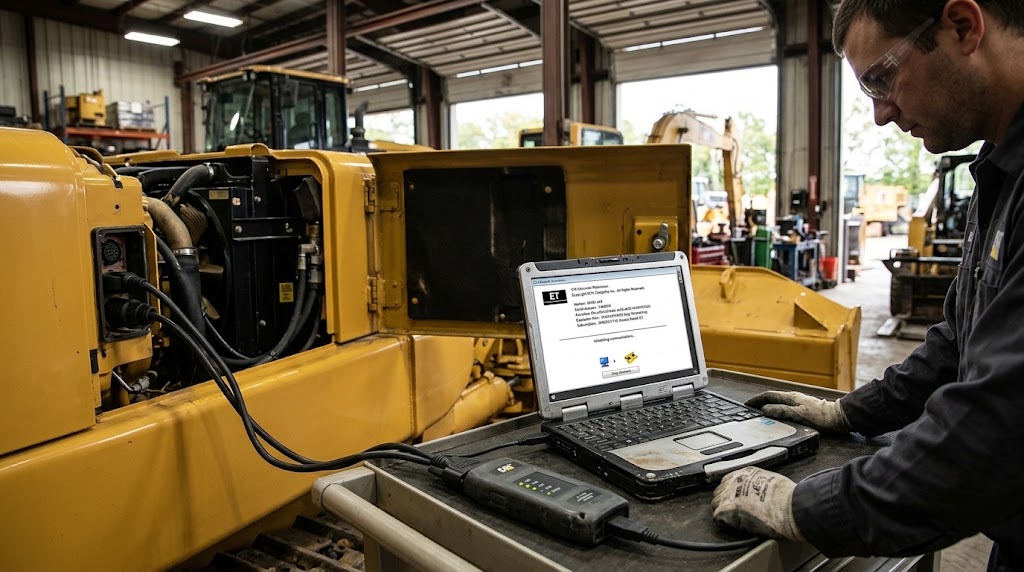
A typical CAT ET diagnostic setup includes:
- Windows laptop or PC
- CAT ET software with appropriate access
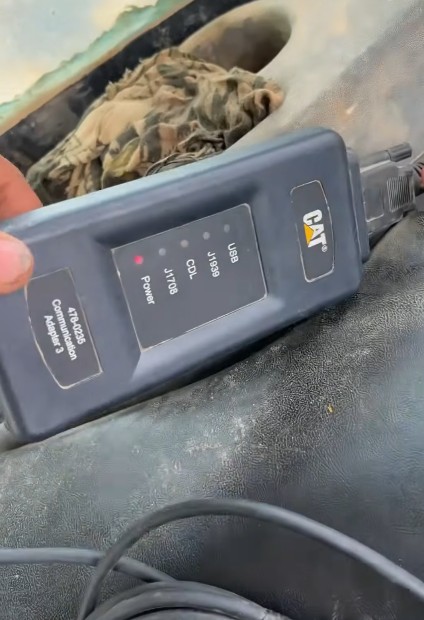
- Compatible communication adapter
- Correct diagnostic cable
- Machine or engine diagnostic connector
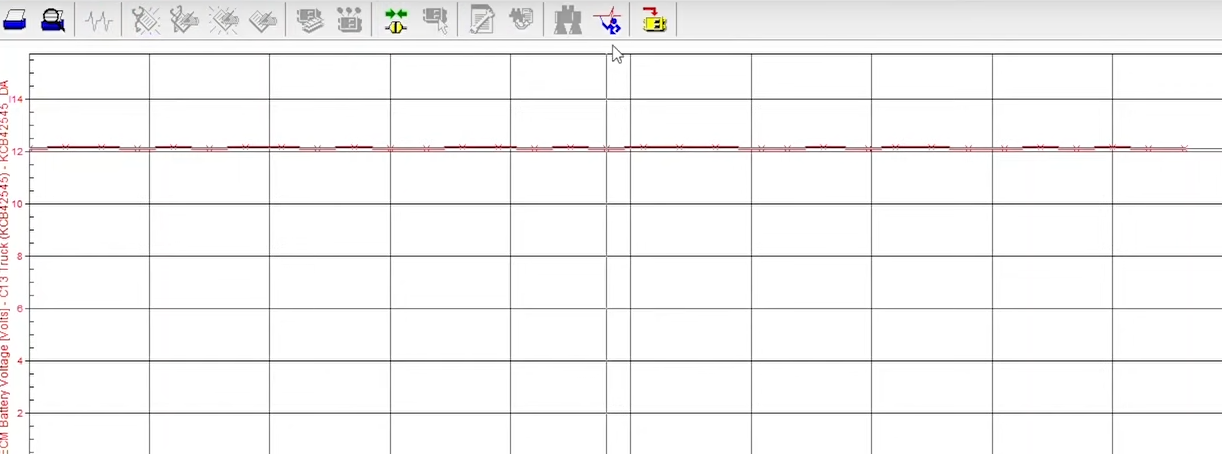
- Stable equipment battery voltage
- Appropriate service information for the product being tested
The communication adapter acts as the link between the computer and the equipment ECM network.
Depending on the equipment, connector, and application, different cables or communication methods may be required.
Do not assume that every Caterpillar engine or Machine uses the same connector or communication network.
1. Check the Machine Before Connecting CAT ET
Before troubleshooting the software, check the equipment itself.
A surprising number of CAT ET communication problems are actually caused by:
- low battery voltage
- damaged diagnostic connectors
- poor ECM power or Ground
- data-link wiring faults
- incorrect key/ignition state
- damaged adapter cables
Check Battery Voltage First
Low system voltage can cause:
- intermittent ECM communication
- modules appearing and disappearing
- multiple unrelated fault codes
- unstable sensor readings
- failed tests
- interrupted programming procedures
For normal diagnosis, verify that machine voltage is within specification.
For ECM flashing or procedures requiring the key to remain on for an extended period, use suitable stable battery support according to the applicable service procedure.
Inspect the Diagnostic Connector
Look for:
- bent pins
- pushed-back terminals
- corrosion
- loose sockets
- moisture
- damaged wiring
- previous repairs
If the communication adapter is not receiving machine-side power, changing CAT ET settings will not fix the problem.
2. Connect CAT ET to the Machine
The basic connection path is:
Laptop → Communication Adapter → Diagnostic Cable → Machine Diagnostic Port → ECM Network
Start with the Machine safely parked and follow the applicable service procedure for ignition and engine state.
Then:
- Connect the communication adapter to the laptop.
- Connect the correct diagnostic cable to the adapter.
- Connect the cable to the equipment diagnostic port.
- Turn the key ON if required.
- Start CAT ET.
- Confirm that the correct communication interface is selected.
- Connect to the Machine.
When using Communication Adapter 3, CAT ET commonly uses the Cat Comm Adapter 3 (RP1210) communication interface.
On machines containing ECMs across more than one supported data link, the Dual Data Link setting may also affect whether all controllers are detected.
For a more detailed CAT Communication Adapter connection procedure, see OBD2TOOL’s How to Connect the ECM by CAT Communication Adapter 3 guide.
CAT Communication Adapter 3 ECM Connection Guide
CAT ET Will Not Connect: Identify Which Part Has Failed
“CAT ET won’t connect” can describe several completely different faults.
Separate the problem into three situations.
Situation 1: The Laptop Does Not Detect the Communication Adapter
Start with the PC side.
Check:
- USB connection
- adapter power
- Windows Device Manager
- communication-adapter driver
- USB cable
- CAT ET communication-interface selection
- whether another application is using the adapter
If Windows cannot correctly communicate with the adapter, there is little value in troubleshooting the machine network yet.
Situation 2: The Adapter Works but CAT ET Finds No ECMs
Now move toward the equipment.
Possible causes include:
- no power at the diagnostic connector
- incorrect key position
- wrong diagnostic cable
- open or shorted data-link wiring
- machine network problem
- missing ECM power or Ground
- incorrect CAT ET communication settings
If every ECM disappears, look for something common to the communication path before replacing individual controllers.
Situation 3: CAT ET Finds Some ECMs but One Is Missing
This requires a different diagnostic strategy.
If CAT ET can communicate with several ECMs, then:
- the laptop is communicating
- the adapter is communicating
- at least Part of the machine data link is operating
Concentrate on the missing controller.
Use this sequence:
Missing ECM → Check ECM Power → Check Ground → Inspect Connector → Check Network Branch → Confirm ECM Should Be Present → Follow Product-Specific Troubleshooting.
This distinction can save significant diagnostic time.
If you specifically need Ethernet communication, OBD2TOOL also has a separate setup guide:
CAT ET Ethernet Connection Setup Guide
3. Verify ECM and Machine Identification
Once CAT ET connects, do not immediately clear the fault codes.
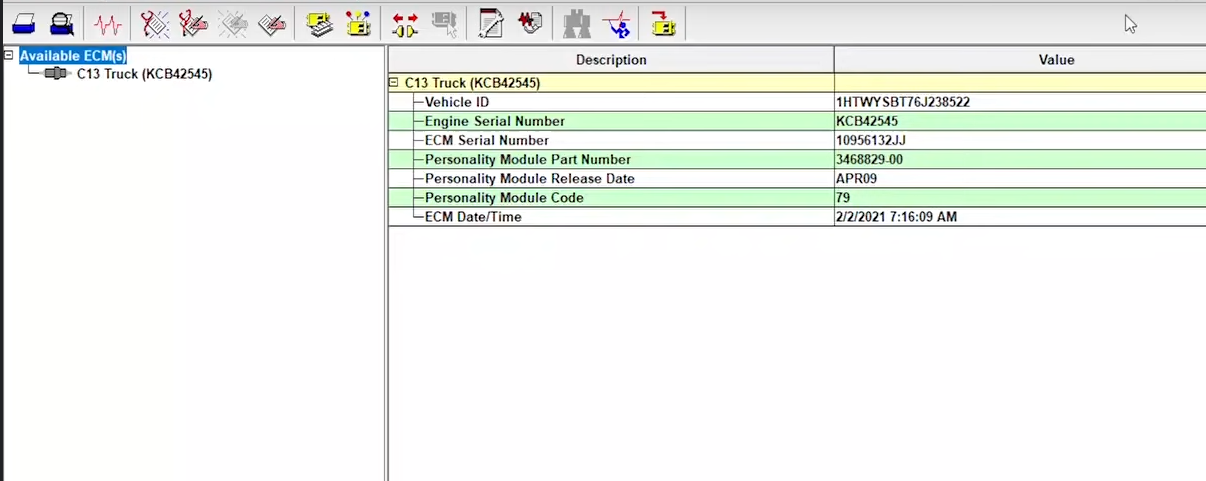
First verify which modules and equipment CAT ET has identified.
Depending on the ECM and application, you may see information such as:
- engine or product identification
- engine serial number
- ECM information
- software information
- configuration
- service meter information
- current totals
- ECM date/time
Why This Matters
Suppose a machine developed a drivability problem immediately after an ECM replacement.
Before testing every sensor, determine:
- Is the correct ECM installed?
- Is its configuration correct?
- Was software recently changed?
- Was the Fault present before the ECM replacement?
- Are all expected controllers communicating?
The Machine’s repair history can change the entire direction of diagnosis.
4. Save a Baseline Before Clearing Fault Codes
One of the best CAT ET habits is to preserve the Machine’s original condition before making changes.
Record useful information such as:
- active diagnostic codes
- logged diagnostic codes
- active events
- logged events
- ECM information
- configuration
- relevant status parameters
- current totals
On supported systems, a Product Status Report (PSR) can collect useful ECM and equipment information for later comparison.
This is especially useful when:
- the problem is intermittent
- another technician may work on the Machine later
- codes will need to be cleared
- configuration changes may be required
- the customer needs a diagnostic record
- the Fault may return later
Think of this as your before-repair snapshot.
5. Active Codes vs Logged Codes
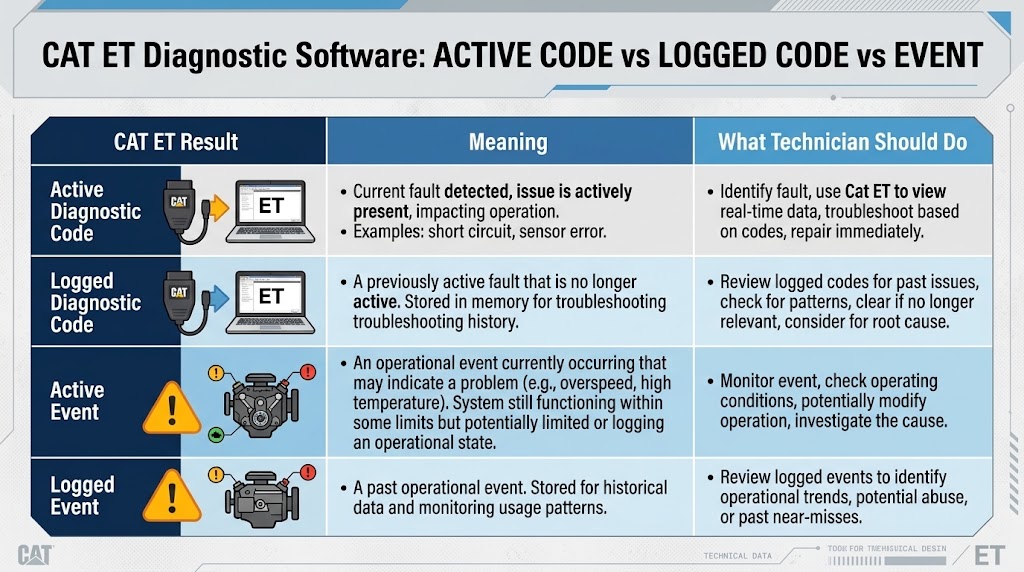
One of the most important CAT ET skills is understanding the difference between a fault that exists now and one that happened previously.
Active Diagnostic Codes
An active code means the ECM currently detects the fault condition.
Because the problem is present now, it may be possible to test the circuit while the Fault is occurring.
For example:
Active sensor circuit fault
Diagnostic direction:
Read Code → Watch Sensor Value → Inspect Connector → Manipulate Harness → Measure Power/Ground/Signal → Locate Fault
Do not replace the sensor simply because its name appears in the diagnostic Code.
Logged Diagnostic Codes
A logged code records a fault that occurred previously but may no longer be active.
Logged faults are particularly useful for intermittent problems.
Consider:
- occurrence count
- operating hours
- related codes
- customer complaint
- recent repairs
- harness routing
- connector condition
A historical fault with no supporting symptom does not automatically justify replacing a component.
6. Diagnostic Codes and Event Codes Are Not the Same Thing
CAT ET may also display events.
A diagnostic code often points toward a monitored electrical, electronic, communication, input, or output condition.
An event can indicate that an operating condition moved outside an expected range.
For example:
Low Oil Pressure Event
does not automatically mean:
Bad Oil Pressure Sensor
The engine may actually have low oil pressure.
A better diagnostic process is:
CAT ET pressure reading → Verify oil level/condition → Check specification → Perform mechanical pressure test if required → Compare mechanical pressure with ECM-reported pressure
If mechanical pressure is normal but CAT ET shows an abnormal value, investigate the sensor and circuit.
If both readings are low, investigate the lubrication system.
This illustrates an important rule:
CAT ET shows what the ECM sees. It does not replace mechanical testing.
7. Use CAT ET Live Data to Diagnose the System, Not Just the Code
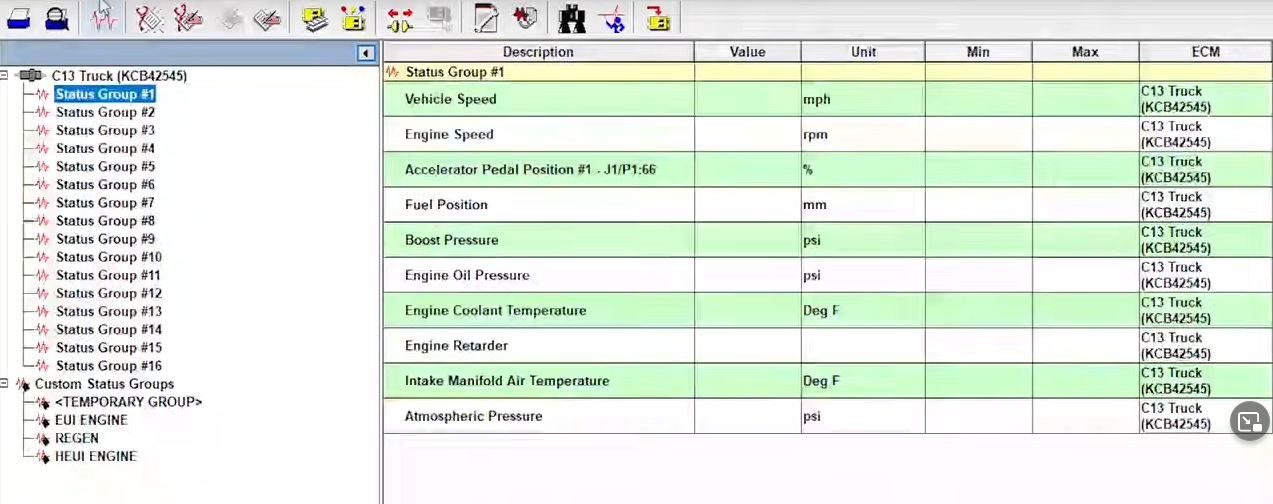
The Status screen allows technicians to monitor available ECM parameters in real time.
Depending on the engine or Machine, these may include:
- engine speed
- coolant temperature
- oil pressure
- boost pressure
- atmospheric pressure
- intake temperature
- accelerator position
- fuel-related values
- switch states
- transmission information
- hydraulic inputs
- actuator commands
Do not evaluate one value by itself.
Compare related parameters.
Example: Hard Starting
Instead of looking only at RPM, compare:
Cranking Speed + Battery Voltage + Relevant Pressure Values + Temperature Inputs + Fueling-Related Data
Low cranking Speed can create symptoms that appear to be fuel-system problems.
Example: Low Engine Power
Compare:
Engine Load → Engine Speed → Boost → Atmospheric Pressure → Intake Temperature → Fuel-Related Data → Derate/Aftertreatment Conditions
This helps separate:
- intake restriction
- boost leak
- turbocharger problem
- fuel problem
- sensor error
- derate condition
- mechanical engine problem
The objective is to identify relationships between parameters.
8. Record Data When the Problem Happens Only Under Load
Some faults cannot be reproduced while the Machine is sitting in the workshop.
Examples include:
- intermittent power loss
- overheating under load
- unstable boost
- pressure fluctuations
- intermittent derate
- sensor dropouts
When supported, use CAT ET’s data logging or graphing functions to capture relevant parameters while reproducing the complaint safely.
A useful workflow is:
Customer Complaint → Select Relevant Parameters → Reproduce Fault → Identify Abnormal Point → Compare Data Before/During Fault.
Avoid recording dozens of unrelated parameters simply because they are available.
Collect data that helps answer a specific diagnostic question.
9. Use Diagnostic Tests to Narrow the Fault
Supported CAT engines and machines may provide diagnostic tests such as:
- cylinder cutout
- injector-related tests
- actuator tests
- solenoid tests
- calibration procedures
- component activation tests
- other controller-specific tests
Available functions vary by product and ECM.
Do not assume a test available on one Caterpillar engine exists on another.
Cylinder Cutout Test: What Does It Actually Prove?
A cylinder cutout test can help identify a cylinder that contributes less power than the others.
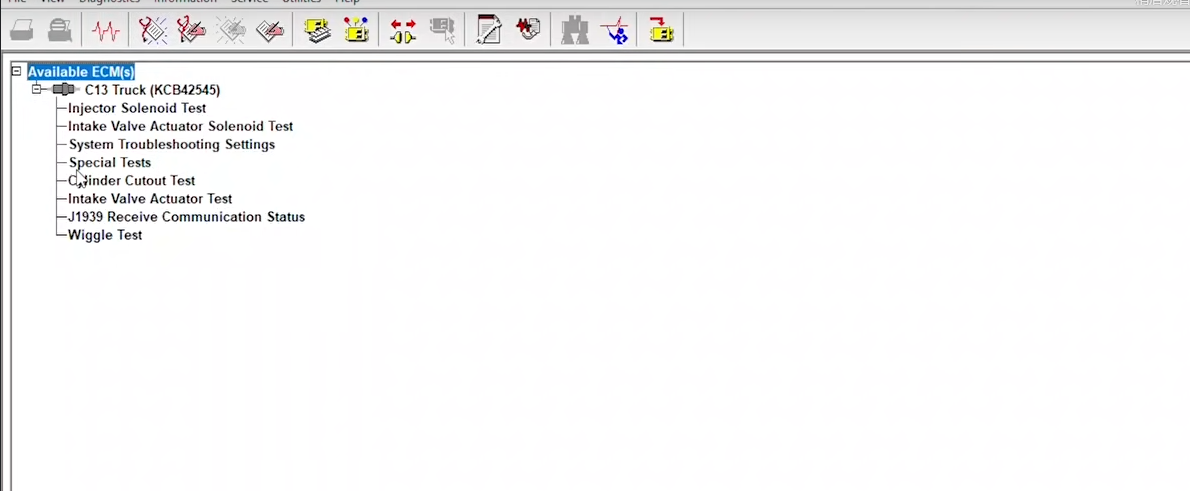
For example, if cutting out five cylinders creates a noticeable change but one cylinder makes very little difference, that cylinder deserves further investigation.
But this does not automatically prove the injector is bad.
Possible causes can include:
- injector fault
- injector electrical circuit
- low compression
- valve problem
- fuel supply issue
- mechanical cylinder damage
Use the cutout result as diagnostic evidence.
A better workflow is:
Weak Cylinder → Injector/Electrical Tests → Fuel Check → Mechanical/Compression Testing if Required → Repair → Repeat Test
10. Use Live Data to Find Intermittent Wiring Problems
Intermittent electrical faults often appear only when the Machine vibrates or the harness moves.
Monitor the relevant CAT ET parameter while carefully checking:
- connectors
- harness strain points
- bracket contact areas
- hot areas
- abrasion points
- repaired wiring
If a signal suddenly changes while one Part of the harness is moved, you have useful evidence about where the Fault may be located.
The principle is simple:
Reproduce the Fault while monitoring the circuit.
Always follow equipment safety procedures around running engines, moving machinery, and hot components.
11. Be Careful With ECM Configuration Parameters
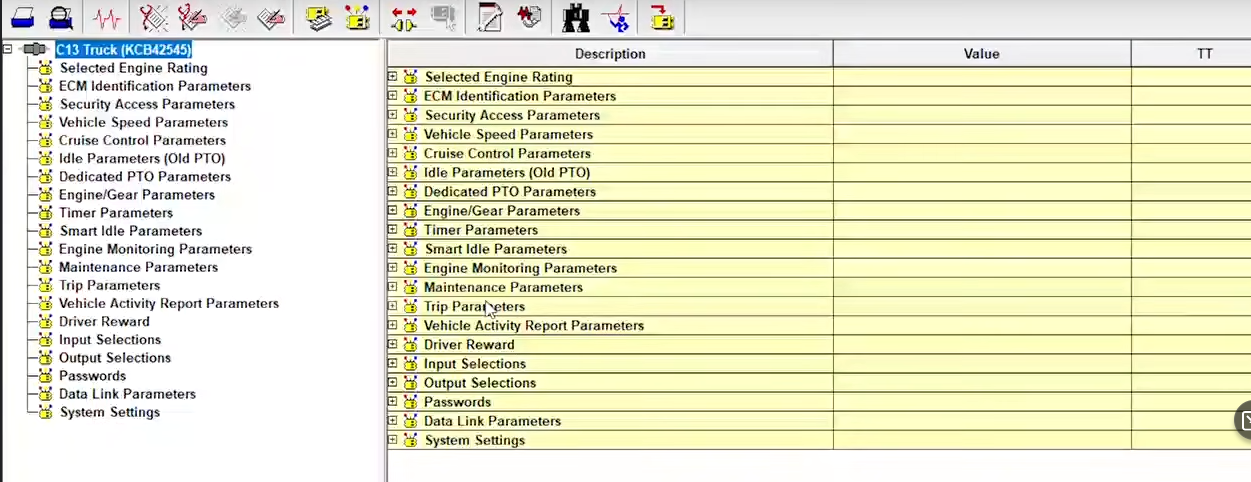
CAT ET can display configuration information, and supported systems with appropriate access may allow certain parameters to be changed.
Before changing anything:
- Save the original configuration.
- Confirm the Machine or engine specification.
- Understand what the parameter controls.
- Verify that the change is required.
- Confirm the required authorization/access.
- Change only the necessary parameter.
- Verify machine operation afterward.
Do not experiment with parameters such as:
- engine rating
- torque limits
- fuel settings
- emissions-related settings
- machine protection
- FLS/FTS
- other critical configuration values
simply because CAT ET displays them.
A configuration screen is not a tuning menu.
12. Calibration Must Follow the Correct Engine Procedure
Calibration procedures vary between engine families and ECM systems.
Depending on the application, procedures may involve:
- injector information
- trim files
- timing calibration
- actuator calibration
- replacement component setup
- other controller-specific service routines
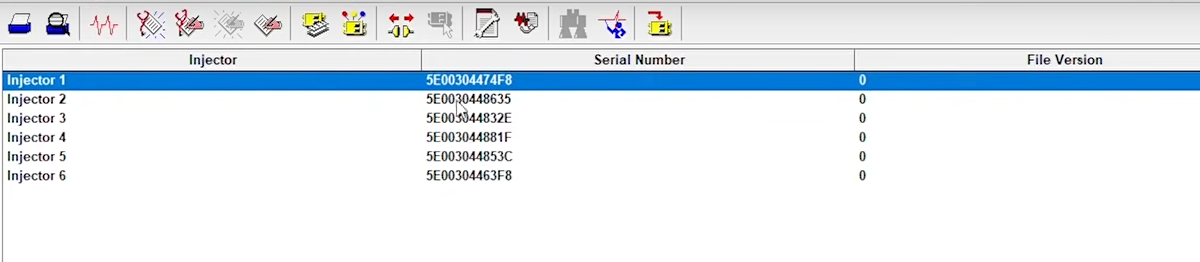
Do not assume a procedure used on one Cat engine applies to another.
The correct sequence is normally:
Replace/Repair Component → Check Service Procedure → Perform Required Calibration → Confirm Acceptance → Run Machine → Recheck Codes/Data
Calibration should not be used to hide an unresolved mechanical or electrical problem.
13. CAT ET ECM Programming Is a Separate Procedure
CAT ET can support ECM flashing on compatible Caterpillar applications, but programming is different from ordinary diagnosis and carries greater risk.
Before programming:
- confirm the correct ECM
- identify the engine/machine correctly
- verify the required flash file
- preserve existing configuration where appropriate
- maintain stable battery voltage
- maintain a reliable communication connection
- prevent laptop shutdown or sleep
- follow the appropriate service procedure
Do not begin programming on a machine that already has unstable communication.
A connection that drops occasionally during diagnosis can become a much more serious problem during an ECM write.
OBD2TOOL already has a dedicated WinFlash/ECM programming tutorial, so this main guide should not duplicate the full procedure:
CAT ET ECM Programming and WinFlash Guide
Also remember that diagnostic hardware alone does not automatically provide every software file, online service, security authorization, or protected function that may be required for a particular machine.
14. Do Not Clear Codes Too Early
A common diagnostic mistake is clearing everything as soon as CAT ET connects.
Before clearing codes, determine:
- Which faults are active?
- Which are logged?
- Which occurred at similar operating hours?
- Are several faults related?
- Could low voltage explain multiple codes?
- Did the problem begin after another repair?
- Is there evidence of a network-wide problem?
Save the evidence first.
After the underlying Fault has been repaired, clear applicable codes and retest the Machine.
15. Verify the Repair
A repair is not complete simply because the fault code disappeared.
Use CAT ET again after the repair:
Reconnect → Check Active Codes → Run Machine → Reproduce Original Conditions → Monitor Relevant Parameters → Repeat Diagnostic Test → Check for Returning Codes.
For example:
A low-power complaint occurring only under full load cannot be confidently verified by allowing the engine to idle for two minutes.
A temperature problem that appears after an hour of operation cannot be verified immediately after startup.
Test the Machine under conditions that are reasonably close to those that produced the original complaint.
Practical CAT ET Diagnostic Examples
Example 1: CAT ET Cannot Find Any ECM
Symptom: Communication adapter powers up, but CAT ET detects no ECMs.
Possible causes:
- diagnostic-port power problem
- Incorrect key state
- cable problem
- communication setting
- data-link Fault
- ECM power/ground problem
Diagnostic approach:
Confirm PC-to-adapter communication first. Then verify the machine-side connector, power supply, and data link.
Do not replace an ECM until the common communication path has been tested.
Example 2: One ECM Is Missing
Symptom: Engine ECM communicates normally, but another expected controller does not appear.
Because CAT ET is already communicating with another controller, the laptop and adapter are less likely to be the primary problem.
Check:
Missing ECM Power → Ground → Connector → Network Branch → Configuration
Then continue with the machine-specific troubleshooting procedure.
Example 3: Low Oil Pressure Event
Wrong approach:
Low oil-pressure event → replace pressure sensor.
Better approach:
CAT ET reading → verify oil → mechanical pressure test → compare actual pressure with electronic reading.
If actual pressure is normal but CAT ET reports low pressure, investigate the sensor/circuit.
If actual pressure is also low, investigate the mechanical lubrication system.
Example 4: Weak Cylinder
A cylinder cutout test identifies one cylinder with poor contribution.
Do not stop there.
Continue with:
Injector Electrical Test → Fuel System Check → Mechanical Test if Needed
The Fault may be an injector, wiring problem, compression issue, or another mechanical condition.
CAT ET vs CAT SIS: Why Workshops Often Need Both
CAT ET and service information perform different jobs.
CAT ET tells you what the Machine is doing.
It can provide diagnostic information, live parameters, ECM status, supported tests, and configuration information.
Service information tells you how to test and repair the system.
A productive workflow is:
CAT ET identifies the Fault → Service information defines the test procedure → Technician performs electrical/mechanical tests → Repair is completed → CAT ET verifies the result
That is more reliable than diagnosing only from a fault-code description.
Recommended CAT ET Setup for Workshop Diagnosis
If your workshop needs to diagnose Caterpillar electronically controlled engines or machines, the setup normally requires three parts:
Component Purpose
CAT ET software Diagnostic/service application
Communication Adapter PC-to-equipment communication
Correct diagnostic cable Connects the adapter to the target machine/engine
OBD2TOOL offers CAT Communication Adapter diagnostic packages as well as CAT ET software options.
CAT Caterpillar ET Diagnostic Adapter III / Communication Adapter 3
CAT ET Electronic Technician Diagnostic Software
Before ordering, confirm:
- machine or engine model
- serial number where relevant
- diagnostic connector
- communication adapter
- required CAT ET functions
- Windows/software requirements
Do not assume that every diagnostic function is supported on every Caterpillar ECM.
Frequently Asked Questions
What is CAT ET?
CAT ET stands for Caterpillar Electronic Technician. It is PC-based service software used to communicate with supported electronically controlled Caterpillar engines, machines, and ECMs.
What can CAT ET do?
Depending on the equipment, ECM, and access available, CAT ET can be used to view diagnostic information, monitor live parameters, record data, run supported diagnostic tests and calibrations, review configuration, and perform other service functions.
Can CAT ET show live data?
Yes. Supported ECMs can provide live status information such as pressures, temperatures, engine speed, switch states, and other operating parameters.
The exact parameters available depend on the controller and Machine.
Can CAT ET clear fault codes?
CAT ET can clear applicable logged diagnostic information on supported systems.
However, record the original codes before clearing them and repair the underlying Fault first.
Can CAT ET tell me which Part is bad?
Not necessarily.
A fault code identifies a detected condition. The actual cause may be:
- sensor
- wiring
- connector
- actuator
- communication network
- power/ground
- mechanical system
Use CAT ET as Part of the diagnostic process rather than treating every Code as a parts-replacement instruction.
Why does CAT ET communicate with some ECMs but not others?
If several ECMs communicate normally, the laptop, communication adapter, and at least Part of the equipment network are already operating.
Check the missing ECM’s:
- power
- ground
- connector
- network wiring
- configuration
Also verify communication settings when the equipment uses multiple data links.
Can CAT ET program an ECM?
Certain compatible Caterpillar ECMs support software flashing and programming procedures, but requirements vary by product, ECM, software, flash file, and access.
Use the dedicated CAT ET ECM Programming Guide for the full procedure rather than treating programming as Part of routine fault-code diagnosis.
Should I clear logged codes before troubleshooting?
Usually not.
Logged codes and events may contain valuable evidence about an intermittent failure. Save or record the diagnostic history before clearing it.
Final CAT ET Diagnostic Workflow
For most CAT ET troubleshooting, use this sequence:
1. Check battery voltage and physical connections.
2. Connect the communication adapter and identify the expected ECMs.
3. Save the original diagnostic information.
4. Separate active faults from logged history.
5. Determine whether the problem is electrical, communication-related, operational, or mechanical.
6. Compare related live-data parameters.
7. Perform only the diagnostic tests relevant to the Fault.
8. Confirm questionable electronic readings with electrical or mechanical measurements where appropriate.
9. Repair the actual cause.
10. Clear applicable faults and recreate the original operating conditions.
The real value of CAT ET is not simply its ability to display fault codes. It is the ability to combine ECM information, diagnostic history, live operating data, and targeted tests so the technician can determine why the Machine failed and verify that the repair actually solved the problem.