When using Scania SDP3, some users may encounter connection problems, certificate warnings, or SOPS file messages.
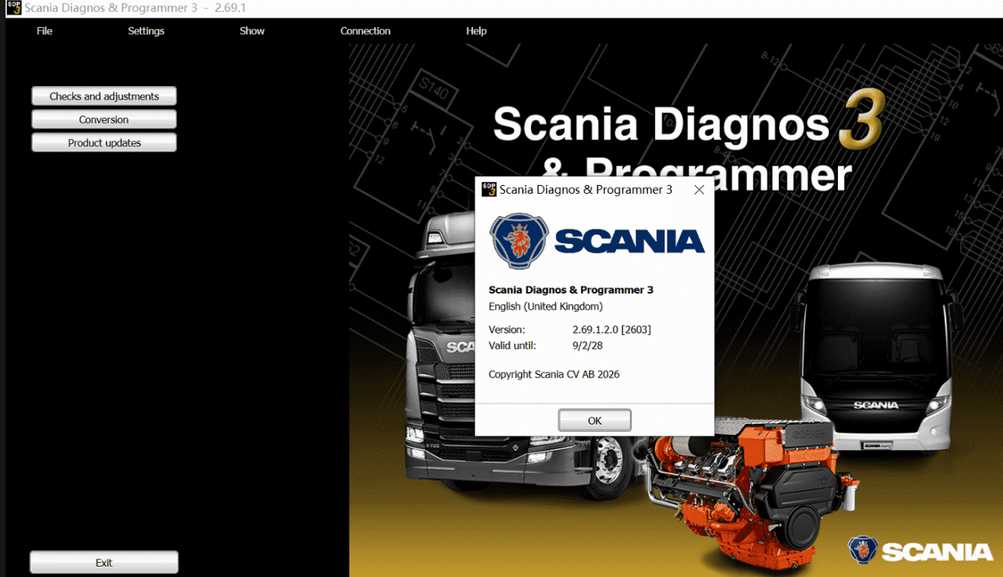
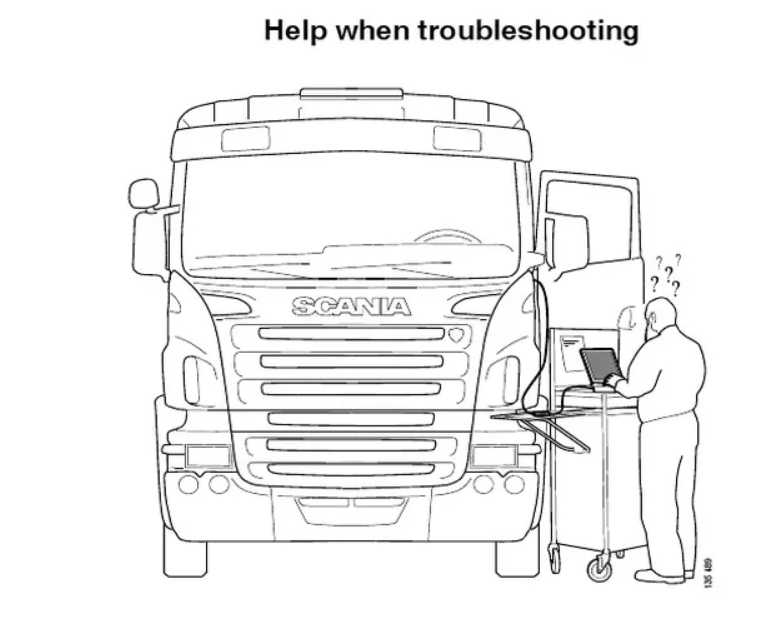
Below is a real troubleshooting case and the correct explanation for each situation.
🚛 Problem 1: Cannot Connect to Truck
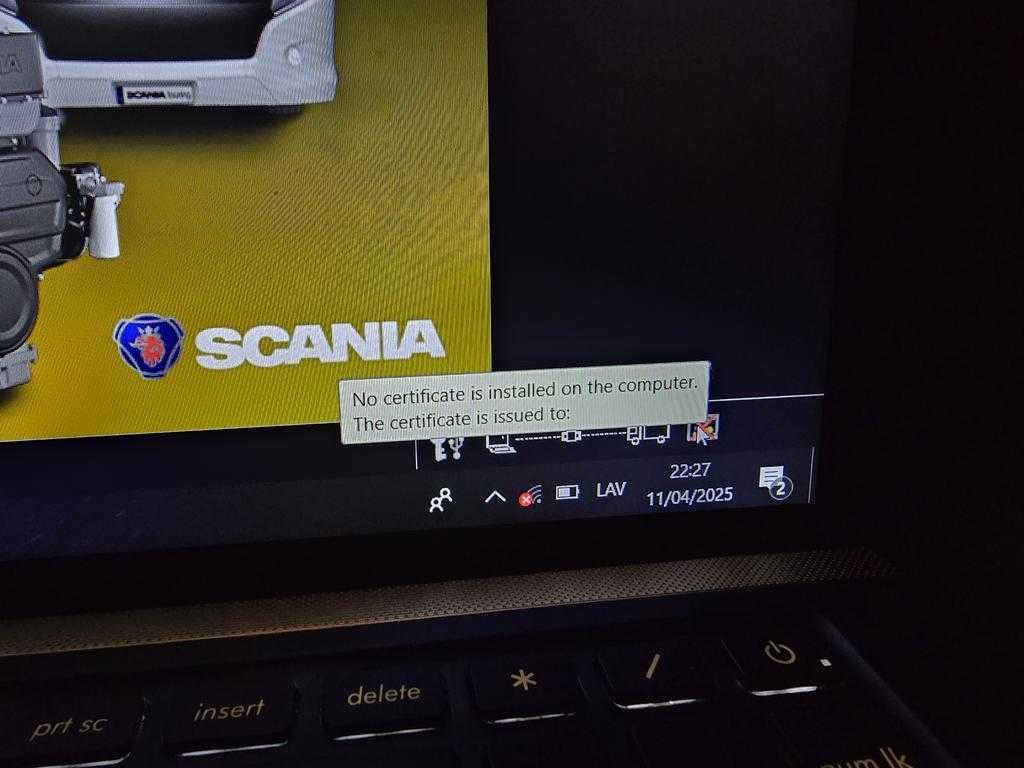
Error Message:
“No certificate is installed on the computer.
The certificate is issued to:”
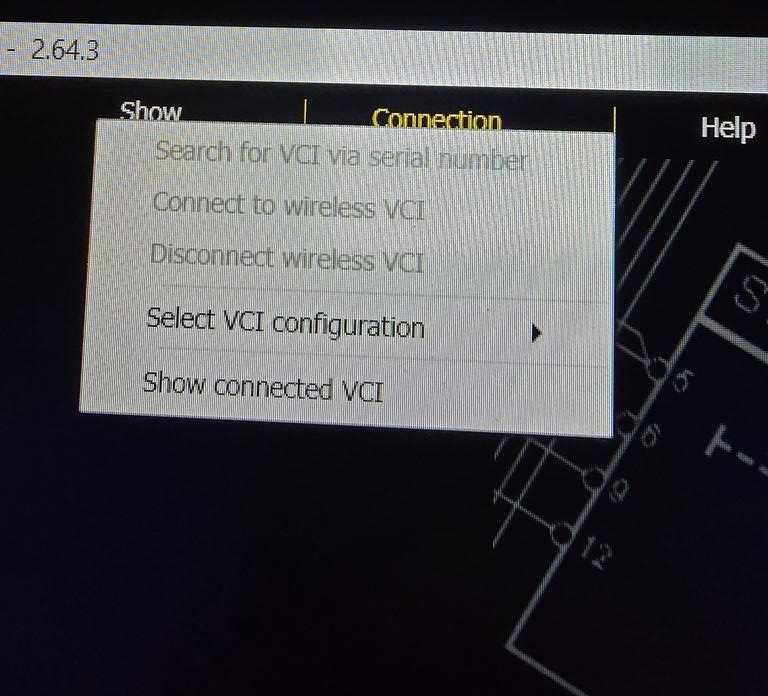
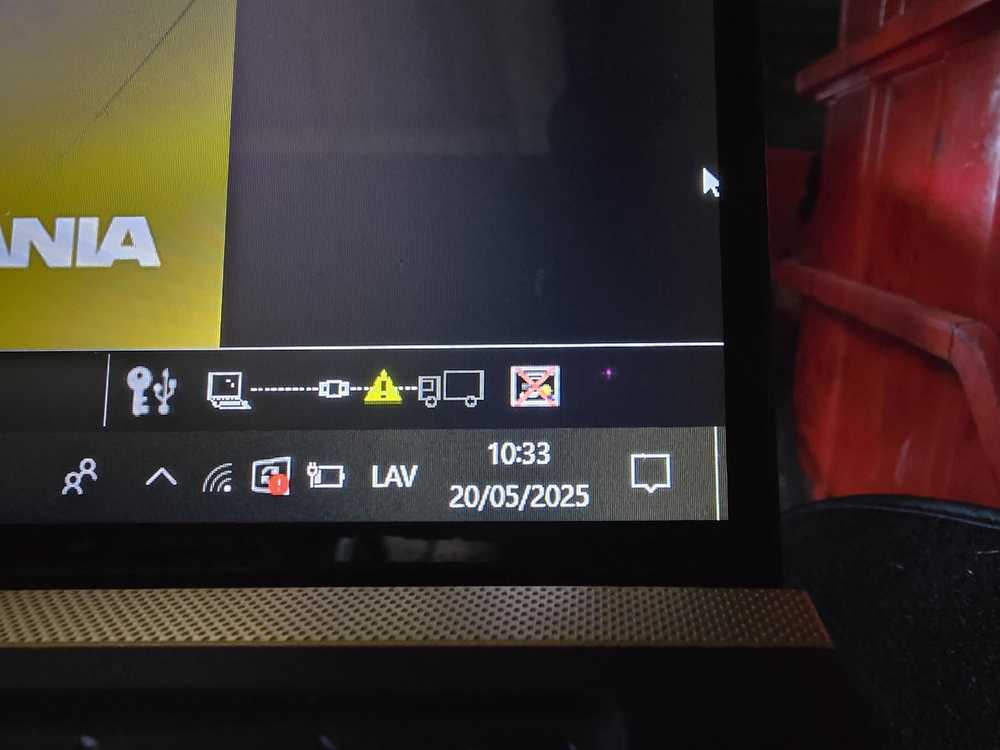
Customer Feedback
“I have problem. I can’t connect to truck. I need remote access.”
Engineer Diagnosis
After a full software self-check:
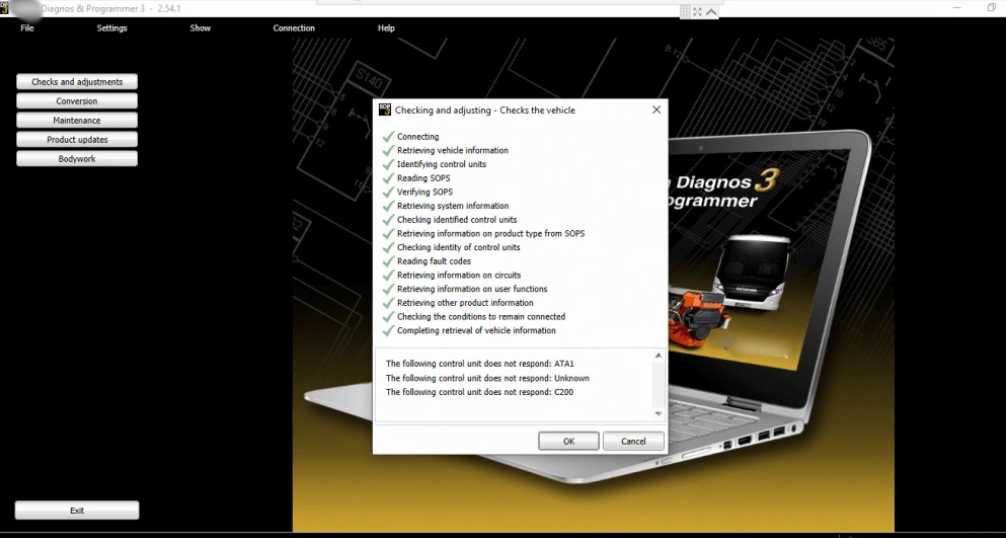
- ✔ The SDP3 software is installed correctly
- ✔ The software runs normally
- ✔ No activation or certificate issue detected
Based on the screenshots, the real issue is:
👉 The diagnostic interface cannot communicate with the truck.
Possible Causes
- Vehicle ignition not ON
- VCI connection problem
- Incorrect connection sequence
- Truck communication protection mechanism
Some Scania trucks have protection settings that block communication if procedures are not followed correctly.
✅ Solution
- Turn ignition ON
- Connect VCI properly
- Start diagnosis directly
- Avoid unnecessary reinstallation
🔑 Problem 2: “Install Another Version with Certificate”
Customer Request:
“Install me another version who have certificate.”
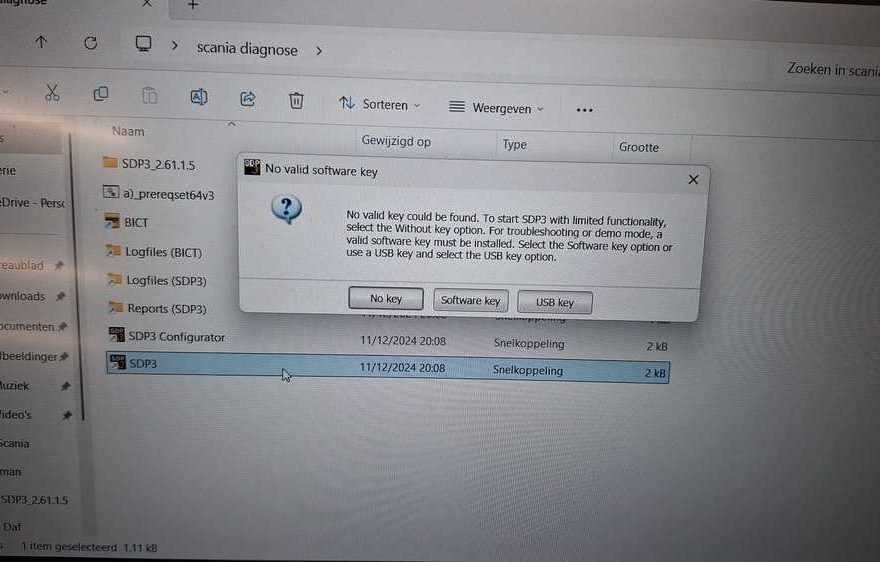
Error Prompt:
“No valid key could be found. To start SDP3 with limited functionality, select the Without key option…”
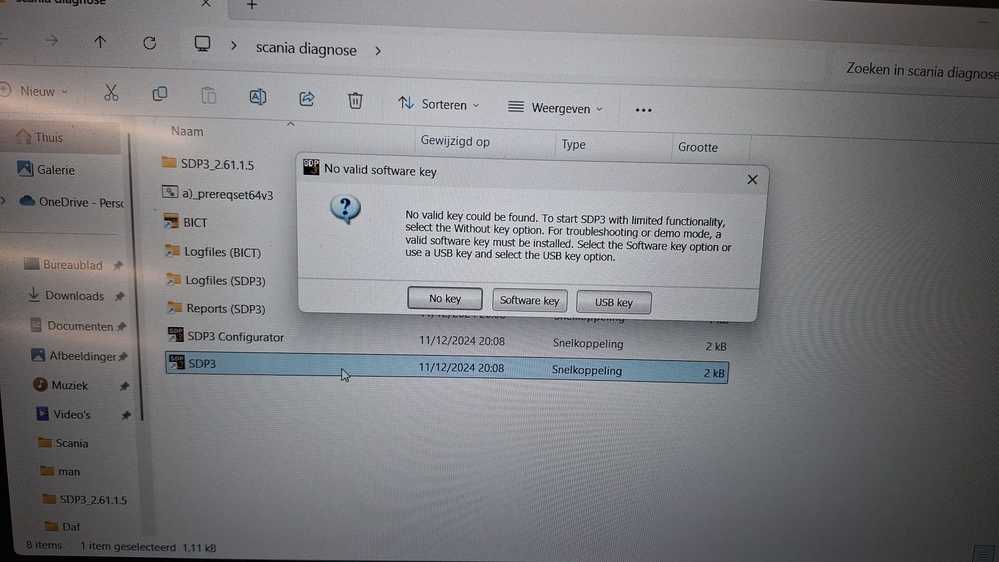
Engineer Explanation
This is NOT a certificate problem.
The certificate prompt shown in official SDP3 error messages is completely different from the customer’s message.
The “No valid key” message relates to:
- Software key selection
- Demo mode
- USB hardware key
It does NOT indicate that the installed version is incorrect.
✅ What To Do
Next time:
✔ Connect the truck first
✔ Start diagnosis normally
✔ Ensure hardware key (if required) is inserted
Reinstalling another version will not solve communication errors.
⚙ Problem 3: SDP3 Cannot Read SOPS File
Error Message:
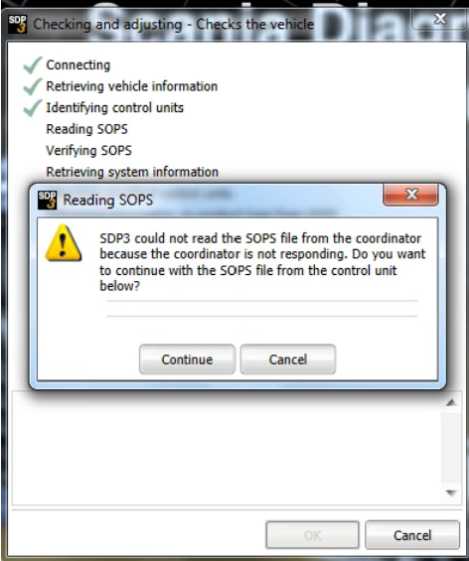
“SDP3 could not read the SOPS file from the coordinator because the coordinator is not responding. Do you want to continue with the SOPS file from the control unit below?”
Customer Question
“What should I do?”
Correct Answer
👉 Click “Continue.”
This message is related to a SOPS file, which is vehicle configuration data.
It is NOT:
- A certificate issue
- A software activation problem
The coordinator is not responding, but the software can still proceed using available control unit data.
Simply click Continue and move to the next step.
🚨 Important Tips When Using Scania SDP3
- Always connect vehicle first
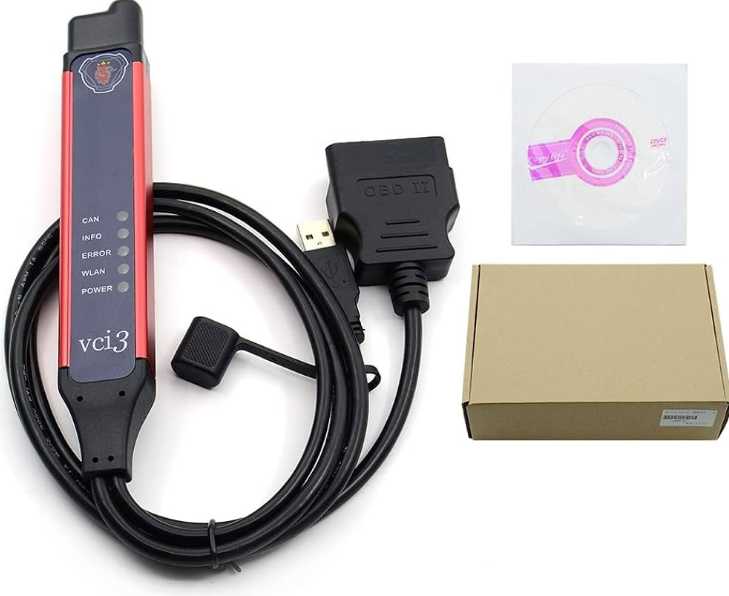
- Check VCI and cable condition
- Do not confuse SOPS errors with certificate problems
- Most issues are vehicle-side communication problems
Software reinstallation is rarely required.
📞 Need Technical Support?
If you purchased SDP3 from us, we provide professional technical assistance.
📧 sales@obd2tool.com
🌐 https://www.obd2tool.com/
We are happy to assist you step by step.
FAQ
Q1: Why can’t Scania SDP3 connect to my truck?
A: In most cases, the software is fine. The problem is that the VCI/diagnostic interface can’t communicate with the truck due to ignition status, cable/VCI connection issues, incorrect connection steps, or vehicle-side communication protection.
Q2: SDP3 shows “No certificate is installed on the computer.” Is this a software problem?
A: Not necessarily. This message often appears when the system cannot complete the normal communication/verification process. If SDP3 runs normally but won’t connect, focus on the truck connection and VCI communication rather than reinstalling the software.
Q3: SDP3 says “No valid key could be found.” What does it mean?
A: This is a software key/USB key prompt. It usually appears when SDP3 is started in limited functionality (demo/troubleshooting) mode or when a required key is not detected. It is different from a certificate error.
Q4: Should I install another SDP3 version to fix certificate or key warnings?
A: Usually no. If the real issue is communication between the diagnostic tool and the truck, installing another version won’t help. Connect the truck first and run a diagnosis using the correct steps.
Q5: What should I do if SDP3 cannot read the SOPS file and asks to continue?
A: Click Continue. The SOPS file is the vehicle configuration file. If the coordinator is not responding, SDP3 can continue using data from another control unit.
Q6: How can I avoid SDP3 connection problems?
A: Turn ignition ON, connect the VCI correctly, check cables, follow the proper connection sequence, and start diagnosis directly instead of reinstalling the software.