If you’re using the GM TECH2 diagnostic tool with TIS2000 software for ECM programming or key programming, but experiencing connection or power issues, this guide will help you quickly solve the problem.
🚨 Problem Description
A customer reported the following issues:
- The power supply cable is unstable — when shaking it, the TECH2 turns off.
- After restarting the virtual machine, the TECH2 still could not connect to TIS2000.
- Unable to proceed with ECM programming and key programming using TIS2000.
If you are facing the same issue, check the solutions below.
✅ Solution 1: Correct TECH2 to Laptop Connection Method
When using TIS2000 with the GM Tech2, the connection method is very important.
🔧 Correct Connection Steps:
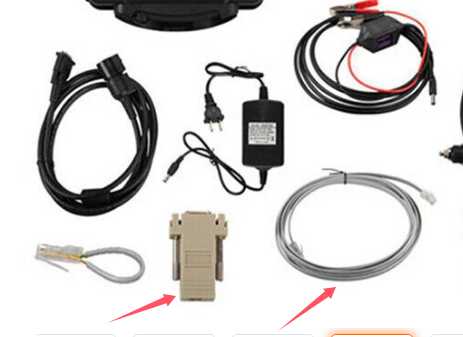
- Connect the gray adapter (RS232-to-RJ45 connector) to the TECH2.
- Connect the gray adapter to the network cable.
- Then connect the network cable to your laptop Ethernet port.
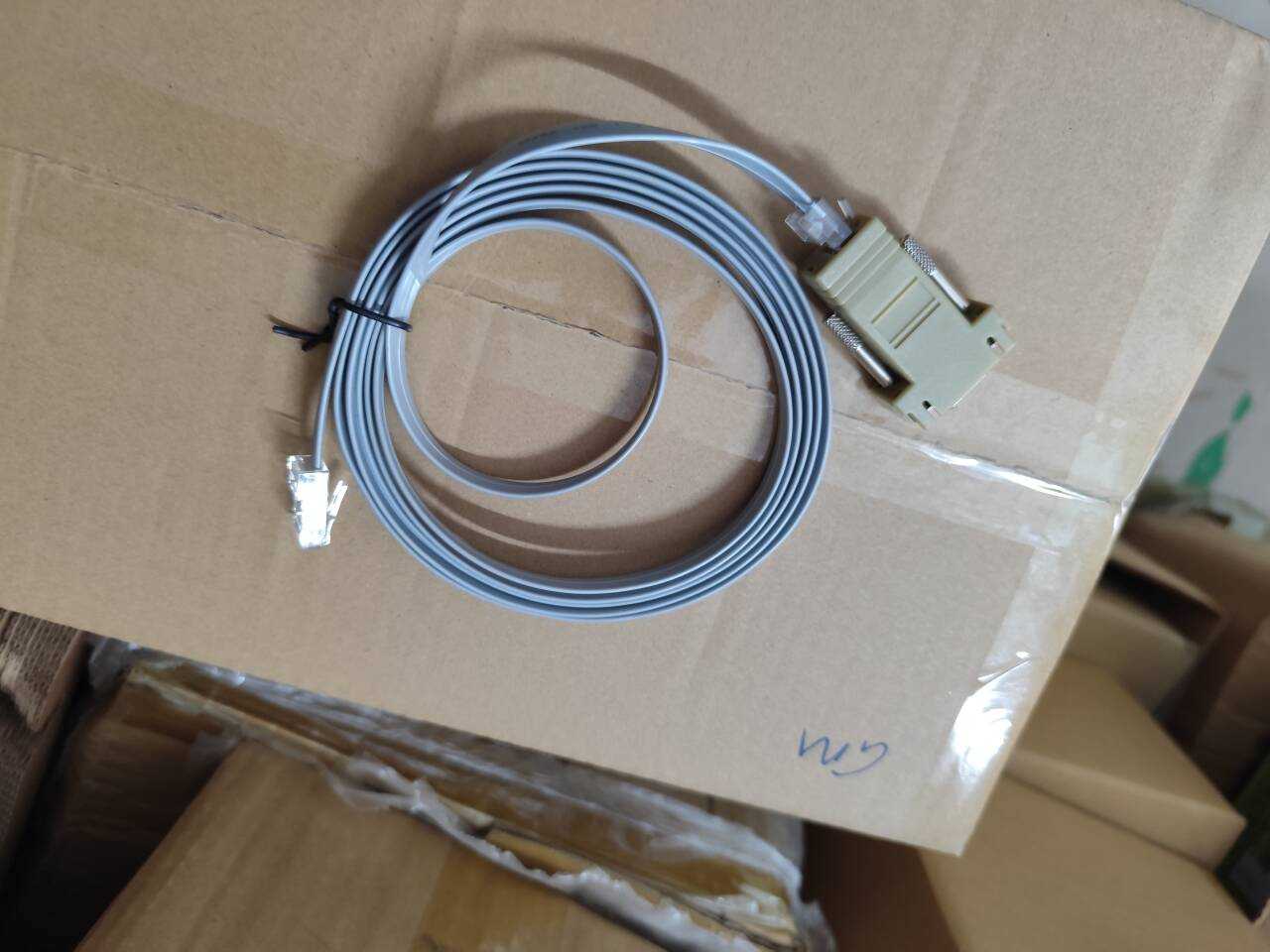
⚠️ Important:
Do NOT connect the laptop directly using only a standard network cable.
The gray connector is required for proper communication between TECH2 and TIS2000.
If connected incorrectly, the device will not communicate with the software.
✅ Solution 2: TECH2 Power Supply Cable Keeps Shutting Off
If your TECH2 turns off when the cable moves, the issue is usually caused by loose contact pins inside the charger connector.
Why This Happens:
Frequent plugging and unplugging may loosen the internal contact points over time.
🔧 How to Fix It:
- Carefully inspect the charger connector.
- Use a small tool to gently tighten (clamp slightly) the two metal contact points.
- Ensure the connector fits firmly into the TECH2 power port.
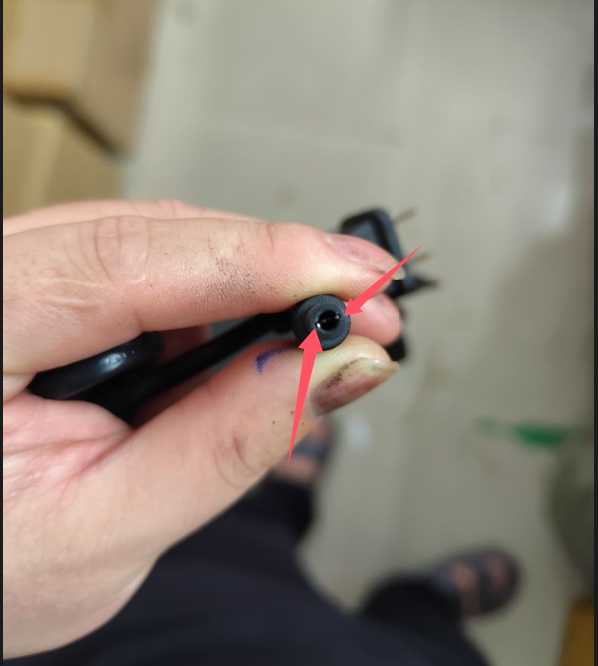
After tightening, the power connection should become stable.
🔍 Additional Tips for Stable TIS2000 Programming
- Use a stable Windows system (XP recommended for native TIS2000).
- Disable antivirus software when running the VM.
- Make sure Ethernet drivers are installed correctly.
- Avoid moving the TECH2 cable during programming.
Stable connection is critical when programming ECM modules or keys, as interruption may cause module failure.
🚗 Related Product
If you need a reliable and fully tested TECH2 kit compatible with TIS2000 programming, check our professional solution at OBD2Tool.
We provide:
- GM TECH2 units
- Technical support
- Remote installation assistance
📩 Need Help?
If your TECH2 still cannot connect to TIS2000 after following the steps above, contact our technical team for assistance.
OBD2Tool offers professional after-sales support for all purchased diagnostic tools.
requently Asked Questions (FAQ)
1. Why won’t my GM Tech2 connect to TIS2000 on my laptop?
In most cases, the connection method is incorrect. You must use the gray adapter (RS232-to-RJ45 connector) between the Tech2 and the Ethernet cable. Then connect the Ethernet cable to your laptop. If you connect the laptop directly using only a network cable without the gray connector, TIS2000 will not communicate with the Tech2.
2. What is the gray connector used for when connecting Tech2 to a computer?
The gray connector acts as the required communication interface between the Tech2 scanner and the laptop. It ensures proper data transmission when using TIS2000 for ECM programming or key programming. Without this adapter, the system cannot establish a stable connection.
3. My Tech2 turns off when I move the power cable. What causes this?
This is usually caused by loose contact pins inside the power supply connector. Frequent plugging and unplugging can loosen the internal metal contacts, leading to unstable power supply and sudden shutdowns.
4. How can I fix a loose Tech2 power connector?
Carefully inspect the charger connector and gently tighten the two metal contact points using a small tool. Make sure the connector fits firmly into the Tech2 power port. This typically restores stable power supply.
5. Can a bad connection interrupt ECM or key programming in TIS2000?
Yes. If the Tech2 loses power or communication during programming, the process may fail and potentially cause module errors. Always ensure a stable power supply and correct cable connection before starting ECM or key programming.
6. Do I need to restart the virtual machine if Tech2 won’t connect?
Restarting the VM may help in some situations, but first verify the physical connection. Ensure the gray connector is used correctly and that the Tech2 has a stable power supply before troubleshooting software or virtual machine settings.