If you’ve recently acquired the John Deere Service Advisor EDL V3 tool, you already know it is an indispensable asset for diagnosing, calibrating, and troubleshooting John Deere agricultural and construction equipment. However, getting started with the hardware and software can be confusing if you don’t know the exact workflow.
This comprehensive guide walks you through the complete diagnostic setup—surpassing basic tutorials to ensure your equipment communicates flawlessly with the Service Advisor software.
Prerequisites Before You Start
-
Power Your Equipment: Turn the machine key to the ON position with the engine OFF for the initial diagnostic connection. Start the engine only when a Service Advisor test, live-data procedure, or calibration specifically requires it.
-
Check Your Software: Ensure your John Deere Service Advisor software is properly installed on your diagnostic laptop.
Step-by-Step Diagnostic Workflow
When you purchase the John Deere Service Advisor EDL V3 tool, how do you use it? Please follow the steps:
Step 1: Connect the EDL V3 Hardware and Launch Software
First, you need to establish a physical connection between your machinery and your diagnostic laptop.
1. Connect the EDL V3 to the machine’s diagnostic connector using the appropriate John Deere diagnostic adapter cable..
2. Connect the other end of the V3 to your laptop using the provided USB cable.
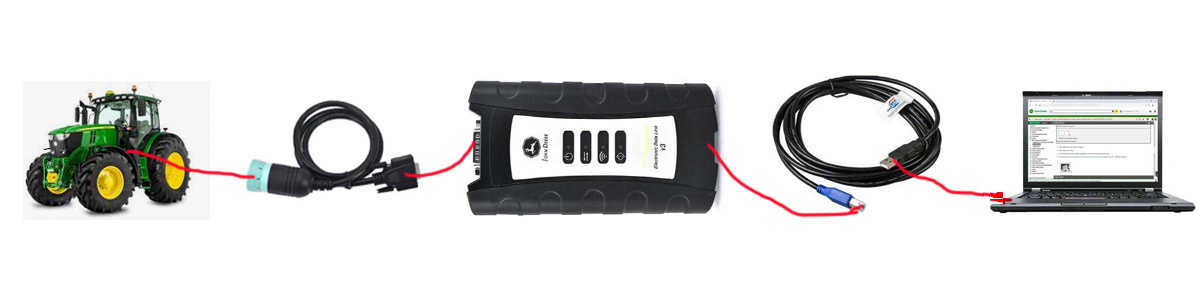
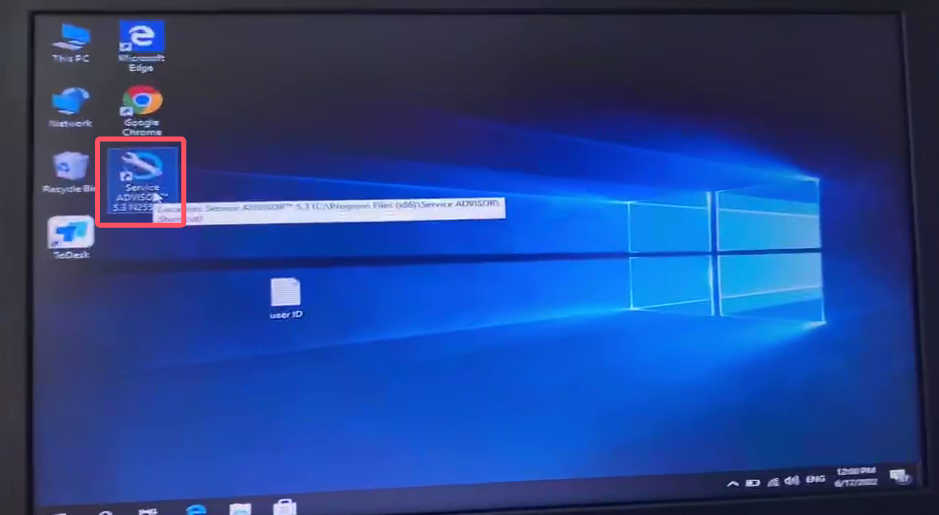
3. Open the John Deere Service Advisor program on your laptop.
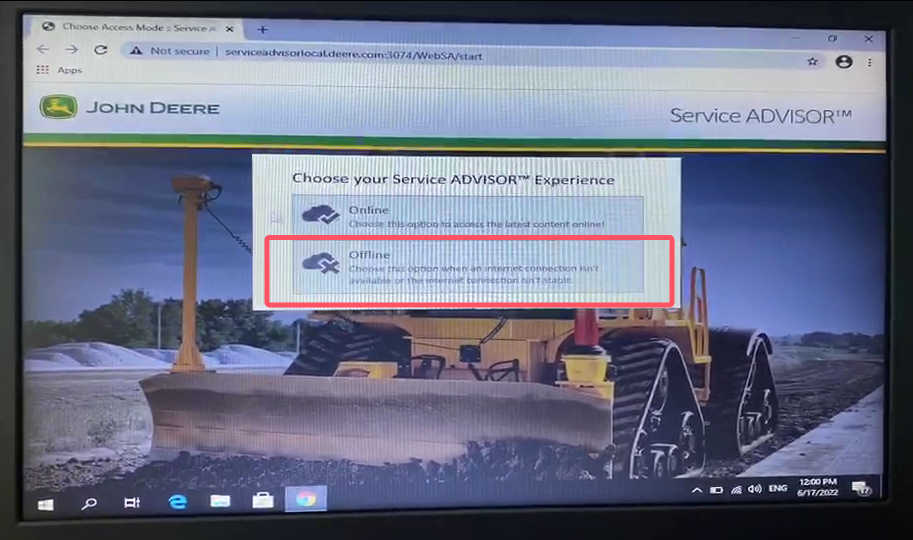
4. At the login prompt, select “Offline” mode.
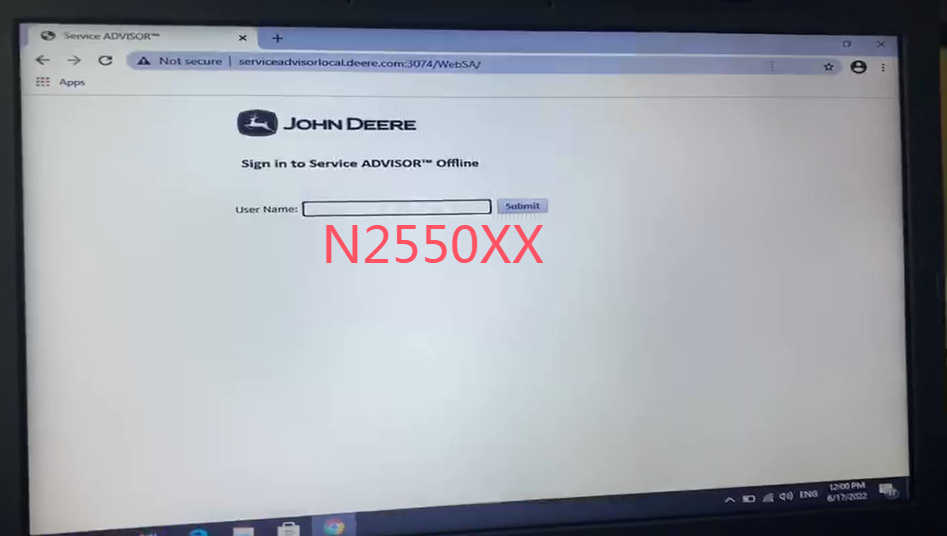
5. Enter your assigned username (e.g., "N2550XX").
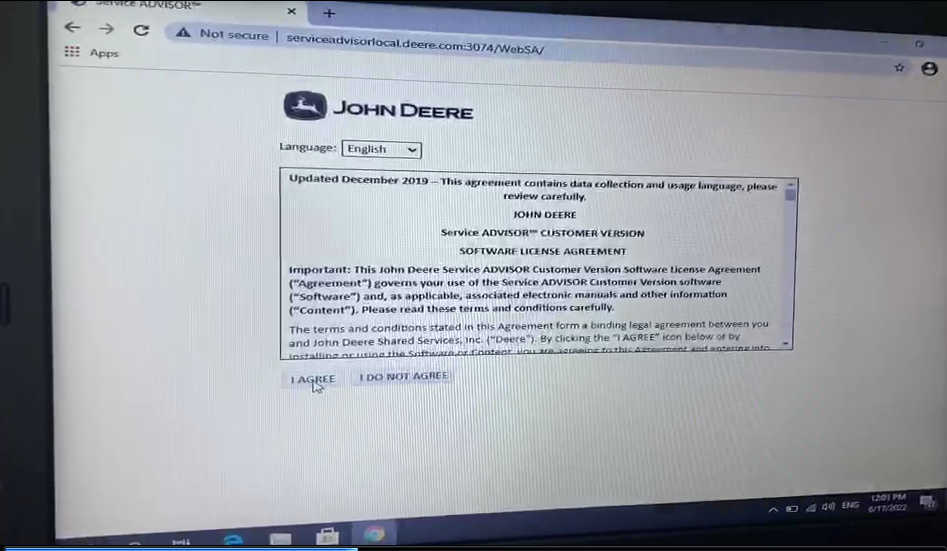
6. Review the terms and conditions and click “I AGREE” to proceed.
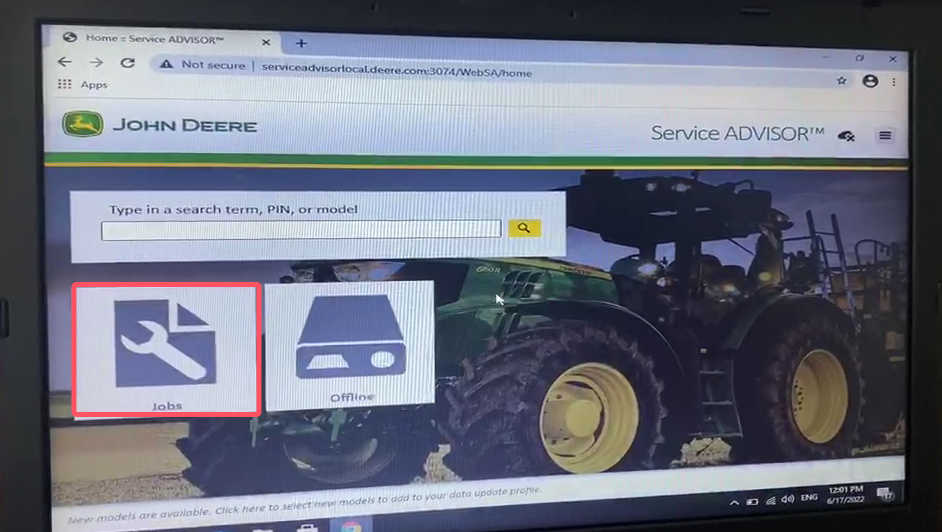
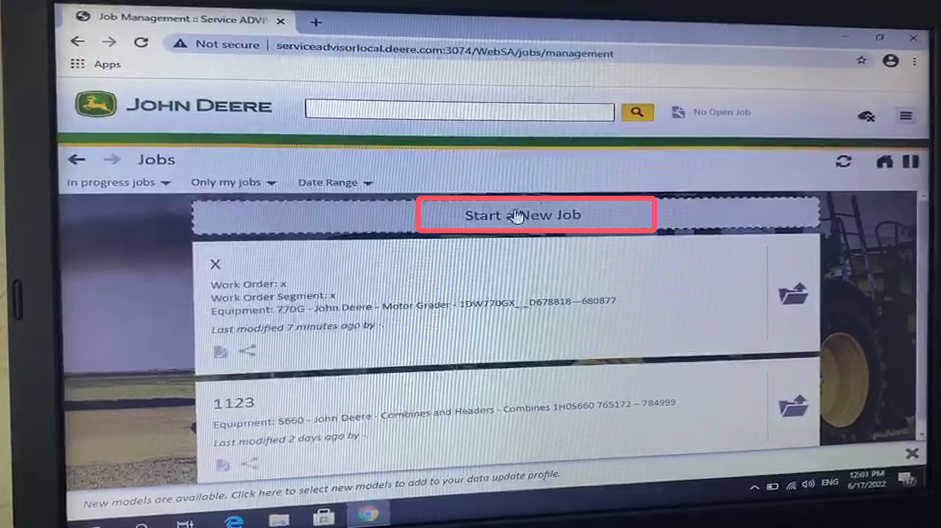
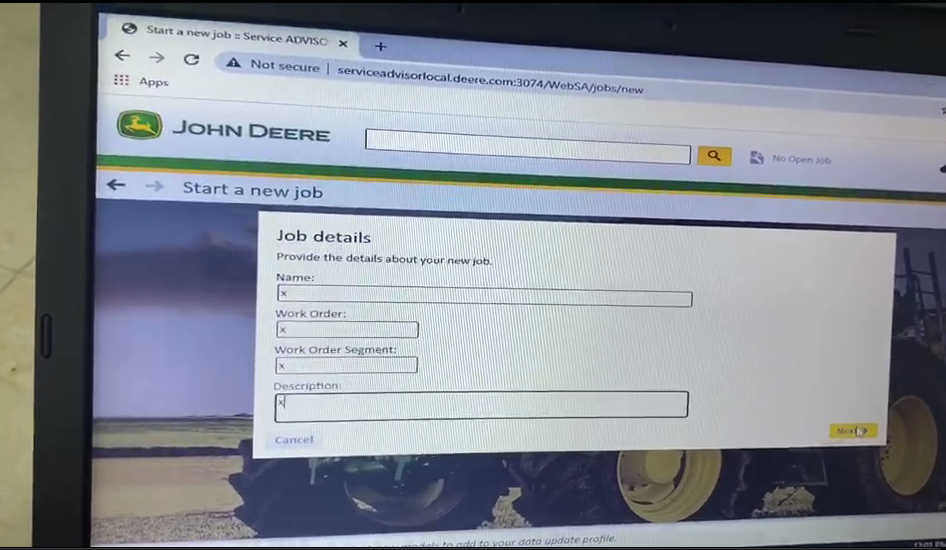
7. Navigate to the “Jobs” menu, select “Start a New Job”, and enter the specific job details to keep your workspace organized.
Step 2: Select Your Equipment Model
Properly logging your diagnostic sessions ensures you load the correct schematics and parameters for your specific machine.
-
Input your specific tractor’s model into the software database.
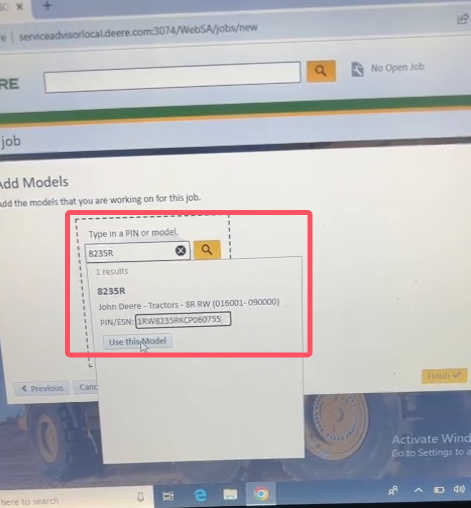
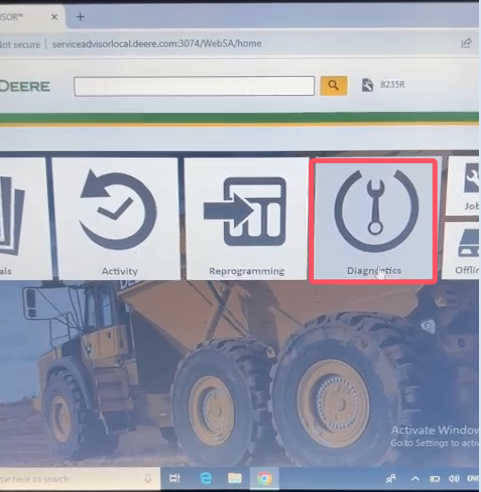
2. Once the correct model is selected and loaded, click the “Diagnostics” tab to move to the connection phase.
Step 3: Configure the Driver and Establish Connection
This is the most critical step. Selecting the wrong communication driver is a common cause of EDL V3 connection failures.
-
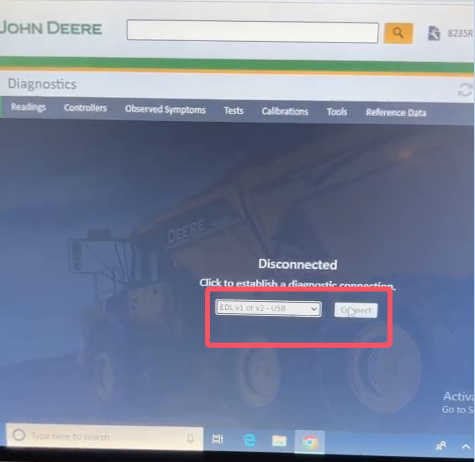
When prompted by the software to select a communication driver, you must select the default driver:
EDL V1 or V2-USB. Do not select any alternative drivers, even if you are using the V3 hardware. -
Click “Connect”.
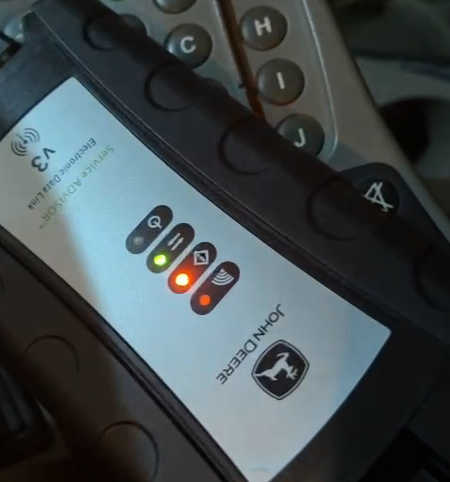
3. Watch the hardware module: The LED indicator lights on the John Deere V3 will illuminate, signifying active communication between the software and the tractor’s electronic control units (ECUs).
Step 4: Read Diagnostic Trouble Codes (DTCs)
With the connection successfully established, the tool is ready to work.
-
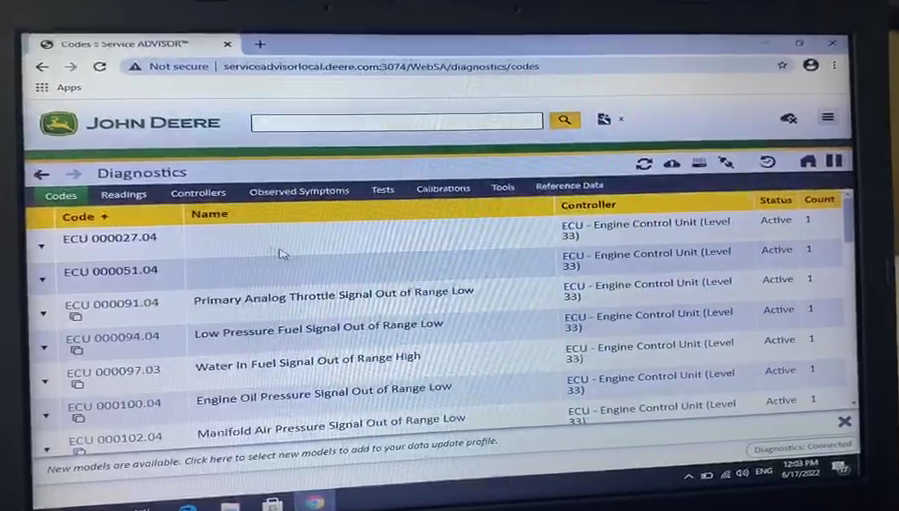
The Service Advisor software will automatically scan the equipment and diagnose the active and stored fault codes.
-
Use the provided data to identify underlying issues, access detailed troubleshooting procedures, and address the root cause of the faults.
Troubleshooting Common Connection Issues
If you followed the steps above and the software fails to connect, verify the following:
-
No Power to the EDL V3: Double-check that the vehicle ignition is ON. The diagnostic tool relies on vehicle power, not just the laptop’s USB power.
-
Driver Error: Go back to Step 3 and verify you strictly selected the
EDL V1 or V2-USBdriver. -
Hardware Check: Ensure the USB cable and OBD connector are completely seated and the pins are free of debris or damage.
By following this standardized diagnostic workflow, you maximize the capabilities of your John Deere Service Advisor EDL V3 tool and eliminate unnecessary diagnostic downtime.
John Deere Service Advisor EDL V3 FAQ
Does the engine need to be running to use EDL V3?
Usually no. For an initial connection, turn the machine key to ON with the engine OFF so the electronic controllers and EDL receive power.
Some tests, live-data checks, calibrations or troubleshooting procedures may instruct you to start the engine. Follow the specific Service Advisor procedure in those situations.
Why does my EDL V3 use an EDL V1 or V2-USB driver?
The Service Advisor installation demonstrated in this guide uses the EDL V1 or V2-USB driver entry with the EDL V3 interface.
Driver naming can vary between software packages, so use the driver specified for your particular installation.
What should I do if EDL V3 powers on but Service Advisor cannot connect?
Separate the problem into two sides.
First verify:
Laptop → EDL communication
Then verify:
EDL → John Deere machine communication
If Windows recognizes the interface but the machine cannot be detected, check the machine cable, ignition status, diagnostic connector, model selection and AG/CF database before reinstalling the entire software package.
Can EDL V3 be used with both John Deere agricultural and construction equipment?
The interface can be used with supported John Deere equipment, but Service Advisor must contain the appropriate machine information.
Check whether your machine requires the AG or CF database and whether the correct diagnostic cable is available.
Should I clear John Deere fault codes before troubleshooting?
No.
Record the active and stored diagnostic codes first. Also save the controller information, machine hours, symptoms and relevant diagnostic readings.
Clear codes only after documenting the original condition and performing the required repairs or tests.
Is USB better than wireless for EDL V3?
For initial connection troubleshooting, USB is recommended because it removes wireless configuration from the diagnostic chain.
A wired connection is particularly appropriate for controller programming and other communication-critical procedures.
What if my exact John Deere model does not appear in Service Advisor?
Verify:
- Exact machine model
- PIN/serial number
- Machine year
- AG or CF database
- Service Advisor data coverage
A missing machine is usually a database/coverage problem rather than an EDL hardware failure.
If you have other questions about the John Deere Service Advisor EDL V3 Tool, please contact us sales@obd2tool.com.