The FOX FLASH is a powerful tool for vehicle ECU operations, but its multi-step activation process can be tricky for first-time users. This guide ensures your hardware and software are synced correctly to prevent connection errors or “bricking” risks.
🛑 Pre-Setup Requirements
Before you begin, ensure your environment meets these standards:
-
Operating System: Windows 10 or 11 (64-bit recommended).
-
Power Stability: Ensure your laptop is plugged into a charger. If connected to a vehicle, use a stable battery maintainer to keep the voltage between 12V and 14V.
-
Internet: A stable connection is required for the initial “handshake” with the FoxFlash servers.
Phase 1: Software Installation & Registration
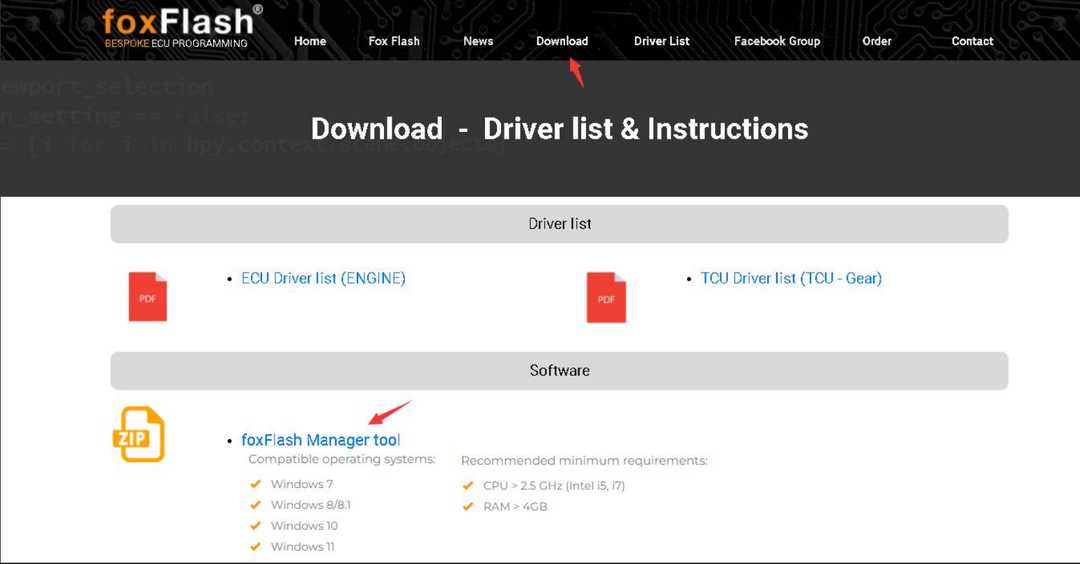
1. Download the FoxFlash Manager
Visit the official DFB Technology download page to get the latest Manager App. This app acts as the “gateway” for your device.
-
Download Link: Official DFB Download Page
2. Install and Initialize
Run the installer on your laptop. Once finished, launch the FoxFlash Manager. If prompted by Windows Firewall, select “Allow Access” to ensure the tool can reach the activation servers.

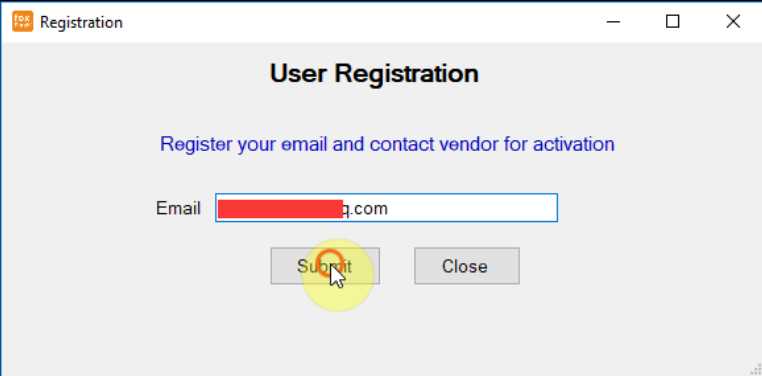
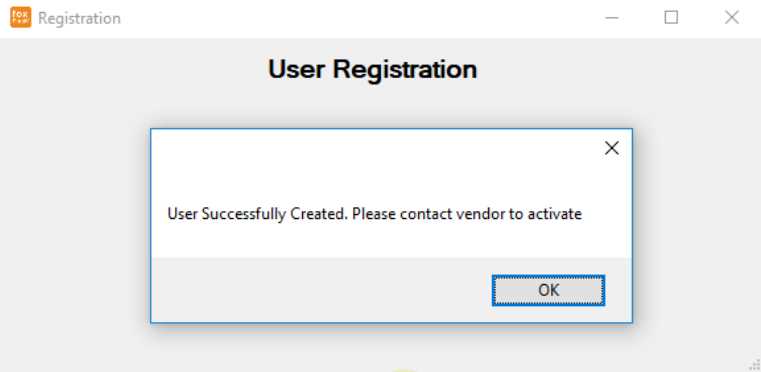
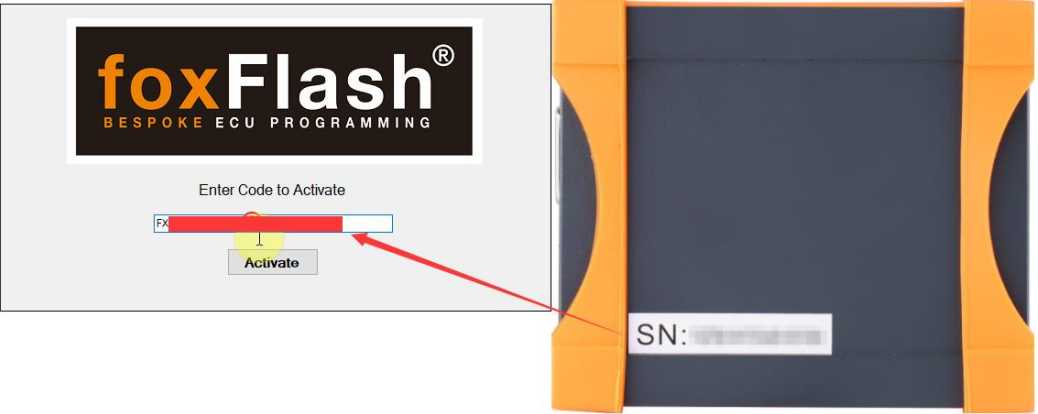
3. Account Registration
Upon the first launch, you must create an account.
-
Use a valid email address you have permanent access to.
-
Privacy Warning: You will be asked for your Device Code and Serial Number (SN). Keep these private! Sharing your SN publicly can lead to unauthorized account lockouts or password theft.
Phase 2: Hardware Connection & Drivers
4. Connect the Tool
Plug the FOX FLASH device into your laptop using the provided USB cable.
-
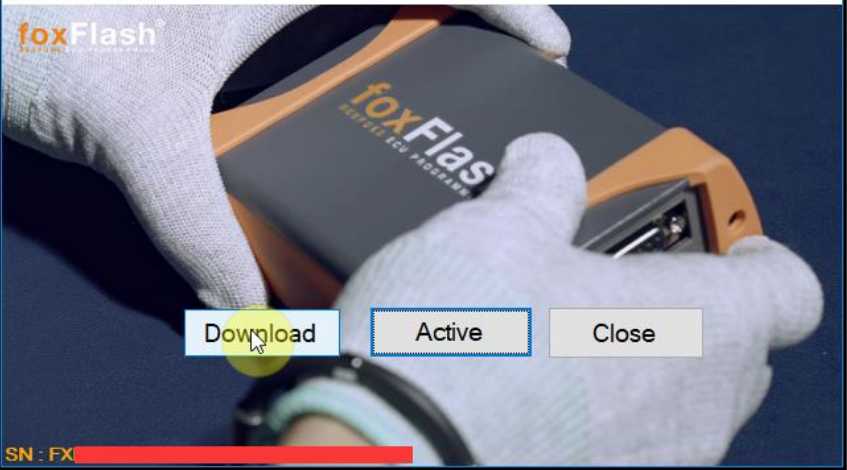
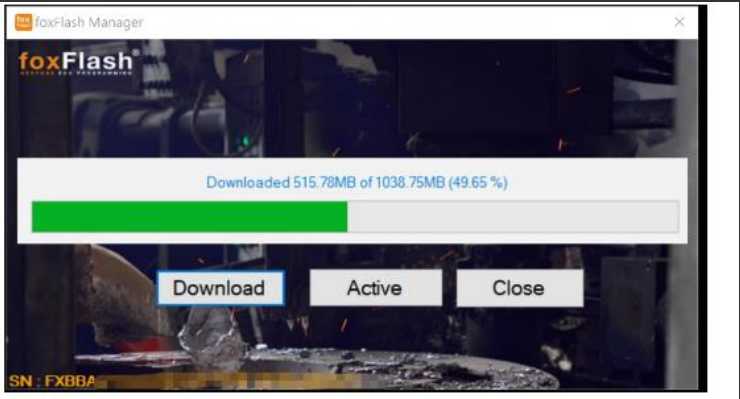
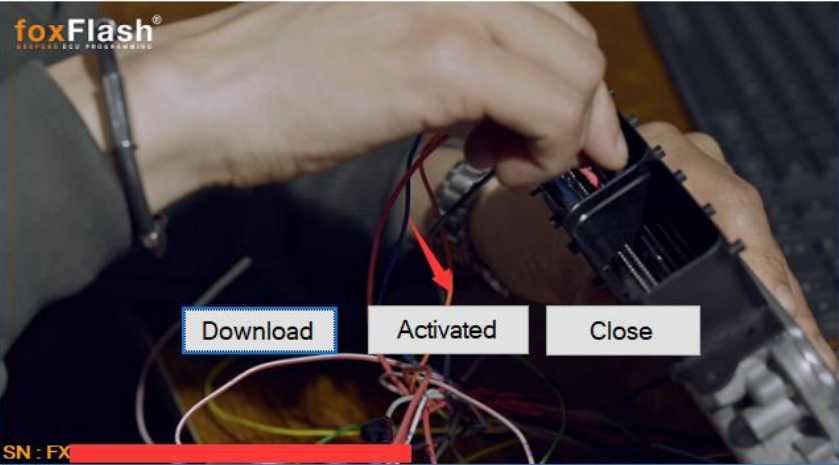
In the FoxFlash Manager app, click the Download button.
-
The software will now pull the specific library files required for your hardware version.
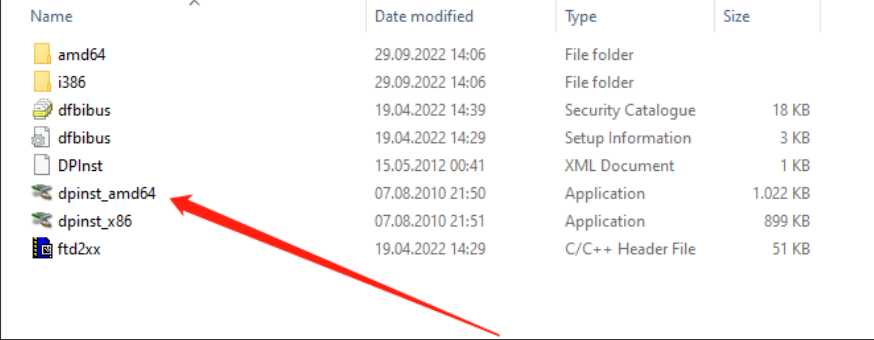
5. Manual Driver Installation
The device will not work until the drivers are manually pointed to the correct directory.
-
Navigate to this folder on your C: drive: C:\Program Files (x86)\FoxFlash Manager\foxflash\DFB Technology\DFBTech_DRIVER
-
Right-click the driver setup file and select “Run as Administrator.”
-
Follow the prompts to finish the installation.
Phase 3: Device Activation
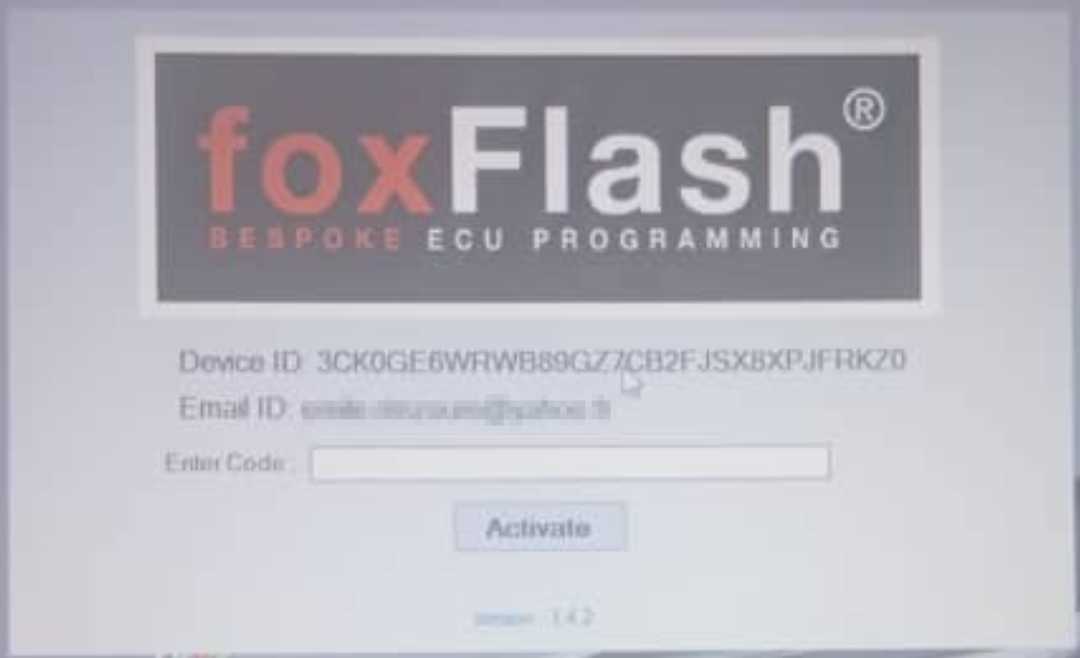
6. The Activation Cycle
To “marry” the hardware to the software, follow this specific sequence:
-
Disconnect the USB cable from the tool.
-
Reconnect the USB cable.
-
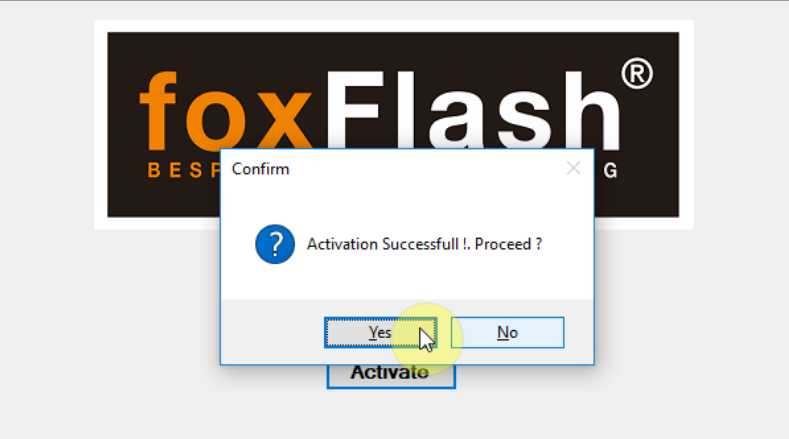
In the FoxFlash Manager, click the Active button.
-
Wait for the status to change to Activated.
-
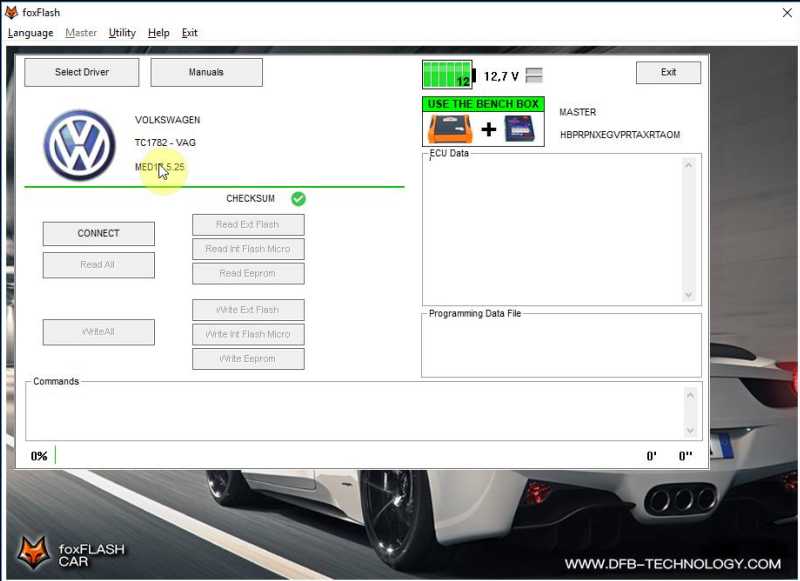
Once confirmed, you can now launch the main FoxFlash App from your desktop icon.
7. Log In
When the FoxFlash main software opens, a Windows login prompt will appear. Enter your credentials and click Login to access the ECU protocols.
Phase 4: Daily Operation Workflow
To ensure the software runs smoothly every time, follow this “Start/Stop” routine:
How to Start:
-
Connect the hardware via USB.
-
Open FoxFlash Manager first.
-
Click Active (the tool must check in with the server every session).
-
Open the FoxFlash Main App.
How to Close:
-
Click Exit inside the FoxFlash main software.
-
Click Close in the FoxFlash Manager.
-
Safely unplug the USB cable.
FOX FLASH Device Activation Tips
To avoid activation problems, keep these tips in mind:
- Use the official software download source only
- Keep your device code and SN private
- Install drivers before trying to activate the tool
- Always connect the device directly with a stable USB cable
- Open FoxFlash Manager before launching the main application
Need Help?
If you still have problems activating the FOX FLASH device, you can contact the support team directly:
Email: sales@obd2tool.com
Website: https://www.obd2tool.com/
Frequently Asked Questions
How do I activate the FOX FLASH device?
Download and install FoxFlash Manager, register with your email, enter your device code, connect the tool by USB, install the drivers, and click Active in the software.
Do I need to download the software every time?
No. The download is only needed the first time if the software is not already installed.
Why should I keep my SN code private?
Your serial number and device code are linked to your tool account. Sharing them publicly may risk unauthorized access.
What should I do if the device is not detected?
Check the USB connection, reinstall the drivers, and make sure FoxFlash Manager is running before opening the main software.