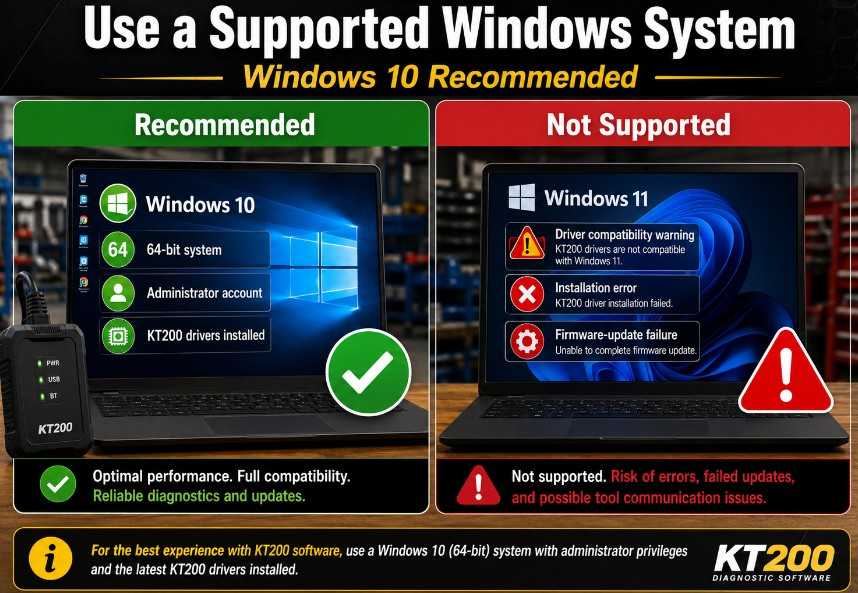
1. Do Not Install KT200 Software on Windows 11
- Windows 10
- 64-bit operating system
- Administrator account
- Dedicated workshop laptop without conflicting ECU-programming software
2. Keep the Computer Connected to the Internet
- Verify installation components
- Complete account or software authentication
- Download required files
- Check the connected device.
- Perform firmware-related operations
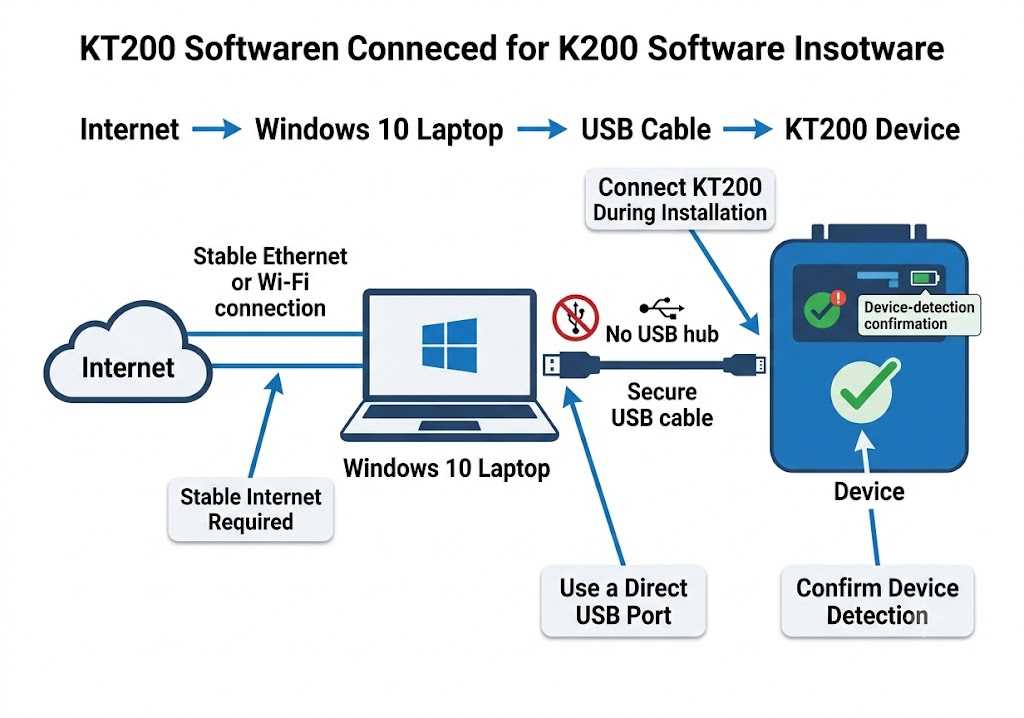
3. Connect the KT200 Device During Installation
- The KT200 device is connected directly to the computer.
- The USB cable is securely attached.
- Windows detects the device correctly.
- A direct USB port is used instead of a USB hub.
- The computer remains connected to the internet.
4. Run the Installer as Administrator
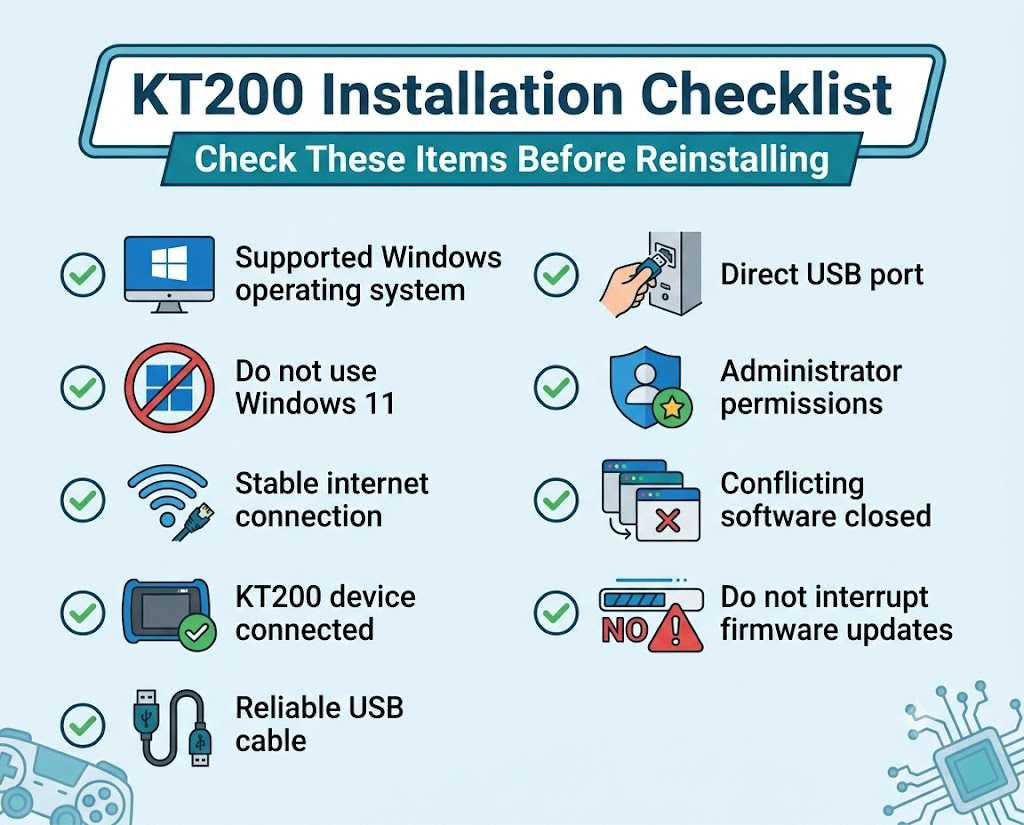
KT200 Installation Checklist
- Use a supported Windows operating system
- Do not use Windows 11
- Maintain a stable network connection
- Connect the KT200 device to your computer
- Use a reliable USB cable and a direct USB port
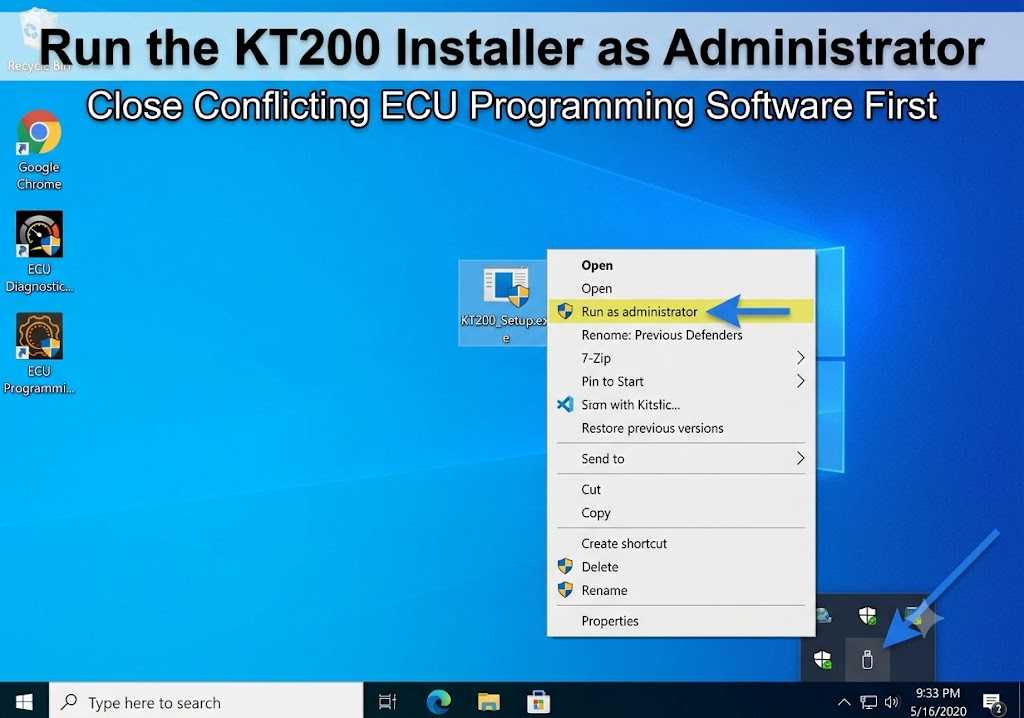
- Run the installer as administrator.
- Close conflicting diagnostic or ECU-programming software
- Do not disconnect the device during a firmware update.
Choose the Right KT200 ECU Programmer
Before ordering, compare the supported operating modes, vehicle coverage, software version, and online or offline requirements. Confirm compatibility with your target ECU or TCU before purchase.
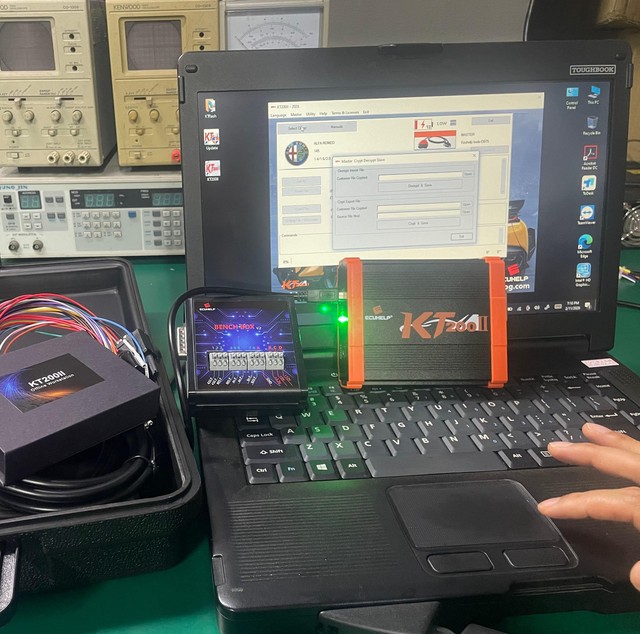
KT200 ECU Programmer
The original KT200 is suitable for ECU and TCU reading, writing, cloning, checksum correction, and chip-tuning work. Depending on the selected configuration, it supports OBD, Bench, Boot, BDM, JTAG, cars, trucks, transmissions, and other vehicle categories. The standard software normally requires an internet connection, while an optional offline workstation is available.
Best for: Workshops that need a cost-effective multi-mode ECU and TCU programmer.
KT200II ECU Programmer
KT200II is the upgraded version of the original KT200. It adds more protocols, improves automatic checksum processing and reading/writing efficiency, expands virtual-file support, and includes additional Tricore cloning functions. It supports OBD, Bench, Boot, BDM, JTAG, Full System, and optional TCU functions.
Best for: Professional users who need newer protocols, improved stability, and broader ECU and TCU coverage.
View the KT200II ECU Programmer
KT200 Plus ECU Programmer
KT200 Plus expands ECU reading, writing, and cloning coverage through OBD and Bench modes. It can work independently and includes automatic checksum calculation, online updates, DTC management, map modification, and supported ECU service functions.
Best for: ECU repair and tuning professionals who need additional cloning protocols and built-in file-service functions.
View the KT200 Plus ECU Programmer
Compatibility notice: Operating-system support may vary by KT200 model and software package. The KT200II product page currently lists Windows 7, Windows 8/8.1, Windows 10, and Windows 11 support, while the original KT200 installation guidance may differ. Confirm the exact software version and system requirements before installation.
Here is a comparison chart for the three ECU programmers based on their specifications, supported modes, and features:
KT200 vs. KT200II vs. KT200 Plus Comparison Chart
| Feature / Specification | KT200 (Goods 10566) | KT200II (Goods 10651) | KT200 Plus (Goods 10737) |
| Primary Category | Base ECU/TCU Programmer | Upgraded 2nd Gen ECU/TCU Tool | Standalone / Expansion Programmer Module |
| Supported Modes | OBD, Bench, Boot, BDM, JTAG | OBD, Bench, Boot, BDM, JTAG | OBD & Bench Mode (Boot mode planned via update) |
| Built-in Functions | Read/Write/Clone ECU & TCU | Read/Write/Clone ECU & TCU | Read/Write/Clone, Built-in DTC Off, IMMO Off, & Map Modification |
| File Editing | Requires 3rd-party software (e.g., WinOLS, DaVinci) | Requires 3rd-party software | Built-in DTC Off & Map Editing tools |
| Protocol Coverage | Standard ECU & TCU coverage (up to 5400+ ECUs) | Expanded hardware protocol stability & coverage | Advanced/Newer protocols (DCM6.2AP, DCM7.1AP, MD1/MG1 series, etc.) |
| Offline Workstation Capability | Requires optional Offline Dongle | Available with Offline Station/Dongle variants | Standalone Operation with Online Updates |
| OS Compatibility | Windows 7, 8, 10, 11 | Windows 7, 8, 10, 11 | Windows 7, 8, 10, 11 |
| Target User | Entry-level to professional tuners needing full read/write modes | Professional workshops seeking faster hardware & broader coverage | Advanced tuners needing instant DTC/IMMO modifications without external editing software |
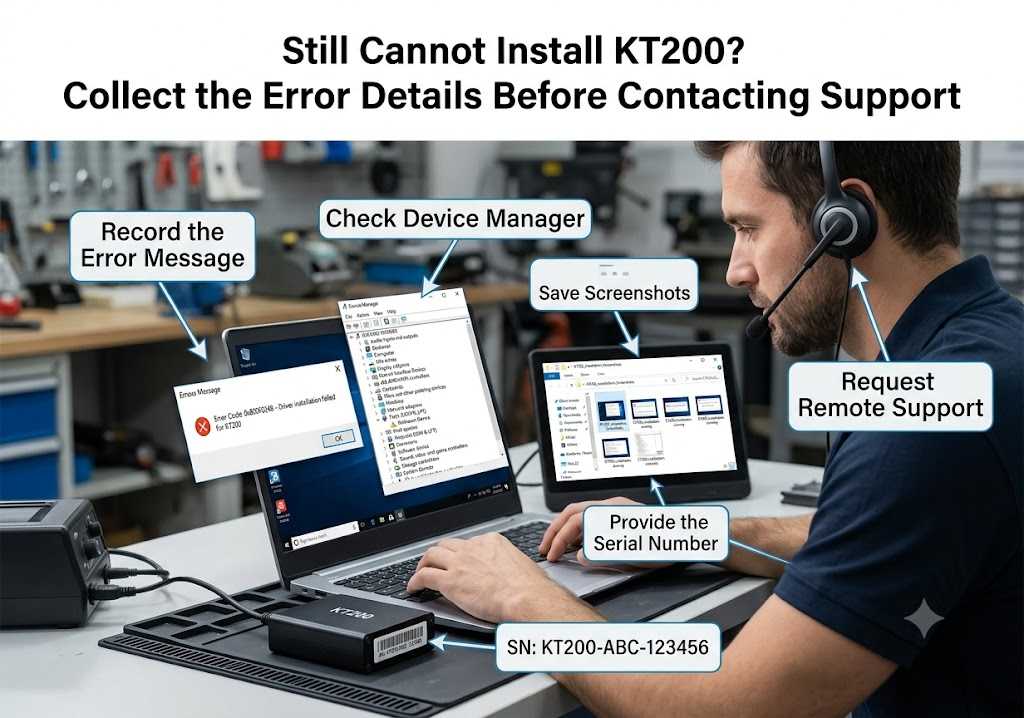
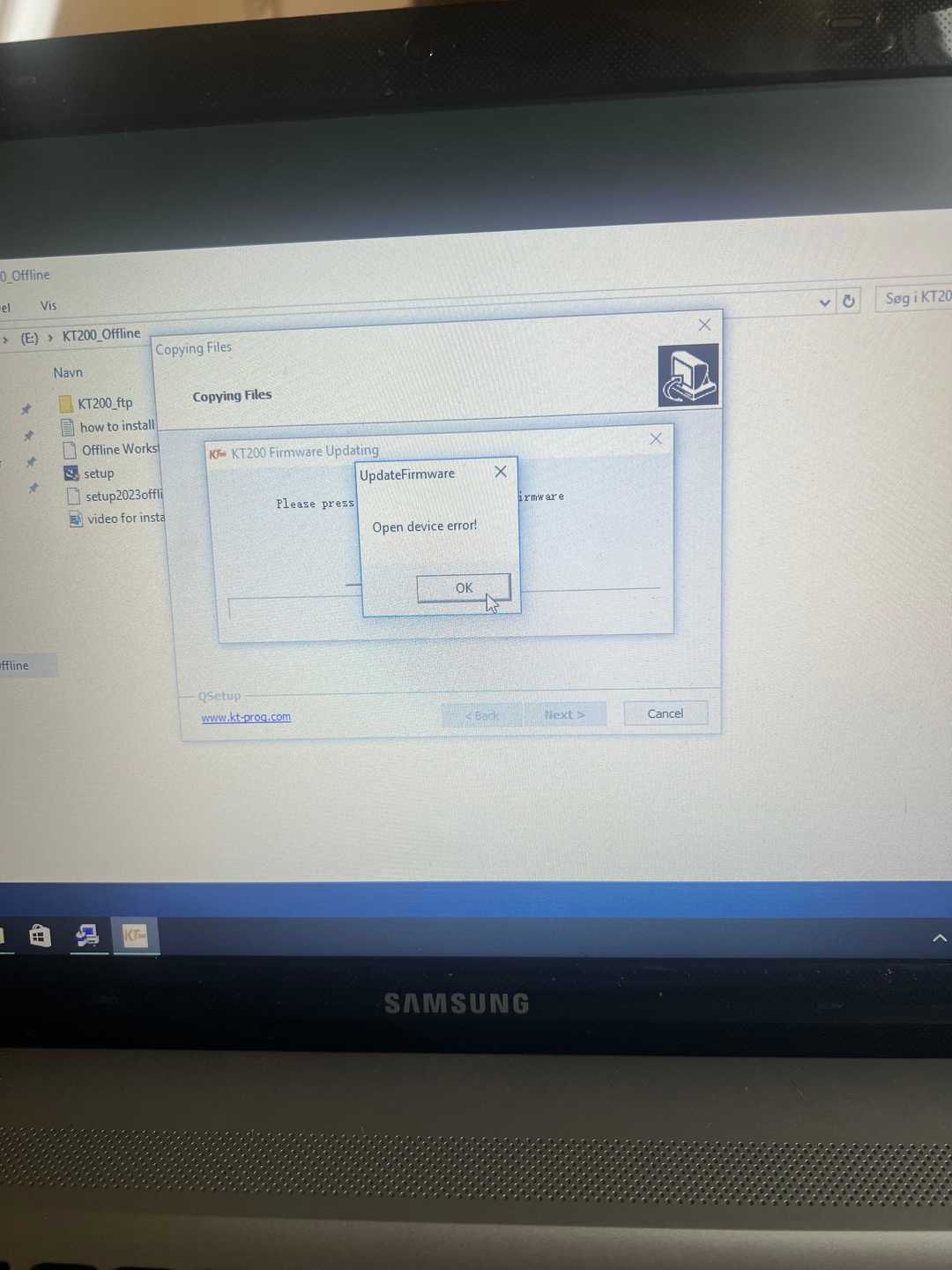
What Should You Do If KT200 Still Will Not Install?
- Your Windows version
- Screenshots of the error
- KT200 device serial information
- A description of when the installation fails
- Confirmation that the device and internet were connected