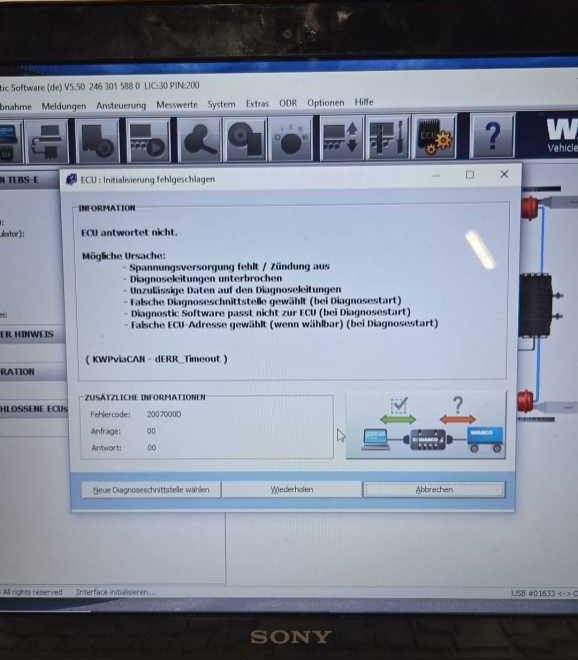
WABCO diagnostic software is commonly used for diagnosing commercial vehicle and trailer ABS, EBS, and braking systems. However, some users may experience a connection problem when trying to communicate with the ECU.
This guide explains a real customer case in which the WABCO software could not establish communication with the ECU and outlines the basic checks needed to resolve the problem.
Customer Problem
A customer reported the following issue after receiving the diagnostic tool:
“I recently bought this tool, but I cannot establish a connection with the ECU.”
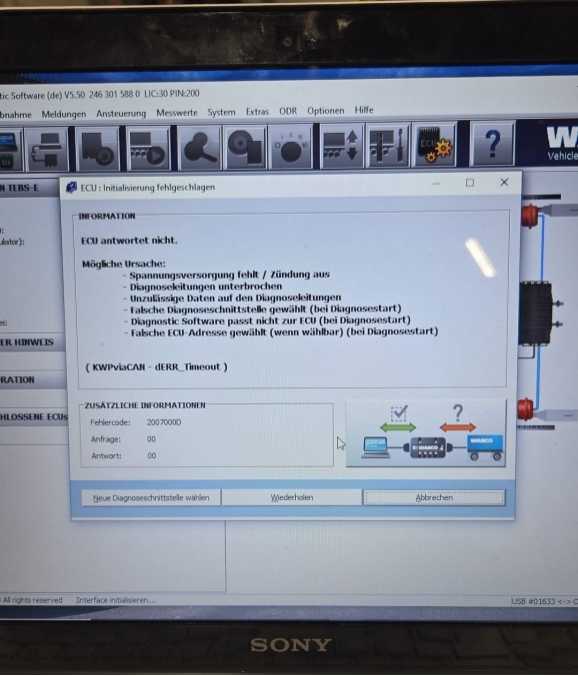
The diagnostic software could open normally, but the tool failed to communicate with the vehicle ECU during diagnosis.
Possible Causes of WABCO ECU Connection Failure
If WABCO software cannot connect to the ECU, the problem is usually related to one of the following points:
- Incorrect software installation
- Wrong diagnostic software version
- Incorrect communication protocol selected in the software
- Vehicle or machine model not supported.
- Wrong voltage or CAN communication setting
- Diagnostic interface not communicating correctly with the ECU.
- Poor cable connection or unstable vehicle power supply
Before replacing the tool or reinstalling everything, it is better to check the software and communication settings first.
Step 1: Confirm the Correct WABCO Software Is Installed
First, make sure the correct WABCO diagnostic software has been installed on the computer.
Check the following points:
- The software version matches the diagnostic tool.
- The installation process was completed successfully.
- The required driver for the diagnostic interface is installed.
- The software can recognize the diagnostic hardware.
- The selected vehicle or system is supported by the software.
If the wrong software or driver is installed, the diagnostic tool may power on but still fail to communicate with the ECU.
Step 2: Check Whether the Machine Model Is Supported
Before diagnosis, confirm that the WABCO software supports the vehicle, trailer, or machine model you are working on.
Some WABCO diagnostic functions depend on:
- Vehicle type
- ECU type
- ABS or EBS system version
- Communication protocol
- Voltage system
- Software coverage
If the model or ECU system is not supported, the software may not establish communication even if the diagnostic tool and cables are working correctly.
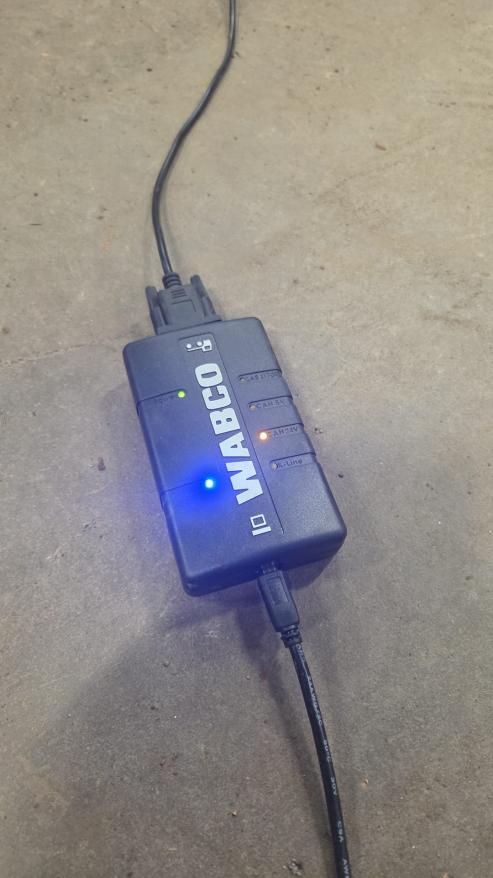
Step 3: Check the 24V CAN Yellow Light on the Diagnostic Tool
During diagnosis, pay attention to the indicator lights on the diagnostic tool.
If the 24V CAN yellow light keeps flashing, it means the software is currently trying to read the ECU through the 24V CAN protocol.
In this case, the selected communication option may not match the ECU you are diagnosing.
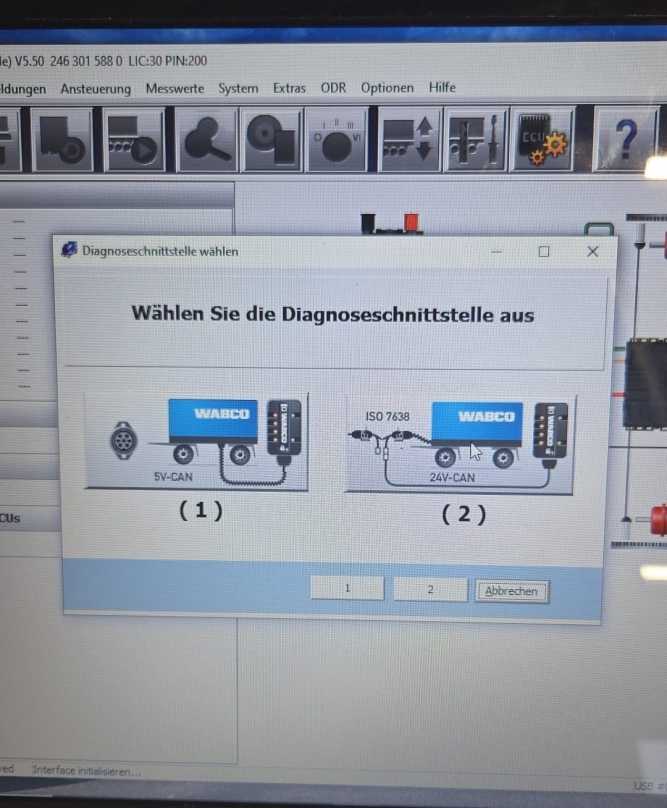
Step 4: Switch the Software Option to 24V
If the 24V CAN yellow light keeps flashing and the ECU cannot be connected, enter the WABCO software settings and switch the communication option to 24V.
After changing the option, reconnect the diagnostic tool and try to communicate with the ECU again.
Recommended operation:
- Close the WABCO diagnostic software.
- Disconnect the diagnostic tool from the vehicle.
- Restart the software.
- Select the correct vehicle or system.
- Change the communication option from 24V CAN to 24V if required.
- Reconnect the diagnostic tool.
- Turn the vehicle ignition on.
- Try to connect to the ECU again.
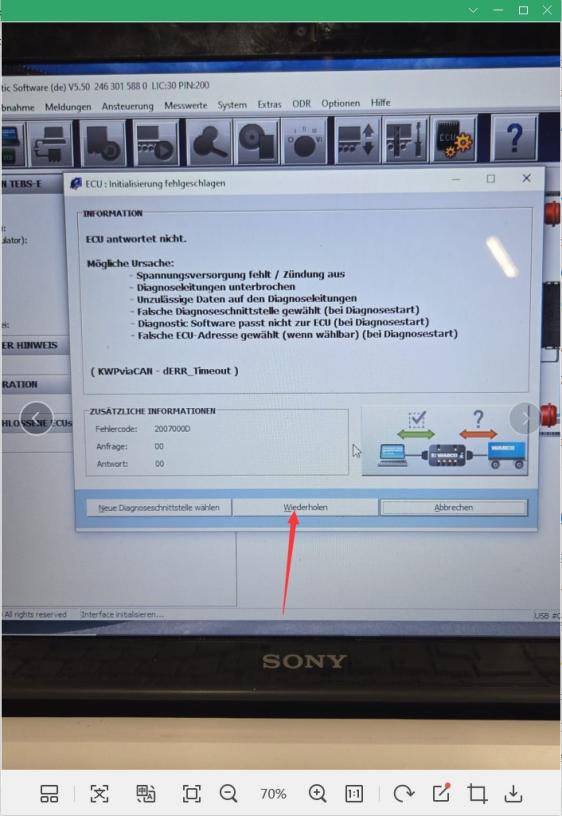
In many cases, the ECU connection problem is caused by an incorrect protocol or voltage option in the diagnostic software.
Step 5: Check the Diagnostic Cable and Vehicle Power
If the software settings are correct but the ECU still cannot connect, check the physical connection.
Make sure:
- The diagnostic cable is firmly connected.
- The vehicle ignition is switched on.
- The vehicle battery voltage is stable.
- The diagnostic connector is clean and not damaged.
- The tool receives power from the vehicle.
- The correct cable is being used for the vehicle or trailer.
For commercial vehicles and trailers, unstable voltage or poor connector contact can easily cause communication failure.
Step 6: Restart and Test Again
After changing the software setting and checking the connection, restart the diagnostic process.
Suggested test sequence:
- Turn off the ignition.
- Disconnect the diagnostic interface.
- Close the software.
- Reconnect the diagnostic cable.
- Turn the ignition on.
- Open the WABCO software.
- Select the correct system and communication option.
- Start diagnosis again.
If the software, model coverage, cable connection, and 24V setting are correct, the software should be able to communicate with the ECU normally.
Final Solution Summary
For this WABCO ECU connection issue, the key solution is:
- Make sure the correct WABCO software and driver are installed.
- Confirm the machine model is supported by the software.
- Check the diagnostic tool indicator lights.
- If the 24V CAN yellow light keeps flashing, the software is using the 24V CAN reading protocol.
- Switch the software communication option to 24V and test again.
This is a common setting-related issue, not necessarily a hardware failure.
FAQ
Why can’t my WABCO software connect to the ECU?
The most common reasons are incorrect software installation, the wrong driver, an unsupported vehicle model, an incorrect communication protocol, or an incorrect 24V/24V CAN setting.
What does the 24V CAN yellow light mean?
If the 24V CAN yellow light keeps flashing during diagnosis, the diagnostic tool is trying to communicate through the 24V CAN protocol.
What should I do if the 24V CAN light keeps flashing?
Open the WABCO software settings, switch the communication option to 24V, then reconnect the tool and try the diagnosis again.
Does WABCO software support all trucks and trailers?
No. Support depends on the ECU type, vehicle model, system version, and software coverage. Always confirm compatibility before diagnosis.
Is this problem caused by a bad diagnostic tool?
Not always. In many cases, the tool is working properly, but the software setting or communication protocol is incorrect.
Need Help?
If your WABCO diagnostic tool still cannot connect to the ECU after checking the software, driver, cable, and 24V setting, please send the following information to technical support:
- Vehicle or trailer model
- ECU type
- Software version
- Diagnostic tool model
- Screenshot of the error message
- Photo or video of the indicator lights during diagnosis
This information helps the engineer quickly confirm whether the problem is caused by software settings, model compatibility, cable connection, or ECU communication.
You can also add one image near “Step 3” showing the diagnostic tool indicator light, and one image near “Step 4” showing the 24V setting in the WABCO software.
Need a WABCO Diagnostic Tool for Truck or Trailer ECU Diagnosis?
Check WABCO ECU fault codes, ABS/EBS systems, communication problems, and diagnostic software connection issues with a professional diagnostic solution.
More case for wabco please refer to: Wabco Trouble Repair