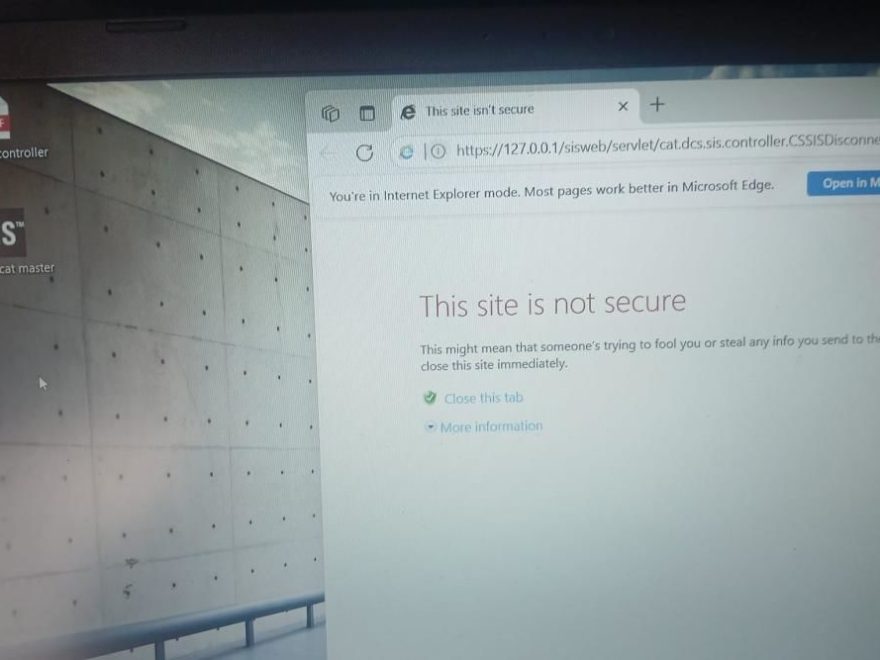
If your CAT SIS software (Caterpillar Service Information System) won’t open or won’t load properly, the issue may be related to the software startup process or the account/login information used by the installed system.
The following troubleshooting case is based on an actual customer support experience. If you encounter a similar CAT SIS startup problem, follow these steps before requesting remote technical support.
Problem: CAT SIS Software Cannot Be Opened
A customer contacted us because CAT SIS had worked previously but could no longer be used.
Customer:
Hello, I can’t use the software now.
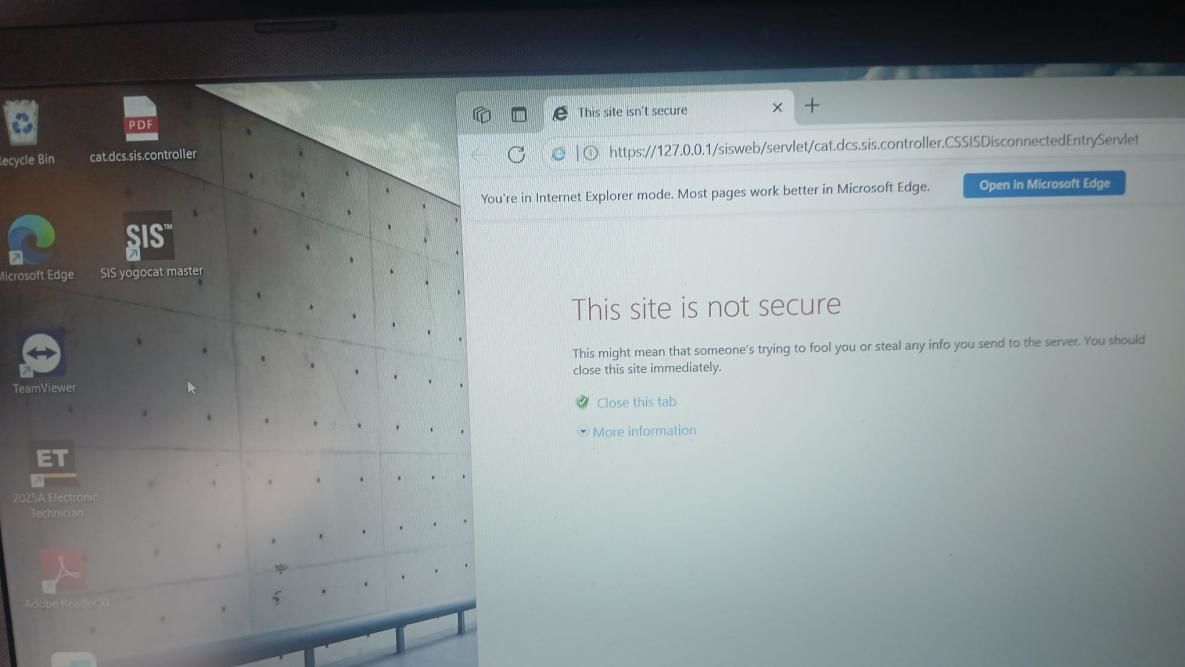
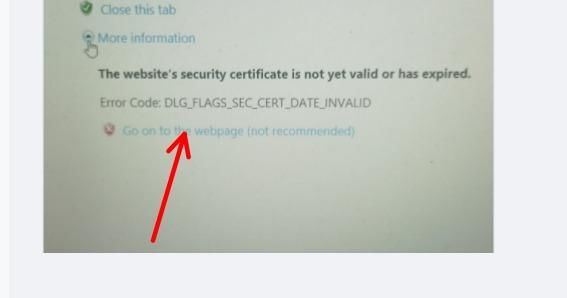
Step 1: Click the Required CAT SIS Option
Support reply:
Could you please click here?
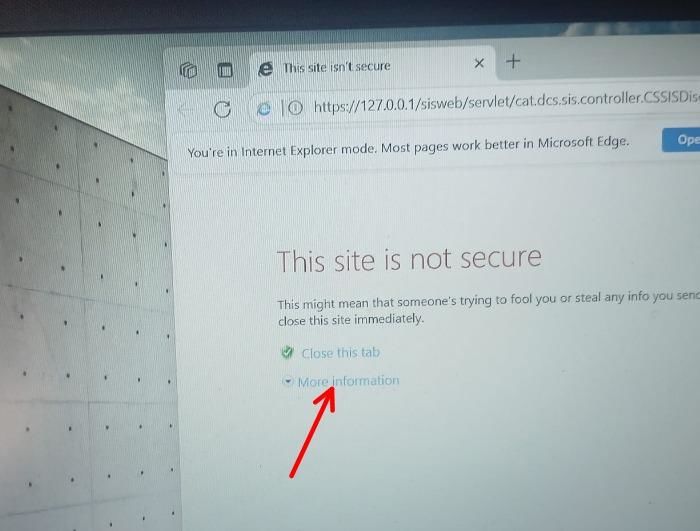
Problem Continues: CAT SIS Still Does Not Work
The customer tested the first solution but reported that CAT SIS still could not be used.
Customer:
Still can’t use it.
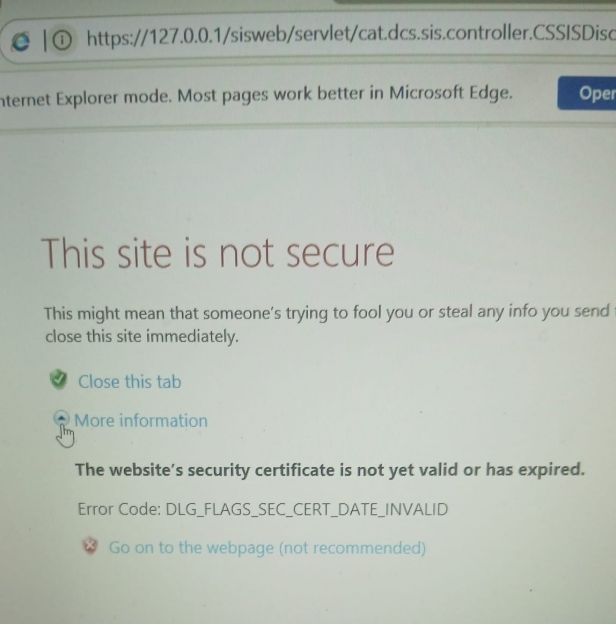
Step 2: Select the Correct CAT SIS Login or Startup Option
Support reply:
Please try clicking here.
CAT SIS Software Working Again
Customer feedback:
That looks better. It works.
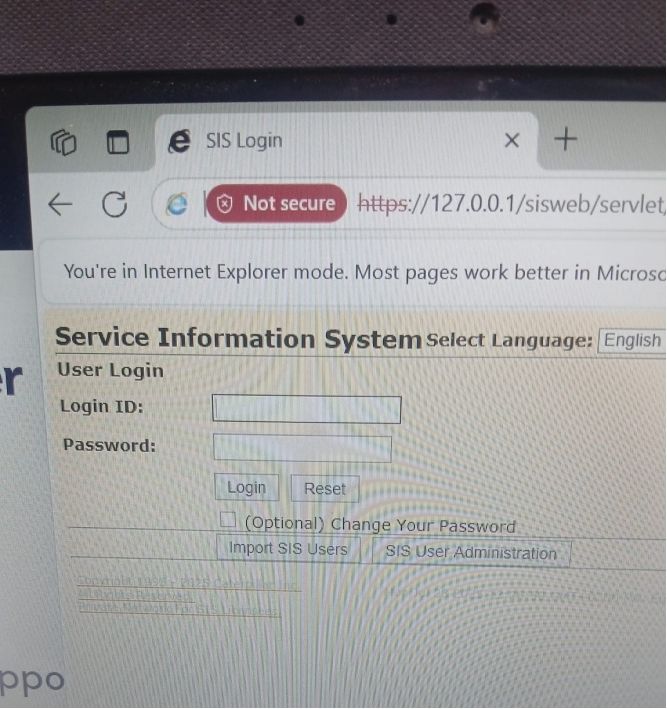
Where to Find the CAT SIS Account Information
For this installation, the required CAT SIS account information is stored in a document on the Windows desktop.
If the same problem appears again:
- Open the CAT SIS software.
- Follow the startup steps shown in the screenshots above.
- Locate the CAT SIS account-information document on the desktop.
- Enter or select the required account information as instructed.
- Try opening CAT SIS again.
Keeping the account document available can help you recover access without repeating the complete software installation.
Do You Need to Reinstall CAT SIS?
Not necessarily.
If CAT SIS was working previously and suddenly stops opening, you should first check:
- Whether you are selecting the correct startup/login option.
- Whether the required CAT SIS account information is available.
- Whether you are entering the account information correctly.
- Whether CAT SIS can reach its normal main interface after you log in.
- Whether Windows or security software has recently changed the CAT SIS environment.
Avoid reinstalling the software unless you confirm the existing installation is damaged.
CAT SIS Troubleshooting Tip
If CAT SIS works after repeating the steps above, keep the desktop account-information document in its original location. If the issue occurs again later, repeat the startup procedure first.
If CAT SIS still won’t open after following these steps, record the error message or take screenshots before contacting technical support. This makes it easier to determine whether the issue is related to the account, software configuration, Windows environment, or CAT SIS installation.
Need CAT SIS Service Information Software?
If you need CAT SIS for Caterpillar service, repair, parts lookup, wiring diagrams, hydraulic schematics, and troubleshooting information, you can check the CAT SIS package available from OBD2Tool.
Recommended Product:
Caterpillar SIS CAT SIS Service Information System
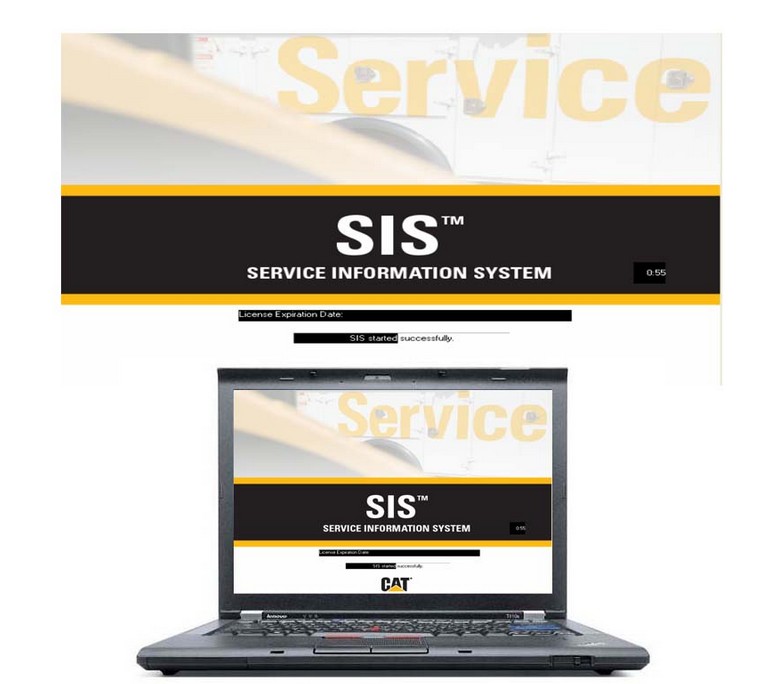
CAT SIS provides access to Caterpillar service information including parts catalogs, maintenance and repair manuals, specifications, testing and adjusting procedures, wiring diagrams, hydraulic diagrams, and troubleshooting information.
Before ordering, check your Windows system, available disk space, and installation requirements to make sure the software is suitable for your computer.
Conclusion
When CAT SIS software won’t open, a full reinstall may not be necessary. In this customer case, selecting the correct CAT SIS startup option and using the account information stored on the desktop restored access successfully.
The screenshots and startup procedure above are therefore a good first troubleshooting step when CAT SIS suddenly stops working.