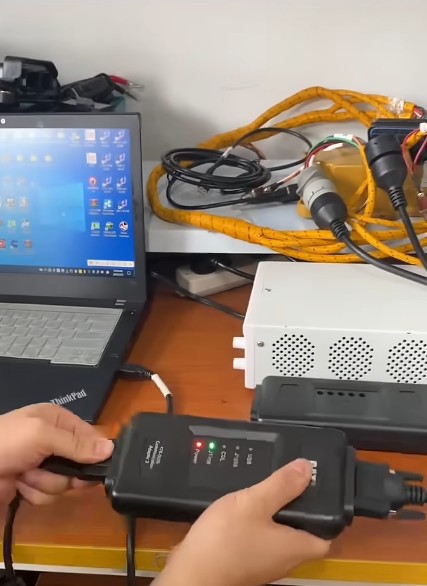
Yes. CAT ET can program, configure, diagnose, and flash compatible Caterpillar ECMs with the correct software, communication adapter, flash file, stable power supply, and required authorization.
For Caterpillar technicians and heavy-equipment workshops, Cat Electronic Technician is used for more than reading fault codes. It can also support ECM replacement, parameter programming, calibration, and software flashing through WinFlash.
This guide explains the basic CAT ET ECM programming process and the most important precautions.
What Do You Need to Program a Caterpillar ECM?
A typical CAT ET programming setup requires:
| Item | Purpose |
| CAT ET software | Diagnostics and ECM programming |
| Communication Adapter | Connects the PC to the ECM |
| Correct diagnostic cable | Connects to the machine or engine |
| Correct flash file | ECM software |
| Stable power supply | Prevents interruptions |
| Engine/machine information | Confirms correct software |
| Required authorization | Needed for protected functions |
Does CAT ET Need a Communication Adapter?
Yes. You typically need a compatible communication adapter.
Typical connection:
Laptop → CAT ET → Communication Adapter → Machine Data Link → ECM
For bench programming:
Laptop → Communication Adapter → Bench Harness → ECM
Communication must remain stable during flashing.
For compatible communication hardware, see:
Can CAT ET Program an ECM Without Dealer Access?
In many cases, yes, but available functions depend on your CAT ET setup and access level.
Some operations may require:
- Factory passwords
- Caterpillar service information
- Security authorization
- Engine-specific configuration data
Having CAT ET doesn’t automatically allow you to change every ECM parameter.
What Information Should You Save Before Flashing?
Before programming, record:
- Engine serial number
- Machine serial number
- ECM part number
- Current software information
- Engine rating
- Horsepower and torque
- FLS and FTS
- Customer configuration parameters
If the original ECM still communicates, save its configuration before replacing it.
How to Flash a Caterpillar ECM With CAT ET
Step 1: Check ECM Communication
Connect the ECM using the correct Communication Adapter and harness.
Confirm that CAT ET can communicate with the module before starting WinFlash.
If you see:
“Unable to communicate with an ECM!”
check:
- ECM power and ground
- Battery voltage
- Communication Adapter
- USB connection
- Diagnostic cable
- Adapter driver
- J1708/J1939 wiring
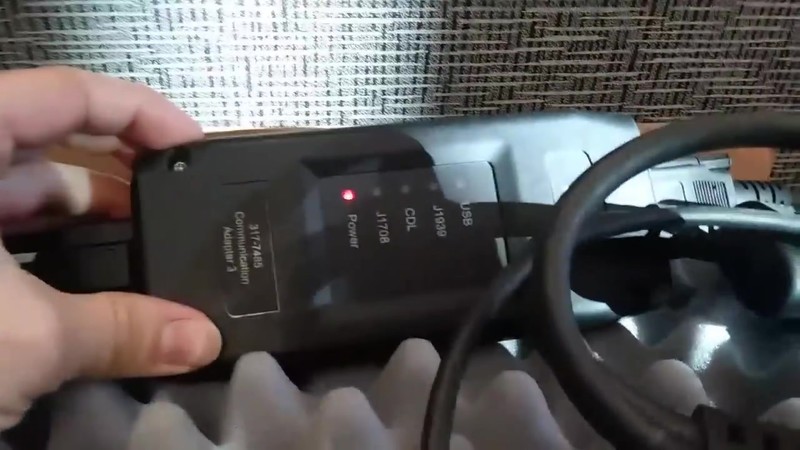
Close-up of a Cat Communication Adapter 3 with a red power light indicating it’s on.
Step 2: Back Up the Original Configuration
If the original ECM is still working, save its existing configuration.
This can include:
- Engine rating
- Serial number
- Horsepower
- Torque
- FLS
- FTS
- Customer parameters
Next, locate the correct flash file using the engine and ECM information.
Never select a flash file only because it belongs to the same engine family.
Cat Electronic Technician (ET) software interface showing ‘Attempting to detect an ECM’ with icons for computer and adapter.
Step 3: Flash the ECM With WinFlash
After confirming communication:
- Open CAT ET.
- Open WinFlash.
- Select the correct ECM.
- Select the correct flash file.
- Verify the information.
- Start flashing.
Do not disconnect the battery, adapter, diagnostic cable, or laptop during programming.
The original CAT ET 2017B example also mentions Error #131 — “maximum number of clients reached.” In that environment, closing additional CAT ET sessions may resolve the problem.
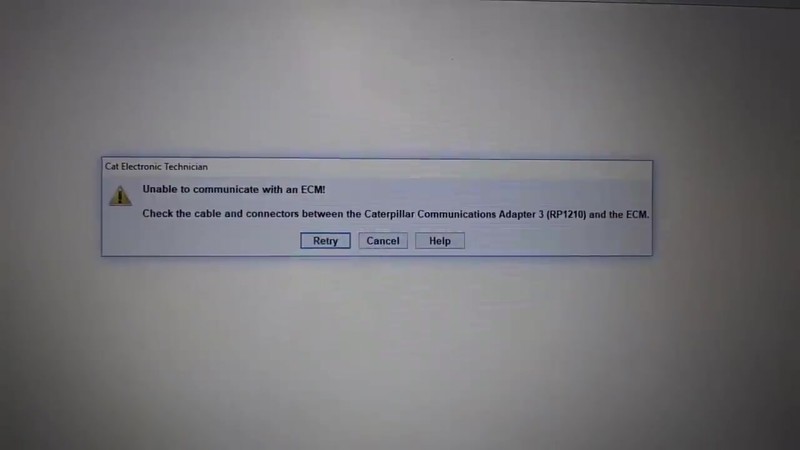
ET error message pop-up: ‘Unable to communicate with an ECM! Check the cable and connectors…’
Step 4: Program the Required Parameters
After flashing, check whether the ECM requires additional configuration.
Parameters may include:
- Engine rating
- Horsepower
- Torque
- Engine serial number
- FLS
- FTS
- Timing calibration
- Customer parameters
Never Guess FLS or FTS
Use values from the original ECM or valid engine-specific Caterpillar information.
Incorrect FLS or FTS values can affect engine performance.
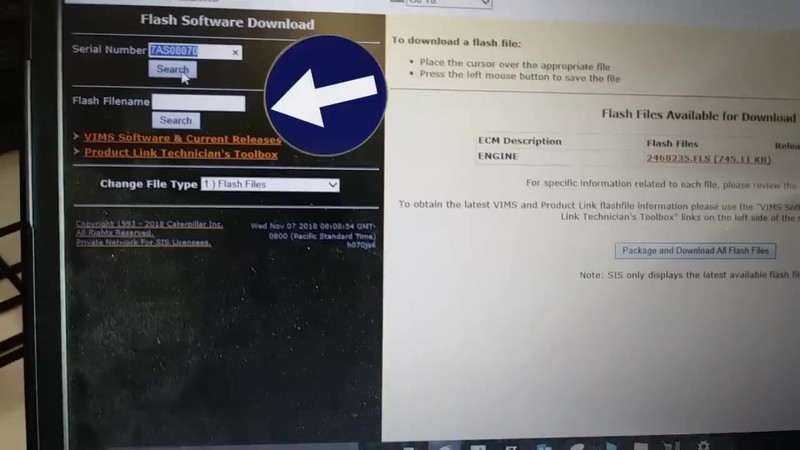
SISWeb interface displaying ‘Flash Files Available for Download’ with a specific flash file (2468235.FLS) listed for an engine.
What If the Original ECM Is Dead?
If CAT ET cannot communicate with the original ECM, it can’t copy its configuration directly.
Use reliable information such as:
- Engine serial number
- Previous service records
- Machine documentation
- Historical Caterpillar ECM information
Older CAT ET workflows may use resources such as SISWeb, SIMS, or TMI Web.
Do not copy a complete configuration from another engine simply because it has the same model number.
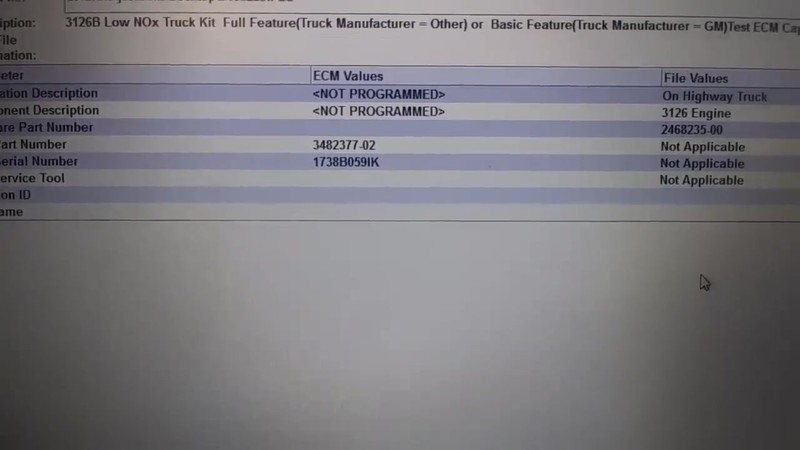
WinFlash interface showing ‘ECM Values’ and ‘File Values’ for the selected flash file, including engine description and horsepower.
Step 5: Program the Engine Serial Number
Verify the engine serial number carefully before applying it to the replacement ECM.
Check it against:
- Engine data plate
- Machine records
- Existing service information
Confirm:
Correct Engine + Correct ECM + Correct Flash File + Correct Serial Number

WinFlash pop-up message: ‘Flash Completed Successfully!’
Step 6: Verify the Repair
After flashing and configuration, reconnect CAT ET and check:
- ECM identification
- Software version
- Engine serial number
- Engine rating
- Horsepower and torque
- FLS/FTS
- Active fault codes
- Logged fault codes
- Live data
Perform any required calibration before returning the machine to service.
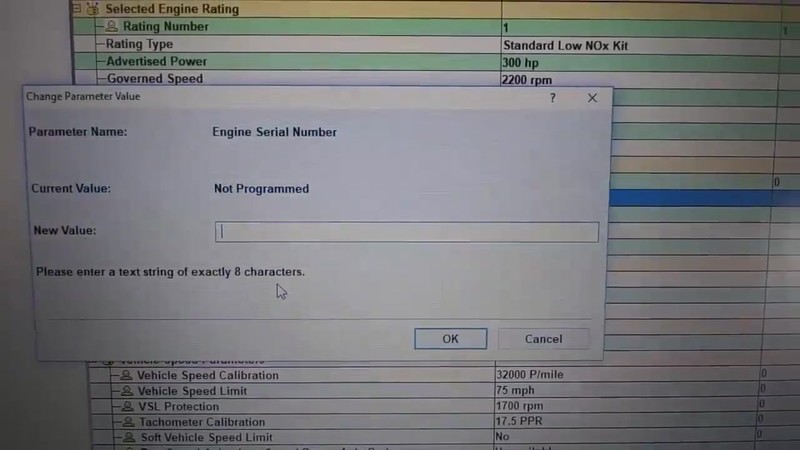
ET pop-up window to ‘Change Parameter Value’ for ‘Engine Serial Number’, prompting for an 8-character text string.
Step 7: Save the Final Service Record
Record important information such as:
- Machine serial number
- Engine serial number
- ECM part number
- Software version
- Parameters changed
- Fault codes before and after repair
Save a CAT ET service report when available.
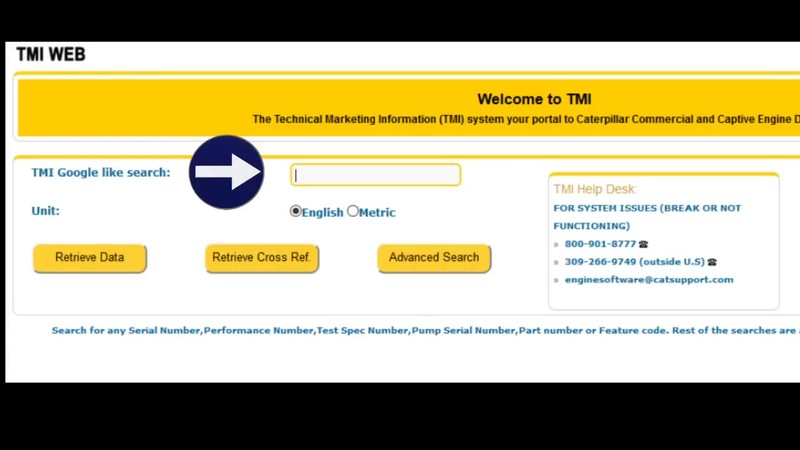
TMI Web report showing engine performance data, highlighting ‘Full Load Setting(FLS) Intercept’ and ‘Full Torque Setting(FTS) Slope’ values.
CAT ET ECM Programming Workflow
The complete process can be summarized as:
Identify → Connect → Back Up → Verify Flash File → WinFlash → Configure → Calibrate → Test
Before flashing:
- Verify the correct ECM.
- Verify the correct flash file.
- Maintain stable battery voltage.
- Confirm communication
- Save the original configuration.
After flashing:
- Restore required parameters
- Verify engine rating
- Check FLS/FTS
- Clear and recheck fault codes
- Confirm live data
- Save the final configuration.
CAT ET Software
If you already have compatible communication hardware and need the diagnostic software, see:
Always check compatibility with your Windows system, communication adapter, Caterpillar machine, and required diagnostic functions.
CAT ET 2017B vs Newer Versions
The screenshots in this guide come from a CAT ET 2017B programming workflow.
Newer CAT ET releases may have different:
- Menus
- Drivers
- Security requirements
- ECM support
- Flash-file access
- Windows compatibility
However, the basic programming workflow remains similar:
Connect → Back Up → Flash → Configure → Verify
Common CAT ET Flashing Problems
CAT ET Cannot Communicate With the ECM
Check battery voltage, ECM power and ground, diagnostic cables, Communication Adapter, drivers, and data-link wiring.
WinFlash Cannot Find the ECM
Verify that CAT ET can communicate normally and that the correct ECM and data link are selected.
Flash File Does Not Match
Stop programming and recheck the engine serial number, ECM part number, software, horsepower, and application.
Communication Drops During Flashing
Check the battery, charger, cables, USB connection, Communication Adapter, and laptop power settings.
Engine Runs Incorrectly After Flashing
Check engine rating, horsepower, torque, FLS, FTS, timing calibration, and other configuration parameters.
Complete CAT ET Diagnostic Workstation
For workshops that prefer a dedicated diagnostic laptop and adapter package, see:
A dedicated workstation can help reduce software and driver conflicts when CAT ET is used regularly.
Frequently Asked Questions
Can CAT ET program a Caterpillar ECM?
Yes. CAT ET can flash and configure compatible Caterpillar ECMs when the required software, hardware, files, and authorization are available.
Does CAT ET use WinFlash?
Yes. CAT ET uses WinFlash to flash software on supported Caterpillar ECMs.
Can CAT ET flash a replacement ECM?
Yes, but the replacement ECM must be compatible with the engine or machine.
Can CAT ET flash an ECM offline?
You may perform the flash process with a locally stored file, but you may still need internet or authorized Caterpillar resources to obtain software, configuration information, or passwords.
What if the old ECM is dead?
You will need to reconstruct the configuration using engine-specific records and Caterpillar service information.
Can I guess FLS and FTS values?
No. Always use valid values associated with the specific engine.
Can CAT ET read logged fault codes?
Yes. CAT ET can display active and logged diagnostic information on supported ECMs.
Conclusion
CAT ET can flash and program compatible Caterpillar ECMs, but proper preparation is essential.
For a reliable programming process:
Use the correct CAT ET software → verify the ECM → save the original configuration → select the correct flash file → maintain stable power → flash with WinFlash → restore parameters → verify the repair.
The three most important rules are:
- Never use an unverified flash file.
- Never interrupt power during flashing.
- Never guess engine-specific calibration values such as FLS and FTS.
Following these steps can reduce programming errors and equipment downtime while making Caterpillar ECM replacement easier to troubleshoot.