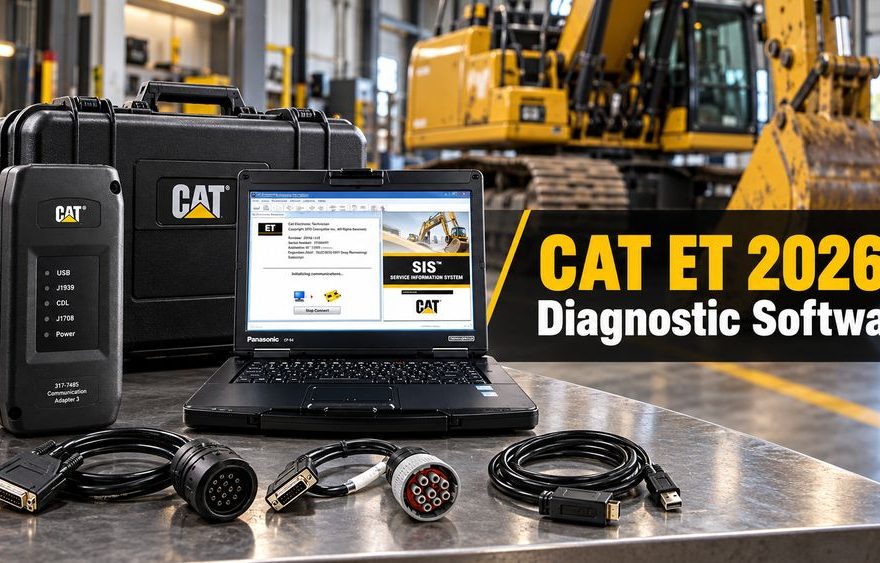
Caterpillar Electronic Technician (CAT ET) is professional diagnostic software designed to communicate with electronically controlled Caterpillar engines, generators, and heavy equipment. When connected to a compatible communication adapter, Cat ET helps technicians read fault codes, monitor live engine parameters, perform diagnostic tests, review ECM configurations, and complete supported service calibrations.
CAT ET 2026B, part of the 2026B software series, is an updated option for technicians who maintain Caterpillar equipment. It can be used with compatible communication hardware, including the Caterpillar Communication Adapter III (CAT ET3).
Whether you maintain Caterpillar excavators, wheel loaders, bulldozers, industrial engines, or on-highway engines, this guide explains what CAT ET 2026B can do, how to connect the diagnostic interface, what equipment it supports, and what to check before purchasing.
What Is Caterpillar Electronic Technician (CAT ET)?
Caterpillar Electronic Technician is a Windows-based service tool that communicates with electronic control modules (ECMs) through supported vehicle and equipment data links.
Modern Caterpillar engines and machines use electronic control systems to monitor performance, regulate engine operation, manage emissions-related components, and control various machine functions.
CAT ET gives technicians access to diagnostic information that may not be available through a machine’s instrument display.
The software can help with:
- Identifying active and previously logged diagnostic trouble codes
- Viewing real-time engine and machine operating conditions
- Comparing sensor measurements and operating parameters
- Recording diagnostic data for later analysis
- Reviewing ECM configuration information
- Performing supported diagnostic tests and calibrations
- Generating diagnostic reports
- Performing eligible ECM flash programming through WinFlash
Available functions depend on the machine model, ECM, software version, service permissions, and equipment configuration.
For workshops, CAT ET is particularly useful when diagnosing recurring engine faults, communication problems, sensor failures, and electronic system performance issues.
CAT ET 2026B Software Overview
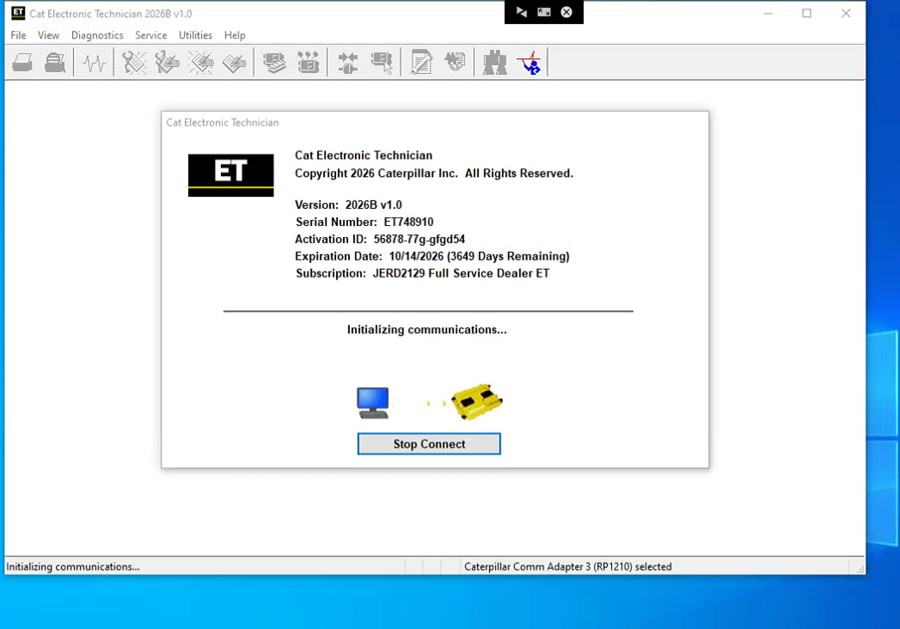
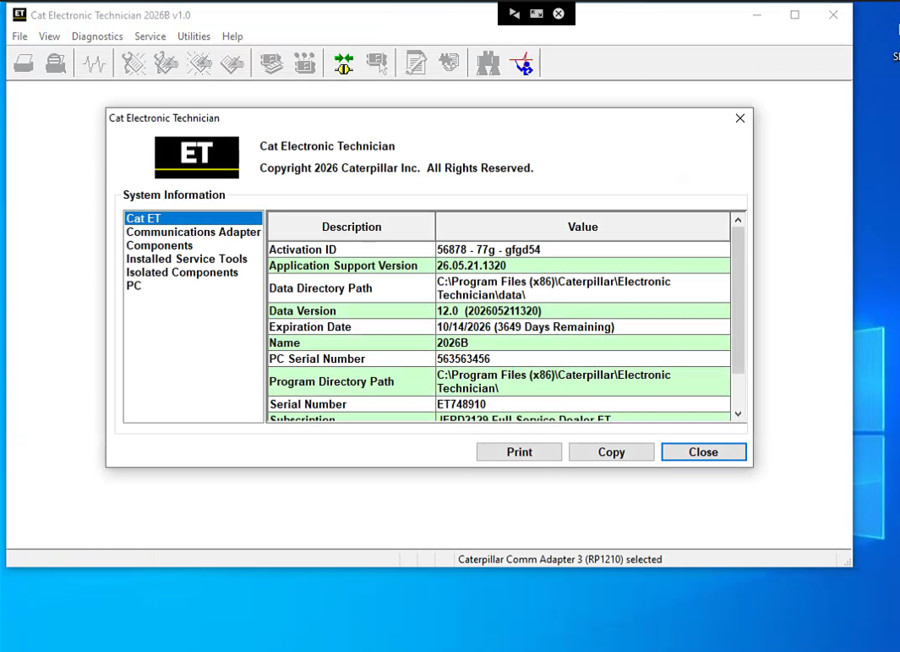
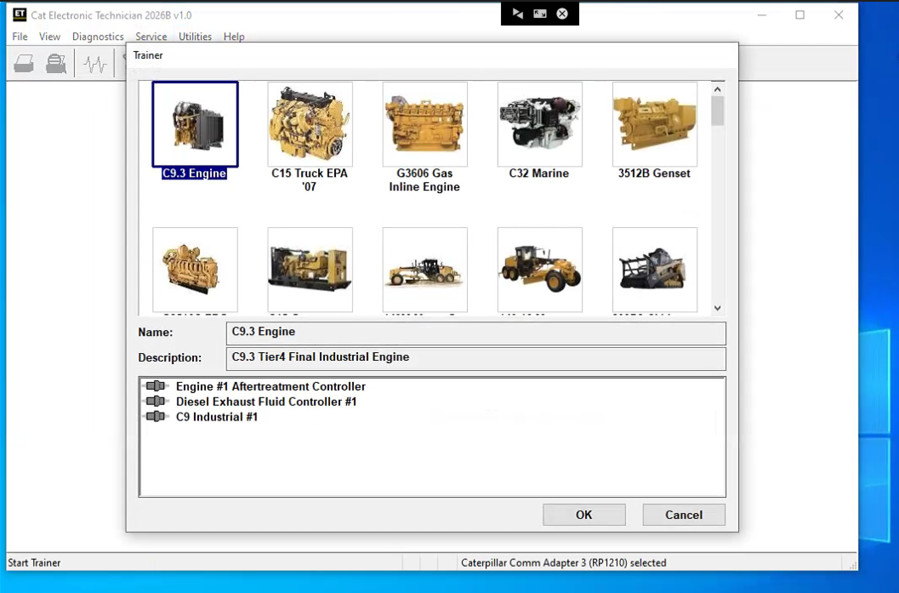
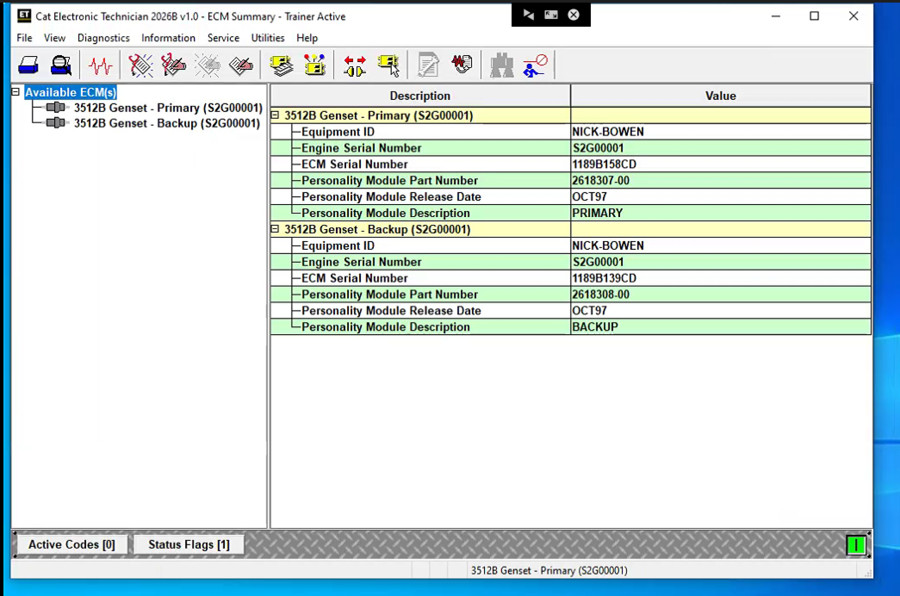
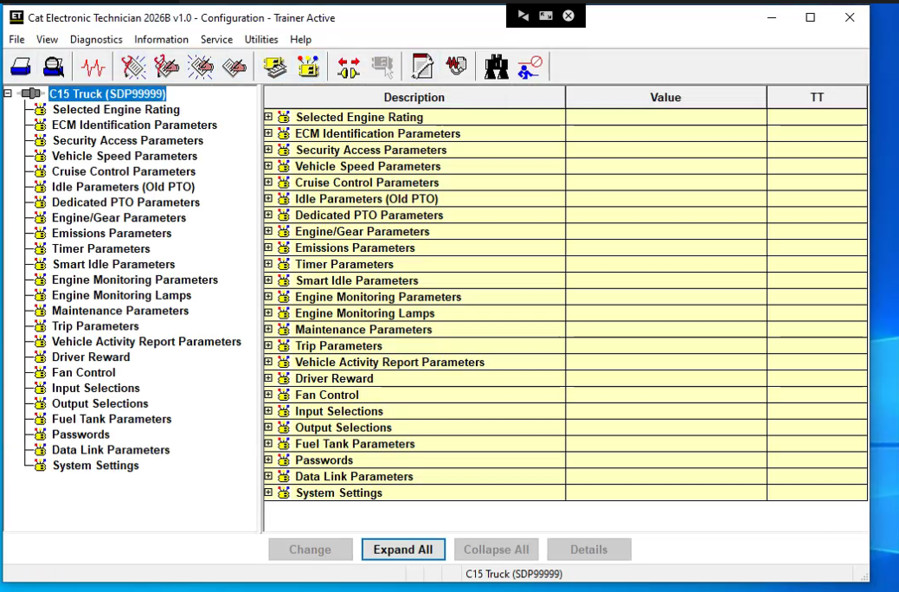
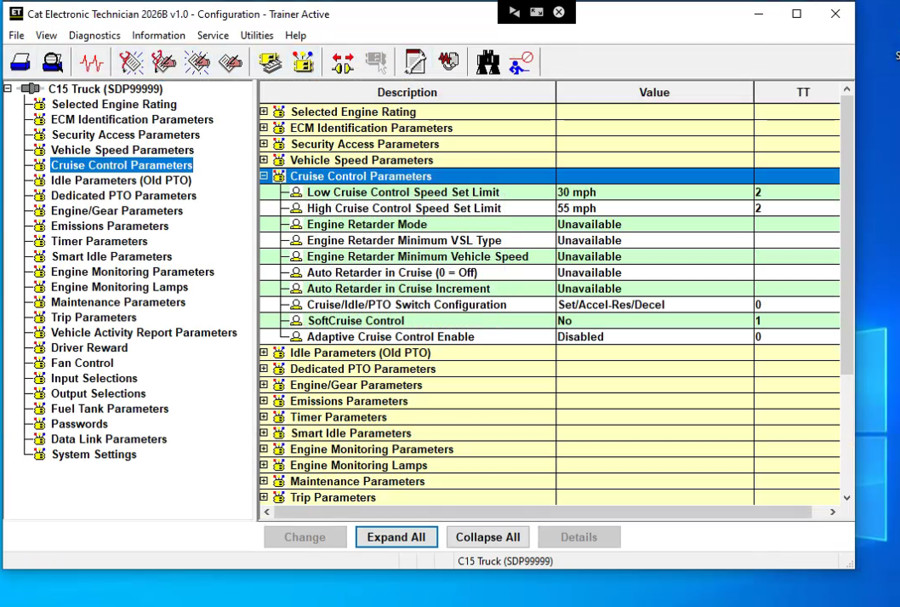
CAT ET 2026B is a newer software release than CAT ET 2026A, 2025C, and 2024C.
The 2026B software series is intended for electronically controlled Caterpillar products supported by the applicable service-tool release.
CAT ET 2026B Software Specifications
| Item | Details |
|---|---|
| Software name | Caterpillar Electronic Technician |
| Software version | CAT ET 2026B |
| Release reference | July 2026 |
| Manufacturer | Caterpillar |
| Primary function | Engine and machine ECM diagnostics |
| Computer platform | Microsoft Windows |
| Diagnostic interfaces | Compatible Cat communication adapters and supported third-party interfaces |
| ECM programming | WinFlash, where supported and authorized |
| Applications | Caterpillar engines, power systems, and supported machines |
| License and activation | Depends on software distribution and authorization |
The supplied CAT ET 2026B package is advertised with the following interface languages:
English, Chinese, Danish, French, German, Italian, Japanese, Portuguese, Russian, and Spanish.
Language availability should be confirmed for the actual installer and license supplied.
Important: A newer CAT ET software release does not automatically guarantee Compatibility with every older machine, every newly introduced ECM, or every communication adapter.
CAT ET 2026B Main Features and Diagnostic Functions
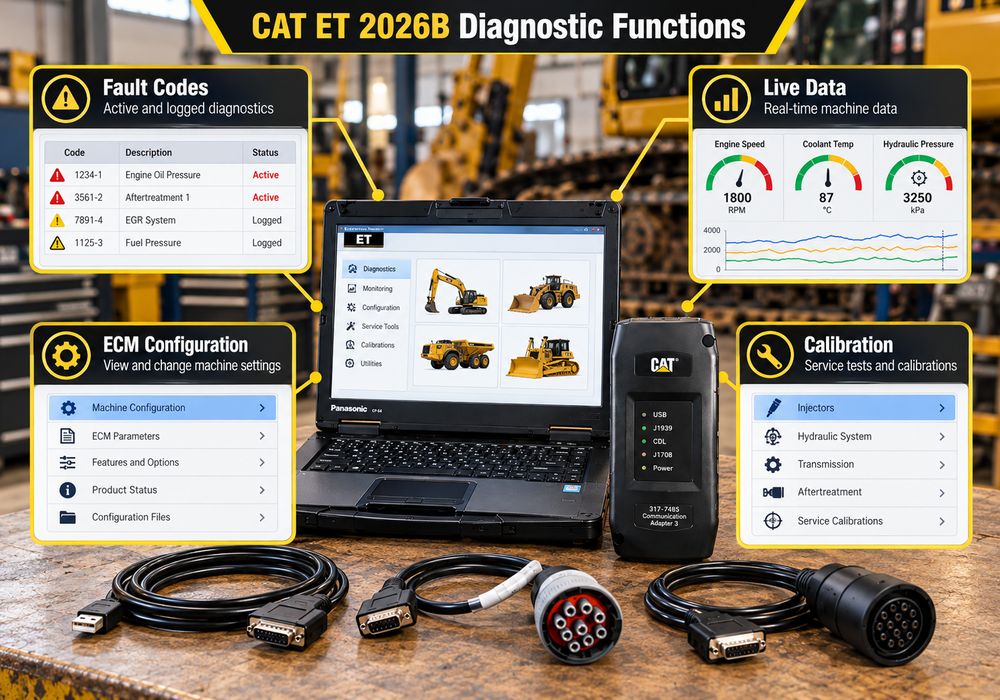
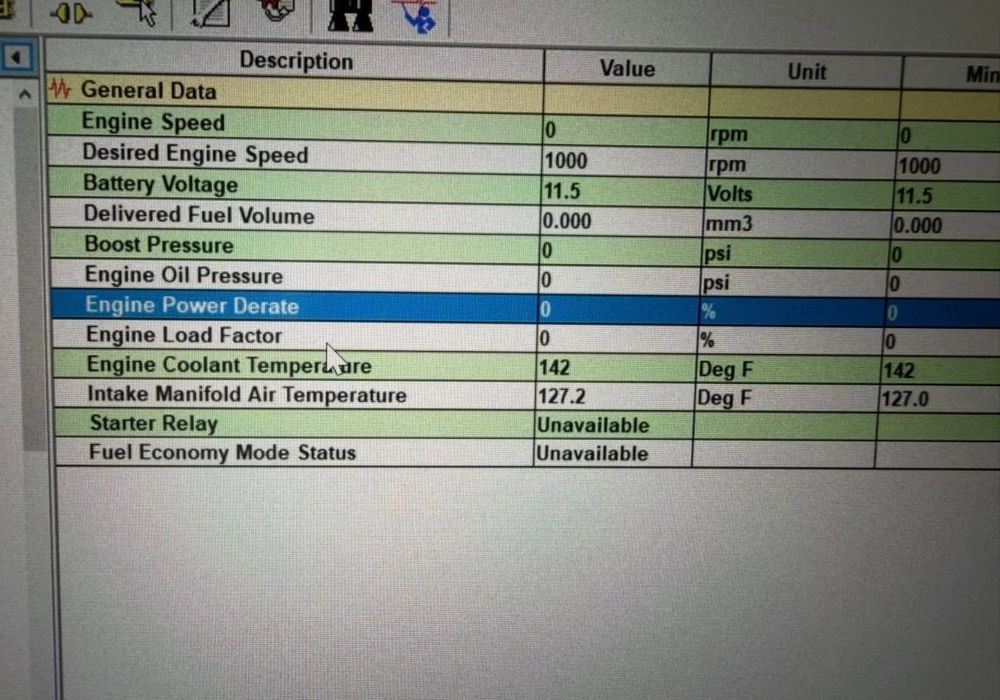
1. Read Active and Logged Diagnostic Trouble Codes
CAT ET allows technicians to identify diagnostic conditions reported by compatible electronic control modules.
Active diagnostic codes indicate faults that are currently detected, while logged codes provide information about previously recorded conditions.
Depending on the ECM, diagnostic information may include:
- Diagnostic code identification
- Active or logged status
- Event information
- Occurrence counts
- Additional operating information associated with recorded faults
For example, if a Caterpillar excavator experiences reduced engine power, technicians can examine active faults, review logged events, and compare live engine parameters before replacing components.
A diagnostic code identifies the affected circuit or system condition; it does not necessarily prove that an individual sensor or component has failed.
2. Monitor Real-Time Engine and Machine Parameters
CAT ET can display multiple operating parameters simultaneously.
Depending on the ECM and machine configuration, available parameters may include:
- Engine speed
- Coolant temperature
- Oil pressure
- Fuel pressure
- Intake manifold pressure
- Boost pressure
- Sensor voltage
- Switch status
- Engine load
- Aftertreatment-related parameters
Technicians can compare live values with the appropriate Caterpillar service specifications to determine whether operating conditions are normal.
3. Record and Graph Diagnostic Data
Intermittent problems are often difficult to reproduce during a short workshop inspection.
CAT ET supports recording and graphing of available status parameters, allowing technicians to investigate changes over time.
This can be useful when examining:
- Intermittent engine derating
- Abnormal temperature changes
- Fluctuating sensor values
- Fuel pressure irregularities
- Engine hesitation under load
- Faults that appear only under particular operating conditions
Recorded information can help technicians distinguish an electrical or control-system problem from a mechanical issue.
4. Review and Configure ECM Parameters
CAT ET can display ECM configuration information and, where authorized, allow changes to supported parameters.
The available settings vary by engine family and ECM.
Certain configuration changes may require additional authorization, factory passwords, or access to Caterpillar service resources.
Before changing an ECM configuration, technicians should save the existing settings and consult the correct service documentation.
5. Perform Diagnostic Tests and Calibrations
CAT ET supports various diagnostic tests and calibration procedures for applicable machines and engines.
Examples may include:
- Sensor calibration procedures
- Actuator tests
- Component function tests
- ECM-related service adjustments
- Machine-specific calibration routines
Not every test is available on every product.
Follow the exact service procedure, observe equipment safety requirements, and confirm the machine is in the required operating condition before initiating any active test.
6. Generate Diagnostic Reports
CAT ET can produce service information and diagnostic reports, including supported Product Status Reports.
These reports help workshops document:
- Machine identification
- ECM details
- Diagnostic codes
- Configuration information
- Equipment condition before repair
- Results after troubleshooting
Saving before-and-after reports is especially helpful when managing fleet maintenance and documenting recurring equipment faults.
CAT ET 2026B WinFlash: ECM Programming and Software Updates
WinFlash is a programming function available within supported Caterpillar Electronic Technician workflows.
It can be used to load compatible flash files into eligible ECMs when the necessary software, permissions, and programming resources are available.
Typical programming-related applications may include approved ECM software updates or service procedures following ECM replacement.
WinFlash availability does not mean that CAT ET 2026B includes unrestricted ECM programming access.
Programming may require the correct flash file, software entitlement, factory authorization, and other service prerequisites.
Important Precautions Before ECM Programming
- Verify the machine serial number and ECM part number.
- Confirm the flash file matches the target ECM and application.
- Use a stable external power supply suitable for the machine.
- Use a reliable wired communication connection.
- Disable laptop sleep and automatic restarts.
- Save available configuration and diagnostic information.
- Follow the applicable Caterpillar service instructions.
- Never disconnect the adapter or interrupt power during programming.
An interrupted or incorrect programming operation can leave an ECM unable to communicate or function properly.
Caterpillar Communication Adapter III (CAT ET3): What Is It?
The Caterpillar Communication Adapter III is a diagnostic communication interface that connects a computer running compatible service software to Caterpillar electronically controlled equipment.
It bridges CAT ET and the machine’s electronic control modules.
Caterpillar Communication Adapter III is commonly referred to as:
- CAT Comm Adapter 3
- CAT ET3 Adapter
- Caterpillar Diagnostic Adapter III
- Caterpillar Communication Adapter 3
- CAT Communication Adapter III
The Communication Adapter III family followed earlier Caterpillar communication adapter generations and supports diagnostic communication through appropriate data links.
However, part numbers, hardware revisions, and manufacturing sources can differ. A product described as an ET3 adapter should not automatically be assumed to be genuine Caterpillar hardware.
CAT Communication Adapter III Kit Contents
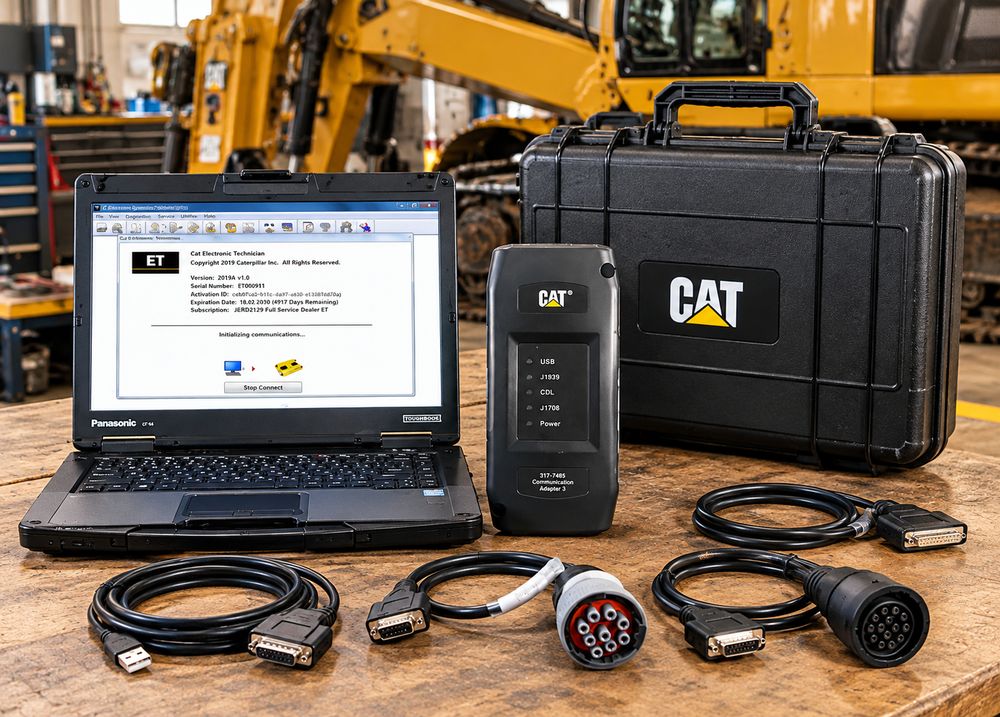
A commonly advertised CAT ET3 diagnostic kit may include:
| Component | Purpose |
|---|---|
| CAT Communication Adapter III | Diagnostic interface |
| USB cable | Connects the adapter to the laptop |
| Machine/truck diagnostic cable | Connects to the appropriate diagnostic port |
| Driver installation package | Enables Windows to recognize the interface |
| CAT ET 2026B software | Diagnostic application, when included |
| Protective carrying case | Storage and transport |
Some supplier kits reference Caterpillar part number 317-7485.
Verify the actual hardware part number, adapter identification, genuine or aftermarket status, cables, and software inclusion before ordering.
Genuine Caterpillar Communication Adapter 3 vs Aftermarket ET3 Adapters
Not all products marketed as CAT Communication Adapter III are identical.
Genuine Caterpillar interfaces and aftermarket-compatible adapters may differ in construction, firmware, driver requirements, supported communication modes, and after-sales service.
| Comparison | Genuine Caterpillar hardware | Aftermarket-compatible ET3 hardware |
|---|---|---|
| Manufacturing | Caterpillar-approved supply chain | Third-party manufacturer |
| Hardware identification | Manufacturer-specific identification | Varies by supplier |
| Driver installation | Appropriate Caterpillar driver | Supplier-specific or compatible driver |
| Communication support | According to official hardware specifications | Depends on hardware implementation |
| Technical support | Authorized channels | Seller or manufacturer |
| Compatibility | Must be checked by application | Must be verified before purchase |
Some aftermarket devices may require additional driver settings or use different communication-interface options.
Do not assume that selecting an older adapter mode in CAT ET proves complete Compatibility with newer machine systems.
For critical workshop applications, confirm compatibility between the required equipment, ECM, driver, and data link before selecting an interface.
How to Connect CAT ET 2026B with Communication Adapter 3
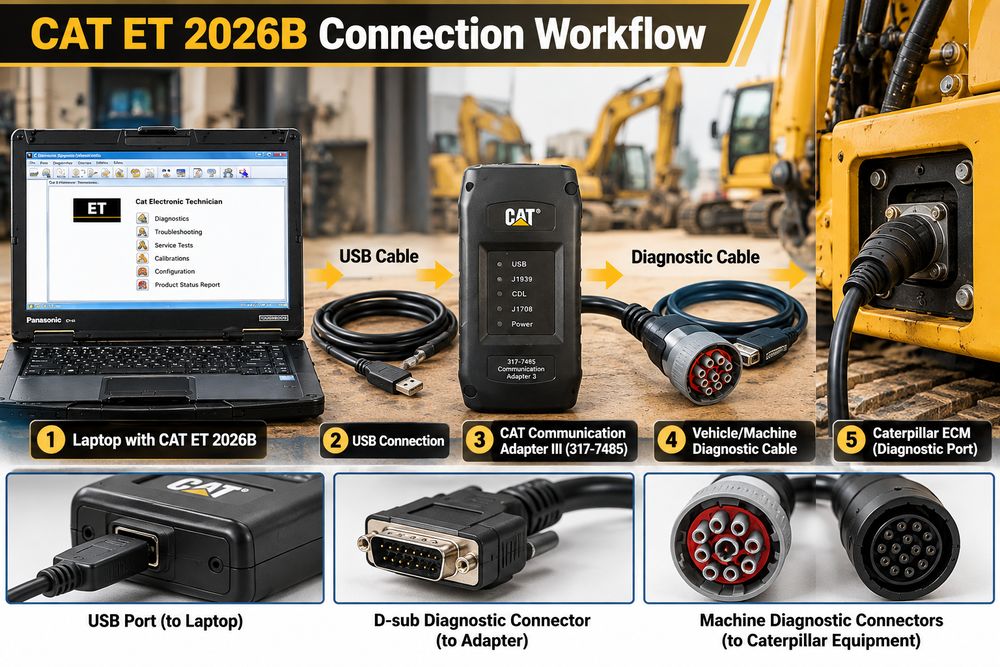
The basic diagnostic communication path is:
Windows Laptop → CAT ET 2026B → USB Cable → Communication Adapter III → Diagnostic Cable → Caterpillar Equipment ECM
Step 1: Install CAT ET 2026B
Install the appropriate CAT ET software package on a compatible Windows computer.
Verify that the installer is obtained from an authorized or trusted source and that the software license is valid.
Complete the necessary activation process before connecting to equipment.
Step 2: Install the Communication Adapter Driver
Install the driver supplied for the exact adapter model.
Connect the adapter to the computer using the USB cable.
Check Windows Device Manager or the manufacturer’s adapter utility to confirm that the communication interface is detected correctly.
Step 3: Connect the Adapter to the Equipment
Locate the machine or engine diagnostic connector.
Connect the appropriate diagnostic Cable between the equipment and the CAT Communication Adapter III.
Ensure the Cable matches the connector and data-link arrangement required by the equipment.
Turn on the machine’s electrical system as required by the diagnostic procedure.
Step 4: Configure CAT ET Communication Settings
Start CAT ET and, if necessary, stop any automatic connection attempt.
For CAT ET versions using the traditional communication configuration menus:
- Open Utilities.
- Select Preferences > Modify.
- Open the Communications tab.
- Select Cat Comm Adapter 3 (RP1210) when available.
- Confirm the selected interface.
- Save the configuration.
Menu names and interface entries may vary with software and driver versions.
Step 5: Check Dual Data-Link Service
Some Caterpillar systems use more than one electronic data link.
Where applicable, verify that Enable Dual Data-Link Service is enabled.
If the function is disabled when a machine requires multiple data-link communication, some ECMs may not be detected.
Step 6: Connect to the ECM
Initiate communication through CAT ET.
Once the connection is established, review the detected ECMs and available diagnostic functions.
Begin by saving a diagnostic report and recording active and logged fault codes before making changes.
PC Requirements for CAT ET 2026B
Genuine Caterpillar interfaces and aftermarket-compatible adapters may differ in construction, firmware, driver requirements, supported communication modes, and after-sales service.
| Comparison | Genuine Caterpillar hardware | Aftermarket-compatible ET3 hardware |
|---|---|---|
| Manufacturing | Caterpillar-approved supply chain | Third-party manufacturer |
| Hardware identification | Manufacturer-specific identification | Varies by supplier |
| Driver installation | Appropriate Caterpillar driver | Supplier-specific or compatible driver |
| Communication support | According to official hardware specifications | Depends on hardware implementation |
| Technical support | Authorized channels | Seller or manufacturer |
| Compatibility | Must be checked by application | Must be verified before purchase |
Windows Compatibility Notes
Windows 11: Check the exact CAT ET build, driver package, and system architecture before installation.
Windows 10: May be supported in compatible releases, but you must also consider operating-system security support and software prerequisites.
Windows 8/8.1: Some vendor packages list compatibility, but Microsoft no longer supports these operating systems. They are not recommended for a newly deployed workshop computer.
Windows 7: Not recommended for CAT ET 2026B and no longer supported by modern CAT ET release requirements.
ARM-based computers: Devices using Snapdragon or similar ARM processors should not be assumed compatible, even when Windows emulation is available.
For a new workshop setup, a modern Intel or AMD-based Windows 11 Pro laptop is generally the more practical starting point, provided the chosen adapter driver is supported.
Communication Adapters for CAT ET 2026B
Communication hardware compatibility is particularly important when using CAT ET with different types of Caterpillar equipment.
| Communication adapter | Compatibility considerations |
|---|---|
| Caterpillar Communication Adapter III | Primary Cat ET3 interface option |
| Caterpillar Communication Adapter II | Legacy hardware; verify driver and release support |
| NEXIQ USB-Link 1/2/3 | Check supported on-highway ECM applications |
| Noregon DLA+ 2.0 | Verify RP1210 support and specific Cat ET application |
| Other RP1210-compatible adapters | Compatibility depends on software, driver, protocol, and equipment |
A third-party adapter that communicates successfully with an on-highway engine may not support the same diagnostic functions on an off-highway machine.
For mixed fleets, confirm the actual machine and engine models before purchasing.
Supported Caterpillar Engines and Machines

CAT ET is used across a broad range of electronically controlled Caterpillar products, but coverage must be verified by ECM and equipment application rather than by machine category alone.
Caterpillar Engine and Power System Applications
Relevant product groups include:
- Industrial engines
- Electric power generation
- Marine engines and power systems
- Oil and gas applications
- Supported on-highway engines
- Other electronically controlled Cat engine applications
Caterpillar Construction and Heavy Equipment
Potential application categories include:
| Equipment category | Examples |
|---|---|
| Earthmoving equipment | Dozers, motor graders, wheel loaders |
| Excavation | Hydraulic excavators, wheel excavators |
| Loading and hauling | Articulated trucks, off-highway trucks |
| Road construction | Asphalt pavers, compactors, cold planers |
| Compact equipment | Skid steer and compact track loaders |
| Agricultural and forestry | Harvesters, skidders, forwarders |
| Material handling | Telehandlers, material handlers |
| Mining equipment | Hydraulic mining shovels and supported underground equipment |
| Other machines | Pipelayers, track loaders, wheel tractor-scrapers |
CAT ET functionality can vary considerably between models and electronic systems. Some mechanical or older equipment may provide limited or no electronic diagnostic functionality.
CAT ET 2026B Troubleshooting: Common Connection and Installation Problems
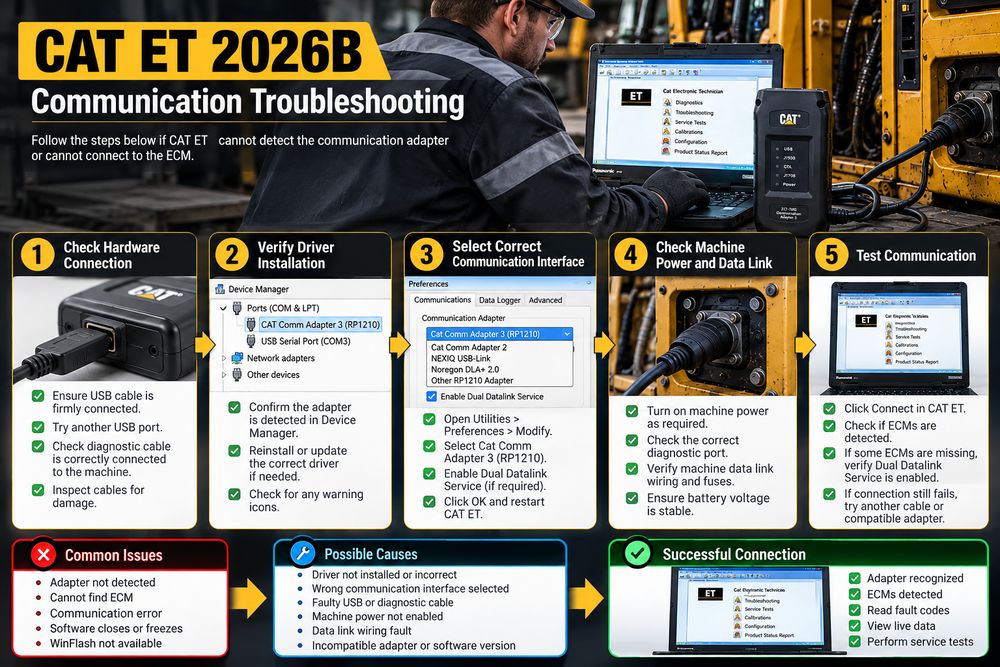
Problem 1: CAT ET Does Not Detect the Communication Adapter
Possible causes:
- Incorrect or missing driver
- Damaged USB cable
- Unsupported driver version
- Wrong communication interface selection
- Faulty USB connection
Recommended checks:
- Verify the adapter is powered.
- Reconnect the USB cable directly to the laptop.
- Check Windows Device Manager.
- Install or repair the correct driver.
- Verify the communication selection in CAT ET.
- Restart CAT ET and attempt communication again.
Problem 2: CAT ET Detects the Adapter but Cannot Find the ECM
Possible causes include:
- Incorrect diagnostic Cable
- Equipment power not enabled
- Data-link wiring fault
- Unsupported ECM or protocol
- Incorrect adapter selection
- Multiple data-link configuration issues
Begin by confirming the machine diagnostic connector, power supply, ground connections, and communication configuration.
If only some ECMs are missing, check whether the machine requires dual data-link communication.
Problem 3: Microsoft Visual C++ or DLL Errors
Some installations may report errors involving runtime components, such as:
- mfc140u.dll
- api-ms-win-crt-runtime
These messages can indicate missing, damaged, or incompatible Microsoft runtime dependencies.
Download the appropriate Microsoft Visual C++ Redistributable from Microsoft, repair or install the required packages, and restart the software.
Do not download individual DLL files from unknown third-party websites.
Problem 4: CAT ET Disconnects During Diagnostics
Intermittent communication may result from:
- Loose connectors
- Damaged data-link cables
- Unstable equipment voltage
- Faulty adapter hardware
- Laptop power management
- Electrical noise or data-link wiring problems
Try a direct USB connection, inspect the cables, and verify stable power.
Do not attempt ECM programming until the communication problem is resolved.
Problem 5: WinFlash Is Unavailable, or Programming Fails
First verify that the selected ECM supports the operation and that the correct software entitlement, flash file, and authorization are available.
Also confirm the ECM identification, equipment configuration, communication hardware, and programming power requirements.
Do not repeatedly attempt flashing without diagnosing the failure.
CAT ET 2026B vs Older Caterpillar ET Versions
The main reason to consider upgrading is to work with a newer service-tool release and its supported application environment.
| CAT ET version | General consideration |
|---|---|
| CAT ET 2026B | Updated 2026B release |
| CAT ET 2026A | Earlier 2026 release |
| CAT ET 2025C | Previous software generation |
| CAT ET 2024C | Older service-tool release |
| CAT ET 2022A | Legacy installation environment |
| CAT ET 2019B/2019C | Older software; may still be used in certain established workflows |
Version numbers alone do not establish that a particular diagnostic or programming function was added.
Before upgrading, consider whether your existing software supports the required machine, whether the new release supports your adapter, and whether the newer installation environment is compatible with your workshop computer.
Where to Buy CAT ET 2026B Software and Diagnostic Equipment
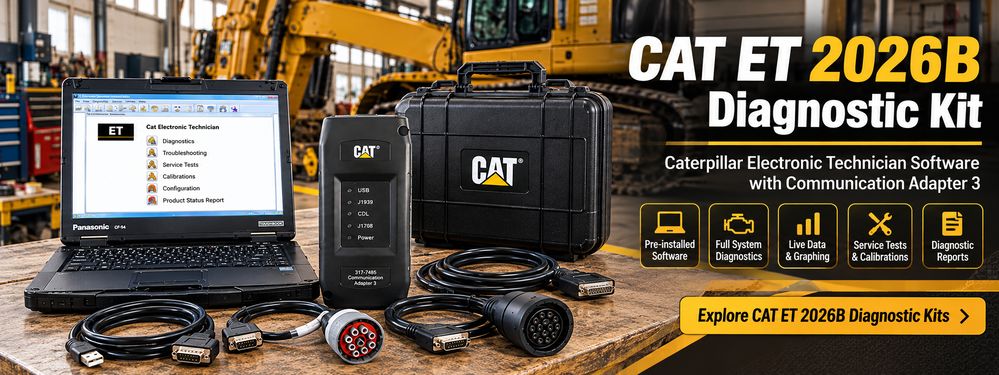
If you are preparing a Caterpillar diagnostic workstation, selecting compatible software, communication hardware, cables, and computer equipment together can simplify setup.
CAT ET 2026B Diagnostic Software
View CAT ET Caterpillar Electronic Technician Diagnostic Software
This listing is relevant for customers looking for the CAT ET software package.
Before ordering, confirm the exact 2026B build, license terms, activation method, computer requirements, and installation support.
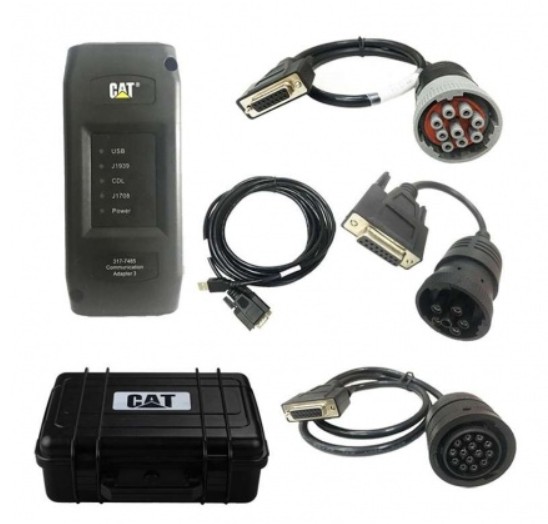
CAT Communication Adapter III
View Caterpillar ET Diagnostic Adapter III
CAT Communication Adapter III with Laptop
View Caterpillar ET Diagnostic Adapter III and Laptop Kit
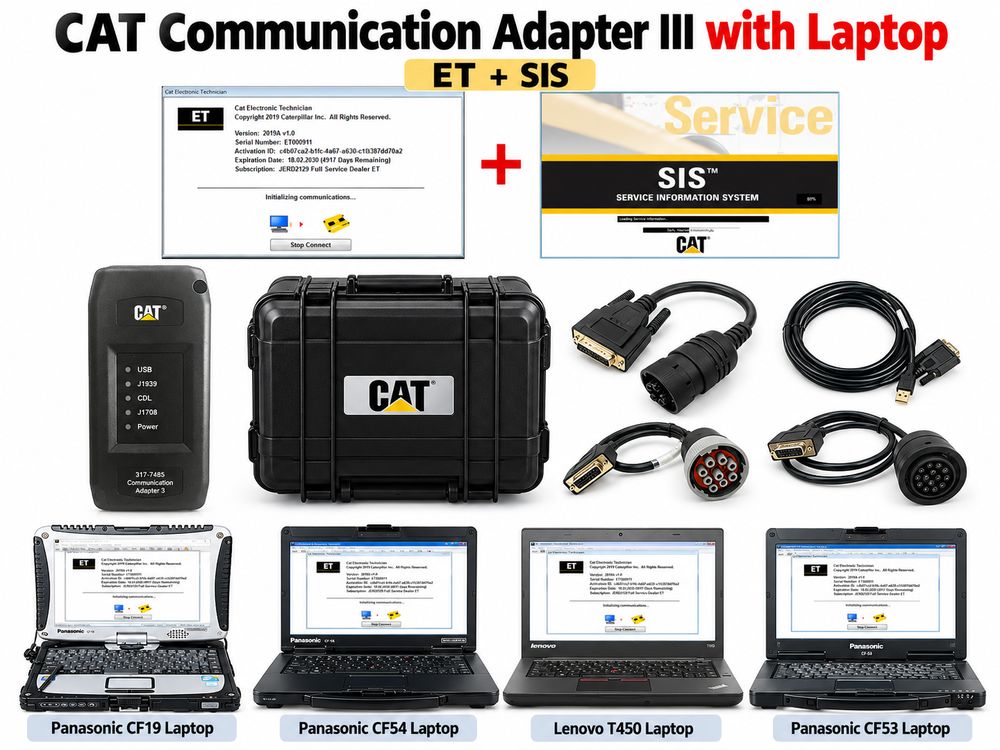
A bundled diagnostic workstation may suit technicians who prefer a laptop, software, and interface package rather than buying each component separately.
Confirm the adapter type, exact computer model, installed software, cables, and included support before purchase.
Need a CAT ET 2026B diagnostic setup? Review the available OBD2TOOL product configurations and verify Compatibility with your Caterpillar engine or machine before ordering.
Frequently Asked Questions About CAT ET 2026B
What is CAT ET 2026B?
CAT ET 2026B is a Caterpillar Electronic Technician software release used for supported ECM diagnostics, live data monitoring, service tests, configuration, and certain authorized programming operations.
Does CAT ET 2026B work with Windows 11?
Windows 11 compatibility depends on the exact software build and communication adapter driver. Confirm support for your Windows architecture and license before installation.
Can CAT ET 2026B diagnose Caterpillar excavators?
It can diagnose supported electronically controlled Caterpillar excavators through appropriate communication hardware. Specific ECM and function coverage depends on the machine model and configuration.
What adapter do I need for CAT ET 2026B?
A compatible Caterpillar Communication Adapter III is a common choice. Some supported third-party RP1210 interfaces may also work for particular applications, especially on-highway engines.
Can CAT ET 2026B program an ECM?
CAT ET includes WinFlash functionality for supported applications. Programming requires the correct flash files, compatible hardware, authorization, and all applicable service prerequisites.
Is CAT ET 2026B compatible with NEXIQ USB-Link 3?
Compatibility may be possible for certain on-highway applications, subject to the adapter driver and ECM. Full off-highway coverage should not be assumed.
Does CAT ET 2026B include CAT SIS repair manuals?
CAT ET and CAT SIS are different service resources. CAT ET is primarily a diagnostic and ECM service tool, while Caterpillar service information systems provide repair procedures and technical documentation. CAT SIS access is not automatically included with CAT ET software.
Can I install CAT ET 2026B on more than one laptop?
Installation and activation limits depend on the supplied license and software package. Confirm whether a license supports one computer, multiple devices, or additional activations before purchasing.
Is CAT ET 2026B free to download?
Availability of an installation package does not necessarily include a valid license or activation entitlement. Obtain the installer and software authorization from legitimate sources and verify all licensing requirements.
Does CAT ET 2026B replace CAT ET 2025C?
CAT ET 2026B is a newer release, but whether it should replace an existing CAT ET 2025C installation depends on the required equipment coverage, software environment, and license arrangements.
Conclusion
CAT ET 2026B is a professional diagnostic software option for technicians servicing electronically controlled Caterpillar engines and machines.
With a compatible CAT Communication Adapter III, it provides key diagnostic capabilities, including fault-code analysis, live operating data, ECM configuration information, supported calibrations, diagnostic testing, and service reporting.
For repair workshops and equipment fleet operators, the most important purchasing decision is not simply choosing the newest version number. It is ensuring that the software, adapter, operating system, equipment data links, and required service permissions work together.
Explore CAT ET 2026B software and Caterpillar diagnostic equipment at OBD2TOOL.
Disclaimer: CAT, Caterpillar, and Electronic Technician are trademarks of Caterpillar Inc. Equipment compatibility, software licensing, diagnostic functions, and programming permissions must be verified for each application. Third-party products are not necessarily manufactured, endorsed, or authorized by Caterpillar.