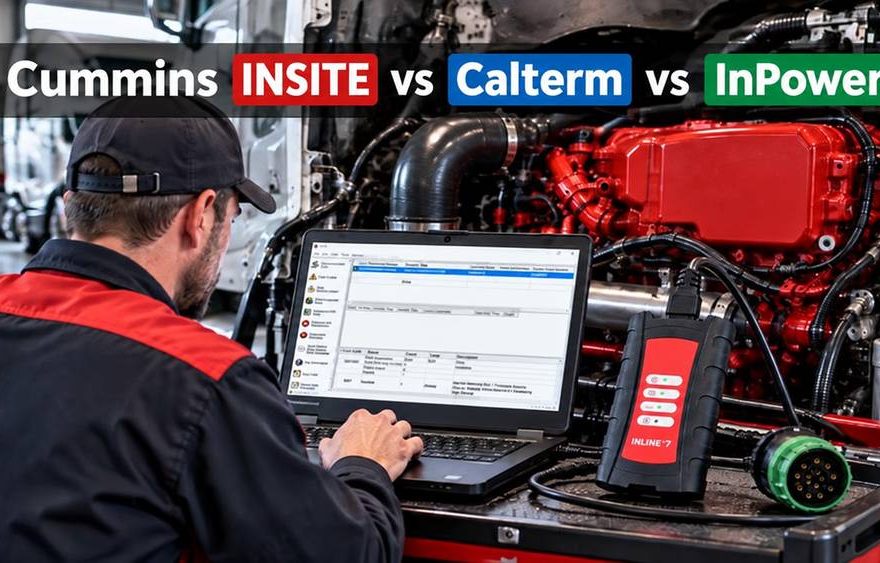
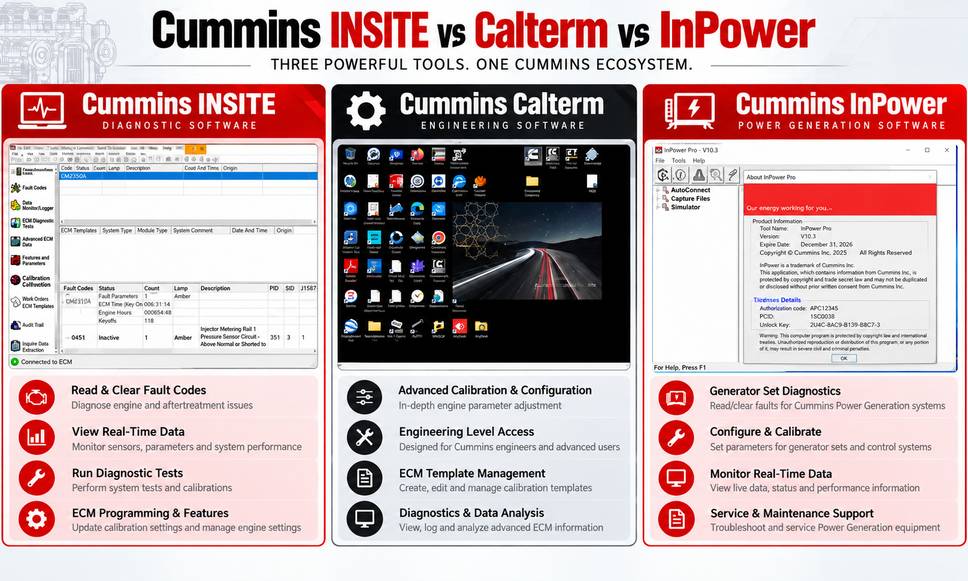
Cummins INSITE, Calterm, and InPower serve different diagnostic and service needs. INSITE is the best starting point for routine Cummins engine diagnostics, Calterm is for specialized ECM engineering and calibration analysis, and InPower services compatible Cummins PowerCommand generator controls.
For most diesel repair shops, Cummins INSITE is the practical choice. It supports engine fault-code diagnostics, live-data monitoring, diagnostic tests, and approved service adjustments. Technicians who perform supported factory ECM calibration downloads generally need INSITE Pro.
However, choosing the correct software is only part of the process. Your ECM, diagnostic adapter, software license, communication protocol, and operating system must also be compatible.
This guide explains the differences between the three programs, their applications, and how to build a dependable Cummins diagnostic workflow in 2026.
1. Cummins INSITE vs Calterm vs InPower: Quick Comparison
| Feature | Cummins INSITE | Cummins Calterm | Cummins InPower |
|---|---|---|---|
| Primary application | Engine diagnostics and service | ECM engineering and calibration analysis | Generator and PowerCommand service |
| Typical users | Diesel technicians, truck shops, fleet maintenance | Trained ECM engineers and calibration specialists | Generator and power-generation technicians |
| Engine fault codes | Yes | Specialized engineering access | Not its primary purpose |
| Engine live data | Yes | Advanced engineering monitoring | Controller-specific monitoring |
| Standard engine service tests | Yes, when supported | Not the primary workflow | Controller-specific tests |
| Supported ECM parameter changes | Yes | Engineering-level access | Not for ordinary truck ECM settings |
| Factory ECM calibration downloads | INSITE Pro, with required authorization | Engineering calibration workflows | Not its primary purpose |
| ECFG engineering files | Not standard service workflow | Yes, with matching configuration | No |
| PowerCommand configuration | Not its primary purpose | Not its primary purpose | Yes, on supported controls |
| Diagnostic hardware | Compatible INLINE or supported RP1210 adapter | Compatible engineering interface | Controller-specific connection hardware |
Bottom line: Choose by the equipment and task—not by which software appears to offer the most advanced functions.
A heavy-duty truck with an engine fault usually needs INSITE. An engineering team analyzing internal ECM behavior may require Calterm. A technician servicing a PowerCommand generator controller should investigate InPower.
2. What Is Cummins INSITE Diagnostic Software?
Cummins INSITE is a Windows-based electronic service application for troubleshooting electronically controlled Cummins engines.
It connects to the engine’s Electronic Control Module (ECM) through a compatible diagnostic adapter, providing access to information not available on the vehicle’s dashboard.
Main Functions of Cummins INSITE
Depending on the engine, ECM, calibration, licensing, and authorization, INSITE can perform tasks such as:
- Read active and inactive engine fault codes.
- Display fault descriptions and available diagnostic information.
- Monitor engine speed, coolant temperature, pressures, sensor signals, and other supported values.
- Perform available ECM diagnostic tests.
- Review trip and engine performance information.
- Adjust supported features and parameters.
- Record diagnostic data and service information.
- Download authorized factory ECM calibrations with the appropriate software edition.
INSITE is particularly useful when a mechanic needs to diagnose a fault systematically rather than replace components based only on a trouble-code description.
Cummins INSITE Lite vs Pro: What’s the Difference?
Cummins provides different licensing levels for different service needs.
| Function | INSITE Lite | INSITE Pro |
|---|---|---|
| Read and clear supported engine faults | Yes | Yes |
| Monitor live engine data | Yes | Yes |
| Run available diagnostic tests | Yes | Yes |
| Adjust permitted engine features | Yes, subject to access rights | Yes, subject to access rights |
| Authorized ECM calibration download | No | Yes, with required calibration access |
| Best suited for | Routine diagnostics and maintenance | Advanced service involving ECM calibration |
Important: INSITE Pro does not automatically provide unrestricted access to every ECM or protected function. Supported operations still depend on the applicable license, engine configuration, authorization, and Cummins calibration resources.
Cummins INSITE 10 vs 9.3: What Changed in 2026?
Cummins published INSITE 10.1.0.67 on July 29, 2026, according to its official support website.
One of the most significant compatibility changes concerns older diagnostic hardware and 32-bit operating systems.
Beginning with INSITE 10, Cummins ended compatibility with INLINE 6 and earlier adapter generations. INSITE 10 also requires a supported 64-bit Windows environment.
If your workshop already uses INSITE 9.3 with an existing diagnostic interface, don’t assume a software upgrade will preserve full hardware compatibility.
Before updating, check:
- Installed INSITE version and license.
- Windows version and system architecture.
- Diagnostic adapter model.
- Current adapter driver and firmware.
- Supported ECM and communication protocol.
- Availability of calibration access, if ECM programming is required.
Recommendation: Select the software version based on verified support requirements rather than choosing the highest version number alone.
3. What Is Cummins Calterm?
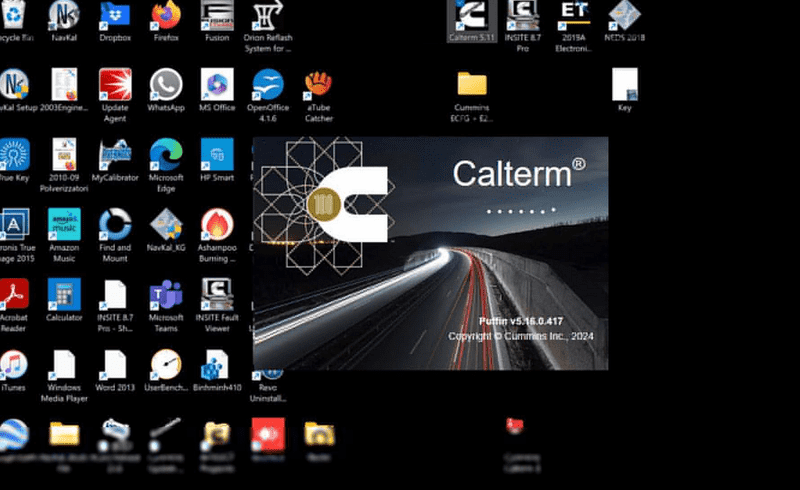
Cummins Calterm is an engineering-oriented application associated with detailed ECM calibration analysis, parameter monitoring, and development work.
While INSITE focuses on everyday service and supported factory procedures, Calterm allows qualified users to investigate ECM behavior at a deeper technical level.
What Can Cummins Calterm Do?
Depending on access rights, ECM generation, software configuration, and engineering files, specialized Calterm workflows may include:
- Monitoring detailed internal ECM parameters.
- Analyzing calibration-related data.
- Recording additional engineering signals.
- Working with compatible ECM configuration files.
- Supporting authorized calibration development and validation.
- Investigating control strategies in an engineering environment.
What Are ECFG Files in Calterm?
An ECFG file provides engineering configuration information for a particular ECM software environment.
These files help the application interpret applicable parameters and data structures.
However, an engineering configuration intended for one ECM or software revision should not be assumed to work correctly with another.
Mismatched engineering files can lead to incorrect data interpretation, failed communication, or inappropriate parameter changes.
When Should You Use Calterm Instead of INSITE?
Calterm may be appropriate when authorized engineering work requires internal ECM data or calibration analysis beyond the standard INSITE service interface.
For example, a calibration engineer investigating a control-system response may need engineering parameters not available through a standard diagnostic session.
That differs from a mechanic troubleshooting a coolant-temperature sensor circuit, where INSITE fault information, live data, wiring checks, and supported diagnostic tests are generally more appropriate.
Safety and compliance: Advanced ECM access does not permit altering emissions controls, disabling protection systems, or making unauthorized changes to regulated engine calibrations. Such changes can damage equipment and violate applicable laws.
For routine truck repair, begin with INSITE rather than Calterm.
4. What Is Cummins InPower Software?
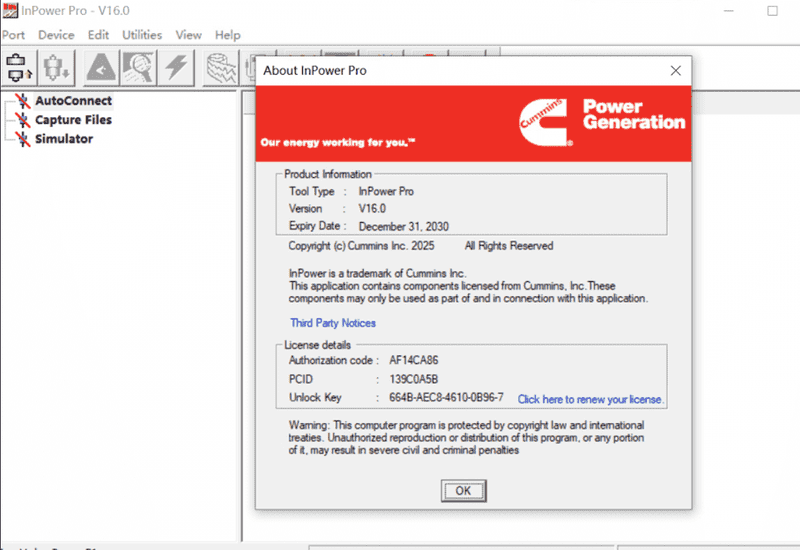
Cummins InPower is a PC-based service and maintenance application for compatible Cummins PowerCommand products, including supported generator-set controls, transfer controls, and system controls.
Unlike INSITE, which primarily addresses electronically controlled engines, InPower focuses on the control systems used in power-generation equipment.
Cummins InPower Main Functions
Depending on the connected control and user access, InPower may support:
- Reading PowerCommand faults and alarms.
- Reviewing equipment history.
- Monitoring supported controller parameters.
- Viewing generator operating information.
- Adjusting authorized voltage and frequency settings.
- Configuring supported controller inputs.
- Reviewing or adjusting available protection settings.
- Performing permitted configuration and maintenance functions.
Changes to protection settings, voltage, frequency, and controller configuration require appropriate training and authorization.
Incorrect adjustments can cause unexpected equipment operation or damage connected loads.
InPower Lite vs InPower Pro
Cummins offers Lite and Pro licensing options for InPower.
InPower Lite supports various monitoring and maintenance functions, but Cummins specifically states that Lite does not allow firmware and feature downloads to supported controls.
InPower Pro provides additional capabilities, subject to the controller, product version, and user authorization.
Is InPower Needed for Every Cummins Generator?
No.
A generator set can include both a Cummins engine ECM and a separate PowerCommand control system.
These may require different tools:
- Engine ECM issue: INSITE may be required if the engine and ECM are supported.
- PowerCommand control issue: InPower may be required if the controller is supported.
- Integrated or complex fault: Both applications may help diagnose their respective systems.
For example, an engine speed sensor fault and a generator output-voltage alarm are not necessarily diagnosed through the same controller or software.
Identify which module recorded the fault before selecting the diagnostic application.
5. How to Diagnose a Cummins Engine with INSITE and an INLINE Adapter
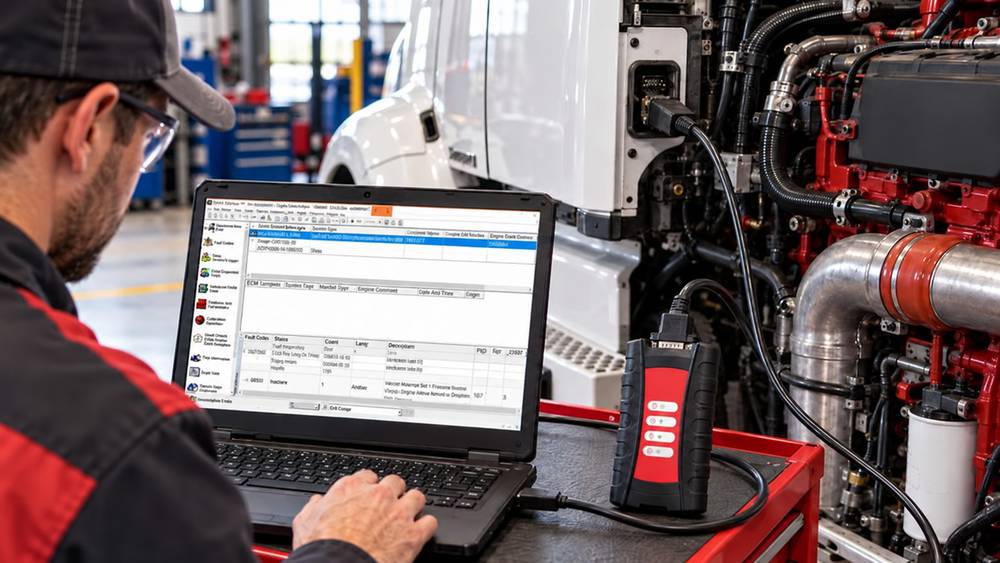
A practical diagnostic workflow reduces unnecessary parts replacement and helps technicians distinguish electrical, mechanical, and control-system problems.
Step 1: Prepare the Diagnostic Equipment
You will typically need:
- A Windows laptop meeting the selected INSITE version’s requirements.
- A properly licensed INSITE installation.
- A compatible datalink adapter such as Cummins INLINE 7.
- A correct vehicle diagnostic cable and connector.
- A stable vehicle electrical system.
- Access to the appropriate service information.
The interface establishes communication between the computer and the vehicle’s ECM.
Step 2: Connect the Diagnostic Adapter
- Locate the vehicle’s diagnostic connector.
- Inspect the connector for damage, corrosion, or loose terminals.
- Connect the correct diagnostic cable to the vehicle.
- Connect the cable to the INLINE adapter.
- Connect the adapter to the computer using a supported communication method.
- Turn the ignition on according to the applicable service procedure.
- Open INSITE and select the correct datalink connection.
Confirm that the adapter is recognized before attempting ECM communication.
Do not force incompatible connectors or substitute unverified cable pinouts.
Step 3: Identify the Engine and ECM
After establishing communication, confirm the available engine and ECM information.
Record details such as:
- Engine serial number, where available.
- ECM model or hardware identification.
- Calibration identification.
- Active and inactive fault codes.
- Relevant operating hours or recorded fault information.
Accurate identification is especially important when ordering replacement components or planning a calibration update.
Step 4: Read and Interpret Fault Codes
Open the fault-code section and review all available codes.
Do not immediately clear them.
Instead:
- Record the complete fault information.
- Identify the affected system.
- Review the available diagnostic descriptions.
- Determine whether multiple codes may share a common cause.
- Consult the engine-specific troubleshooting procedure.
For example, several sensor-related faults occurring simultaneously may justify investigating a shared supply voltage, ground, or wiring connection before replacing multiple sensors.
A fault code identifies a detected condition; it does not automatically prove that a particular component has failed.
Step 5: Check Live Engine Data
Use the data-monitoring function to compare available parameter readings with actual operating conditions.
Useful information may include:
| Parameter | What to Investigate |
|---|---|
| Engine speed | Signal plausibility during cranking or operation |
| Coolant temperature | Cold-start plausibility and operating temperature |
| Oil pressure | Actual engine lubrication condition |
| Fuel pressure | Supply or rail-pressure behavior, where supported |
| Intake manifold pressure | Air-system and boost response |
| Battery voltage | ECM power supply condition |
| Aftertreatment data | Relevant temperature, pressure, or sensor behavior |
Do not rely on universal pressure, temperature, or voltage values across different Cummins engines.
Step 6: Perform Supported Diagnostic Tests
INSITE may provide ECM diagnostic tests related to the affected system.
The tests available depend on the engine and installed calibration.
Before running a test:
- Follow the software’s operating instructions.
- Confirm the required engine and vehicle conditions.
- Ensure adequate ventilation.
- Keep personnel clear of rotating and hot components.
- Follow service procedures for any test that changes engine speed or actuator operation.
For an aftertreatment complaint, review the relevant fault information and prerequisites before initiating any supported regeneration or system test.
Step 7: Repair and Verify the Fault
After identifying the cause:
- Perform the required repair.
- Inspect relevant connectors, wiring, hoses, or components.
- Recheck live data.
- Clear fault codes when the procedure permits.
- Run any required verification tests.
- Confirm that the original fault does not return under appropriate operating conditions.
- Save the diagnostic results for maintenance records.
A successful repair is verified by corrected operation and test results—not merely by clearing the fault code.
6. Cummins INLINE 7: Choosing the Right Diagnostic Adapter
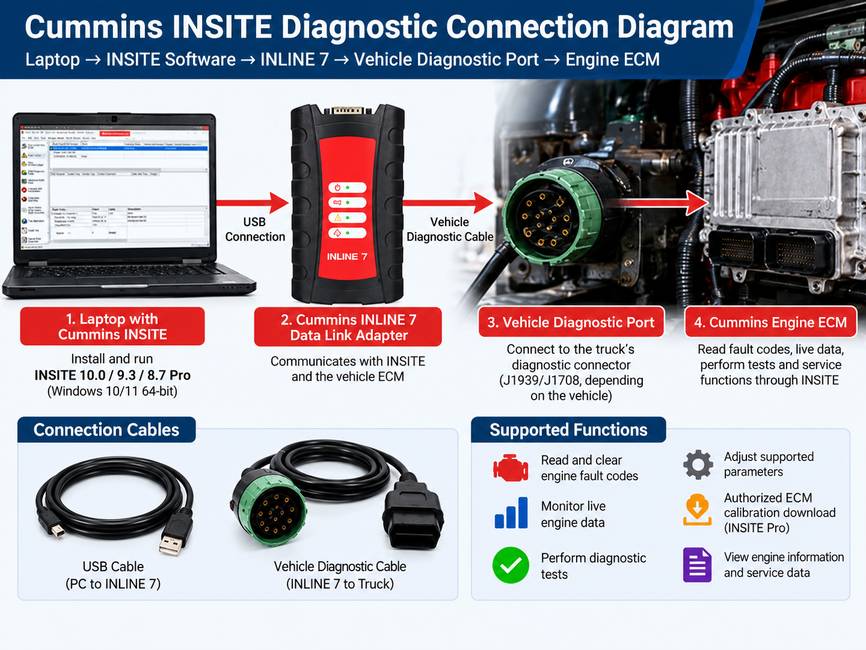
INSITE software requires a suitable communication interface to connect a laptop to the engine ECM.
Cummins INLINE 7 is a datalink adapter used with supported Cummins diagnostic software environments.
It is a practical option for workshops maintaining equipment covered by the appropriate adapter drivers, diagnostic protocols, and software versions.
How the INLINE 7 Connection Works
The basic diagnostic communication path is:
Windows Laptop → INSITE Software → INLINE 7 Adapter → Vehicle Diagnostic Connector → Engine ECM
The adapter communicates with the PC and transfers supported vehicle network information to the diagnostic application.
Depending on hardware configuration and software support, INLINE 7 connections can use USB or supported wireless communication.
Recommended Cummins Diagnostic Tool
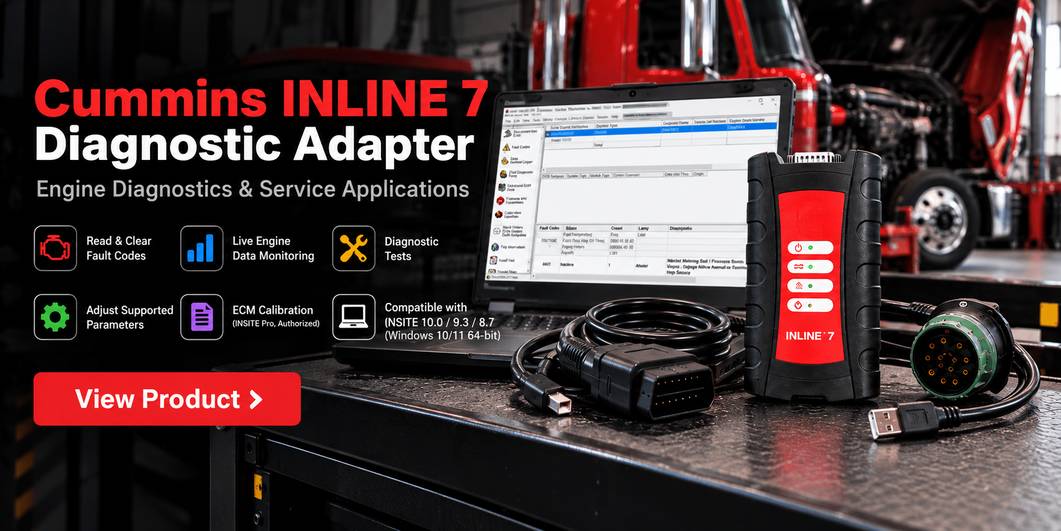
For workshops planning an INSITE-based diagnostic setup, consider the following product:
Cummins INLINE 7 Data Link Adapter with INSITE Software – OBD2TOOL
This product is intended for Cummins engine diagnostic applications using a compatible INLINE 7 interface.
The current OBD2TOOL listing identifies INSITE 9.3.0/8.7 Pro software options. Confirm the specific software package, supported engine, operating system, installation requirements, and licensing terms before purchasing.
Important: Purchasing diagnostic hardware does not automatically provide an official Cummins subscription, unrestricted online access, or authorization to perform protected ECM operations.
The INLINE 7 should not be assumed to work as a universal InPower interface. PowerCommand controls may require entirely different connection hardware.
INLINE 7 vs INLINE 8 in 2026
Cummins also provides INLINE 8 support and driver resources.
For an existing INSITE workshop setup, INLINE 7 may remain suitable when the selected software release and ECM are compatible.
For a new deployment requiring a particular software release, technicians should compare the current Cummins compatibility requirements before selecting hardware.
An older adapter may remain useful for a supported workflow, but it may not be the best choice for every future update.
7. Cummins INSITE Not Connecting to ECM? Troubleshooting Checklist
Communication problems are among the most common obstacles encountered during diagnostic setup.
If INSITE cannot establish a connection, check the system in the following order.
| Symptom | Possible Cause | Recommended Check |
|---|---|---|
| Adapter not detected by Windows | Missing driver, USB issue, or adapter fault | Check Device Manager, driver installation, and connection |
| Adapter detected but no ECM communication | Wrong datalink selection or incompatible protocol | Verify RP1210 device selection and supported protocol |
| Connection drops intermittently | Cable damage, unstable power, or adapter communication issue | Inspect cable, power supply, and adapter status |
| Older adapter fails after software upgrade | Unsupported interface generation | Check Cummins version and hardware compatibility |
| Some functions are unavailable | License restrictions, ECM limitations, or authorization | Check license, ECM support, and permissions |
| Software fails to open | Unsupported operating system or software prerequisites | Review Cummins system requirements |
Check 1: Verify Adapter Driver Installation
Open Windows Device Manager and confirm that the interface or its communication components are installed without errors.
If required, reinstall the correct driver from the manufacturer’s support resources.
Use the driver designed for the exact adapter generation.
Check 2: Verify the Selected Datalink
Open the datalink connection settings in INSITE.
Confirm that the selected RP1210 device corresponds to the installed interface and that the correct communication configuration is being used.
An incorrect interface selection can prevent ECM communication even when the adapter is functioning normally.
Check 3: Inspect the Diagnostic Cable and Vehicle Power
Check for:
- Damaged pins or loose connections.
- Incorrect diagnostic connector or cable.
- Missing diagnostic-port power, where required.
- Unstable battery voltage.
- Damaged harness wiring.
- Improper connector adapters.
Do not improvise pin bridges or apply power to unknown terminals.
Check 4: Verify Communication Protocol Compatibility
Cummins engines and ECM generations may use different vehicle communication protocols, including J1939 and J1708.
The correct connection depends on the ECM and vehicle architecture.
An adapter supporting a protocol does not guarantee that the selected cable or ECM connection is correct.
Check 5: Reset the Adapter When Appropriate
Certain INSITE versions include a Tools > Reset Datalink Adapter function that may help recover from some communication errors.
Use this function only when your software supports it, and follow the applicable adapter troubleshooting instructions.
If the problem persists, test the connection with a verified cable and supported diagnostic environment before concluding that the ECM is defective.
8. ECM Calibration: When Is INSITE Pro Required?
An ECM calibration update differs from clearing fault codes or changing a supported service parameter.
Calibration programming transfers a compatible software calibration to an ECM.
For supported Cummins service workflows, use INSITE Pro when an authorized calibration download is required.
ECM Calibration Preparation Checklist
Before beginning a calibration operation:
- Confirm the exact engine and ECM identification.
- Verify that the selected calibration is approved for the application.
- Confirm the required INSITE license and calibration access.
- Use a reliable diagnostic connection.
- Connect an appropriate power stabilizer as specified by the service procedure.
- Save existing ECM data or parameters when supported.
- Disable laptop sleep and other interruptions.
- Follow the complete Cummins programming procedure.
Do not interrupt the process by disconnecting the adapter, turning off the computer, or removing ECM power.
Incorrect calibration or an interrupted download can leave the ECM inoperable.
What Is Cummins INCAL?
INCAL refers to Cummins calibration resources used in supported ECM calibration workflows.
Cummins updates calibration resources periodically, and access and validity requirements depend on the distribution method and the service tools used.
Always confirm calibration suitability through authorized Cummins resources rather than assuming a file that matches an engine family is correct for every ECM.
9. Real-World Scenarios: Which Cummins Software Should You Use?
Scenario A: Heavy-Duty Truck with an Active Engine Fault
A truck arrives with an engine warning lamp and reduced engine performance.
Recommended software: INSITE
Use INSITE to record faults, review operating data, follow the engine-specific diagnostic procedure, and verify the repair.
Calterm is generally unnecessary for standard fault isolation.
Scenario B: Authorized ECM Calibration Update
A workshop has an approved calibration update for a supported Cummins ECM.
Recommended software: INSITE Pro
Verify the ECM identification, calibration compatibility, software authorization, stable electrical supply, and required programming procedure.
Scenario C: Engineering-Level ECM Analysis
An authorized engineering team needs detailed monitoring of internal ECM parameters to validate calibration.
Recommended software: Calterm
Use the appropriate engineering environment and matching configuration files with the required authorization.
Scenario D: PowerCommand Generator Alarm
A standby generator’s PowerCommand controller reports a configuration or operating alarm.
Recommended software: InPower
Identify the exact controller, review its supported communication requirements, and investigate controller fault history and operating parameters.
If the engine ECM reports a fault independently, INSITE may also be needed.
Scenario E: INSITE Detects the Adapter but Cannot Connect to the Engine
Recommended approach: Check hardware and configuration first.
Verify the Windows driver, selected RP1210 interface, diagnostic connector, ECM power, communication protocol, and software compatibility.
Switching from INSITE to Calterm doesn’t replace the need to resolve a communication fault.
10. Which Cummins Diagnostic Software Is Best for Your Workshop?
The best software depends on the equipment your workshop services most often.
| Workshop Type | Recommended Starting Point | Why |
|---|---|---|
| Independent diesel truck repair shop | INSITE Lite or Pro | Routine engine diagnostics and supported service |
| Fleet maintenance department | INSITE | Fault analysis, monitoring, and maintenance records |
| ECM calibration service | INSITE Pro | Authorized factory calibration procedures |
| Engine engineering or development | Calterm | Specialized ECM data and calibration analysis |
| Generator maintenance company | InPower | PowerCommand monitoring and configuration |
| Mixed engine and power-generation workshop | INSITE + InPower | Different applications may require separate tools |
For workshops servicing primarily Cummins-powered trucks, INSITE offers the most directly applicable functionality.
For specialized calibration engineering, Calterm serves a different role and requires appropriate expertise and access.
For PowerCommand equipment, InPower is the relevant controller service tool.
11. Frequently Asked Questions
Is Cummins INSITE better than Calterm?
INSITE is generally better for routine engine diagnosis and approved service operations. Calterm is designed for specialized ECM engineering and calibration analysis. Neither application is universally better; the correct tool depends on the job.
Can Cummins INSITE reprogram an ECM?
INSITE Pro supports authorized factory ECM calibration downloads on compatible applications, provided you have the required license, calibration resources, and permissions. A compatible diagnostic adapter and stable programming environment are also required.
Can I use Cummins INLINE 7 with INSITE 10?
INLINE 7 remains part of Cummins’ supported driver resources, but compatibility should be verified against the exact INSITE release, adapter firmware, operating system, and ECM. Cummins specifically ended support for INLINE 6 and earlier adapters with INSITE 10.
What is the difference between INSITE Lite and Pro?
Both provide core diagnostic capabilities, including supported fault information, data monitoring, and service functions. INSITE Pro additionally enables authorized ECM calibration downloads when all applicable access requirements are met.
Is Cummins InPower used for diesel trucks?
InPower primarily supports compatible Cummins PowerCommand generator, transfer, and system controls. For standard Cummins truck engine diagnostics, INSITE is generally the appropriate application.
Do I need both INSITE and InPower for a Cummins generator?
Possibly. If the installation contains both a supported engine ECM and a PowerCommand controller, different faults may require different service applications. Identify the affected controller before selecting software.
Why won’t Cummins INSITE connect to my ECM?
Common causes include missing adapter drivers, incorrect RP1210 selection, unsupported interfaces, incompatible cables, communication-protocol issues, or unstable ECM power. Check the connection and compatibility systematically before replacing components.
Does buying a Cummins INLINE 7 include an official INSITE license?
Not necessarily. Hardware, bundled software, official subscriptions, calibration access, and protected-function authorization are separate considerations. Confirm precisely what is included with the seller.
Conclusion: Choose the Right Cummins Tool for the Job
Cummins INSITE is the best starting point for most diesel engine diagnostic work. It supports fault-code analysis, live monitoring, diagnostic tests, supported parameter adjustments, and authorized ECM calibration through the appropriate edition.
Calterm is for specialized ECM engineering and calibration analysis, while InPower supports compatible generator and PowerCommand control systems.
Before choosing a diagnostic solution, verify the equipment, ECM, software release, license, communication hardware, and required service functions.
For an INSITE-based truck diagnostic setup, explore the Cummins INLINE 7 Data Link Adapter and INSITE software options at OBD2TOOL and confirm compatibility before ordering.