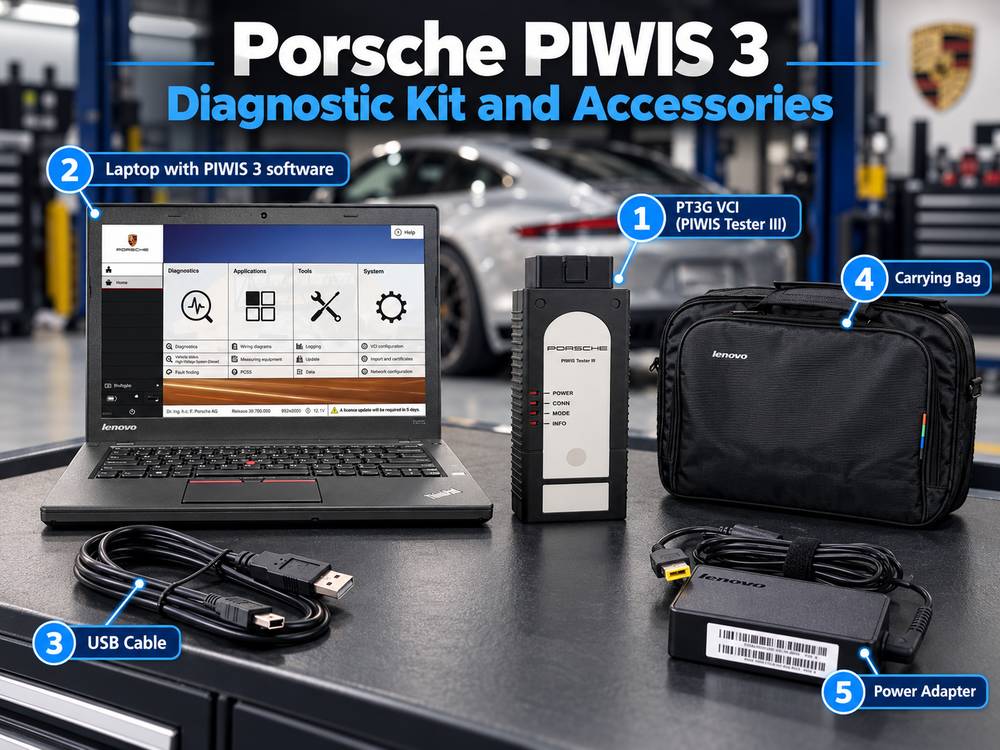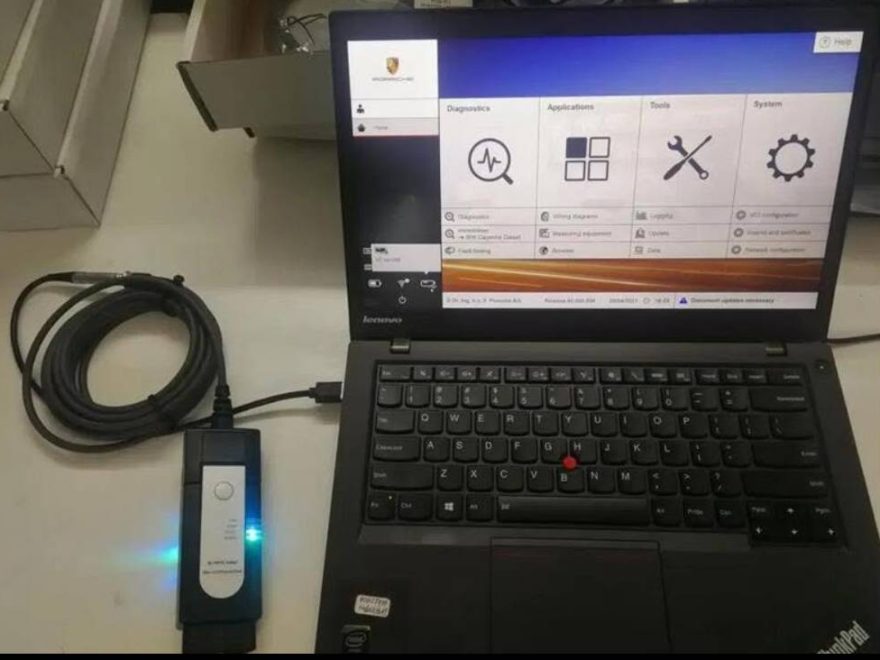
Porsche PIWIS 3 is a professional diagnostic platform designed for Porsche vehicle troubleshooting, system analysis, maintenance procedures, and supported programming-related operations.
When combined with the PT4G Vehicle Communication Interface (VCI), PIWIS 3 provides a communication bridge between the diagnostic computer and Porsche vehicle electronic systems.
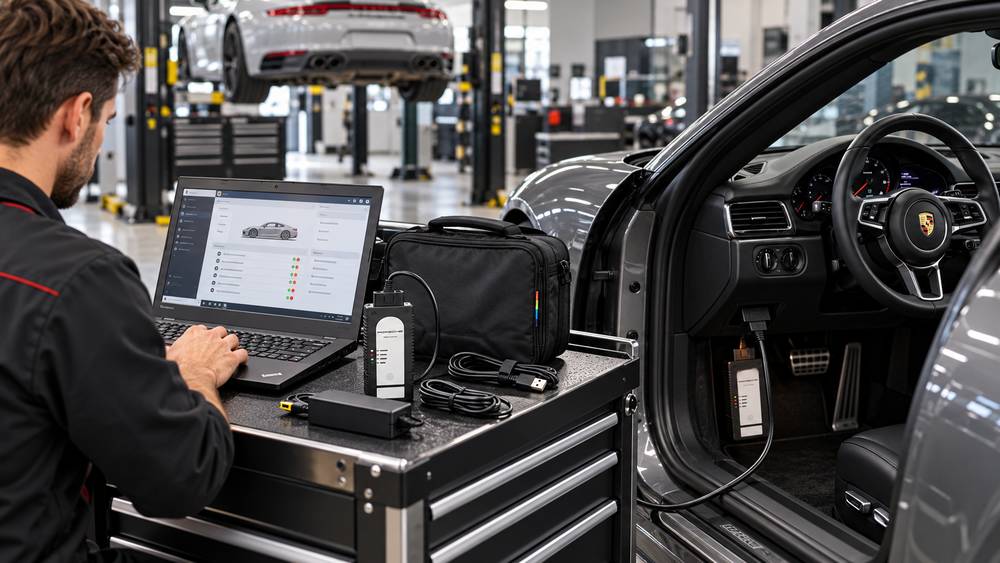
A successful PIWIS 3 + PT4G setup depends on three key factors:
- Correct VCI connection
- Proper software and firmware matching
- Stable vehicle communication during diagnosis
This guide explains how to connect the PT4G VCI to PIWIS 3, complete the initial setup, run diagnostics, and troubleshoot common connection problems.
What Is the Porsche PT4G VCI?
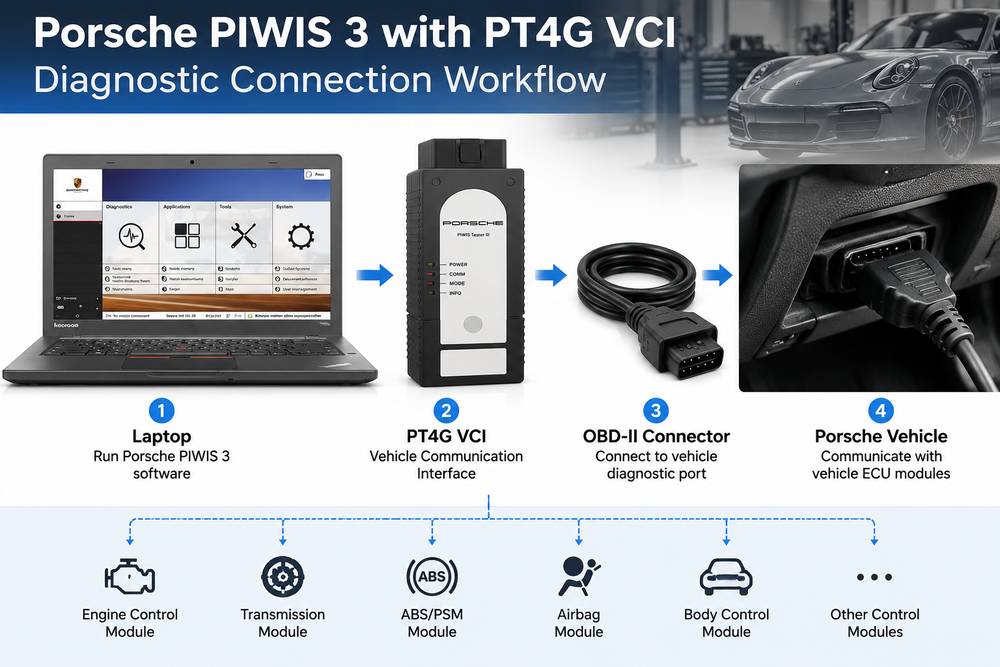
The PT4G VCI is a newer-generation communication interface used with the Porsche PIWIS 3 diagnostic environment.
It works as the communication bridge between:
PIWIS 3 Software → PT4G VCI → Vehicle Network → Porsche Control Modules
The VCI handles communication between the diagnostic laptop and vehicle systems, allowing technicians to perform functions such as:
- Vehicle identification
- Control unit scanning
- Diagnostic trouble code reading
- Fault clearing
- Live data analysis
- System tests
- Supported coding and configuration procedures
Actual available functions depend on the vehicle model, software version, and system authorization level.
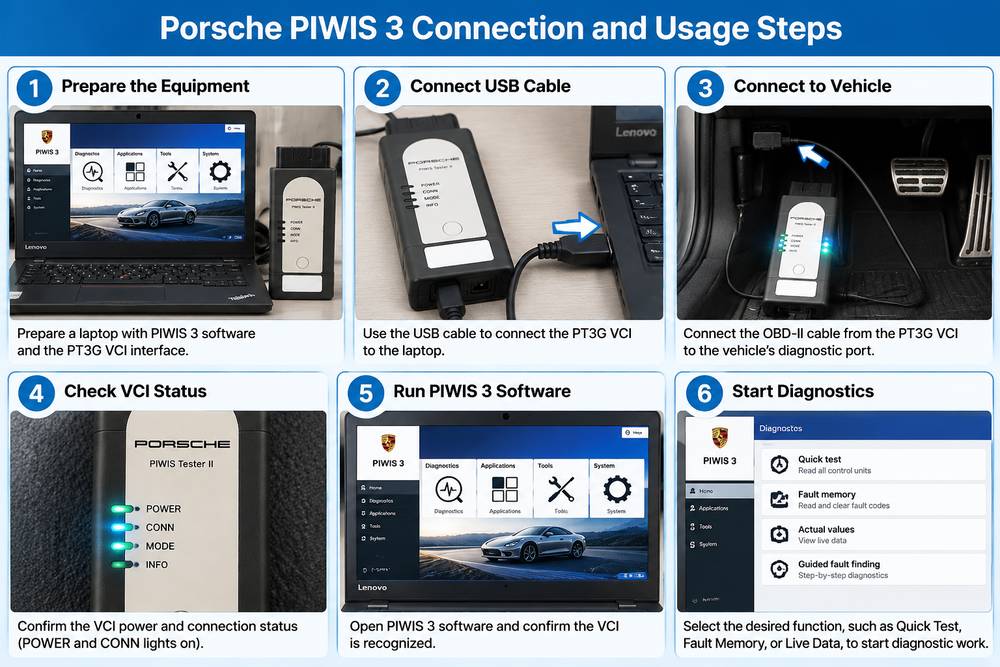
Porsche PIWIS 3 PT4G VCI Connection Procedure
Step 1: Connect PT4G VCI to the Vehicle
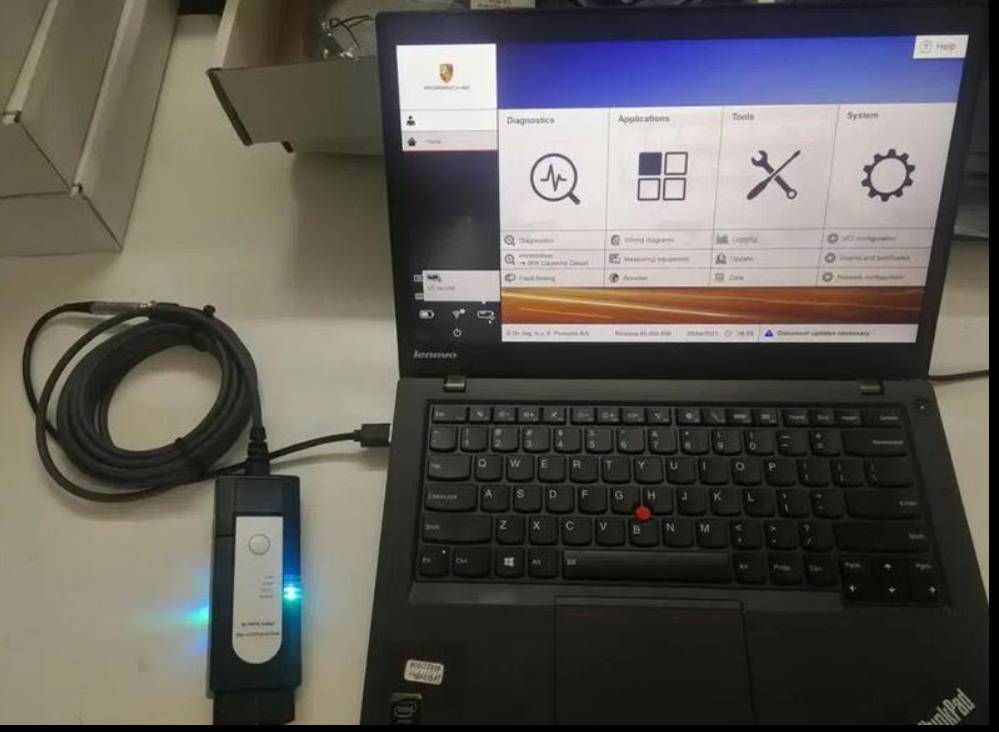
First, connect the PT4G VCI to the Porsche vehicle:
- Turn off the vehicle ignition.
- Connect the PT4G VCI cable to the vehicle’s OBD-II diagnostic connector.
- Connect the PT4G VCI to the diagnostic laptop using USB.
For the first setup, a USB connection is recommended because it eliminates wireless connection variables during device registration.
Step 2: Start PIWIS 3 Software
After connecting the hardware:
- Turn on the vehicle ignition.
- Start Porsche PIWIS 3 software.
- Open the device management section.
- Confirm that the PT4G VCI is detected.
The software should recognize the VCI and display its connection status.
If the PT4G is not detected, check:
- USB cable quality
- USB port connection
- VCI driver installation
- Software compatibility
Step 3: Register and Configure PT4G VCI
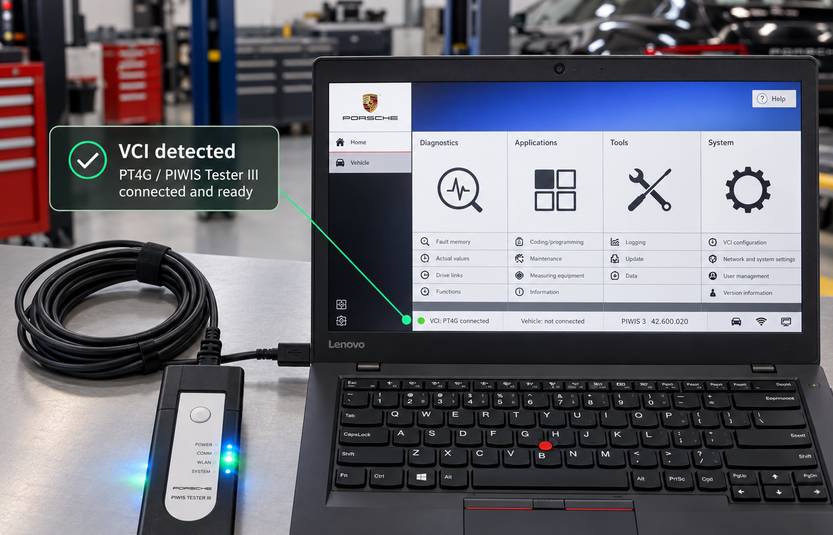
Before performing vehicle diagnostics:
- Allow PIWIS 3 to register the PT4G VCI.
- Check the VCI firmware status.
- Complete any firmware synchronization the software requests.
The VCI firmware and PIWIS 3 software must be compatible. Firmware mismatch may cause connection warnings or communication failures.
Do not disconnect the VCI during firmware updates.
Step 4: Perform Vehicle Identification
After PT4G setup is complete:
- Select vehicle identification in PIWIS 3.
- Allow the software to communicate with the vehicle.
- Confirm vehicle information is detected correctly.
A successful vehicle identification confirms that the complete communication chain is working:
Laptop → PIWIS 3 → PT4G VCI → Vehicle → Control Modules
PT3G vs PT4G VCI: Main Differences
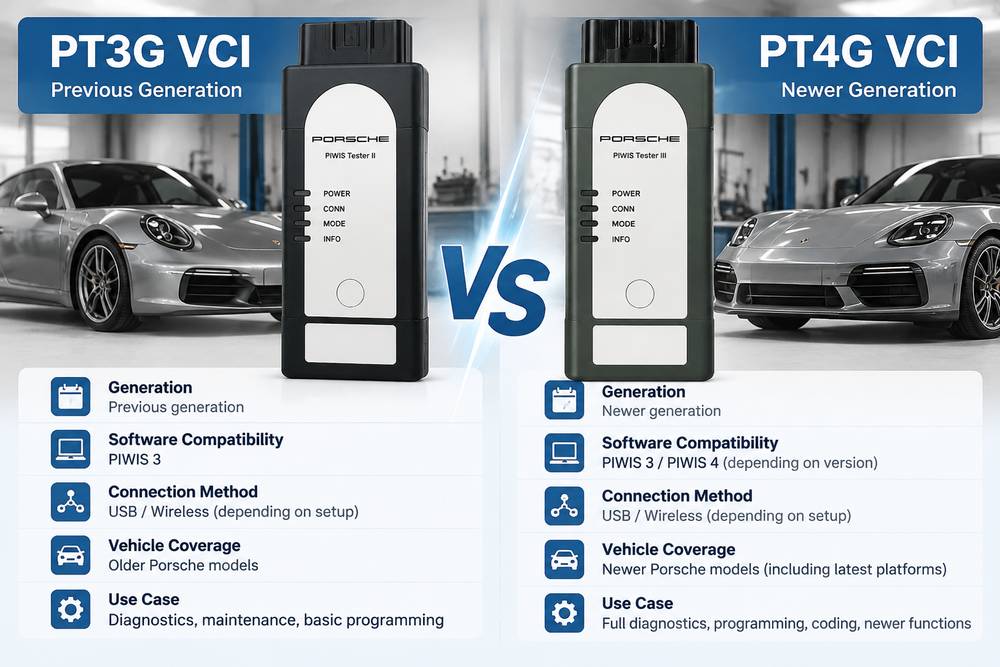
| Feature | PT3G VCI | PT4G VCI |
|---|---|---|
| Generation | Previous PIWIS interface | Newer generation interface |
| Connection | USB / Wireless | USB / Wireless |
| PIWIS Environment | PIWIS 3 | PIWIS 3 |
| Firmware Management | Software controlled | Software controlled |
| Setup Method | USB first | USB first |
| Workshop Usage | Porsche diagnostics | Porsche diagnostics |
The biggest practical difference is not the basic workflow, but the updated hardware generation and compatibility with newer diagnostic environments.
Recommended First-Time PT4G Setup Checklist
Before starting professional diagnostic work, follow this checklist:
1. Use Stable Power
Make sure:
- Laptop power is sufficient
- PT4G has stable power
- Vehicle battery voltage remains stable
Interrupted power during communication or configuration procedures can create unnecessary problems.
2. Start With USB Connection
For initial setup:
✔ Connect PT4G by USB
✔ Confirm device recognition
✔ Complete registration
✔ Verify communication
Configure wireless operation only after the wired connection works correctly.
3. Record Equipment Information
For workshop management, record:
- PT4G serial number
- PIWIS software version
- VCI firmware version
- Laptop configuration
This makes future troubleshooting much faster.
Common Porsche PIWIS 3 PT4G VCI Problems and Solutions
PT4G VCI Is Not Detected
Possible causes:
- USB cable only supports charging
- Incorrect USB port connection
- Missing drivers
- Software cannot recognize the VCI
Solutions:
- Replace the USB cable with a data-capable cable.
- Connect directly to a USB port on the laptop.
- Restart PIWIS 3 software.
- Check VCI drivers and device management.
PT4G Works on USB but Not Wireless
This is usually due to wireless configuration, not hardware failure.
Check:
- Network settings
- Wireless pairing
- Firewall settings
- VCI network configuration
A practical troubleshooting step is to return to USB mode first. If USB communication works, the VCI hardware is usually functioning correctly.
PIWIS 3 Shows Firmware Warning
Firmware warnings usually indicate that the VCI firmware and PIWIS software version need to be synchronized.
Recommended steps:
- Connect PT4G by USB.
- Keep stable power.
- Let the PIWIS software complete the update.
- Restart the diagnostic session.
Avoid interrupting firmware updates.
Using PIWIS 3 for Porsche Diagnostics
After a successful PT4G connection, technicians can use PIWIS 3 for functions including:
Vehicle System Scan
Perform a complete scan of available control modules.
Typical workflow:
Vehicle Identification
↓
Control Unit Scan
↓
Read Fault Memory
↓
Analyze Data
↓
Perform Required Tests
Fault Code Diagnosis
PIWIS 3 can help technicians:
- Read diagnostic trouble codes
- View fault information
- Check related system data
- Clear faults after repairs
Always verify the repair result after clearing fault memory.
Coding and Configuration Preparation
Some Porsche procedures may require configuration or programming-related functions.
Before performing advanced operations:
- Confirm vehicle identification
- Maintain stable voltage
- Avoid disconnecting communication
- Follow the software instructions carefully
A communication interruption during certain procedures may leave operations incomplete.
Best Practices for Daily PT4G Workshop Use
To keep the Porsche diagnostic setup reliable:
Keep Firmware and Software Matched
Update when PIWIS 3 requests synchronization.
Use USB as a Troubleshooting Baseline
Wireless is convenient, but USB provides the simplest test environment.
Maintain Stable Vehicle Voltage
Use proper battery-support equipment for longer diagnostic procedures.
Protect the VCI
Store the PT4G with:
- Original cables
- Protective case
- Clean connectors
Reliable hardware handling prevents many unnecessary failures.
Recommended Porsche PIWIS 3 PT4G VCI Setup
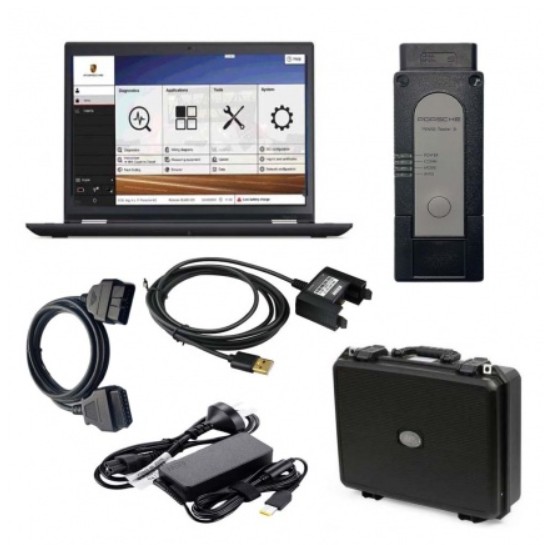
For workshops looking for a complete Porsche diagnostic solution, a compatible PIWIS 3 kit normally includes:
- Porsche PIWIS 3 diagnostic software
- PT4G or compatible VCI interface
- Diagnostic laptop
- Proper vehicle connection cables
Recommended Porsche diagnostic solution:
👉 Porsche PIWIS 3 PT3G VCI Diagnostic Tool with Lenovo Yoga S1 Laptop
https://www.obd2tool.com/goods-10479-High-Quality-Porsche-Piwis3-PT3G-VCI-with-Lenovo-Yoga-S1.html
Frequently Asked Questions
How do I connect Porsche PIWIS 3 with PT4G VCI?
Connect the PT4G VCI to the vehicle OBD-II port, connect it to the laptop via USB, open the PIWIS 3 software, register the VCI, complete firmware synchronization if required, and identify the vehicle.
Should I connect PT4G wirelessly first?
It is recommended to use USB for the first setup. Wireless configuration should be completed only after PIWIS 3 successfully detects and registers the PT4G VCI.
What is the difference between PT3G and PT4G VCI?
PT4G is the newer generation communication interface. Both are used within the PIWIS 3 environment, but PT4G is designed for newer diagnostic workflows.
Why does PIWIS 3 not detect my PT4G VCI?
Common causes include:
- Poor USB connection
- Incorrect cable
- Missing drivers
- Firmware mismatch
- VCI registration issues
Start troubleshooting with the physical connection before changing software settings.
Can PT4G VCI perform Porsche programming?
PIWIS 3 supports various service and configuration functions depending on vehicle model, software version, and available authorization. Always verify compatibility before performing advanced procedures.
Conclusion
Using Porsche PIWIS 3 with a PT4G VCI mainly involves establishing a reliable communication chain between the diagnostic software and the vehicle.
The recommended workflow is simple:
USB Connection → VCI Registration → Firmware Matching → Vehicle Identification → Diagnostics
By following the correct setup process and maintaining stable communication, technicians can reduce connection problems and improve Porsche diagnostic efficiency.
For workshops working with Porsche vehicles, a properly configured PIWIS 3 PT4G VCI system provides a professional solution for vehicle analysis and service operations.
Recommended Product Conversion Link: