Problem Description
When using IDSS (International Diagnostic Service System) software, some users may encounter the following communication error:
MX2
Error=8: The USB cable is disconnected
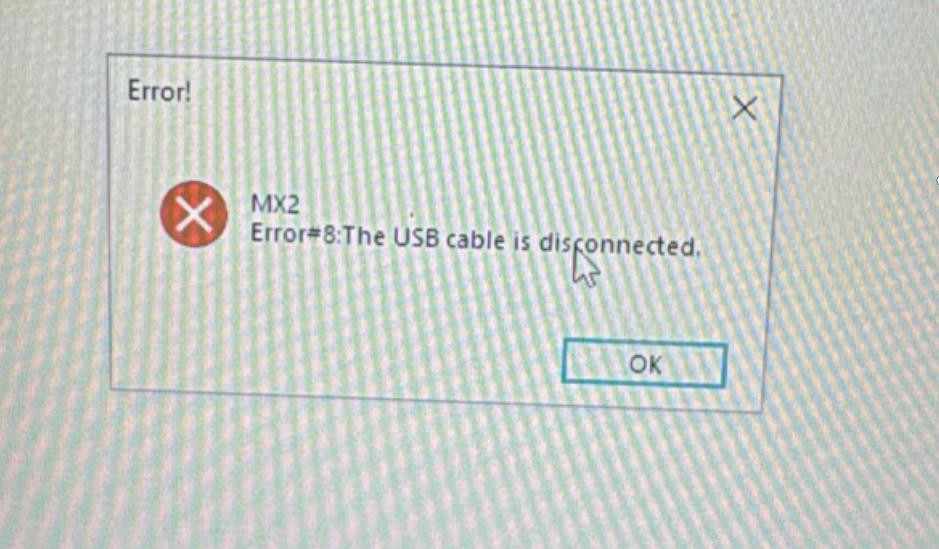
This error indicates that the IDSS software cannot communicate with the diagnostic interface. In most cases, the issue is caused by an incorrect driver selection rather than an actual USB cable failure.
Cause of MX2 Error on IDSS Software
The MX2 Error 8 message usually appears when:
- The wrong communication driver is selected in IDSS software
- The diagnostic interface driver does not match the connected device
- The software cannot recognize the NEXIQ communication adapter
Before replacing cables or reinstalling software, check the selected driver inside the IDSS application.
Cannot Find the NEXIQ Driver in IDSS?
If the NEXIQ driver option is not visible:
Check the driver menu in the upper-right corner of the IDSS software.
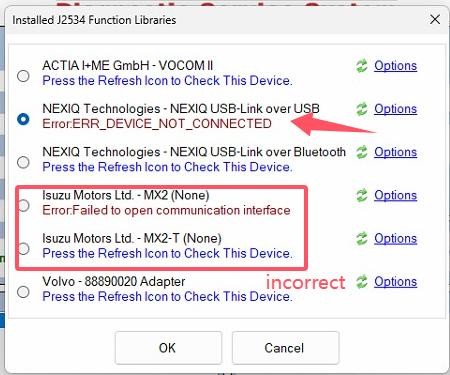
If it is still unavailable:
- Verify that the NEXIQ driver has been installed correctly.
- Check Windows Device Manager for the adapter recognition.
- Reinstall the correct NEXIQ driver package if necessary.
- Restart the computer after driver installation.
Solution: Select the Correct NEXIQ Driver
Step 1: Check the Driver Selection
Open the IDSS software.
Look at the upper-right corner of the software interface. You will find the available driver list.
Select:
NEXIQ Driver
instead of the currently selected incorrect driver.
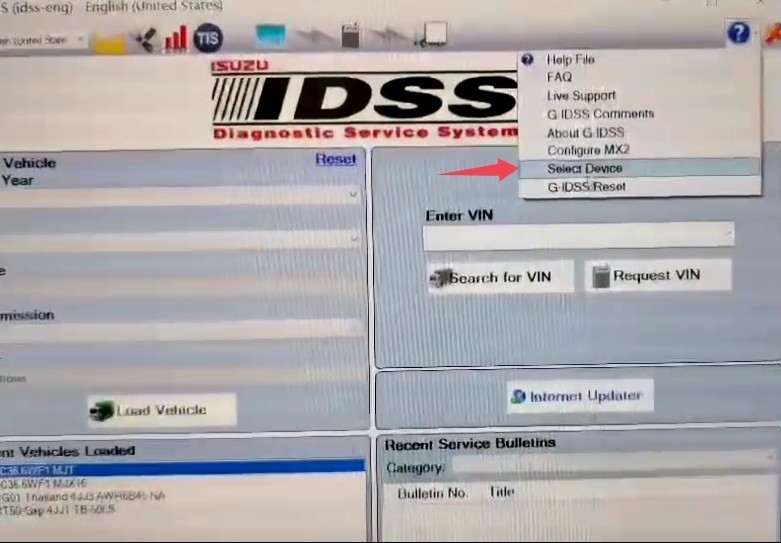
Step 2: Confirm the Diagnostic Interface Connection
After selecting the NEXIQ driver:
- Disconnect and reconnect the USB cable.
- Make sure the diagnostic adapter is powered on.
- Confirm that Windows recognizes the NEXIQ device.
- Restart the IDSS software.
- Try connecting to the vehicle again.
The MX2 Error 8 message should disappear once the correct driver is selected.
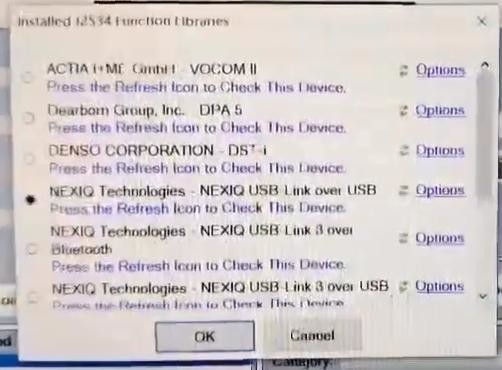
Tips to Avoid IDSS Communication Errors
To maintain stable communication between IDSS software and the diagnostic interface:
- Always use the correct adapter driver.
- Avoid using USB hubs or extension cables.
- Connect the diagnostic adapter directly to the laptop USB port.
- Confirm the adapter appears correctly in Windows Device Manager.
- Close other diagnostic applications before opening IDSS.
- Keep the USB cable in good condition.
Final Solution
For the IDSS MX2 Error=8: USB cable is disconnected problem, the first step is not to replace the cable. Check the driver configuration inside IDSS software and change the selected communication driver to the NEXIQ driver.
After selecting the correct driver, the software should be able to communicate with the diagnostic interface normally.
Recommended Isuzu Diagnostic Kit
For stable communication with IDSS software, use a compatible diagnostic interface and the correct driver configuration.
The ISUZU Truck Diagnostic Kit with IDSS, G-IDSS and E-IDSS Software provides a complete solution for Isuzu truck diagnostics, including fault code reading, live data, system tests and service functions.
Product Link:
https://www.obd2tool.com/goods-10593-ISUZU-TRUCK-DIAGNOSTIC-KIT-with-ISUZU-IDSS-GIDSS-and-EIDSS-Softwae.html
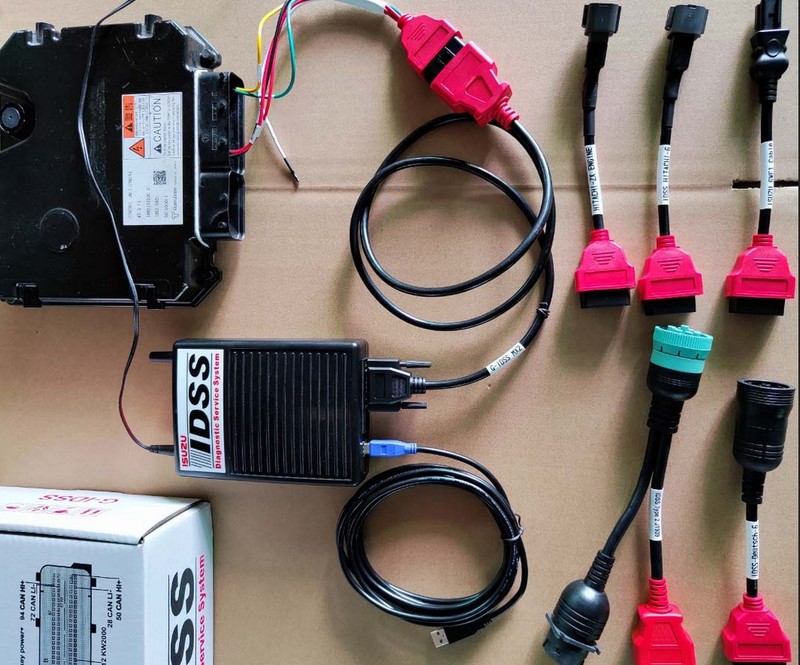
Check compatibility before ordering to ensure the software, interface and vehicle support match your requirements.
For more technical support, please contact us:
Email: sale@obd2tool.com
Website: https://www.obd2tool.com/