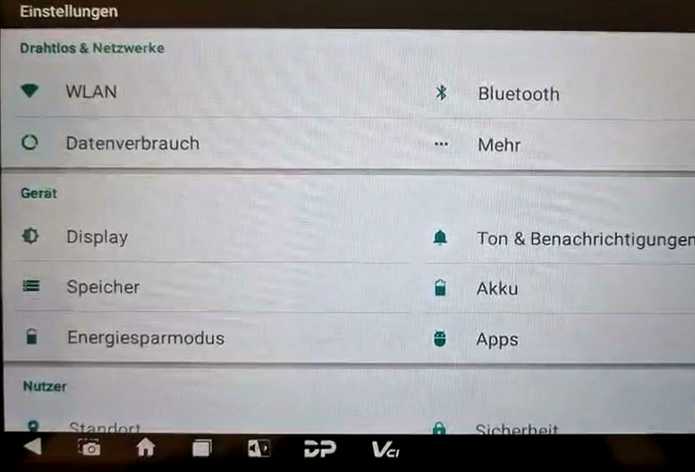
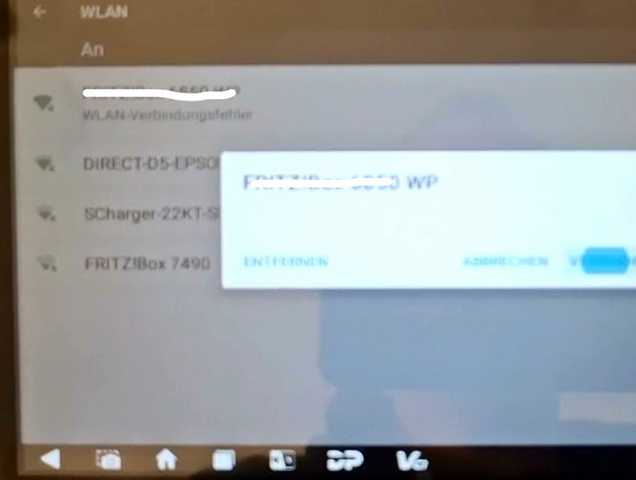
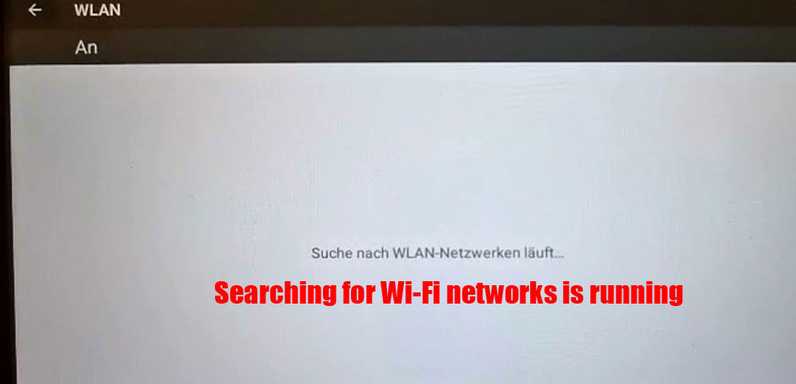
Some users may encounter a problem where the OBDSTAR DC706 key programmer cannot connect to WiFi. Even after trying different networks or restarting the device, the connection may still fail.
In this guide, we will explain the common causes and effective solutions to fix the OBDSTAR DC706 WiFi connection problem.
Problem Description
A user reported the following issue when using the OBDSTAR DC706 programmer:
- The device cannot connect to WiFi
- Tried connecting to different WiFi networks
- Restarted the device
- Attempted using a mobile hotspot
However, none of these methods solved the issue and the device still failed to connect.
Possible Cause
The most common reason for this problem is WiFi network compatibility.
The OBDSTAR DC706 only supports the 2.4GHz WiFi band.
If your router or hotspot is set to 5GHz, the device will not be able to detect or connect to the network.
Incorrect WiFi encryption settings can also prevent the device from connecting.
Solution 1 – Change Router WiFi Settings
Check your router configuration and adjust the following settings:
- Encryption Type: WPA / WPA2 PSK
- Frequency Band: 2.4 GHz
Make sure the 5GHz network is disabled or connect the device to the 2.4GHz network.
After changing these settings, reconnect the OBDSTAR DC706 to WiFi.
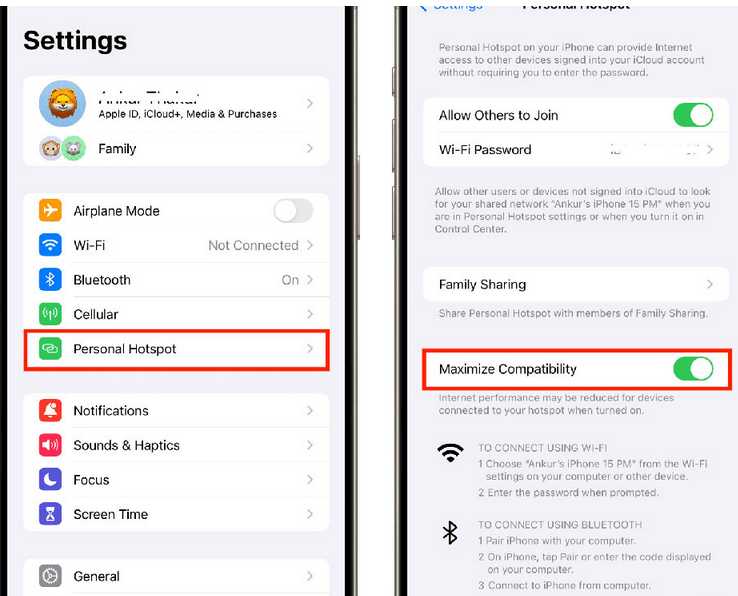
Solution 2 – Adjust iPhone Hotspot Settings
If you are using an iPhone hotspot, check the following option:
- Go to Settings
- Open Personal Hotspot
- Enable Maximize Compatibility
This setting switches the hotspot to 2.4GHz mode, which allows the OBDSTAR DC706 to connect properly.
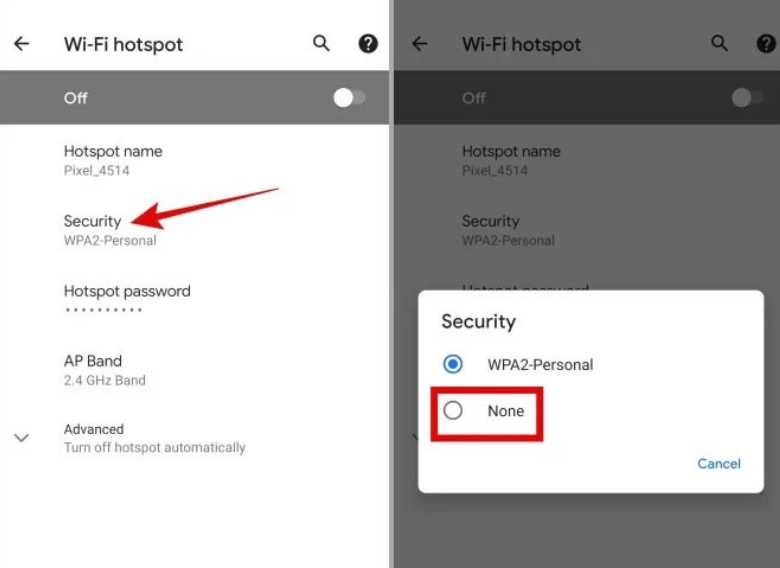
Solution 3 – Adjust Android Hotspot Settings
For Android phones, check the hotspot security settings:
- Open Hotspot / Tethering settings
- Find the Security option
- Change the security setting to None
In some cases, removing the hotspot password can help the OBDSTAR device connect successfully.
If the Problem Still Exists
If the OBDSTAR DC706 still cannot connect to WiFi, contact the OBDSTAR support team.
When contacting support, provide the following information:
- Device Serial Number
- Photos or screenshots of the error
- Network settings you have tested
The engineer will help diagnose the issue and provide further assistance.
Conclusion
The OBDSTAR DC706 WiFi connection failure is usually caused by incompatible WiFi settings, especially when the network uses 5GHz frequency.
By switching the network to 2.4GHz and using compatible encryption settings, most users can quickly restore the WiFi connection.
FAQ – OBDSTAR DC706 WiFi Problem (Failed to Connect)
1) Why can’t my OBDSTAR DC706 connect to WiFi?
In most cases, the DC706 can’t connect because the WiFi network is set to 5GHz. The OBDSTAR DC706 typically supports 2.4GHz only, so it may fail to detect or connect to 5GHz networks.
2) What WiFi encryption should I use for OBDSTAR DC706?
Set your router encryption to WPA/WPA2-PSK. Some newer or stricter security modes may prevent the device from connecting.
3) How do I fix the OBDSTAR DC706 WiFi connection problem?
Update your WiFi settings to:
-
Frequency: 2.4GHz
-
Encryption: WPA/WPA2-PSK
Then reconnect the device to the network.
4) DC706 won’t connect to my iPhone hotspot—what should I do?
Turn on “Maximize Compatibility” in iPhone Personal Hotspot settings. This helps the hotspot run in a more compatible mode (often 2.4GHz), which the DC706 can connect to.
5) DC706 won’t connect to my Android hotspot—what should I do?
Check hotspot settings for Security and try setting it to None (remove the hotspot password). Some devices connect more reliably when the hotspot has no encryption.
6) I tried different networks and it still won’t connect. What’s next?
Restart the DC706 and router/hotspot, try a different 2.4GHz network, and confirm the encryption is WPA/WPA2-PSK. If it still fails, contact OBDSTAR support and provide your DC706 serial number for engineering assistance.
7) Do I need WiFi for the DC706 to work?
Many functions (such as updates, downloads, and online services) require WiFi. For programming features, requirements depend on the function and current software version, but keeping the device online is recommended for stability and updates.