Problem Description
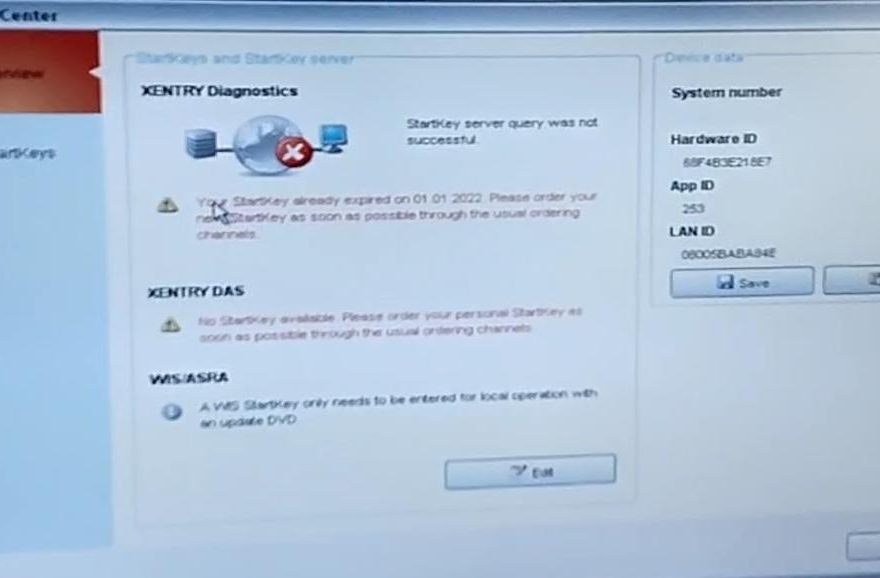
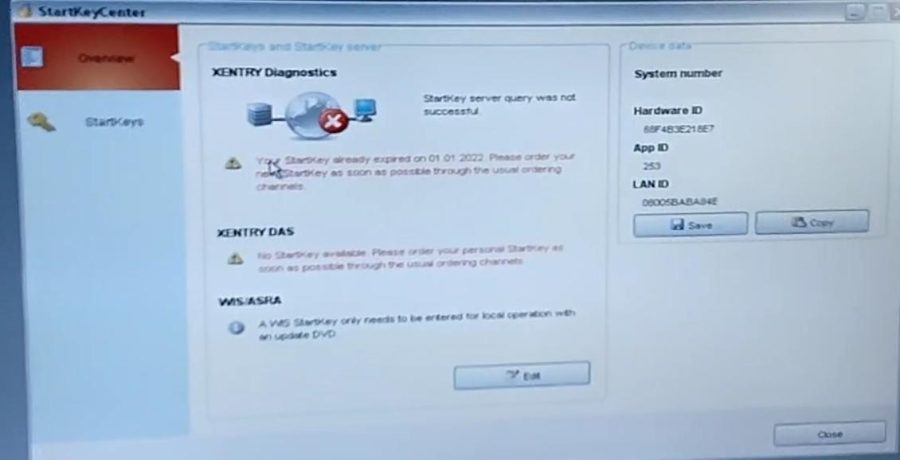
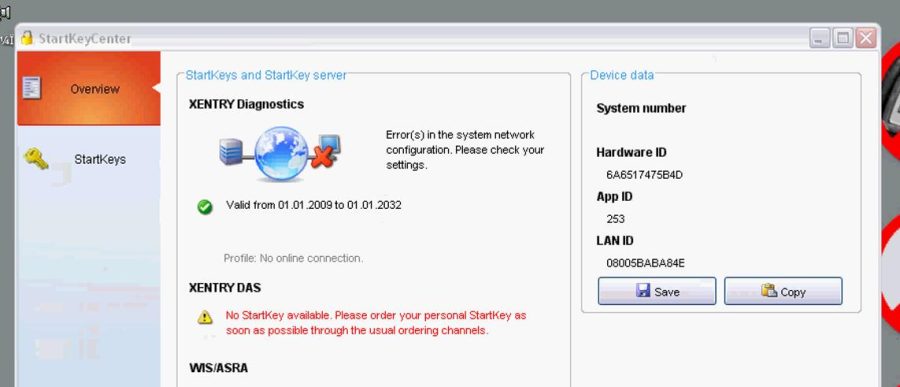
A customer reported that the XENTRY Diagnostics C3 software could not be activated normally. When opening the software, XENTRY displayed red text showing:
“StartKey already expired 01.01.2022.”
The customer was worried that the software license had expired and that the program could no longer be used.
Engineer Diagnosis
From an engineer’s perspective, this message does not necessarily mean the software is damaged.
When I check this type of XENTRY C3 activation problem, the first thing I confirm is the computer system date and time. If the computer time is incorrect, outdated, or manually changed, XENTRY may display a StartKey expired warning during activation.
In this case, as long as the computer time is set to the current date and time, the red “StartKey expired” prompt can usually be ignored during activation.
Why Does XENTRY Show “StartKey Already Expired 01.01.2022”?
XENTRY and DAS software use license files, also called StartKeys, to control access to the software. Some older C3 software packages may display an expired StartKey date during activation.
This can happen because:
- The computer time is not correct.
- The software has not been activated yet.
- The old StartKey information is still displayed before new activation.
- The activation file has not been applied correctly.
In most cases, this is an activation issue, not a hardware failure.
Solution: How I Fix the XENTRY C3 Activation Problem
Step 1: Check the Computer Date and Time
First, I check the Windows date and time.
Make sure the computer time is set to the current date and time. Do not set the computer back to 2022 or another old date unless support specifically tells you to do so.
Incorrect system time may cause XENTRY, DAS, or the activation tool to reject the license.
Step 2: Ignore the Red StartKey Expired Prompt Temporarily
If the computer time is already correct, the red text indicating that StartKey expired on 01.01.2022 can be ignored at this stage.
This warning may appear before the new activation file is applied. It does not always mean the software cannot be activated.
Step 3: Follow the Activation Video Instructions
Next, I activate the software according to the official activation video or the instructions provided by support.
During activation, make sure:
- The software is not closed halfway.
- The activation file is saved in the correct location.
- The computer time remains correct.
- Antivirus software does not delete the activation file.
- The activation tool is run as administrator if required.
Step 4: Restart XENTRY Diagnostics
After activation is completed, restart XENTRY Diagnostics.
If the activation is successful, the software should open normally without being blocked by the expired StartKey message.
If you are using an older Mercedes-Benz diagnostic setup, make sure your MB Star C3 diagnostic tool and XENTRY software package are installed correctly before activation. You can check the compatible C3 package here:
MB Star C3 diagnostic tool.
Step 5: Remote Activation Support
If the customer cannot complete the activation manually, I can activate the software remotely.
For remote activation, the customer usually needs to provide:
- A clear screenshot of the error message
- Computer system time screenshot
- Software version information
- Remote access ID and password, such as TeamViewer or AnyDesk
After remote activation, I test XENTRY or DAS again to confirm that the software opens correctly.
Important Notes Before Activation
Do not repeatedly reinstall the software unless support confirms it is necessary. Reinstalling may remove activation files or create new license conflicts.
Do not change the computer time randomly. For this issue, the computer should normally stay on the current real date and time.
Do not delete activation files, license folders, or StartKey files unless an engineer tells you to do so.
If antivirus software blocks the activation tool, temporarily disable it during activation, then re-enable it after the process is complete.
Final Result
For this XENTRY C3 software activation problem, the expired StartKey message dated 01.01.2022 is usually not a serious issue.
As long as the computer time is set correctly, the prompt can be ignored during activation. After following the activation video or completing remote activation, the XENTRY C3 software can work normally again.
FAQ
Q: Why does XENTRY show “StartKey already expired 01.01.2022”?
A: This message usually means the software has not been activated correctly yet, or the old license information is still being displayed before the new StartKey is applied.
Q: Should I change my computer date back to 2022?
A: No. I recommend keeping the computer time set to the current real date and time unless support gives you different instructions.
Q: Can I ignore the “StartKey expired” red message?
A: Yes. If your computer date and time are correct, this prompt can usually be ignored during the activation process.
Q: Do I need remote activation?
A: If you cannot complete the activation by following the video instructions, remote activation is recommended. An engineer can check the computer time, license files, and activation status directly.
Q: Will reinstalling XENTRY fix this issue?
A: Usually no. Reinstalling is not the first solution. It may even create more problems if activation files are removed. Try proper activation first.