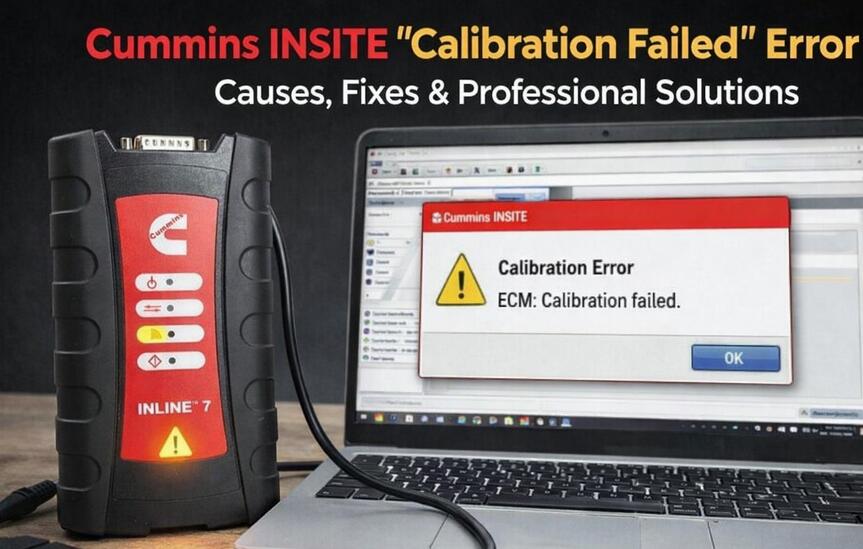
If you encounter the “Calibration Failed” error in Cummins INSITE, you’re not alone. This issue is one of the most common problems during ECM programming, calibration updates, or parameter writing on Cummins engines.
This guide from obd2tool.com explains the real causes, step-by-step fixes, and professional solutions to help technicians, workshops, and fleet engineers safely complete Cummins ECM calibration.
🔍 What Is Cummins INSITE “Calibration Failed” Error?
The Calibration Failed error occurs when Cummins INSITE cannot successfully write a calibration file to the ECM.
This usually happens during:
-
ECM reprogramming
-
Engine calibration update
-
Parameter reset
-
ECM recovery process
If not handled correctly, it may result in ECM lock, corruption, or engine no-start issues.
✅ Top Causes of Cummins INSITE Calibration Failure
1. Incorrect Calibration File (Most Common)
-
Calibration does not match Engine Serial Number (ESN)
-
Wrong CPL number
-
Incompatible emissions standard (EPA / Euro)
-
Outdated calibration database
2. Unstable Power Supply
-
Battery voltage below 12.5V
-
No external charger connected
-
Power interruption during programming
3. Poor Communication with ECM
-
Faulty or low-quality Cummins Inline 6 / Inline 7
-
Loose 9-pin / 6-pin connector
-
USB communication interruption
4. Outdated or Corrupted INSITE Software
-
Old INSITE version
-
Missing calibration libraries
-
Software not running as administrator
5. ECM Locked or Previously Corrupted
-
ECM partially programmed before
-
Security password protection
-
Interrupted calibration process
🛠 Step-by-Step Fix: Cummins INSITE Calibration Failed
Step 1: Ensure Stable Power
-
Keep voltage between 13.0V – 14.5V
-
Use a professional battery charger
-
Never rely on vehicle battery alone
Step 2: Verify Correct Calibration
-
Confirm ESN & CPL
-
Download verified calibration files
-
Update INSITE calibration database
Step 3: Update Cummins INSITE to Latest Version
Recommended versions:
-
Cummins INSITE 8.x / 9.x (2025–2026)
Run as Administrator and disable antivirus temporarily.
Step 4: Check Cummins Inline Adapter
-
Use original or tested Inline 6 / Inline 7
-
Avoid USB hubs
-
Replace damaged cables
👉 Related Link:
Cummins Inline 7 Diagnostic Adapter – Tested & Ready
Step 5: Disable Laptop Power Saving
-
Windows Power Mode → High Performance
-
Disable USB sleep
-
Turn off screen timeout
Step 6: Use ECM Recovery Mode
If calibration fails repeatedly:
-
INSITE → ECM Diagnostic Tools
-
Select ECM Recovery / Reprogram
-
Follow on-screen steps carefully
⚠️ Do not interrupt power.
Step 7: Check ECM Security & Password
Some Cummins ECMs require:
-
Dealer-level authorization
-
Correct passwords
If locked, professional assistance is recommended.
💡 Professional Tips to Avoid Calibration Failure
✔ Always use stable power
✔ Close all background programs
✔ Never disconnect adapter during programming
✔ Use verified diagnostic hardware
🚨 When Calibration Still Fails
If all steps fail, the ECM may:
-
Require bench programming
-
Be hardware damaged
-
Need professional remote programming service
👉 obd2tool.com Offer:
-
Remote installation & technical support
📌 Why Choose obd2tool.com?
-
Tested Cummins diagnostic solutions
-
Verified software compatibility
-
Professional technical support
-
Fast delivery & remote assistance