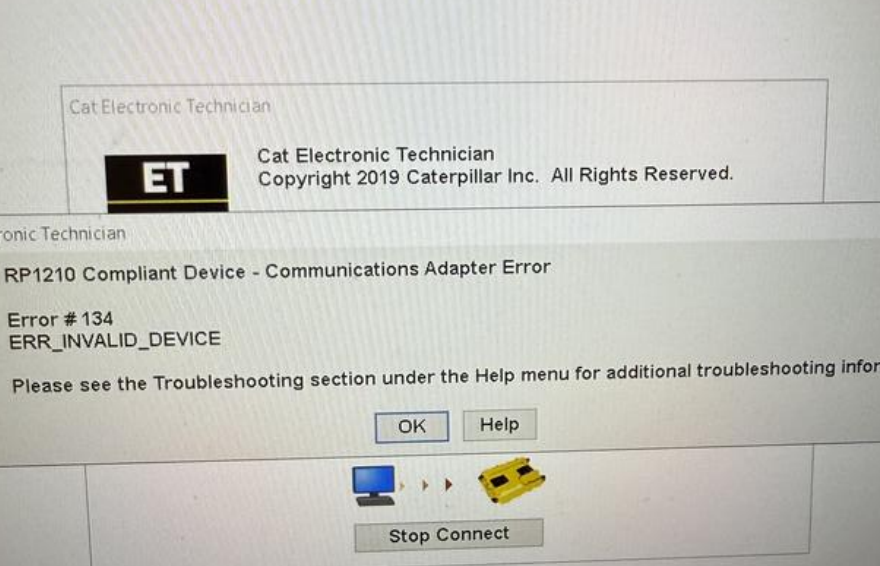
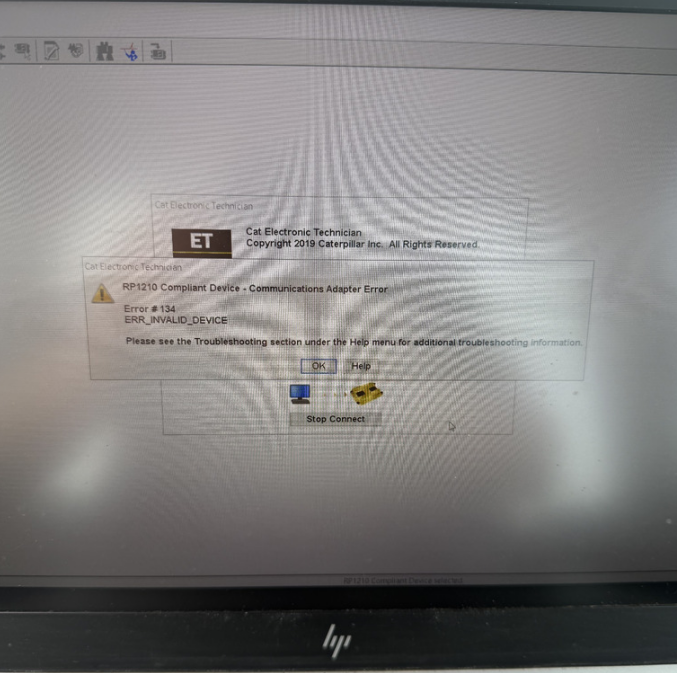
When using the Caterpillar Communication Adapter III (CAT ET3) with Caterpillar Electronic Technician (CAT ET) software, some users may encounter Error #134 – Device Not Recognized.
This error usually occurs when the incorrect communication driver is selected or the adapter driver is not configured properly in the CAT ET software.
In this article, we will explain the possible causes and solutions to fix CAT ET3 Error 134.
Problem Description
A customer reported the following issue when trying to connect the CAT ET software to the machine:
“We tried to connect using our CAT ET program but received Error #134 – Device Not Recognized. The software cannot communicate with the diagnostic adapter. Any ideas?”
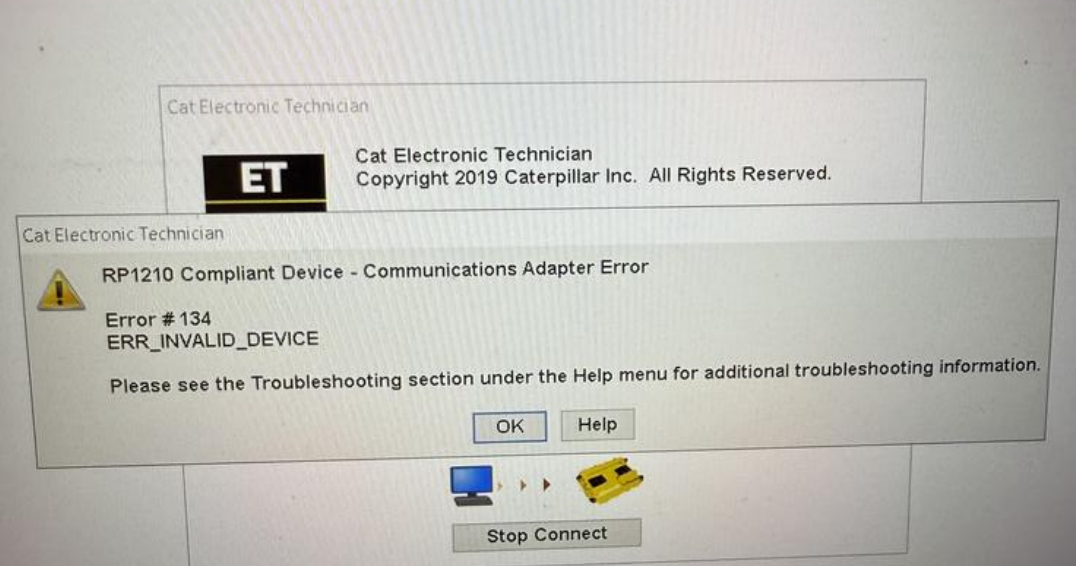
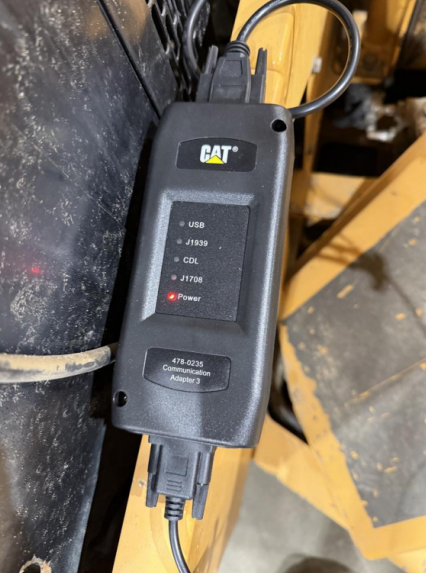
Error Message
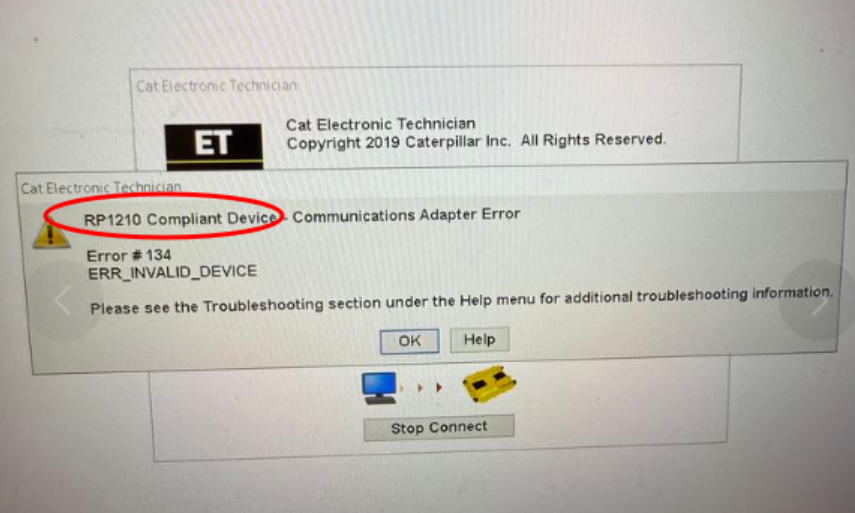
RP1210 Compliant Device – Communications Adapter Error
Error Code: 134
Error Type: ERR_INVALID_DEVICE
The system suggests checking the Troubleshooting section in the Help menu for more information.
Additional Troubleshooting Information
The customer also explained that they tried reinstalling the software:
- Removed CAT ET 2023
- Installed CAT ET 2019 included with the communication adapter
- Tested on a Caterpillar 150M Motor Grader
However, the same error still appeared.
This indicates the issue was not related to the software version.
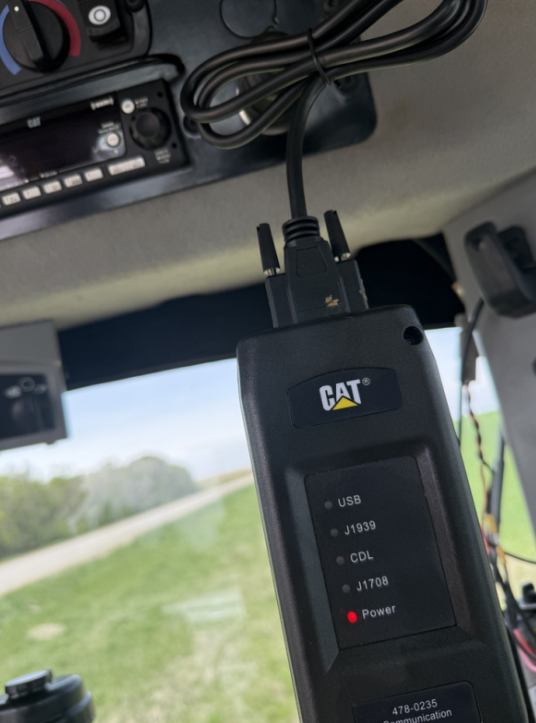
Cause of CAT ET3 Error #134
After reviewing the screenshots, our engineer confirmed that the problem was caused by selecting the wrong communication driver in the CAT ET settings.
If the incorrect RP1210 driver is selected, the CAT ET software cannot detect the Communication Adapter III, which leads to the Error #134 device not recognized message.
Solution – Select the Correct Driver
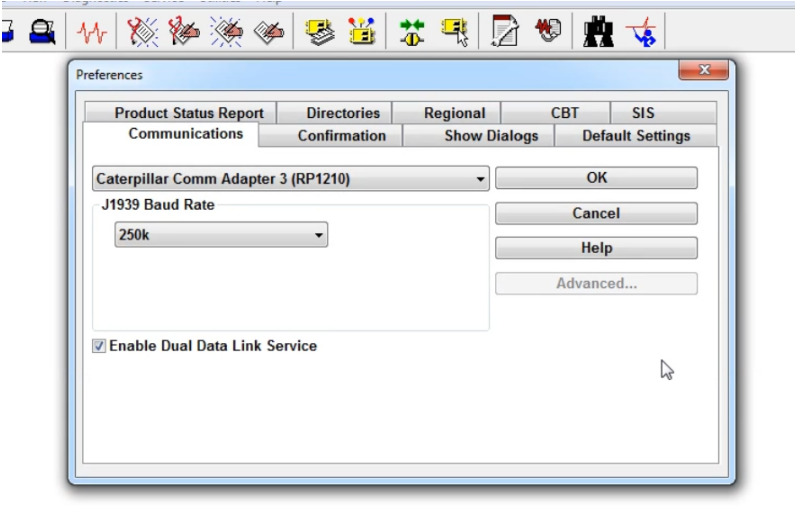
To resolve the issue, you need to switch the communication driver back to the default CAT adapter driver.
Steps to Fix CAT ET3 Error 134
- Open CAT Electronic Technician (CAT ET) software.
- Go to Utilities.
- Select Preferences.
- Open the Communications tab.
- Choose the default Caterpillar Communication Adapter III driver.
- Apply the changes and restart the connection.
After selecting the correct driver, the CAT ET software should be able to communicate with the diagnostic adapter normally.
Result
After applying this solution, the customer confirmed the issue was resolved:
“Thank you, it works. Thank you for your help.”
Tips to Avoid CAT ET3 Connection Errors
To prevent similar problems when using CAT ET diagnostic software, follow these recommendations:
✔ Always install the correct driver for CAT Comm Adapter III
✔ Use compatible CAT ET software versions
✔ Verify the communication interface in the Preferences settings
✔ Restart CAT ET after changing driver settings
Conclusion
The CAT ET3 Error #134 “Device Not Recognized” is usually caused by selecting the wrong communication driver in the CAT ET software.
By simply switching to the correct default Caterpillar communication adapter driver, the software will successfully detect the adapter and restore normal diagnostic communication.
Need Technical Support?
If you encounter other Caterpillar CAT ET diagnostic tool problems, feel free to contact our support team.
📧 Email: sales@obd2tool.com
🌐 Website: https://www.obd2tool.com/
Our engineers are always ready to help with installation, activation, and troubleshooting for CAT diagnostic tools.
FAQ – CAT ET3 Error #134 “Device Not Recognized”
1) What does CAT ET3 Error #134 mean?
CAT ET3 Error #134 (ERR_INVALID_DEVICE) means CAT ET cannot recognize the Communication Adapter III as a valid RP1210 device, so the software cannot communicate with the machine ECM.
2) What is the most common cause of Error #134?
The most common cause is selecting the wrong communication driver / RP1210 device in CAT ET Preferences (Communications tab).
3) Will reinstalling CAT ET fix Error #134?
Usually no. If the incorrect driver is still selected, the error can appear on CAT ET 2019, 2023, or other versions. Driver selection/configuration is the key.
4) How do I fix CAT ET3 Error #134 “device not recognized”?
Open CAT ET → Utilities → Preferences → Communications, then select the default Caterpillar Communication Adapter III (RP1210) driver/device. Save settings and reconnect.
5) Can Error #134 happen on different machines (like CAT 150M grader)?
Yes. If the driver/device selection is wrong on the laptop, the same error can occur on multiple machines regardless of model.
6) Do I need to restart CAT ET after changing driver settings?
It’s recommended. After selecting the correct driver, restart CAT ET (or disconnect/reconnect) to ensure the adapter is detected properly.
7) What should I check if Error #134 still appears?
Check the adapter USB connection, confirm the correct driver is installed, try a different USB port/cable, and verify CAT ET communication settings are set to Comm Adapter III (RP1210).