Step 1 — Connect PIWIS 4 to the Vehicle
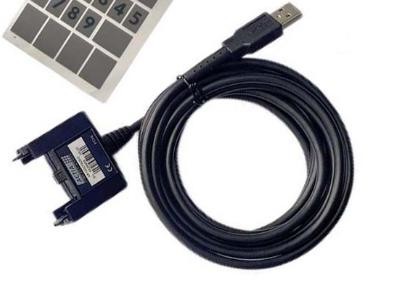
- Disconnect the USB cable from the PIWIS 4 interface.
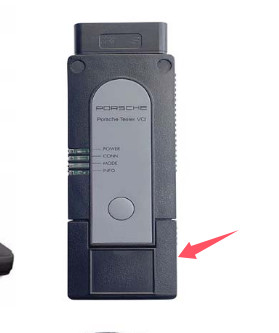
- Connect the vehicle communication cable to the bottom connector of the PIWIS 4.
- Connect the diagnostic cable to the vehicle.
- Switch the vehicle ignition ON.
Step 2 — Connect the Laptop to the PIWIS 4 Wi-Fi Network
- Open the Wi-Fi network list on the diagnostic laptop.
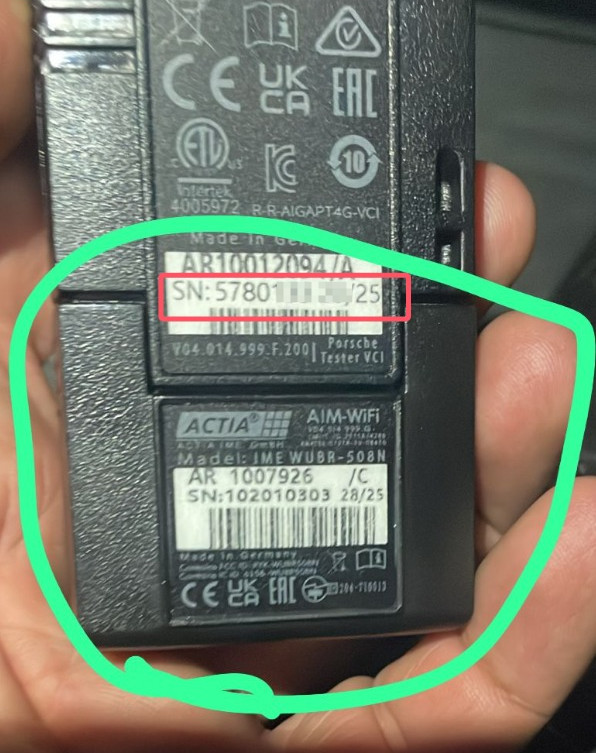
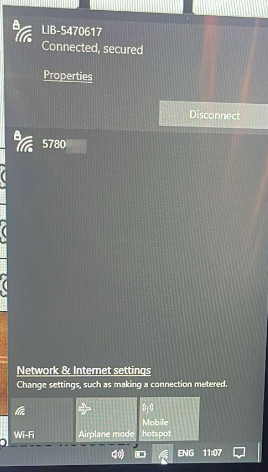
- Look for a Wi-Fi network whose name matches the serial number of the PIWIS 4 interface.
- Select that network and connect to it.
- Enter the Wi-Fi password.
Step 3 — Restart the PIWIS Diagnostic Software
- Close the PIWIS diagnostic software completely.
- Launch the software again.
- Check the communication/interface status.
- Confirm that both required connection checks show Passed or a normal connected status.
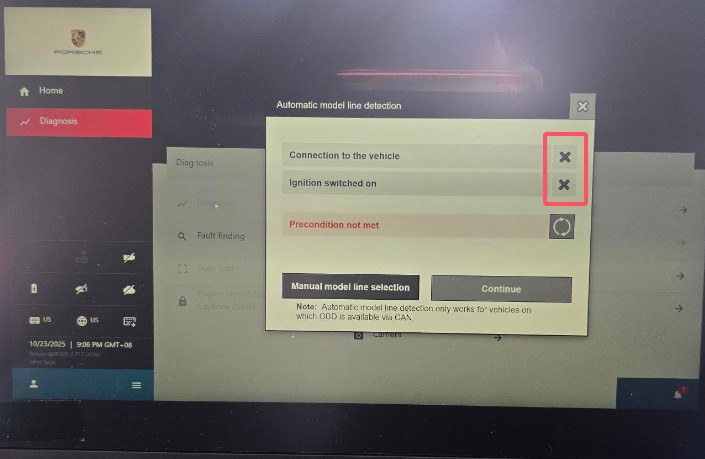
Quick Connection Checklist
- USB cable disconnected
- PIWIS 4 connected to the vehicle
- Vehicle ignition ON
- PIWIS 4 powered normally
- Laptop connected to the PIWIS 4 Wi-Fi network.
- Correct Wi-Fi password entered.
- PIWIS software restarted after Wi-Fi connection
- Interface communication checks passed.
If PIWIS 4 Wi-Fi Does Not Connect
- Make sure the PIWIS 4 is powered by the vehicle.
- Confirm the laptop is connected to the PIWIS 4 Wi-Fi network rather than another workshop network.
- Verify the Wi-Fi network name matches the PIWIS 4 serial number.
- Re-enter the correct password.
- Disconnect any USB connection before testing Wi-Fi.
- Close and reopen the diagnostic software after changing the connection method.
- Restart the PIWIS 4 and laptop if the interface still does not appear.
Recommended PIWIS 4 Packages
If you need a complete Porsche PIWIS 4 diagnostic setup rather than only the interface, OBD2Tool offers several laptop configurations for different workshop preferences.
Porsche PIWIS 4 + Panasonic CF54 Laptop
A good option for workshops that prefer a more rugged diagnostic laptop for regular service use.
Product: Porsche PIWIS 4 Diagnostic Tool + Panasonic CF54 Laptop
Suitable for technicians who want:
- PIWIS 4 interface and laptop as a complete package
- A workshop-oriented Panasonic laptop
- Wired and supported wireless diagnostic workflows
- A dedicated Porsche diagnostic computer
Porsche PIWIS 4 + Lenovo Yoga 12 Laptop
This package is better suited to technicians who prefer a smaller and more portable diagnostic laptop.
Product: Porsche PIWIS IV + Lenovo Yoga 12 Laptop
Suitable for:
- Mobile technicians
- Smaller workshop carts
- Technicians who prefer a compact laptop
- General PIWIS diagnostic work
Porsche PIWIS 4 + Lenovo Yoga 370 Laptop
The Yoga 370 package is another complete PIWIS 4 option for technicians who want a portable Windows diagnostic setup.
Product: Porsche PIWIS 4 Diagnostic Tool + Lenovo Yoga 370 Laptop
Suitable for:
- Independent Porsche specialists
- Mobile diagnostic work
- Workshops wanting a dedicated PIWIS laptop
- Technicians who prefer Lenovo hardware
Before Ordering
Before selecting a package, confirm:
- Porsche model and model year
- Required diagnostic or programming function
- PIWIS software version
- Laptop configuration
- Interface connection method
- Whether Wi-Fi operation is required
- Any online or account-dependent function you intend to use
For basic diagnostics, all three packages provide a complete PIWIS 4-style hardware-and-laptop solution, but the best choice mainly depends on your preferred laptop format and workshop environment.
Conclusion