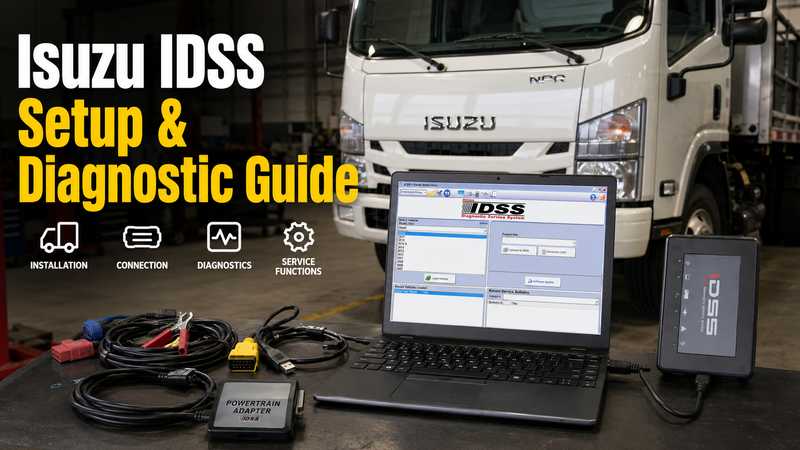
Isuzu IDSS is used to diagnose and service supported Isuzu commercial vehicles, while G-IDSS and E-IDSS cover different regional and industrial applications. Before installing the software, identify the vehicle, region, engine, ECU, and required function. Using the wrong IDSS version or interface can cause missing vehicles, missing modules, or communication failures.
The safest setup order is:
Choose Correct IDSS Version → Install Software and Driver → Confirm Interface → Connect Vehicle → Save Initial Scan → Diagnose → Verify Repair.
Quick Answer
For North American Isuzu commercial vehicles, use the appropriate IDSS / US-IDSS environment. G-IDSS is intended for supported global/export Isuzu commercial vehicles, while E-IDSS is intended for supported Isuzu industrial engines used in equipment such as excavators and generators.
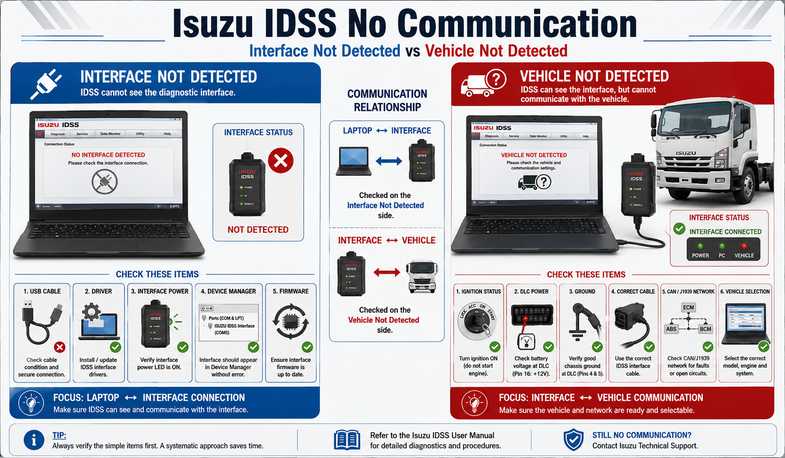
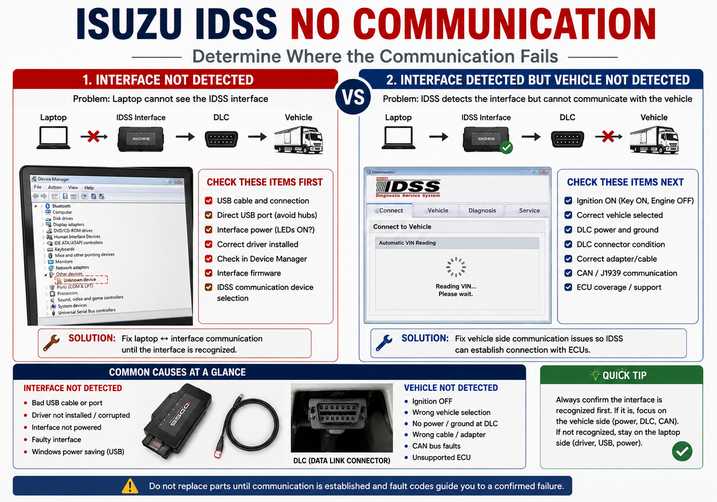
If IDSS will not connect, first determine whether the problem is:
Laptop → Diagnostic Interface
or:
Diagnostic Interface → Vehicle
That distinction prevents unnecessary replacement of a working interface.
Key Takeaways
- IDSS, G-IDSS, and E-IDSS are not interchangeable.
- Confirm the Windows requirement for the exact software build before installation.
- Save the original diagnostic report before clearing DTCs.
- DPF regeneration should only be started when required prerequisites are satisfied.
- ECU programming requires stable power, communication, and correct calibration.
- If the engine communicates but ABS does not, check whether the vehicle requires an additional CAN/DLC cable.
- Advanced functions depend on vehicle, ECU and software version.
What Is Isuzu IDSS?
Isuzu Diagnostic Service System (IDSS) combines vehicle diagnostics, service information and supported programming functions in one diagnostic environment.
Depending on the vehicle and software authorization, common functions can include:
- Read and clear Diagnostic Trouble Codes (DTCs)
- View live data
- Run active or bi-directional tests.
- DPF service procedures
- Injector coding or relearn
- Service resets
- Controller programming
- Wiring and troubleshooting information
- Diagnostic reports
Reading DTCs, active testing, coding, and programming are different operations. A vehicle supporting one function does not automatically support every other function.
IDSS vs G-IDSS vs E-IDSS
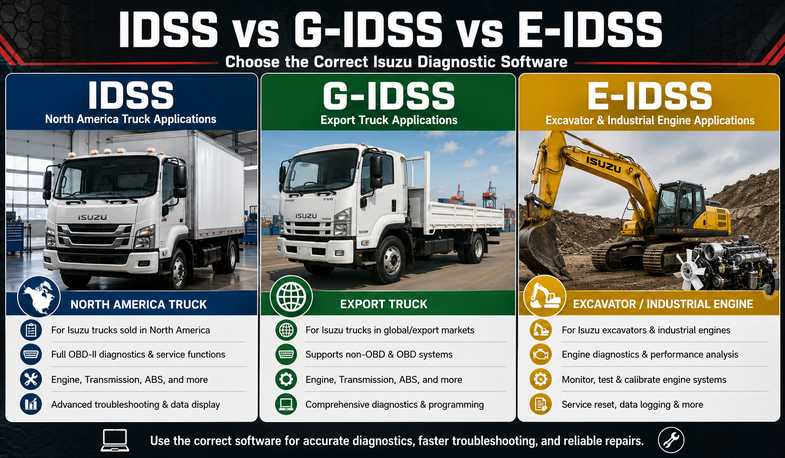
Choosing the correct software version is the first compatibility check.
| Software | Typical Application |
| IDSS / US-IDSS | North American Isuzu commercial vehicles |
| G-IDSS | Global/export Isuzu commercial trucks |
| E-IDSS | Supported Isuzu industrial engines |
For example:
North American Isuzu NPR → check IDSS / US-IDSS.
Export-market Isuzu truck → check G-IDSS.
Isuzu-powered excavator or generator → check E-IDSS.
Always verify the exact engine and ECU before ordering.
Laptop and Hardware Requirements
IDSS requirements vary by software branch and release.
Current official North American IDSS documentation specifies Windows 11 and at least 40 GB of storage. Older G-IDSS/E-IDSS packages may use different Windows environments, so do not apply one PC specification to every version.
A typical diagnostic setup includes:
- Compatible Windows laptop
- Isuzu-compatible diagnostic interface
- USB cable
- Correct vehicle DLC cable
- Additional adapter where required
- Stable internet where required
- Battery support for programming
Avoid installing a software build until its operating-system compatibility has been confirmed.
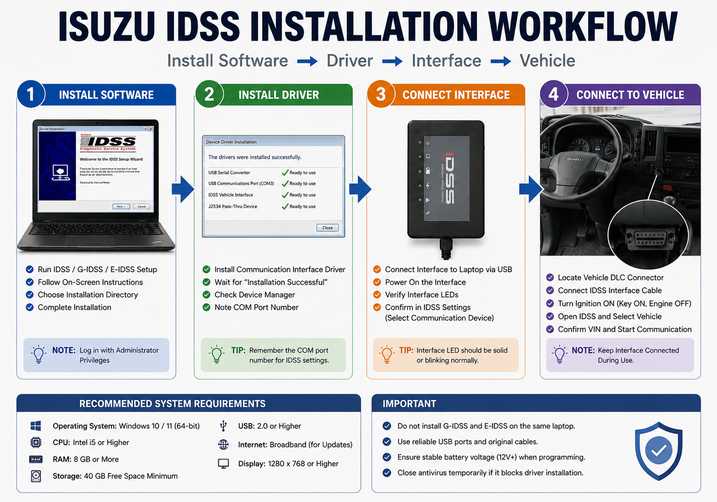
Step 1 — Install and Configure Isuzu IDSS
Install the software and communication driver before connecting to the vehicle.
- Log into Windows with administrator rights.
- Install the correct IDSS, G-IDSS, or E-IDSS package.
- Install the required interface driver.
- Restart Windows if requested.
- Connect the diagnostic interface.
- Confirm that Windows detects the interface.
- Select the correct communication interface inside IDSS.
Do not begin ECU programming if the interface repeatedly disconnects from Windows.
Step 2 — Connect IDSS to the Vehicle
Once the interface is detected reliably:
- Secure the vehicle.
- Connect the correct diagnostic cable.
- Connect the interface to the laptop.
- Switch the ignition ON when required.
- Start IDSS.
- Identify the vehicle.
- Confirm VIN, model, and ECU information.
- Run a full diagnostic scan.
- Save the initial report.
A successful connection should provide stable ECU communication and continuously updating live data.
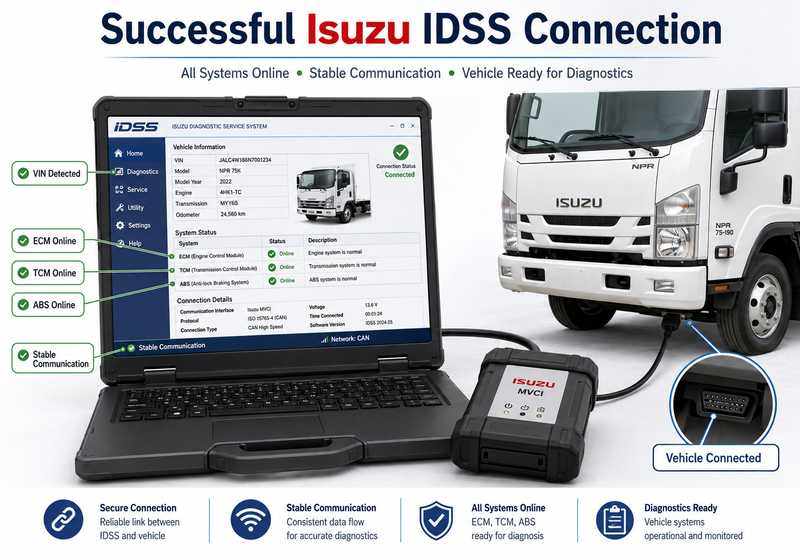
Step 3 — Use IDSS for Diagnosis
A professional diagnostic workflow should follow:
Read DTCs → Save Data → Review Live Data → Test → Repair → Clear DTCs → Rescan
Read and Clear DTCs
Record active and stored faults before clearing them.
A DTC identifies a condition detected by the ECU; it does not automatically prove that the named sensor or component has failed.
Live Data
Use live data to compare related parameters such as:
- Engine RPM
- Coolant temperature
- Boost pressure
- Fuel pressure
- EGR data
- Exhaust temperatures
- DPF data
- DEF/aftertreatment data
Normal values depend on the specific engine, controller, and operating condition.
Active Tests
Supported active tests can command components such as:
- Relays
- Solenoids
- Valves
- Fans
- Aftertreatment actuators
Keep personnel clear of moving components.
IDSS No Communication: What Should You Check First?
When IDSS cannot communicate, start with low-cost checks before replacing the interface or ECU.
| Problem | First Check |
| Interface missing in IDSS | USB, driver, interface power |
| Interface detected but no vehicle | Ignition, DLC, power/ground |
| Some ECUs connect, others do not | Cable / secondary CAN |
| VIN will not auto-detect | Vehicle selection and communication |
| Communication drops | USB cable, interface, power |
| Programming unavailable | ECU support, subscription, authorization |
Interface Not Detected
If Windows or IDSS cannot see the interface, check:
- USB cable
- Direct USB port
- Interface power
- Correct driver
- Device Manager
- Firmware
- Communication-device selection
This is a:
Laptop → Interface
problem.
Interface Detected but Truck Will Not Connect
If the interface is visible but the vehicle will not communicate, check:
- Ignition state
- Correct vehicle selection
- DLC power
- DLC ground
- Connector pins
- Correct adapter cable
- CAN/J1939 communication
- ECU coverage
This is an:
Interface → Vehicle
problem.
Engine Connects, but ABS Does Not
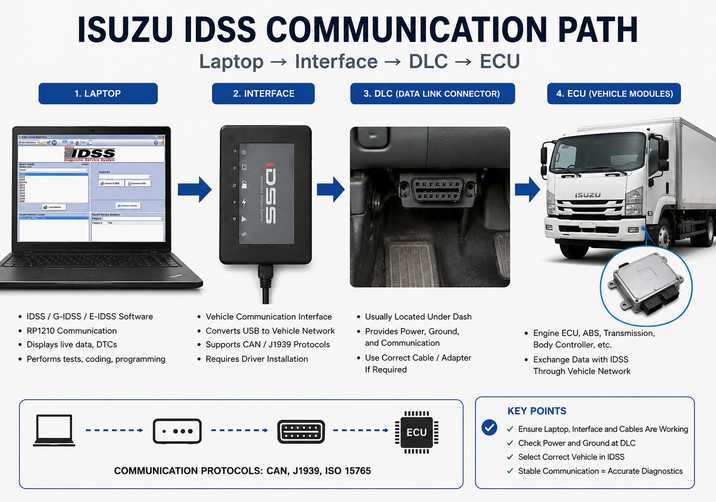
If IDSS communicates with the engine but not ABS or another module, do not immediately assume the interface has failed.
Certain Isuzu vehicles use a secondary CAN communication path. Depending on the vehicle, additional cables such as a DLC Y-Cable or MX2/MX3 DLC cable may be required to access ABS or other ECUs.
The diagnostic pattern:
Engine communicates + ABS does not.
can therefore indicate an incorrect cable or communication path rather than a defective interface.
DPF Regeneration With IDSS
A DPF fault does not automatically mean a forced regeneration should be performed.
Before commanding regeneration:
- Review active DTCs.
- Check DPF-related live data.
- Verify exhaust sensor readings.
- Confirm IDSS regeneration prerequisites.
- Secure the vehicle.
- Keep combustible materials away from the exhaust.
Stop if IDSS reports a regeneration inhibit or another critical fault.
ECU Programming Safety
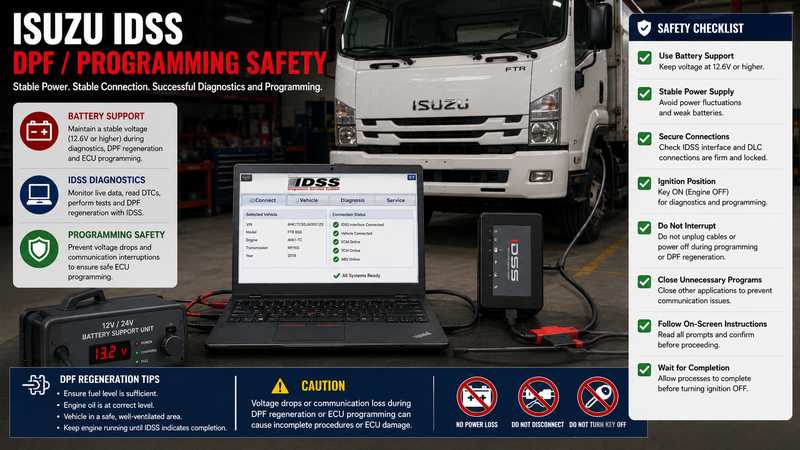
Programming writes software or calibration data into a controller and carries more risk than reading DTCs or performing an active test.
Before programming, confirm:
- Correct VIN
- Correct ECU
- Correct calibration
- Stable interface
- Required authorization/subscription
- Reliable battery support
- Internet access where required
Stop if communication becomes unstable, vehicle power cannot be maintained, or controller/calibration identification is uncertain.
Which Isuzu IDSS Product Should You Choose?
Choose by vehicle region, engine application and required function, not simply by product price.
Isuzu IDSS Interface Kit
Suitable when a technician needs an Isuzu-specific communication interface plus software options.
Isuzu Truck Diagnostic Kit
Consider this type of package when the workshop also needs diagnostic cables and hardware.
IDSS / G-IDSS / E-IDSS Diagnostic Tool
Useful when choosing among G-IDSS, E-IDSS, or US-IDSS packages. Confirm the currently available software version before ordering.
G-IDSS Software
Designed for supported global/export-market Isuzu commercial-vehicle applications.
Before ordering any package, provide:
Year + Model + Engine + Region + VIN + ECU + Required Function
Final Verification Checklist
After completing the repair:
Save the original DTC report.
Complete the repair
Clear relevant DTCs
Rescan all supported modules.
Check live data
Run the required active test or relearn.
Confirm no relevant communication faults remain.
Road-test when appropriate
Save the final report.
Frequently Asked Questions
What is Isuzu IDSS?
Isuzu IDSS is a diagnostic and service platform for supported Isuzu commercial vehicles. It combines scan-tool functions, troubleshooting information, and supported controller programming.
What is the difference between IDSS, G-IDSS and E-IDSS?
IDSS / US-IDSS is intended for North American commercial-vehicle applications, G-IDSS for supported global/export Isuzu trucks, and E-IDSS for supported industrial Isuzu engines.
Why does IDSS detect the interface but not the truck?
Check the vehicle side: ignition, DLC power and ground, correct cable, CAN/J1939 communication, vehicle selection, and ECU coverage.
Why can IDSS read the engine but not ABS?
Certain Isuzu vehicles use a separate or secondary CAN communication path and may require an additional DLC Y-Cable or MX2/MX3 cable.
Can Isuzu IDSS perform DPF regeneration?
Yes on supported vehicles, but forced regeneration should only be started when the vehicle meets the required IDSS prerequisites and no critical inhibit condition is present.
Can Isuzu IDSS program an ECU?
Programming is available for supported controllers and workflows, but compatibility depends on the ECU, software version, calibration, interface, and authorization.
Conclusion
A reliable Isuzu IDSS setup starts by selecting the correct software branch and communication hardware.
When IDSS will not connect, troubleshoot in this order:
Laptop → Interface → DLC/Cable → Vehicle Network → ECU
If you need an Isuzu diagnostic kit, confirm the vehicle, engine, region, ECU, and exact required function before choosing IDSS, G-IDSS, or E-IDSS.