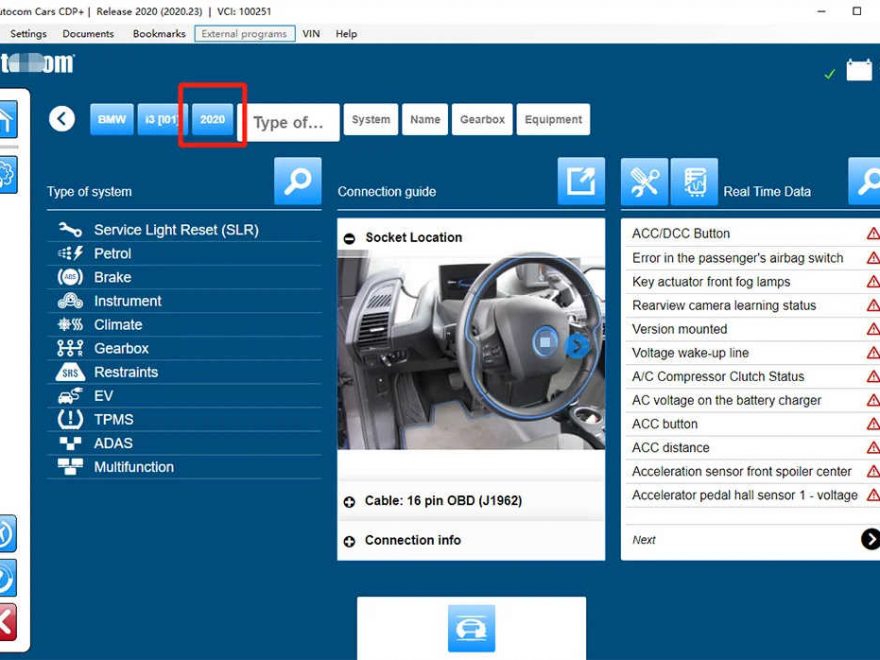
Are you looking to turn your laptop into a professional-grade automotive scanner? The DS150E software is one of the most versatile diagnostic tools for both cars and heavy-duty trucks. Whether you are a professional mechanic or a DIY enthusiast, this guide will walk you through the DS150 software download, installation, and activation process.
What is DS150E Software?
The DS150E is a comprehensive VCI (Vehicle Communication Interface) software that provides dealer-level diagnostics. It allows users to read/erase fault codes, view live data, perform component activations, and reset service lights across 47 car brands and 37 truck brands.
Key Features & Benefits
-
Intelligent System Scan (ISS): Scans all vehicle ECUs automatically to provide a quick health overview.
-
Intelligent System Identification (ISI): Identifies and selects the correct controller for accurate data.
-
Flight Recorder: Records real-time parameters while driving—no laptop connection required during the test.
-
VIN Recognition: Automatically identifies the chassis number to ensure you select the correct model and year.
DS150 Software Download & System Requirements
To ensure the software runs smoothly without crashes, your PC must meet the following specifications:
How to Download DS150 Software?
There are several versions of DS150 software available online, but not all of them are reliable or compatible with your device. To avoid any issues, we recommend you to download the software from the official website of Technologies, or from a trusted source like obd2tool.com.
Ds150e Software Download Free
2021 Latest 2020.23 2017.R3 DS150E Autocom CDP Professional Car and Truck Obd2 Diagnostic Tools with bluetoot
Car Maker: For Multi-Cars and Trucks
Newest Software Version: 2020.23
About language:
21 Languages:
Bulgarian, Croatian, Czech, Denish, Dutch, English, Estonian, Finnish, French, German, Greek, Hungarian, Italian, Latvian, Lithuanian, Norwegian, Polish, Portuguese, Romanian, Russian, Serbien, Spanish, Swedish, Turkish

Operating System Requirement
support computer system:XP,WIN7,WIN8 (32 bit and 64 bit), WIN 10 system 32 bit system more stable,WIN10 system 64 bit system depends on the computer configuration.

Compatible Hardware
Wo*w Snoper/ Autocm CDP/ MVDiag/ DeIphi DS150 & TCS CDP
Vehicle Coverage
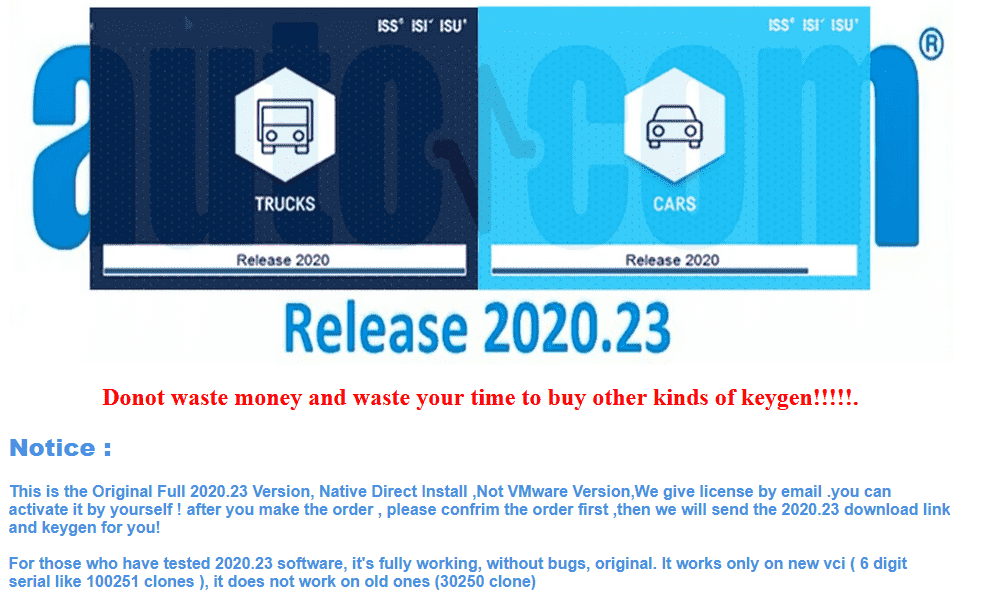
1.NEW Arrival 2020.23 :Is the newest software on market now,add some more car support before 2020 years,But 2020.23 NOT Keygen on cd, need send a file to mail to active.
2.2017.R3 (with keygen) : support before 2017 years,2017.R3 with keygenon cd or link,you can activate the software yourself without sending files to the seller.
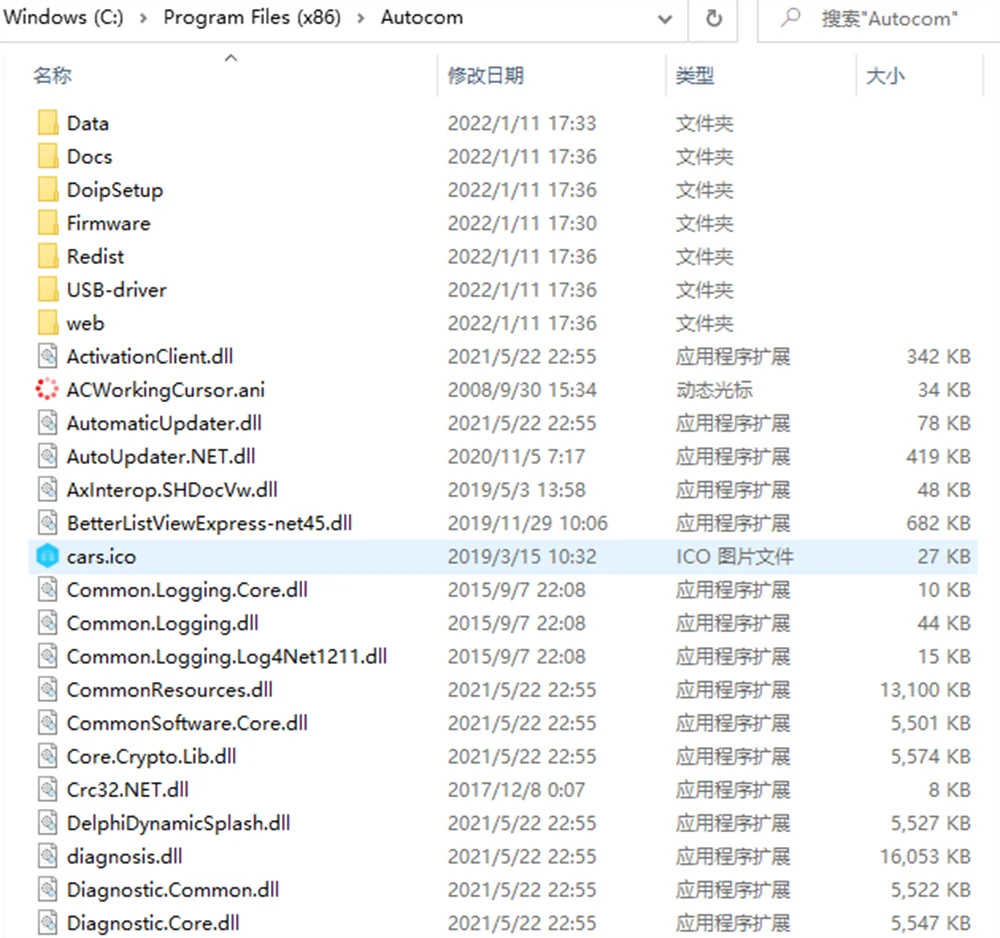
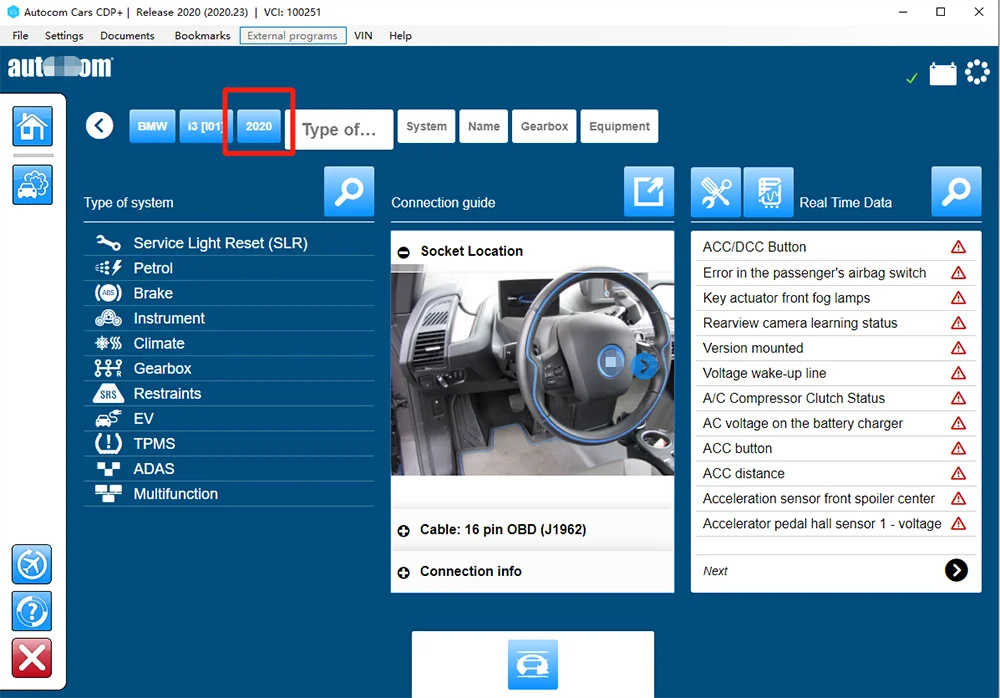
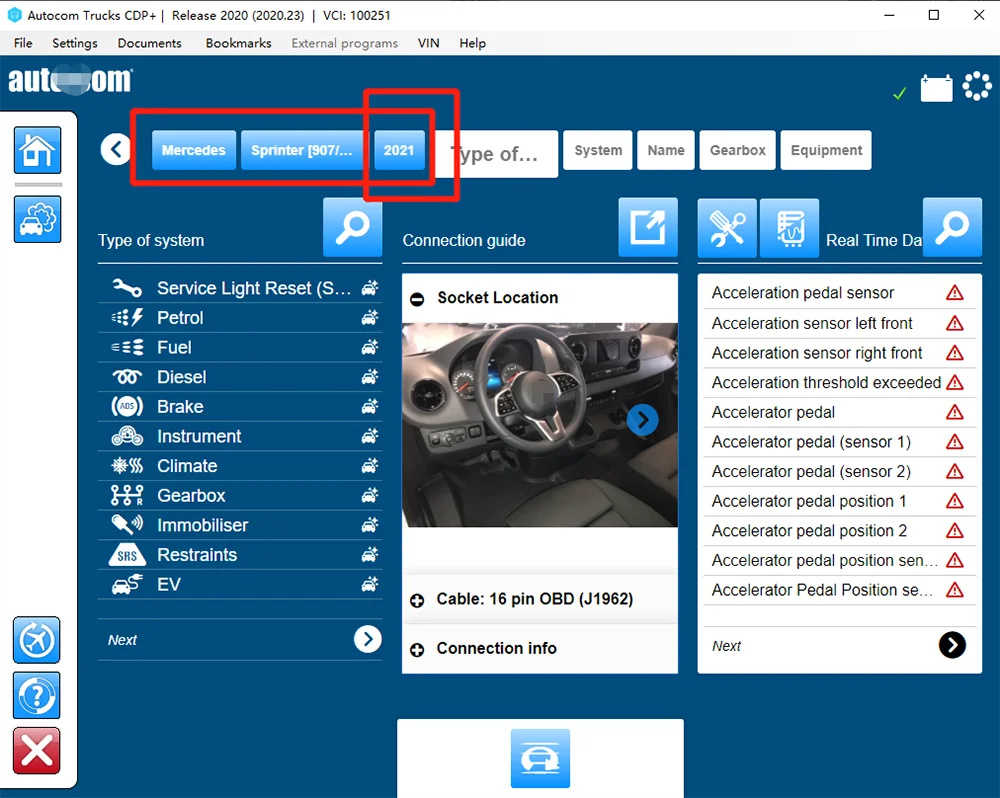
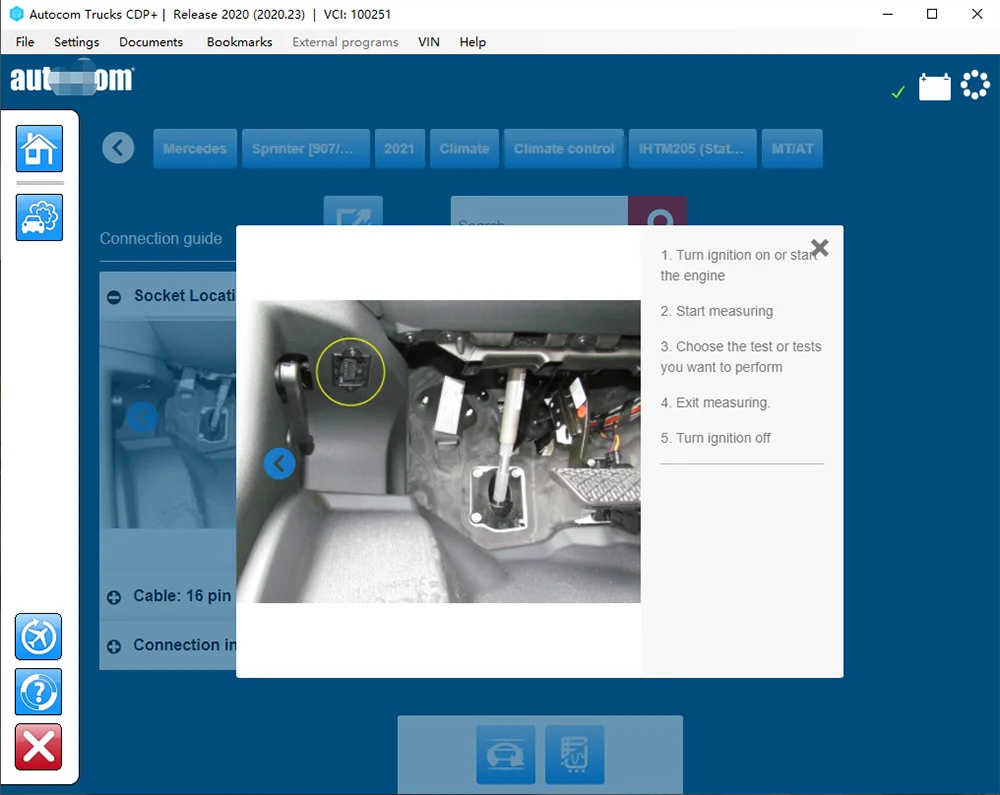
Relevant screenshots of the car:
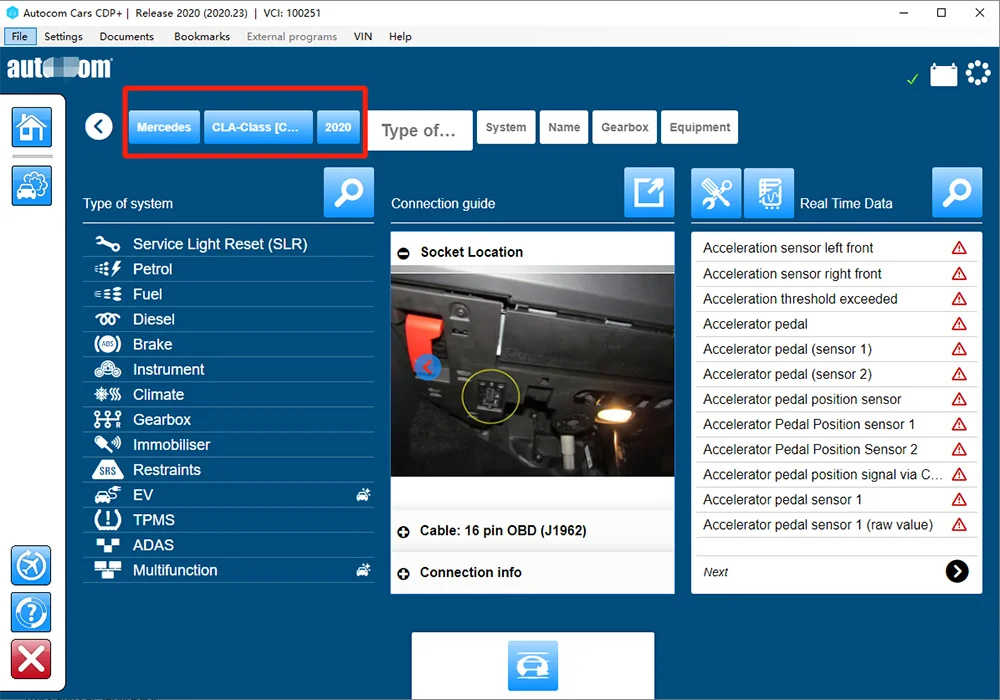
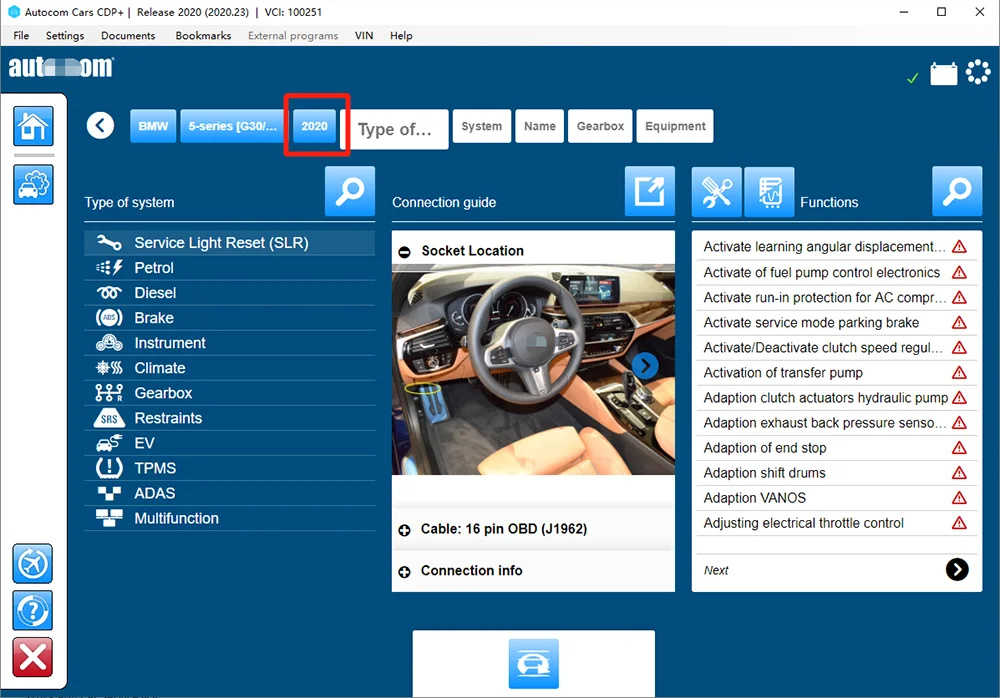
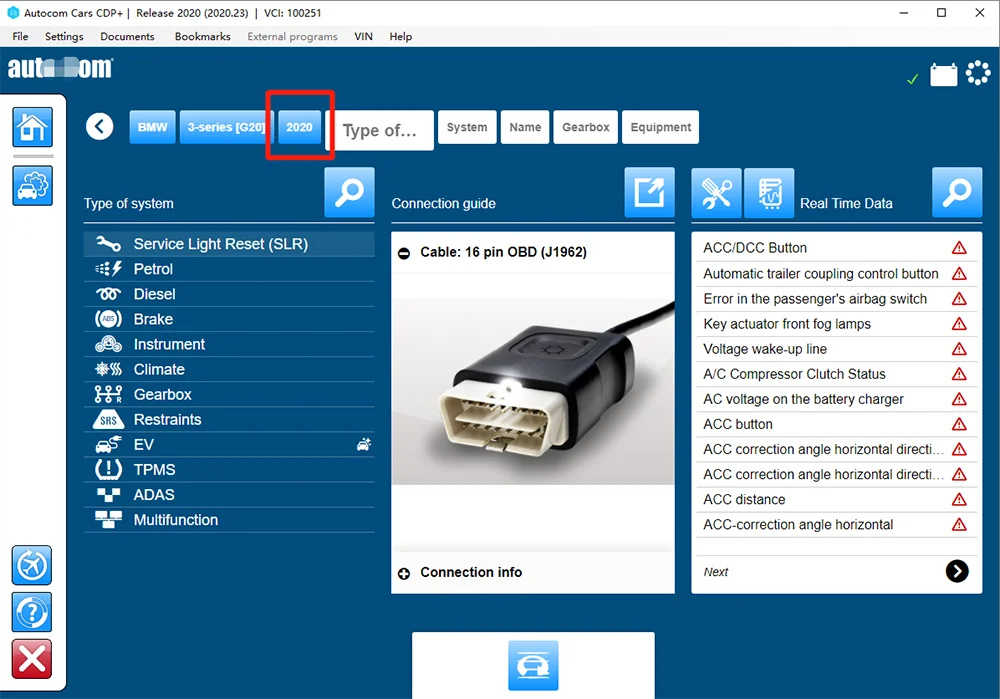
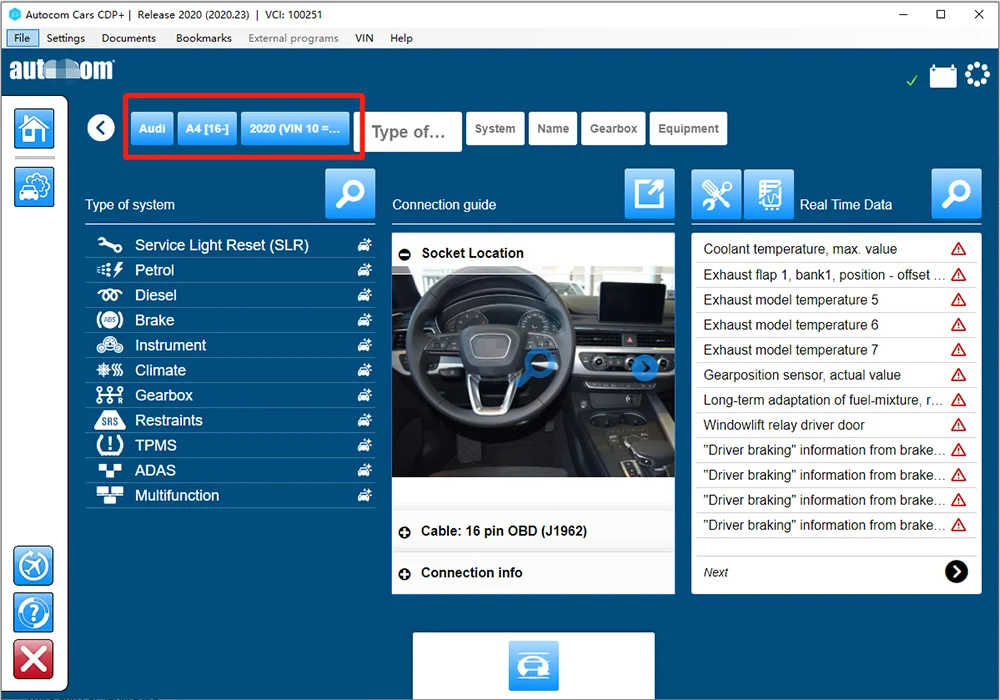
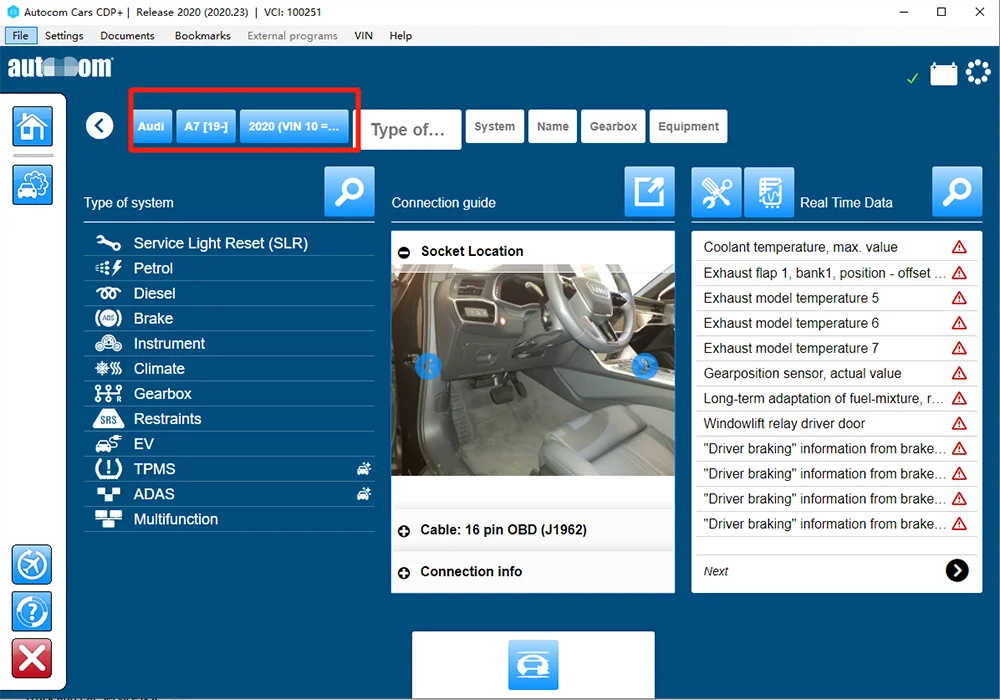
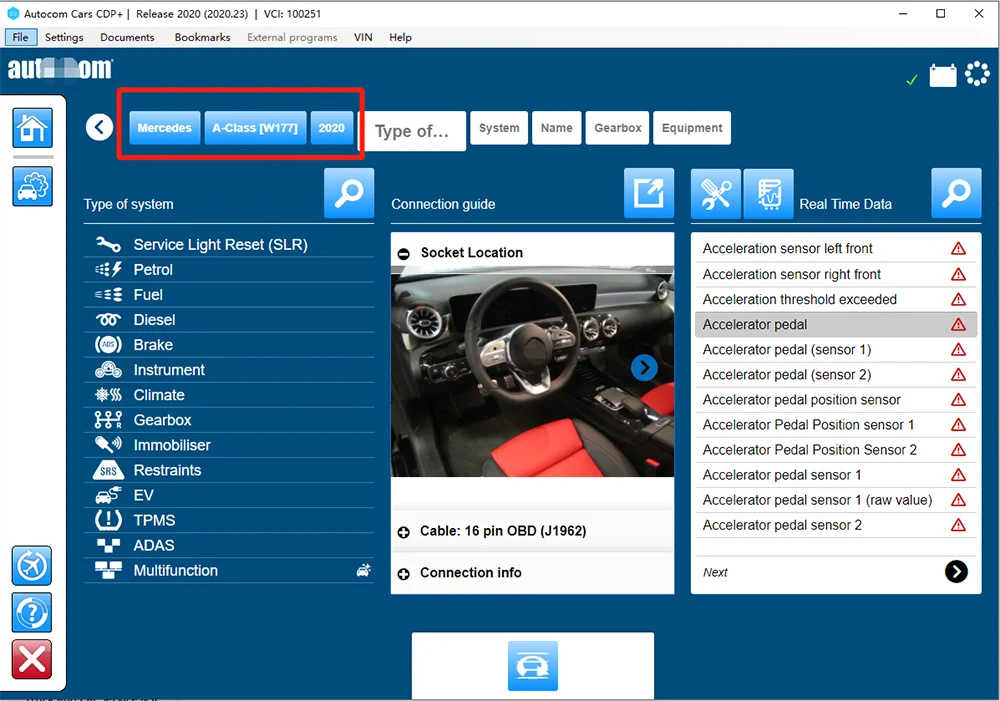
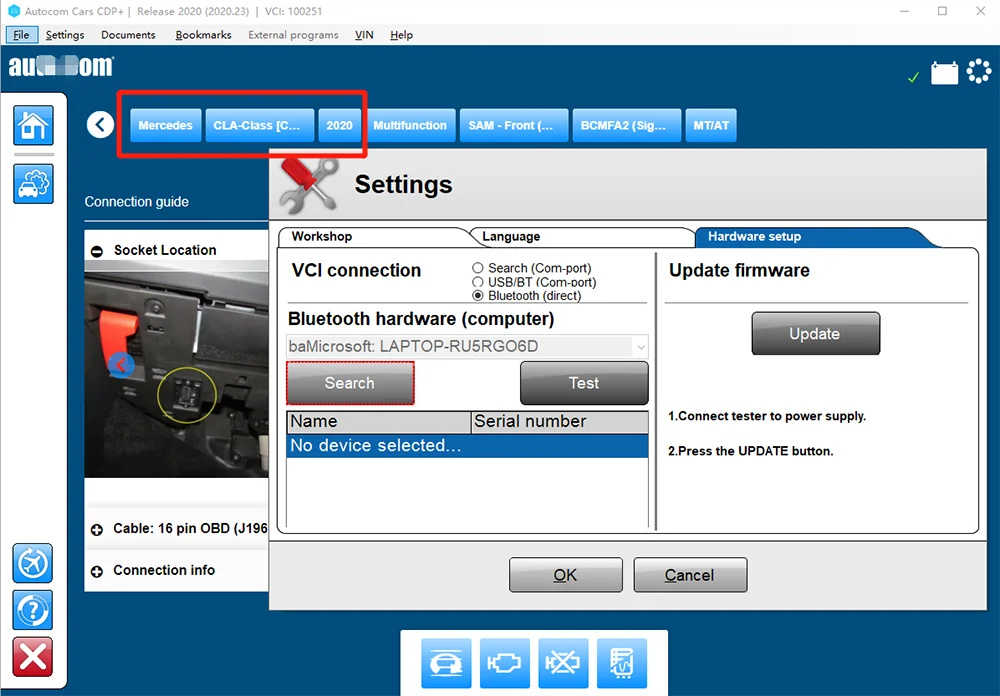
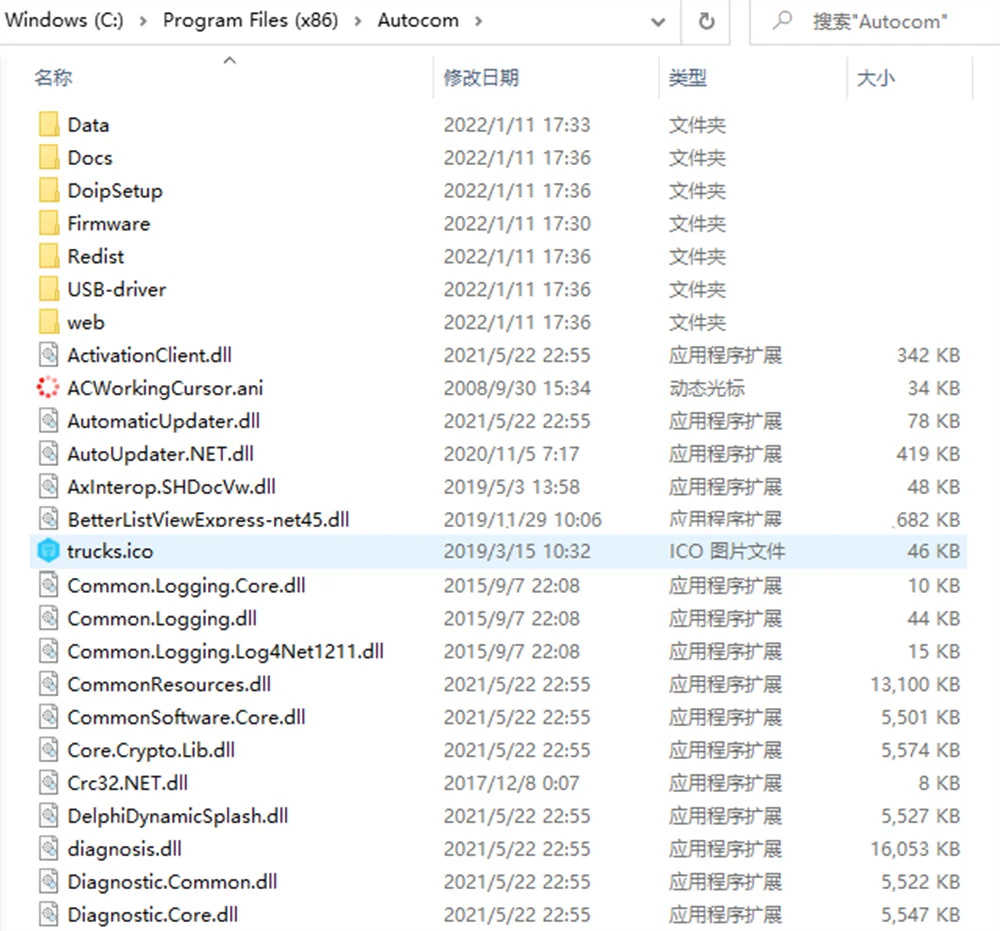
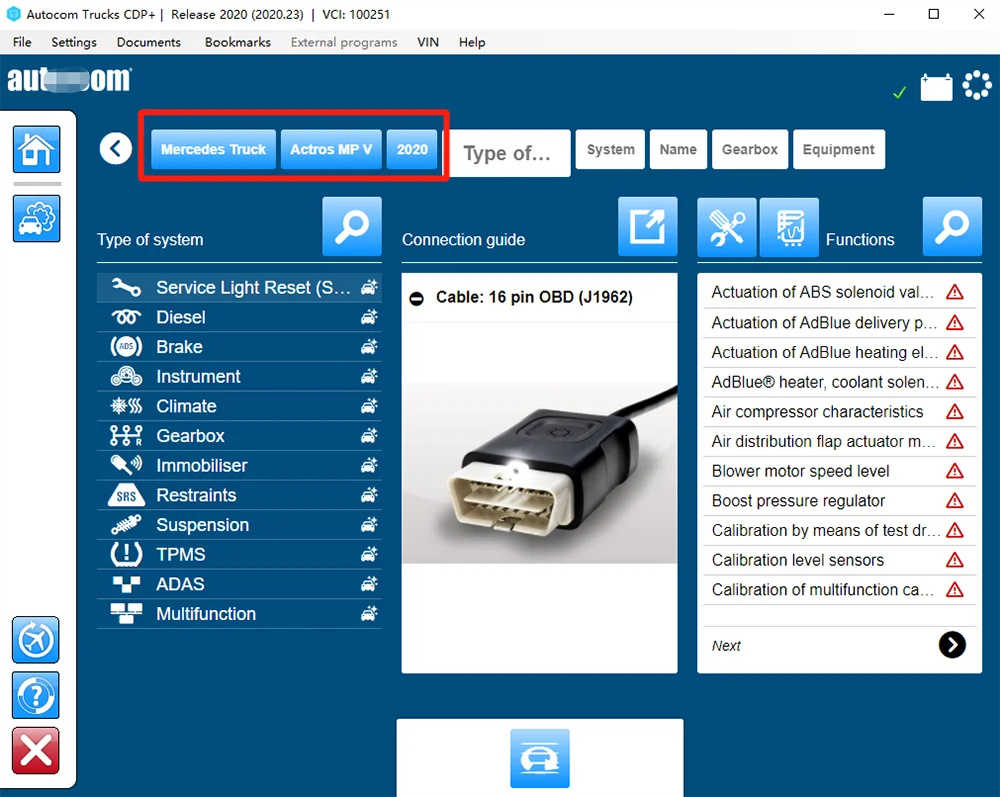
Relevant screenshots of the truck:
Features:
-With CARS, you are able to perform brand specific diagnostics for cars and light vans from 1988 onwards. A total of 47 different brands. With TRUCKS software package, you are able to perform brand specific diagnostics for light and heavy commercial vehicles, buses and trailers from 1995 onwards.
-A total of 37 different brands. The diagnostic program GENERIC is designed for the legislation based diagnostics, specially targeted for emission related fault codes. GENERIC is included in CARS and TRUCKS packages.
-Multiplexer function, 2xHS CAN (ISO 11898-2), SW CAN (SAE J2411), K/L (ISO 9141-2), VPW (J1850), PWM (J1850), RS485 (J1708), TTL and (SPI, analog in, 5volt out).
About Function:
It is a quick and reliable diagnostic tool serving as a link between vehicle and computer. It works on both old and new vehicles.
It can do the following:
A:Manufacture specific serial diagnose
B:Scan function
C:EOBD/OBDII communication
D:Serial Systems
E:Engine
F:Ignition
G:Climate
H:ABS
I:Service reset
G:SRS
K:Immobilizer
L:Instrument
M:Comfort system
D:Gear-box etc
With CARS, you are able to perform brand specific diagnostics for cars and light vans from 1988 onwards. A total of 47 different brands. With TRUCKS software package, you are able to perform brand specific diagnostics for light and heavy commercial vehicles, buses and trailers from 1995 onwards.A total of 37 different brands. The diagnostic program GENERIC is designed for the legislation based diagnostics, specially targeted for emission related fault codes. GENERIC is included in CARS and TRUCKS packages.Multiplexer function, 2xHS CAN (ISO 11898-2), SW CAN (SAE J2411), K/L (ISO 9141-2), VPW (J1850), PWM (J1850), RS485 (J1708), TTL and (SPI, analog in, 5volt out).
In serial we do following:
1) Read and erase fault codes ;
2) Read live data ;
3) Basic settings ;
4) Scan function ;
5) Fully compliant to the eOBD/OBDII standard ;It can do the follwing:
1. Manufacture specific serial diagnose ;
2. Scan function;
3. EOBD/OBDII communication;
4. Serial Systems ;
5. Engine ;
6. Ignition ;
7. ABS ;
8. Service reset ;
9. SRS ;
10.Immobilizer ;
11.Instrument ;
12.Comfort system ;
13.Gear-box etc
FLIGHT RECORDER
With the flight recorder function, you can record parameters in real time while you are driving a vehicle. During recording, you can, with a press of a button, highlight the specific error so that you can investigate the detected error at a later time. TCS is equipped with built-in memory thus removing the need to bring a computer. Memory cart not include in package .
MULTI COLOUR INDICATOR
With the multi colour indicator on TCS CDP+, you have full control of the diagnostic process. Different colors and sound communicates the status and the placement of the indicator allows you to see it from a far. For example, if the indicator alternates between blue and green the CDP+ is in communication with the vehicle control unit.
VOLTAGE CHECK
When TCS CDP+ is connected to the vehicle, the unit will check the battery voltage of the vehicle and automatically adjusts itself to the vehicle’s voltage level of 12 or 24 volts. If the voltage gets too high or too low, CDP+ will warn you with both sound and light and you will also be alerted through the battery icon in our diagnostic software.
CHASSIS NUMBER VIN
In our CARS software, we have a smart function that allows you to read out the chassis number from the vehicle that you would like to diagnose. This ensures that the right model and year is selected automatically. In addition, engine code for vehicles, which are commonly available on the markets, is also selected automatically.
ISS
Intelligent System Scan (ISS) scans through all the systems in the vehicle and displays the fault codes that are stored in each system. This saves time and you get a quick overview of the actual status of the entire vehicle. When the ISS is complete, you can then select a specific control system to analyse the results further on.
ISI
Intelligent System Identification (ISI) identifies and selects automatically the type of controller that is mounted in the vehicle. This ensures that the diagnostic session is performed correctly with the correct parameters as required.
REPORT FUNCTION
Under this function tab, you will be able to see the adaptations and adjustments that are possible for a specific vehicle without having the vehicle near you. Together with the help texts as a guide, you can plan and be effective in your work; even under complex situations.
OBD-FUNCTIONS
TCS CDP+ is equipped with an unique multiplexer technology, which allows it to be used on all types of vehicles, regardless of voltage levels and communication standards. For those vehicles that do not use the standard 16-pin connector, we offer a complete set of certified and customized adapter cables and kits.
UNIVERSAL
For most OBD functions, such as adjustments and programmings, there are detailed instructions and help texts to assist you in your diagnosis work. You will find step by step information about prerequisites, preparation and implementation of various functions; making even the most complex function simple to perform
HELP FUNCTION
For most OBD functions, such as adjustments and programmings, there are detailed instructions and help texts to assist you in your diagnosis work. You will find step by step information about prerequisites, preparation and implementation of various functions; making even the most complex function simple to perform.
What need to do before DS150 software installation?
1. Firstly, turn off your Internet connection!
2. Then shut down antivirus software!
3. Finally delete all files about the old version!
Step-by-Step DS150E Installation Guide
Follow these steps carefully to avoid the common “Installation Failed” errors.
Phase 1: Pre-Installation Preparation
-
Disable Antivirus & Firewall: Temporarily turn off Windows Defender and any 3rd-party antivirus. They often flag diagnostic files as false positives.
-
Clear Old Files: Uninstall any previous versions of Autocom or D.elphi to prevent registry conflicts.
-
Check Internet: While some versions require an internet connection for activation, it is safer to stay offline during the initial file extraction.
Phase 2: Installing the Software
-
Extract Files: Download the software and copy the folder directly to your C: Drive (e.g., C:\Delphi_2020).
-
Run as Administrator: Locate Main.exe, right-click it, and select Run as Administrator.
-
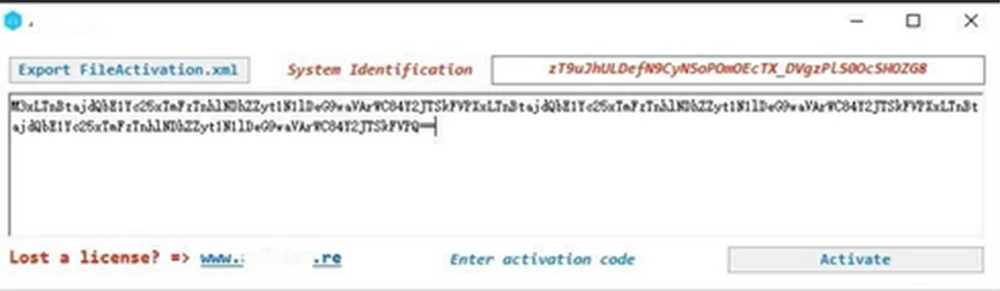
Save Activation File: Click “Start” and then “YES” when prompted to save the FileActivation.xml. Save this to your desktop.
Phase 3: Activation & Driver Setup
-
Activate: If you have a Keygen, load the .xml file to generate your license. If not, send the file to your supplier for activation.
-
Import License: Re-run Main.exe, click “Start,” but this time select “NO” to browse and select your newly activated FileActivation.xml.
-
Install USB Drivers: Plug in your VCI. If Windows doesn’t recognize it, go to Device Manager, find the “Unknown Device,” and manually point the driver path to the Driver folder inside your Delphi installation directory.
Troubleshooting Common Errors for D.elphi
-
“Main.exe not running”: Ensure you have installed .NET Framework 3.5.
-
“VCI Not Found”: Check your COM Port settings in the software. Ensure it matches the port assigned in Windows Device Manager.
-
“Hardware Not Captured”: You may need to perform a Firmware Update. Connect the VCI to both the laptop (USB) and a vehicle (12V) before clicking “Update” in the software settings.
DS150 Software Activation
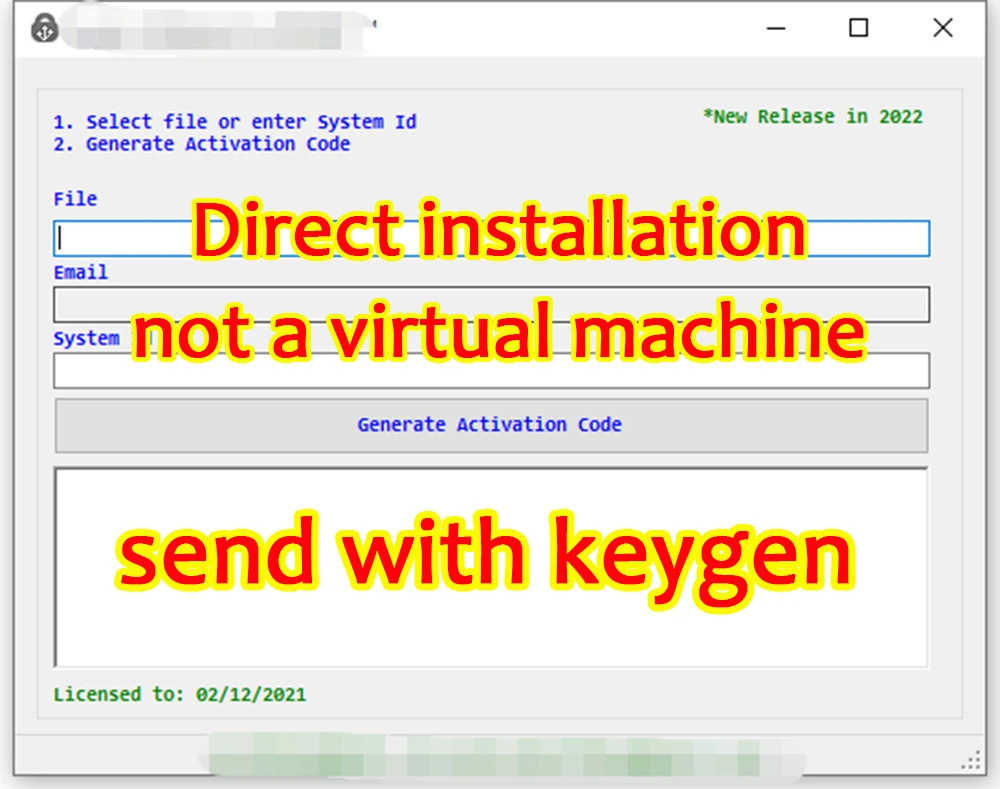
Software needs to be activated before use, Obd2tool.com share DS150 Software with keygens included, client can activate it by yourself.
1. Follow the guide to finish installed the ds150 software, then create the “FileActivation“
2. Copy the “FileActivation“” to keygen, generate “FileActivation“
3. Then back to DS150 software, importing “FileActivation” to activate DS150 software
🛠️ DS150: Frequently Asked Questions
Software & Hardware Compatibility
Q: What exactly is DS150 software used for?
A: It is a professional-grade diagnostic program used to interface with the ECUs of cars, light vans, trucks, and trailers. It allows technicians to read/clear fault codes (DTCs), view real-time live data, reset service intervals, identify ECUs, and perform advanced component activations or coding.
Q: Which vehicles can I diagnose with this software?
A: The software offers extensive coverage:
-
Passenger Cars/Vans: Models from 1988 to the present.
-
Commercial Vehicles/Trucks: Heavy-duty vehicles and trailers from 1995 onwards.
-
It supports over 47 car brands and 37 truck brands, depending on your specific software version.
Q: Can it handle both 12V and 24V electrical systems?
A: Yes. The software and the VCI hardware automatically detect and adjust to the vehicle’s voltage, making it safe for both standard 12V cars and 24V heavy-duty trucks or buses.
Q: What is the difference between DS150E and Autocom?
A: They are essentially the same tool. Both utilize the same hardware architecture and the same underlying diagnostic database. The primary difference is the user interface branding and aesthetic.
Q: Which hardware interfaces work with this software?
A: It is compatible with several VCI interfaces, including:
-
DS150E (original and high-quality clones)
-
Autocom CDP / CDP+
-
TCS CDP+
-
WOW Snooper
-
MVDiag
Installation & System Requirements
Q: Which Windows versions are supported?
A: The software is compatible with Windows XP, 7, 8, 10, and 11. While it works on 64-bit systems, a 32-bit (x86) version of Windows 10 is often recommended for the highest driver stability.
Q: Why does the software require activation?
A: To prevent unauthorized use, the software must be “unlocked” after installation. This is usually done via a FileActivation.xml file that is processed through a Keygen or sent to your supplier for a digital signature.
Q: What should I do if the installation fails?
A: Most installation issues are caused by security software. Follow this checklist:
-
Disable Antivirus/Windows Defender: These often block critical diagnostic files.
-
Clean Registry: Ensure all traces of old /Autocom versions are uninstalled.
-
File Path: Always copy installation files to the C:\ drive before running the installer.
-
Permissions: Always “Run as Administrator.”