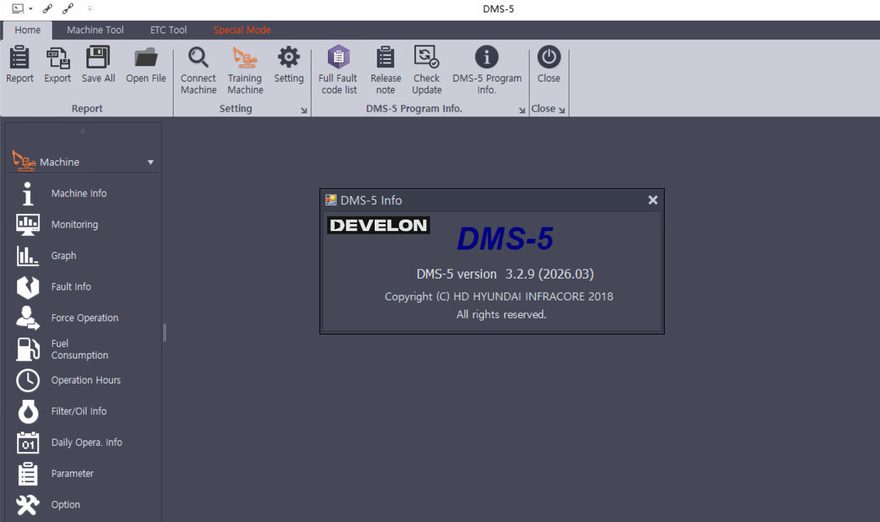
Doosan Diagnostic Tool DDT & G2 Scan is a professional diagnostic software package used for Doosan construction machines and diesel engine systems. It is mainly used for checking ECU information, reading and clearing fault codes, monitoring engine and aftertreatment data, performing actuator tests, running engine tests, and supporting service functions related to SCR, DPF, DCU, ECU, and DMS-5 systems.
The 2026.03 software package includes Doosan DMS-5 Software Version 3.2.9 and supports multiple Doosan diagnostic applications, including:
- Doosan DDT SCR
- Doosan DDT DPF
- Doosan G2 Scan DCU
- Doosan G2 Scan ECU
- Doosan DMS-5
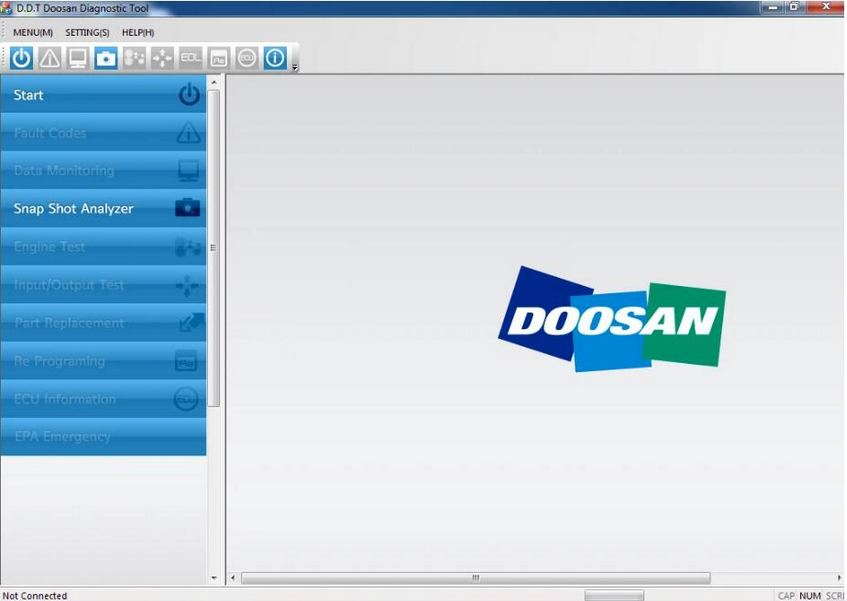
This guide explains what the software does, which functions are supported, the basic installation requirements, and when you should use a complete Doosan diagnostic toolkit instead of software-only.
What Is Doosan DDT & G2 Scan?
Doosan DDT & G2 Scan is diagnostic software designed for Doosan electronic diesel engine systems and machine control systems. It helps technicians communicate with the machine ECU, check sensor values, run diagnostic tests, record live data, and perform service functions after parts replacement or aftertreatment maintenance.
For repair shops, fleet owners, and heavy equipment technicians, this software is useful when working on Doosan excavators, loaders, forklifts, Toolcat models, and other supported Doosan machines.
2026.03 Doosan DMS-5 Software Version
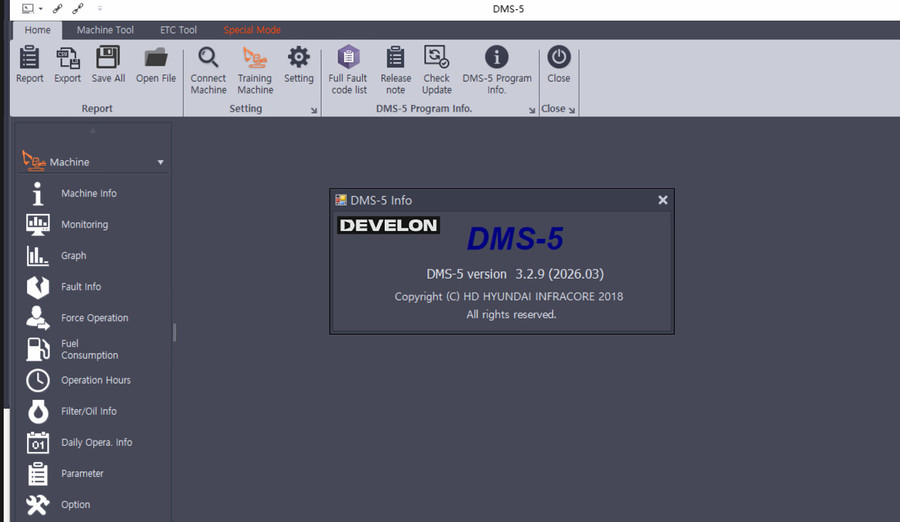
The latest package introduced here is:
Software Version: 2026.03
DMS-5 Version: 3.2.9
Supported Systems: DDT SCR, DDT DPF, G2 Scan DCU, G2 Scan ECU, DMS-5
Application: Doosan machine inspection, diesel engine diagnostics, ECU communication, aftertreatment diagnostics and service functions
DMS-5 Version: 3.2.9
Supported Systems: DDT SCR, DDT DPF, G2 Scan DCU, G2 Scan ECU, DMS-5
Application: Doosan machine inspection, diesel engine diagnostics, ECU communication, aftertreatment diagnostics and service functions
Before installation, we recommend confirming your machine model, engine type, Windows version, and compatibility with OBD2TOOL’s diagnostic hardware.
Main Functions of Doosan Diagnostic Tool
1. Engine Test Functions
The software supports several engine test functions to check engine performance and troubleshoot cylinder- or fuel-related issues.
Common engine tests include:
- Run-Up Test
Used to check engine performance and reliability under controlled test conditions. - Shut-Off Test
Similar to a cylinder cut-off test. It helps technicians evaluate the performance of individual cylinders. - Compression Test
Used to evaluate cylinder compression by checking the speed or response of individual cylinders. - HCI Dosing Test
Used for aftertreatment diagnosis. It can help identify leakage or dosing issues in the hydrocarbon injection system.
These functions are useful when diagnosing rough running, weak power, abnormal fuel consumption, aftertreatment problems, or engine performance complaints.
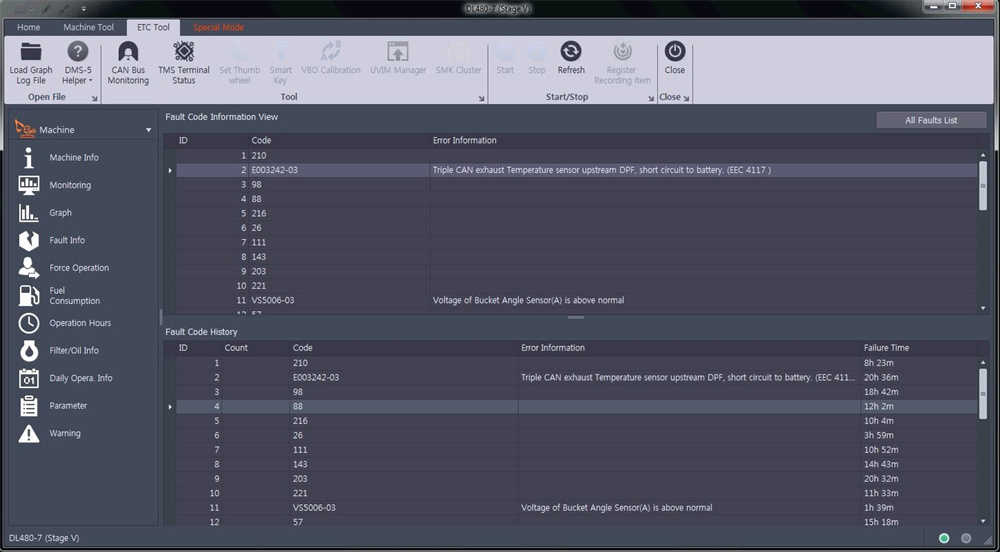
2. Fault Code Reading and Clearing
Doosan DDT & G2 Scan can read fault codes from supported Doosan control systems and display related diagnostic information.
Supported fault code functions may include:
- Reading active and stored fault codes
- Viewing fault descriptions
- Checking troubleshooting guidance
- Viewing freeze frame data
- Clearing fault codes after repair
Freeze frame data is especially useful because it shows the machine operating condition when the fault was recorded. This helps technicians determine whether the problem occurred during cold start, warm operation, heavy load, regeneration, or another operating condition.
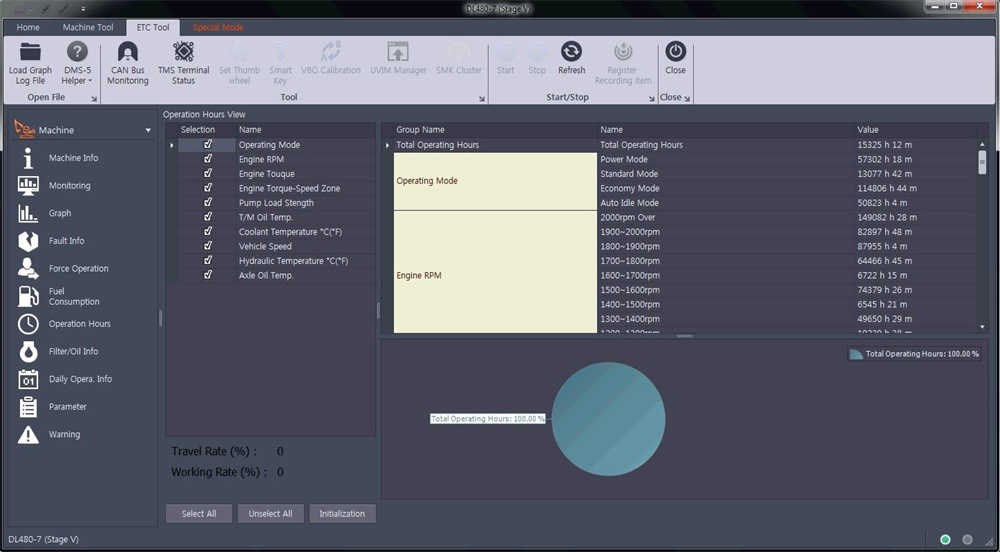
3. Data Monitoring
The software allows technicians to monitor real-time data from the engine and aftertreatment systems.
Typical live data may include:
- Engine speed
- Coolant temperature
- Fuel pressure
- Sensor signals
- SCR / DPF related values
- Electric sensor parameters
- Service data
- Engine and aftertreatment operating values
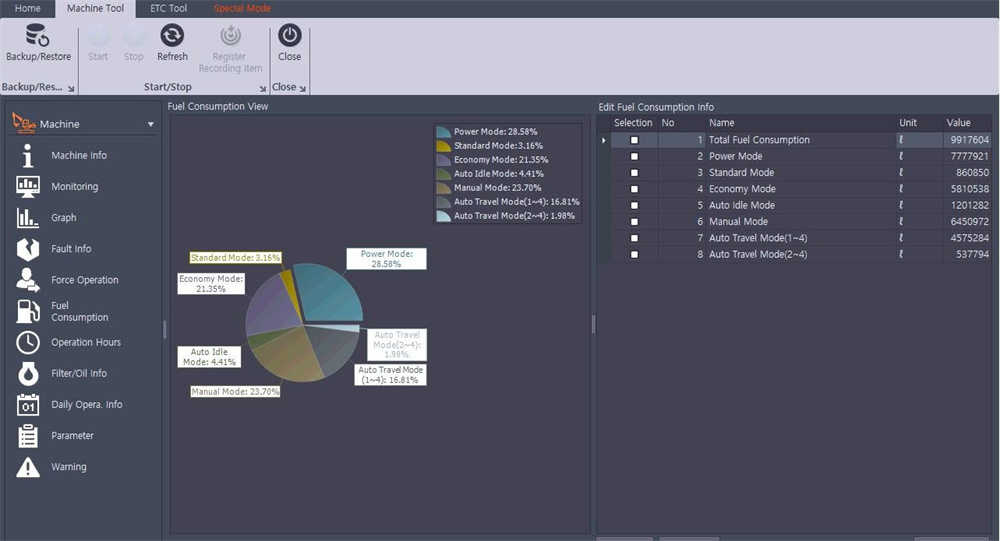
Live data monitoring is one of the most important diagnostic functions. It helps confirm whether a sensor, actuator, fuel system component, or aftertreatment component is functioning normally before replacing parts.
4. Snapshot and Data Recording
The snapshot function allows real-time data to be recorded during diagnosis.
This is useful when a fault is intermittent and does not appear all the time. A technician can record machine data during operation and review it later in the software. The recorded data can also be converted into graphs, making it easier to compare sensor values and identify abnormal behavior.
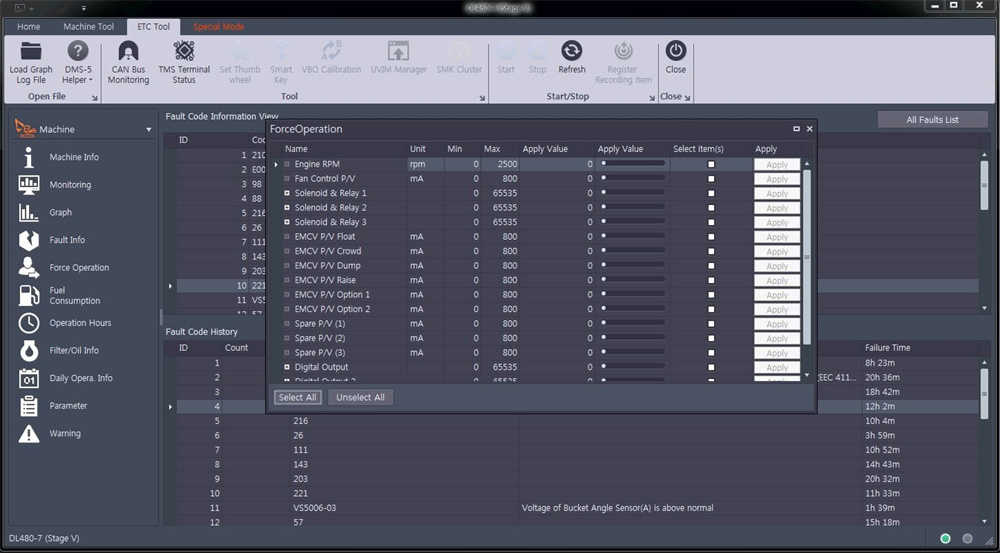
5. Input / Output Test
Doosan DDT & G2 Scan supports remote control and actuator test functions for supported systems.
Common I/O test items may include:
- Boost pressure actuator test.
- Cylinder shut-off actuator test
- Throttle valve actuator test
- Hydrocarbon dosing valve actuator test
- Parts on-off test
- Sensor and actuator response test
This function helps confirm whether a component can respond correctly when commanded by the ECU. It is useful before replacing expensive parts such as valves, actuators, dosing modules, or sensors.
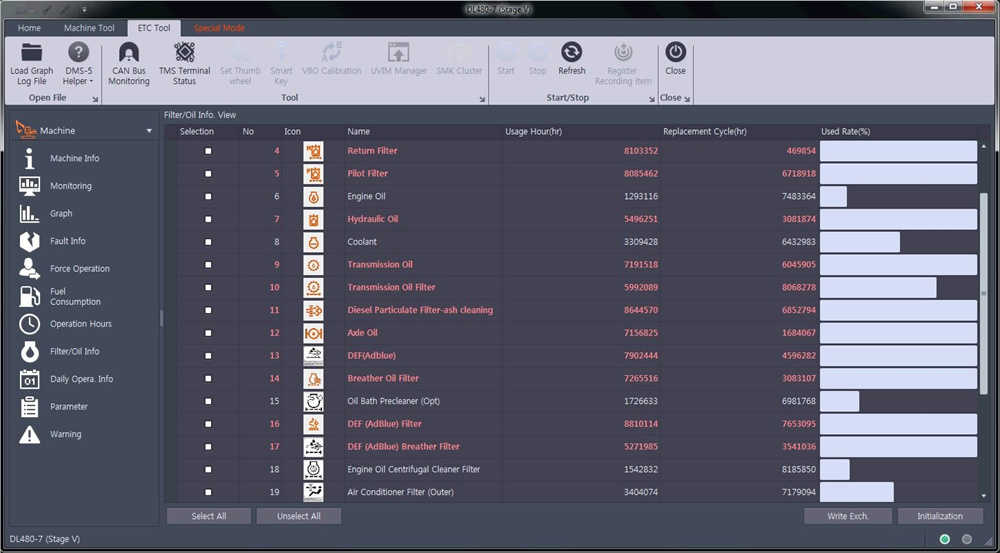
6. EOL and Service Functions
The software supports EOL and service-related functions for selected systems.
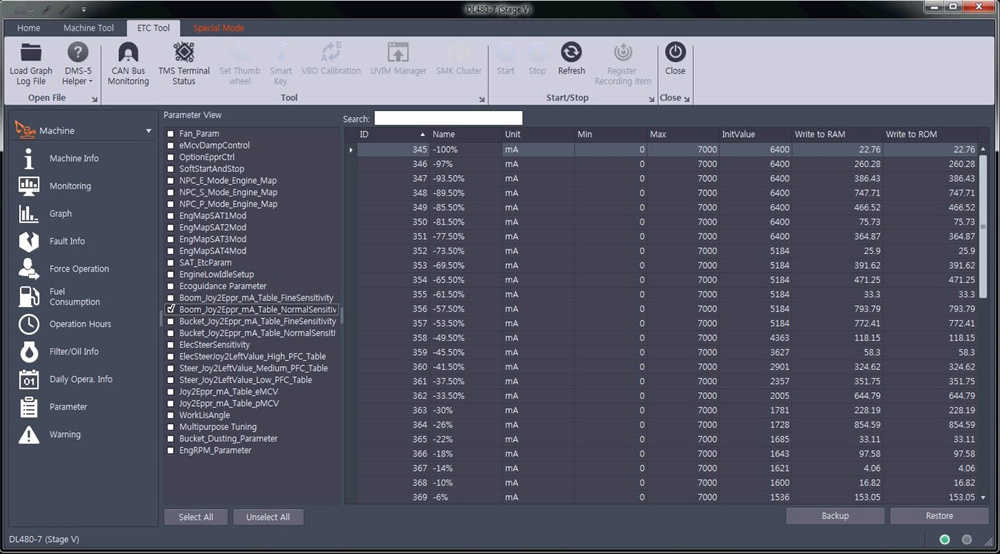
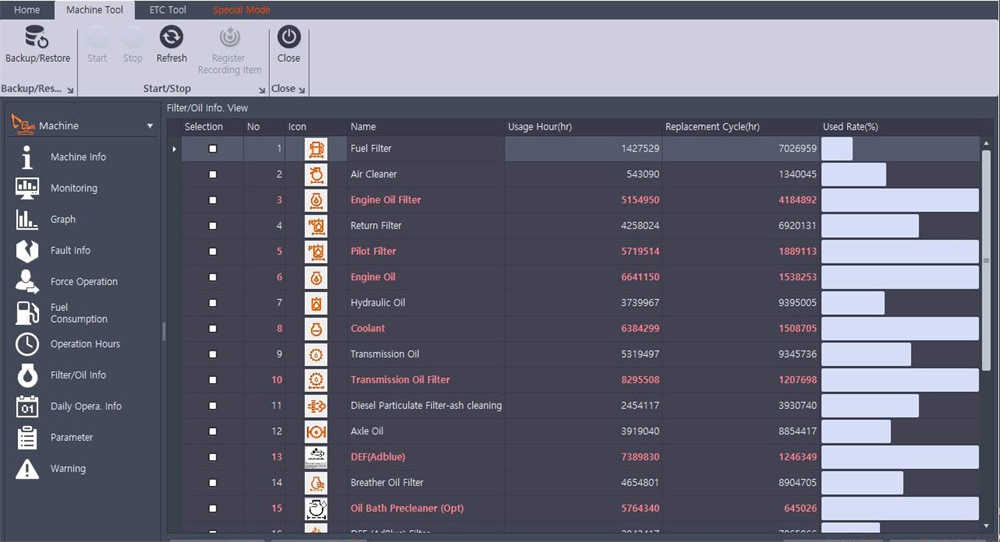
For example, after DPF ash cleaning or certain component replacement, a technician may need to reset or correct system values in the ECU. This helps the machine recognize the new service condition and continue operating normally.
Possible service functions may include:
- Parts replacement function
- EOL fuel variant coding
- Setting value reset after DPF or related maintenance
- ECU information check
- Service data confirmation
7. ECU Information and Reprogramming
Doosan Diagnostic Tool can check ECU information and, on supported systems, perform ECU map reflashing or related programming functions.
Important note: ECU programming should only be performed by trained technicians. Incorrect programming, unstable voltage, incorrect files, or interrupted communication may cause ECU damage or machine no-starts.
Before ECU reflashing, always confirm:
- Machine model
- ECU part number
- Software version
- Battery voltage
- Correct adapter connection
- Correct programming file
- Stable power supply
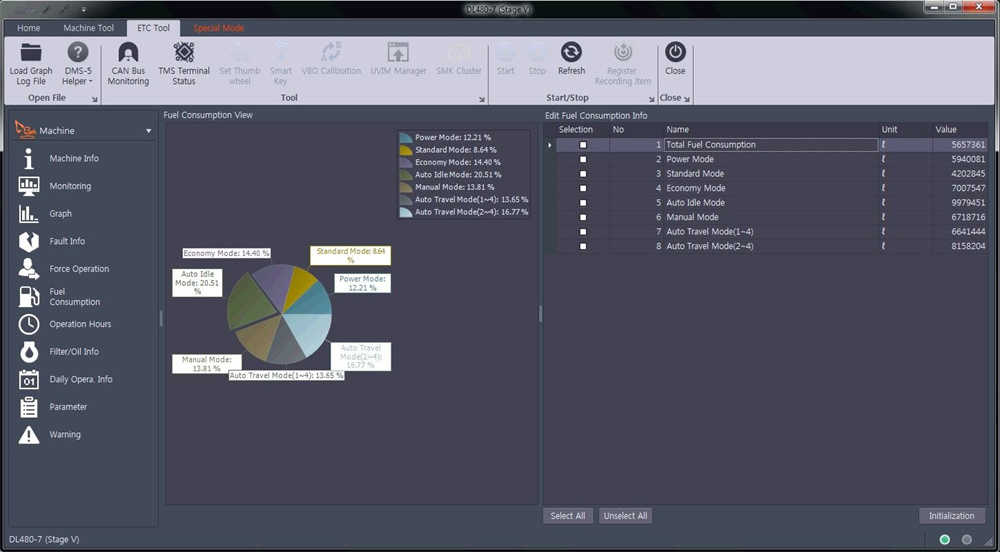
Supported Doosan Machine Types
The Doosan diagnostic software package may support Tier-3 and Tier-4 Doosan equipment, depending on hardware, software version, and machine configuration.
Common supported equipment types include:
- Doosan excavators
- Doosan loaders
- Doosan forklifts
- Toolcat models
- Supported Solar, DX, U, V, DL, H, K and C series models
Because Doosan machine coverage can vary by region, model year, engine type, and ECU system, it is better to confirm compatibility before purchase or installation.
Installation Requirements
The original software package lists support for multiple Windows systems, including Windows XP, Windows 7 (32-bit and 64-bit), Windows 8, Windows Vista, and other older Windows environments.
For optimal stability, we recommend using a dedicated diagnostic laptop rather than a daily office computer. Heavy equipment diagnostic software often depends on correct drivers, system environment, communication adapter settings, and Windows permissions.
Before installation, prepare:
- A stable Windows laptop
- Correct Doosan diagnostic adapter
- USB or communication cable
- Stable internet connection for download
- Administrator permission on Windows
- Antivirus temporarily disabled if it blocks diagnostic drivers.
- Stable machine battery voltage during diagnosis
If you are unsure which Windows version is best for your software package, contact OBD2TOOL support before installing.
2026.03 Doosan DMS-5 Software Download
The 2026.03 Doosan DMS-5 software download is provided for users who need to install or update Doosan diagnostic software.
Download Link:
Please use the download link provided by OBD2TOOL support, or contact us if it has expired.
Please use the download link provided by OBD2TOOL support, or contact us if it has expired.
Important notes before downloading:
- Download the software only from a trusted source.
- Check that your diagnostic hardware supports the software version.
- Do not update the software randomly if your current version already works well.
- Keep a backup of your original installation files.
- Contact support if Windows blocks the installer or driver.
How to Install Doosan DDT & G2 Scan Software
Step 1: Prepare the Laptop
Use a clean Windows laptop and make sure you have administrator permission. Close unnecessary programs before installation.
Step 2: Download the Software Package
Download the 2026.03 Doosan DMS-5 software package from the support link. After downloading, extract the file completely before running the installer.
Step 3: Install the Required Drivers
Install the communication driver for the Doosan diagnostic adapter. Without the correct driver, the software may open normally but fail to connect to the machine ECU.
Step 4: Install Doosan DDT / G2 Scan / DMS-5 Software
Run the installer as administrator and follow the installation steps. If the system asks for permission, allow the installer to complete.
Step 5: Connect the Diagnostic Tool to the Machine
Connect the diagnostic adapter to the Doosan machine’s diagnostic port, then connect it to the laptop.
Step 6: Turn Ignition On
Turn the machine ignition on, but do not start the engine unless the test procedure requires it.
Step 7: Open the Software and Select the Correct System
Open Doosan DDT, G2 Scan, or DMS-5, then select the correct machine system, ECU, DCU, SCR, or DPF function.
Step 8: Read Fault Codes and Live Data
Start with fault code reading and live data monitoring before performing actuator tests, service resets, or ECU programming.
Common Problems and Solutions
Problem 1: Software Cannot Connect to ECU
Possible causes:
- Wrong driver installed
- Diagnostic adapter not detected.
- Machine ignition is off.
- Cable connection is loose.
- Wrong system selected in software.
- Machine model is not supported by this software version.
Solution:
Check the adapter driver in Device Manager, reconnect the cable, turn the ignition on, select the correct ECU system, and try again. If the problem continues, send screenshots to support.
Problem 2: Software Opens, but No Data Is Displayed
Possible causes:
- Communication adapter issue
- Wrong machine model selected
- ECU does not support the selected function
- Cable or diagnostic port problem
Solution:
Confirm the machine model and ECU type, then reconnect the diagnostic tool and try another supported system menu.
Problem 3: Driver Installation Failed
Possible causes:
- Antivirus blocked the driver.
- Windows permission problem
- The driver is not compatible with the current system.
- Old driver conflict
Solution:
Run the installer as an administrator, temporarily disable antivirus, uninstall any conflicting old drivers, restart the laptop, and reinstall the correct driver.
Problem 4: ECU Programming Failed
Possible causes:
- Wrong file
- Low voltage
- Unstable communication
- Unsupported ECU
- Interrupted programming process
Solution:
Do not continue repeated programming attempts without checking the cause. Confirm the ECU information, battery voltage, software version, adapter connection, and correct programming file before trying again.
Recommended Product
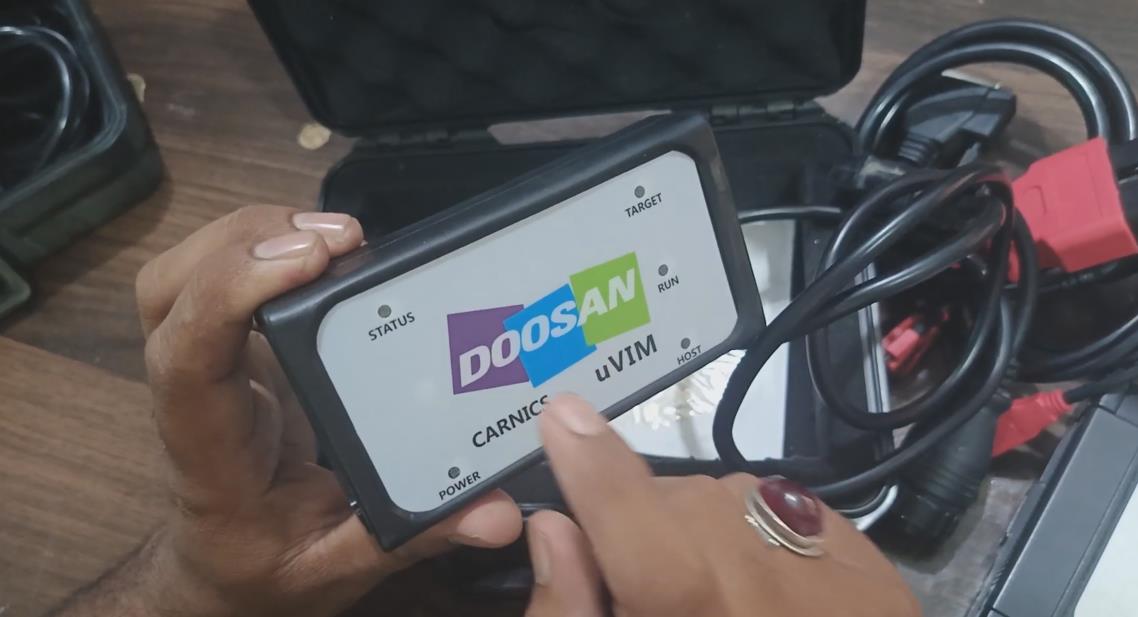
If you need a complete Doosan diagnostic solution, we recommend using the full V2026.03 Doosan Excavator Inspection Diagnostic Tool DDT SCR DPF G2 Scan DCU ECU DMS-5 package.
Product Advantages:
- Supports Doosan DDT SCR and DPF diagnostics
- Supports G2 Scan DCU and ECU functions
- Includes DMS-5 software
- Supports engine fault codes and live data
- Supports engine routine tests
- Supports actuator on-off tests
- Supports ECU information checking
- Supports selected service and replacement functions
- Suitable for Doosan excavators, loaders, forklifts, and other supported machines
Need help choosing the correct Doosan diagnostic tool? Contact OBD2TOOL support with your machine model, year, engine type, and current fault code. Our team will help you confirm compatibility before purchase.
Why Choose OBD2TOOL?
OBD2TOOL provides diagnostic tools and technical support for cars, trucks, construction machines, and heavy equipment. For Doosan users, we can help with software download, installation guidance, driver setup, and basic troubleshooting.
When contacting support, please provide:
- Machine model
- Machine year
- Engine model
- ECU type, if available
- Software version
- Diagnostic adapter photo
- Error screenshot
- Fault code screenshot
- Windows system information
This information helps our engineer identify the issue more quickly and provide a more accurate solution.
Safety and Professional Use Notice
Doosan diagnostic software should be used by trained technicians or professional repair shops. Some functions, such as actuator tests, service resets, and ECU reflashing, may affect machine operation. Always follow the service manual and keep the machine in a safe condition before running tests.
For ECU programming, make sure the battery voltage is stable and the correct file is selected. Incorrect operation may damage the ECU or cause the machine to fail to start.
FAQ
Q1: What is Doosan DDT & G2 Scan software used for?
Doosan DDT & G2 Scan software is used for Doosan machine diagnostics, including fault code reading, live data monitoring, engine and actuator tests, ECU information checks, SCR/DPF diagnostics, and selected service functions.
Q2: What is the latest Doosan DMS-5 software version?
The version introduced in this guide is 2026.03 Doosan DMS-5 Software Version 3.2.9.
Q3: Does Doosan Diagnostic Tool support SCR and DPF systems?
Yes. The software package includes Doosan DDT SCR and Doosan DDT DPF functions for supported Doosan machines and aftertreatment systems.
Q4: Can I install Doosan DDT & G2 Scan on Windows 10?
The original software package lists several Windows systems, including older Windows versions. Windows 10 compatibility may depend on the software package and driver. Contact OBD2TOOL support before installation if you are not sure.
Q5: Why can the software open but not connect to the machine?
This is usually caused by driver issues, an incorrect adapter selection, a loose cable connection, the ignition being off, an incorrect ECU selection, or an unsupported machine model. Check the driver and connection first.
Q6: Can I use Doosan DDT & G2 Scan for ECU programming?
Some supported systems may allow ECU map reflashing or programming-related functions. However, ECU programming should be performed only by trained technicians using the correct files and a stable power supply.
Q7: What information should I provide when asking for support?
Please provide your machine model and year, engine model, fault code, software version, adapter photo, Windows version, and screenshots of the error message.
Recommended Author Box
Written by the OBD2TOOL Technical Support Team.
Our team provides diagnostic tool support for automotive, truck, construction machinery, and heavy equipment repair. This guide is based on real software installation experience, product support cases, and common questions from Doosan diagnostic tool users.
Our team provides diagnostic tool support for automotive, truck, construction machinery, and heavy equipment repair. This guide is based on real software installation experience, product support cases, and common questions from Doosan diagnostic tool users.