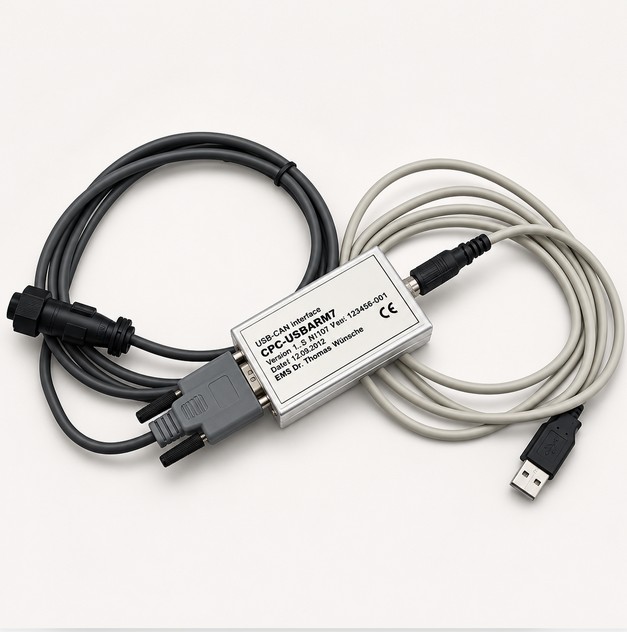
Modern Toyota BT forklifts use electronic control systems and CAN bus communication to manage driving, lifting, and other operating functions. When a reach truck, pallet truck, or powered stacker develops an electronic fault, identifying the affected control module and checking its diagnostic information can be essential for efficient troubleshooting.
The Toyota BT Forklift Diagnostic Tool with TruckCom CANBOX is a specialized diagnostic solution designed for compatible Toyota BT material-handling equipment.
Using a CPC-USB/ARM7 CAN interface and TruckCom diagnostic software, technicians can connect a Windows computer to a supported forklift’s CAN bus system to retrieve fault information, access supported service parameters, and diagnose electronic control units.
In this guide, we explain how the Toyota BT TruckCom diagnostic system works, its main features, supported forklift models, software requirements, and what to check before purchasing.
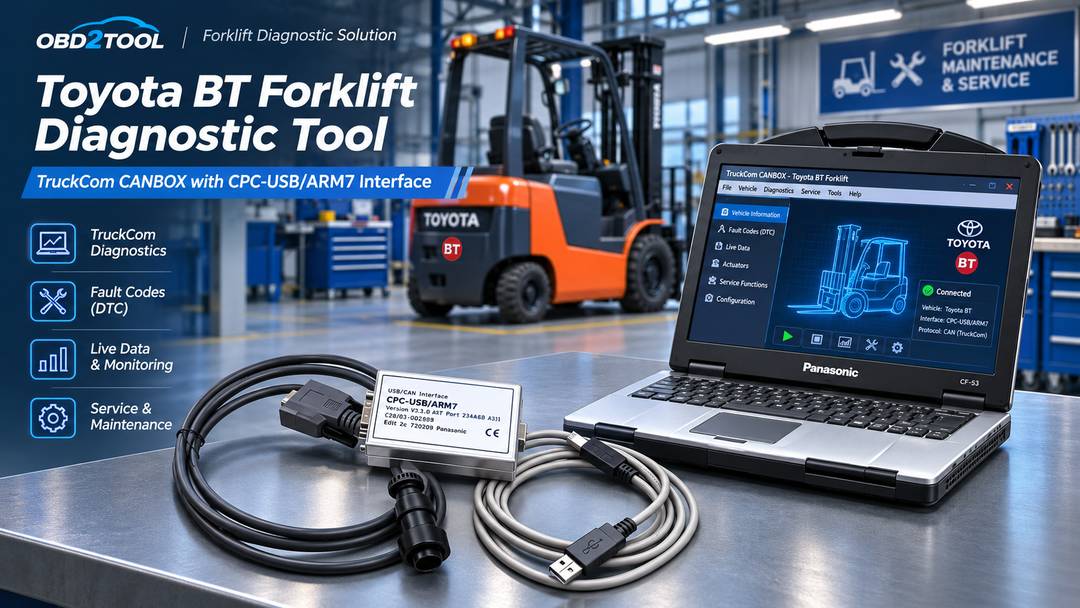
Looking for a compatible Toyota BT forklift diagnostic interface? Explore the Toyota BT TruckCom CANBOX Diagnostic Tool at OBD2TOOL.
1. What Is the Toyota BT TruckCom CANBOX Diagnostic Tool?
The Toyota BT TruckCom CANBOX is a PC-based forklift diagnostic system that uses a USB-to-CAN communication interface to communicate with supported BT forklift electronic systems.
The diagnostic setup typically includes:
- CPC-USB/ARM7 USB-to-CAN interface
- Compatible Toyota BT diagnostic cables
- TruckCom diagnostic software
- Windows laptop or computer
- Optional BT CANBUS KEY, depending on the selected package
The interface connects the computer to the forklift’s diagnostic communication network. TruckCom software then provides access to supported electronic diagnostic and service functions.
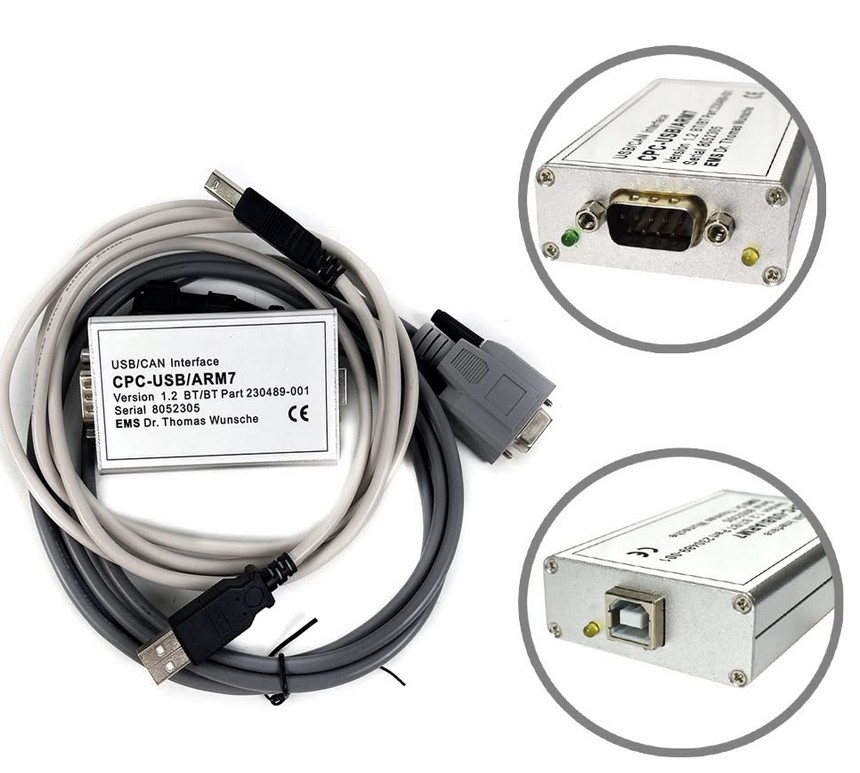
How Does the CPC-USB/ARM7 Interface Work?
The CPC-USB/ARM7 acts as a communication bridge between a Windows computer and the forklift’s CAN bus network.
The basic communication path is:
Windows Laptop → USB Connection → CPC-USB/ARM7 CAN Interface → Forklift Diagnostic Connection → Electronic Control System
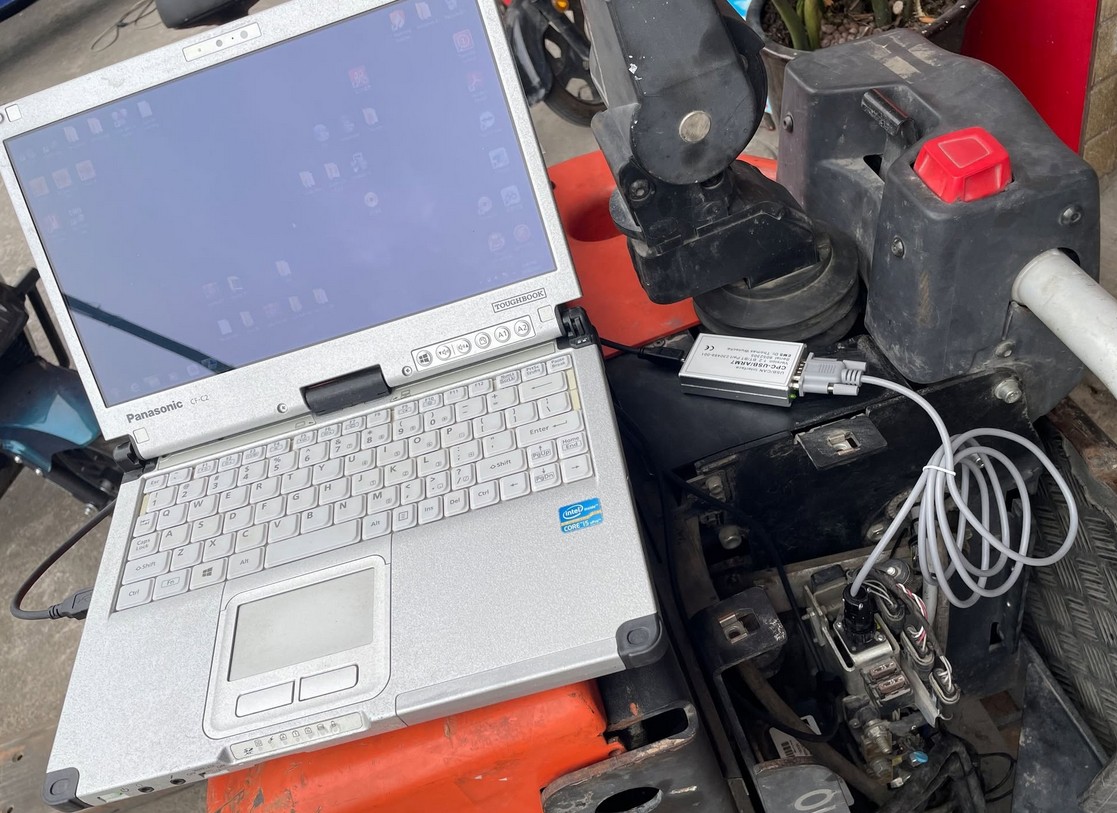
Once communication is established, technicians can use the supported TruckCom software functions to examine electronic fault information and carry out authorized service procedures.
Unlike a general-purpose automotive OBD2 scanner, the Toyota BT TruckCom system is intended for specific Toyota BT industrial truck applications.
This distinction matters because a diagnostic tool designed for Toyota passenger vehicles does not necessarily support Toyota BT forklifts.
2. Key Features of the Toyota BT Forklift Diagnostic Tool
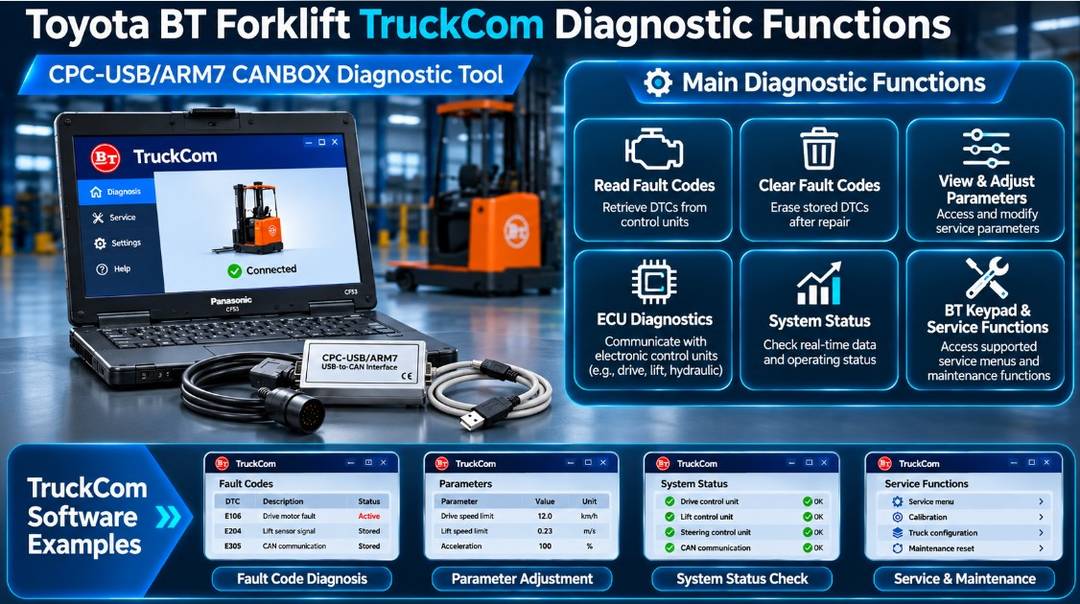
2.1 Read and Diagnose Forklift Fault Codes
One of the main functions of TruckCom is accessing diagnostic trouble information from compatible BT forklift electronic systems.
When a forklift displays an error or stops operating normally, technicians can use the diagnostic interface to investigate the reported problem.
Typical diagnostic work may include:
- Accessing supported electronic control units
- Reading stored fault information
- Identifying reported system problems
- Reviewing diagnostic information relevant to the fault
- Checking system status after a repair
The exact data and diagnostic actions available depend on the forklift model and software configuration.
2.2 Access Service Parameters
TruckCom supports parameter access and adjustments for compatible Toyota BT forklift models.
This can be useful when servicing electronic systems that require authorized configuration or parameter checks.
However, the level of access varies between forklift generations.
For certain newer BT machines, the available editing functions may be restricted to operator-level and service-level parameters. Factory-level parameters may remain locked.
Important: Never change an unfamiliar setting simply because it is visible in the diagnostic software. Parameter changes should follow the correct service documentation and be performed only by qualified personnel.
2.3 Electronic Control Unit Diagnostics
Toyota BT forklifts equipped with CAN bus communication use electronic control systems to manage different machine operations.
The TruckCom CAN interface provides access to supported electronic control units for diagnostic inspection.
Depending on the model, technicians may be able to investigate electronic problems affecting:
- Travel and drive control
- Lifting and hydraulic-related electronic control
- Operator controls
- System communication
- Electronic service settings
These are examples of possible diagnostic applications, not a guarantee that every function is available on every forklift.
2.4 BT Keypad and Service Menu Access
The product configuration includes support for certain BT keypad and service diagnostic functions.
Such functions may be required during specialized troubleshooting and maintenance.
However, hidden service menus and advanced configuration options should only be accessed when the correct procedure is known.
This is especially important for BT Reflex reach trucks, where an incorrect service function or adjustment may affect machine behavior.
2.5 USB-to-CAN Communication
The CPC-USB/ARM7 interface provides a dedicated communication connection between the diagnostic computer and supported forklift CAN bus systems.
For workshops servicing compatible BT equipment, this offers a more specialized diagnostic setup than a basic generic code reader.
3. Toyota BT Forklift Models Supported by TruckCom CANBOX
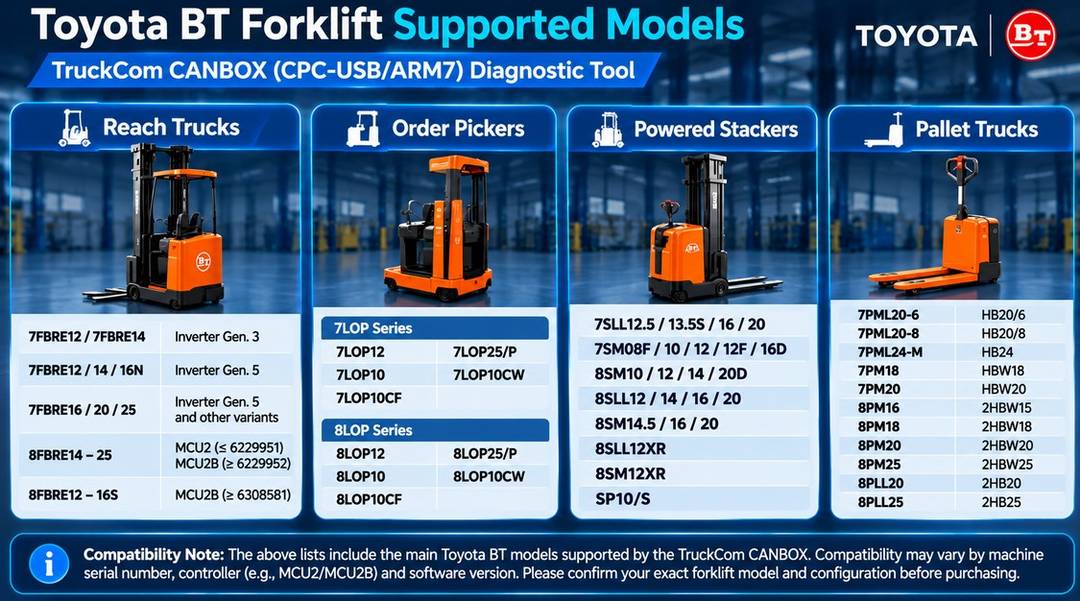
Vehicle compatibility is one of the most important considerations when choosing a Toyota BT forklift diagnostic tool.
The supported model list includes selected Toyota BT reach trucks, low-level order pickers, powered stackers, and powered pallet trucks.
The following examples are based on the OBD2TOOL product’s listed applications.
3.1 Toyota BT Reach Trucks
| Forklift Model | Listed Configuration |
|---|---|
| 7FBRE12 / 7FBRE14 | Inverter Generation 3 |
| 7FBRE12 / 14 / 16N | Inverter Generation 5 |
| 7FBRE16 / 20 / 25 | Inverter Generation 5 and other listed variants |
| 8FBRE14–25 | MCU2 or MCU2B, depending on machine number |
| 8FBRE12–16S | MCU2B for listed machine-number range |
Some listed reach-truck configurations have specific machine-number requirements.
For example:
- 8FBRE14–25 with MCU2: Machine numbers up to 6229951.
- 8FBRE14–25 with MCU2B: Machine numbers from 6229952.
- 8FBRE12–16S with MCU2B: Machine numbers from 6308581.
Different electronic control generations can require different diagnostic compatibility.
Therefore, checking only the forklift model name may not be sufficient.
3.2 Toyota BT Low-Level Order Pickers
The listed applications include the following model families:
7LOP Series
- 7LOP12
- 7LOP25/P
- 7LOP10
- 7LOP10CW
- 7LOP10CF
8LOP Series
- 8LOP12
- 8LOP25/P
- 8LOP10
- 8LOP10CW
- 8LOP10CF
3.3 Toyota BT Powered Stackers
Supported model families include selected:
- 7SLL12.5 / 13.5S / 16 / 20
- 7SM08F / 10 / 12 / 12F / 16D
- 8SM10 / 12 / 14 / 20D
- 8SLL12 / 14 / 16 / 20
- 8SM14.5 / 16 / 20
- 8SLL12XR
- 8SM12XR
- SP10/S
Additional variants are listed on the product page.
3.4 Toyota BT Powered Pallet Trucks
Listed applications include:
| Toyota BT Model | Related BT Designation |
|---|---|
| 7PML20-6 | HB20/6 |
| 7PML20-8 | HB20/8 |
| 7PML24-M | HB24 |
| 7PM18 | HBW18 |
| 7PM20 | HBW20 |
| 8PM16 | 2HBW15 |
| 8PM18 | 2HBW18 |
| 8PM20 | 2HBW20 |
| 8PM25 | 2HBW25 |
| 8PLL20 | 2HB20 |
| 8PLL25 | 2HB25 |
The product listing also includes models such as 8PM14, 8PLL22, and PP13.
Compatibility reminder: These tables summarize listed applications. They do not guarantee every control module or software function is supported. Confirm the exact model, machine serial number, controller generation, and required diagnostic operation before ordering.
4. Toyota BT TruckCom Software Requirements
TruckCom is a Windows-based diagnostic application intended for compatible Toyota BT industrial trucks.
The product listing includes the following information:
| Item | Specification |
|---|---|
| Software | Toyota BT TruckCom |
| Diagnostic Interface | CPC-USB/ARM7 USB-to-CAN |
| Application | Toyota BT Forklift Diagnostics |
| Listed Package Reference | v2.12.9 R3 (2019) |
| Laptop Bundle Software | BT2.19 |
| Operating Systems | Windows 7 / 8 / 10 |
| System Architecture | 32-bit and 64-bit |
| Software Interface Languages | English and multiple other languages |
| Database Language | English |
Software version note: The product listing references v2.12.9 R3 in its specifications and BT2.19 for the laptop configuration. Confirm the exact software version included with your selected package before purchasing.
Windows 11 compatibility is not confirmed in the listed specifications.
Available Software Languages
The software listing includes English, Spanish, Russian, French, German, Czech, Danish, Dutch, Finnish, Greek, Hungarian, Norwegian, Polish, Swedish, and Chinese interface options.
The listed database language is English.
5. How to Connect the Toyota BT TruckCom Diagnostic Tool
The following is a general connection workflow. Always follow the forklift manufacturer’s service instructions for the specific model.
Step 1: Prepare the Forklift
Before beginning diagnosis:
- Park the forklift in a safe service area.
- Remove the load and lower the forks to the specified safe position.
- Apply the parking brake where applicable.
- Follow the manufacturer’s instructions for key position and electrical power.
- Verify that no personnel are in the forklift’s operating or lifting area.
Do not perform active electronic or hydraulic tests without the applicable service procedure.
Step 2: Prepare the Diagnostic Computer
Use a compatible Windows computer with the supported TruckCom software and CPC interface driver installed.
Check that the software installation matches the supplied interface and operating system.
Step 3: Connect the CPC-USB/ARM7 Interface
Connect the CPC-USB/ARM7 interface to the computer using the appropriate USB connection.
Then connect the supplied diagnostic cable to the forklift’s designated diagnostic connector, following the relevant service documentation.
Connector locations and cable requirements can vary between Toyota BT forklift models.
Step 4: Open TruckCom Software
Launch the installed TruckCom diagnostic application.
Select the required communication interface or connection options according to the software version and equipment instructions.
Establish communication with the forklift.
Step 5: Read Diagnostic Information
Once connected, use the supported diagnostic functions to access the forklift’s electronic system information.
Review any reported fault codes or available system status information.
Record the original fault information before attempting repairs or clearing stored codes.
Step 6: Diagnose and Verify the Repair
Use the relevant service manual, diagnostic information, and electrical testing procedures to determine the actual cause of the problem.
After completing the necessary repair, verify that the fault has been corrected using the approved diagnostic procedure.
Clear fault codes only when the manufacturer specifies that it is appropriate.
6. Common Toyota BT Forklift Diagnostic Problems
A diagnostic interface can be valuable when a forklift develops an intermittent electrical or electronic problem.
However, the presence of a fault code does not automatically mean that the reported component must be replaced.
Problem 1: TruckCom Cannot Communicate With the Forklift
If TruckCom cannot establish communication, check:
- Whether the forklift model is supported.
- Whether the correct diagnostic connector and cable are being used.
- Whether the CPC-USB/ARM7 interface is recognized by Windows.
- Whether the appropriate interface driver is installed.
- Whether the diagnostic software is correctly configured.
- Whether the forklift’s electrical power conditions match the service procedure.
- Whether the diagnostic connector, cable, or CAN communication wiring is damaged.
Avoid changing network settings or service parameters without an identified reason.
Problem 2: Forklift Displays an Electronic Fault Code
When a Toyota BT forklift reports an electronic fault:
- Record the exact error code and symptom.
- Identify the machine model and serial number.
- Connect the compatible TruckCom diagnostic interface.
- Retrieve the available diagnostic information.
- Check the fault against the correct service manual.
- Inspect the relevant connectors, wiring, power supply, and components as specified by the manufacturer.
Do not replace an ECU solely because its name appears in the fault report.
Problem 3: A Service Parameter Cannot Be Changed
Some newer Toyota BT machines have restrictions on parameter editing.
Operator-level or service-level parameters may be accessible, while factory-level settings remain protected.
If a parameter cannot be edited, first check the service documentation and the authorized access level for the forklift.
Do not attempt to bypass factory-level restrictions.
Problem 4: The Fault Returns After Repair
If a fault returns, verify the underlying cause rather than repeatedly clearing the code.
For example, a recurring communication-related fault may require additional inspection of the CAN wiring, connectors, power supply, or the affected electronic module.
The correct diagnostic procedure depends on the specific fault code and forklift model.
7. Why Choose the CPC-USB/ARM7 Interface for Toyota BT Forklifts?
The CPC-USB/ARM7 interface is intended for specialized forklift communication rather than general automotive OBD2 diagnosis.
For workshops that service compatible Toyota BT forklifts, the main practical advantages include:
Dedicated Toyota BT diagnostic application
TruckCom is designed for supported Toyota BT industrial truck platforms.
CAN bus communication
The USB-to-CAN interface connects the diagnostic computer to supported forklift communication systems.
Fault diagnosis and service parameter access
Technicians can access supported electronic fault information and service functions.
Multiple forklift categories
The listed applications cover selected reach trucks, order pickers, powered stackers, and pallet trucks.
Flexible purchase configurations
Buyers can select an interface-only option or a configuration that includes additional hardware and a prepared laptop.
The Toyota BT Forklift TruckCom CANBOX Diagnostic Tool is available in different configurations at OBD2TOOL.
8. Toyota BT TruckCom Package Options
OBD2TOOL lists four purchasing configurations:
| Option | Package Configuration |
|---|---|
| 1 | CPC-USB/ARM7 Interface Only |
| 2 | CPC-USB/ARM7 + BT CANBUS KEY |
| 3 | CPC-USB/ARM7 + Panasonic CF53 Laptop with BT2.19 Software |
| 4 | CPC-USB/ARM7 + BT CANBUS KEY + Panasonic CF53 Laptop with BT2.19 Software |
The basic package listing includes the Toyota BT diagnostic interface, cables, and software media.
Optional Panasonic CF53 Laptop Specifications
| Component | Specification |
|---|---|
| Model | Panasonic CF53 |
| Condition | Second-hand |
| Processor | Intel Core i5-3320U |
| RAM | 8GB |
| Storage | 256GB SSD |
| Screen | 14.0 inches |
| Resolution | 1366 × 768 |
For buyers who already have a compatible diagnostic computer, the interface-only package may be suitable.
For workshops that prefer a prepared diagnostic workstation, a laptop bundle may reduce the amount of initial installation work.
Before ordering, confirm whether the selected configuration includes the required software, interface driver, service access option, and cables.
9. Important Safety Notes for BT Reflex Reach Trucks
Some Toyota BT reach trucks include specialized service menus and configurable electronic functions.
These functions should not be treated as ordinary diagnostic code-reading options.
Incorrectly activating an advanced service function can potentially cause unexpected machine operation, equipment damage, or personal injury.
Before using any advanced service menu:
- Read the manufacturer-approved service procedure.
- Confirm the exact forklift model and controller generation.
- Understand the purpose of the selected function.
- Make sure the forklift is secured in the required service configuration.
- Keep personnel clear of moving and lifting components.
- Record existing parameter values before approved adjustments.
- Perform the procedure only with appropriate technical training and authorization.
For BT Reflex RRE reach trucks, never activate an unfamiliar hidden service function without first checking the corresponding service manual.
10. Frequently Asked Questions
Q1. What is TruckCom Toyota BT diagnostic software?
TruckCom is a diagnostic application used with compatible Toyota BT industrial trucks. When paired with a supported CAN communication interface, it can provide access to electronic diagnostic information and supported service functions.
Q2. What is a CPC-USB/ARM7 diagnostic interface?
The CPC-USB/ARM7 is a USB-to-CAN communication interface that allows a computer to communicate with supported forklift electronic systems through the appropriate diagnostic connection.
Q3. Can the Toyota BT diagnostic tool read forklift fault codes?
Yes. Reading electronic fault information is one of its primary diagnostic functions. The available fault information depends on the forklift model, software, and supported control system.
Q4. Can TruckCom adjust forklift parameters?
The product supports parameter adjustments for compatible models. However, newer forklifts may limit editing to authorized operator-level or service-level parameters.
Q5. Does TruckCom support all Toyota forklifts?
No. The listed configuration is intended for specified Toyota BT model families. It should not be assumed to support every Toyota industrial truck or every modern BT Reflex model.
Q6. Which operating systems are supported?
The supplied software specifications list Windows 7, Windows 8, and Windows 10 in 32-bit and 64-bit configurations. Windows 11 compatibility should be confirmed separately.
Q7. Is the BT CANBUS KEY included?
The BT CANBUS KEY is offered as part of selected purchase configurations. Verify the package contents before ordering.
Q8. Can I buy the diagnostic interface with a laptop?
Yes. OBD2TOOL lists configurations with an optional second-hand Panasonic CF53 laptop and BT2.19 software.
Q9. Can I use a regular Toyota car OBD2 scanner instead?
A regular Toyota passenger-vehicle scanner is not necessarily compatible with Toyota BT forklift electronic systems. The TruckCom solution uses a dedicated CAN communication interface and forklift-specific diagnostic software.
Q10. What information should I provide before ordering?
For a compatibility check, prepare the following information:
- Toyota BT forklift model
- Machine serial number
- Controller or inverter generation, if known
- Current fault code or problem description
- Required diagnostic or service function
- Preferred interface-only or laptop configuration
Conclusion
The Toyota BT TruckCom CANBOX Diagnostic Tool is a specialized solution for diagnosing supported Toyota BT industrial trucks.
With its CPC-USB/ARM7 CAN interface, TruckCom software environment, and optional Panasonic laptop configuration, the system provides a practical way for qualified technicians to access compatible forklift electronic diagnostic and service functions.
Whether you maintain BT reach trucks, order pickers, powered stackers, or powered pallet trucks, selecting a compatible diagnostic interface is an important part of effective troubleshooting.
Before purchasing, always verify the forklift model, machine serial number, controller generation, software version, and required service functions.
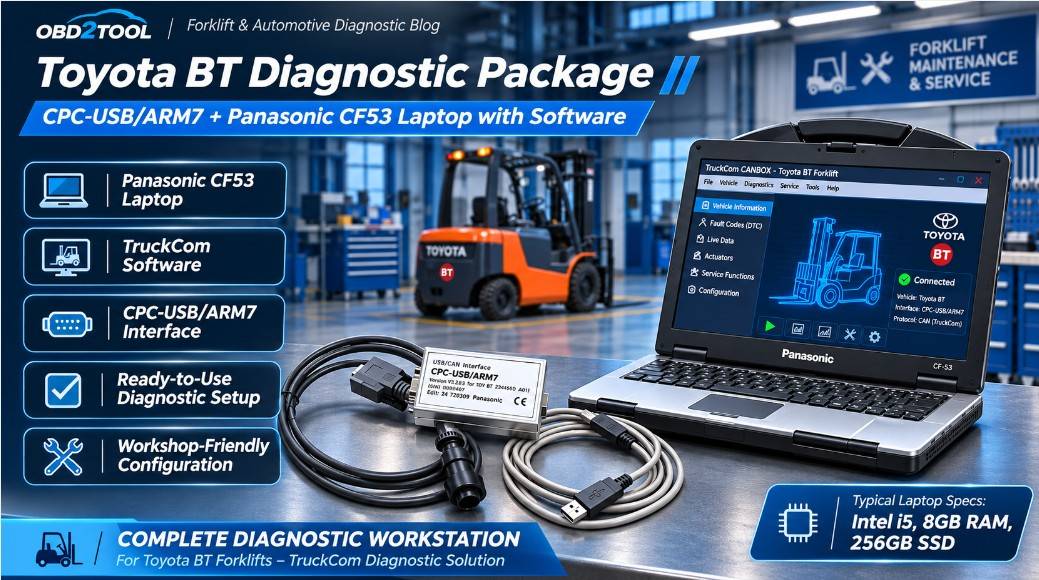
Explore the Toyota BT Forklift TruckCom CANBOX CPC-USB/ARM7 Diagnostic Tool at OBD2TOOL and choose the configuration that matches your workshop’s diagnostic requirements.