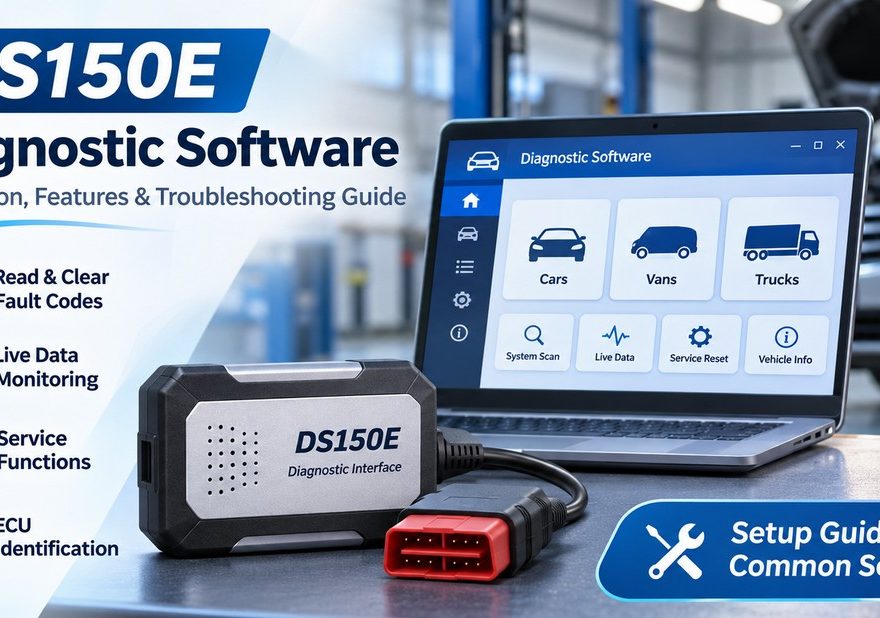
DS150E diagnostic software is commonly associated with multi-brand vehicle diagnostics for passenger cars, light commercial vehicles, and certain heavy-duty applications. With a compatible vehicle communication interface (VCI), technicians can access supported electronic control units, retrieve diagnostic trouble codes, and monitor vehicle operating data.
However, successful installation depends on more than downloading a software package. The hardware model, software release, computer configuration, drivers, and licensing requirements must all be compatible.
This guide explains how DS150E diagnostic systems work, where to obtain legitimate software, how to prepare a Windows computer, and how to troubleshoot common connection problems.
This is an independent technical information guide. OBD2Tool is not represented as an official Delphi Technologies or Autocom software publisher or authorized distributor. Product names are used for identification and compatibility discussion only.
1. What Is DS150E Diagnostic Software?
DS150E refers to a vehicle diagnostic interface used with compatible diagnostic software and a Windows-based computer.
A typical diagnostic setup consists of three components:
- Vehicle Communication Interface (VCI): Connects the computer to the vehicle’s diagnostic system.
- Diagnostic Software: Provides the vehicle selection menu, supported diagnostic functions, fault-code information, and live-data display.
- Vehicle Connection Cable: Connects the VCI to a supported OBD diagnostic socket or an appropriate vehicle-specific adapter.
The diagnostic software and physical interface work together. Software installation alone does not turn a regular laptop into a vehicle scanner.
Depending on the specific software license, VCI model, and vehicle coverage, the system may provide diagnostic access to passenger cars, vans, trucks, and other commercial vehicles.
Common DS150E Diagnostic Functions
| Function | Description |
|---|---|
| Fault Code Reading | Retrieves available diagnostic trouble codes from supported control modules |
| Fault Code Clearing | Erases supported fault codes after the underlying problem has been addressed |
| Live Data Monitoring | Displays sensor and operating parameters in real time |
| System Identification | Identifies compatible electronic control units |
| Vehicle System Scanning | Checks multiple supported control modules |
| Service Functions | Performs supported service resets and maintenance procedures |
| Component Testing | Activates supported actuators for diagnostic testing |
| Vehicle Identification | Retrieves available vehicle identification information |
Not every function is available for every vehicle. Features depend on the software version, license, hardware, vehicle model, and ECU.
2. DS150E Software Versions: What Should You Know?
When researching DS150E software downloads, technicians may encounter several version numbers, including 2017.R3, 2020.23, and 2021.11.
These labels frequently appear in historical product listings and aftermarket discussions. However, a version number advertised by a third-party seller does not establish that the package is an official, licensed release.
Understanding Different Software Listings
| Version or Label | What to Know |
|---|---|
| 2017.R3 | A legacy version label found in aftermarket DS150E-related listings; compatibility and licensing must be verified |
| 2020.23 | Appears in older software listings; the label alone does not establish authenticity or supported vehicle coverage |
| 2021.11 | Another version label encountered in aftermarket product descriptions |
| Official DS Software Releases | Distributed through the manufacturer’s authorized channels, subject to applicable license and hardware requirements |
As of November 2026, Delphi Technologies’ online DS download center lists DS Software 2026.05 for its supported DS software range.
This does not mean that every DS150E-style interface can install or operate that release.
Before choosing any version, verify the exact VCI model, serial number, firmware, licensing status, and manufacturer-supported software compatibility.
3. Where to Get Compatible DS150E Diagnostic Software
Choosing the correct diagnostic software is essential for reliable vehicle communication.
Software compatibility depends on the specific diagnostic interface, hardware revision, firmware, operating system, and licensing requirements.
Before installing any diagnostic application, users should verify the software requirements provided by the relevant manufacturer or authorized software distributor.
Important Considerations Before Installation
- Hardware Compatibility: Confirm that the software supports your exact VCI model.
- Software Licensing: Ensure that you have the appropriate authorization to install and use the software.
- Operating System: Check compatibility with your Windows version.
- Driver Requirements: Use drivers intended for your specific diagnostic interface.
- Software Security: Obtain installation files from legitimate, verified sources.
Some diagnostic software requires registered hardware, an active license, or additional activation procedures.
Important: Software designed for genuine manufacturer equipment may not be compatible with similarly named aftermarket diagnostic interfaces.
Always check the relevant hardware documentation and software licensing terms before installation.
4. DS150E Software System Requirements
System requirements vary among software generations.
Older diagnostic programs may have been designed for legacy Windows environments, while newer releases may require more recent versions of Windows and additional system components.
For reference, Delphi’s published DS150E hardware guidance includes a Core i5-class processor, 4 GB RAM, and sufficient available disk space. Requirements for your actual software release may differ.
| Component | Recommended Preparation |
|---|---|
| Operating System | Use the Windows version supported by your specific software release |
| Processor | Intel Core i5-class or better for a practical workshop computer |
| RAM | At least 4 GB where supported; more memory may improve multitasking |
| Storage | Reserve sufficient free space for the installer, diagnostic database, and updates |
| Connection | Compatible USB or Bluetooth interface |
| Drivers | Driver package matching the physical VCI |
| Internet | Access as required for authorized downloads, activation, and updates |
| Additional Components | Install only the Windows components specified by the official installer |
Important: Do not assume that software compatible with Windows 7 will automatically work on Windows 11, or vice versa. Check the documentation for the exact release.
5. How to Install DS150E Diagnostic Software on Windows
The following workflow describes general installation preparation for properly licensed diagnostic software.
Exact screens and installation steps vary depending on the software package.
Step 1: Identify the Diagnostic Interface
Before installing anything, examine the VCI and record its model information.
Check the interface label, physical connection type, and any manufacturer identification or serial number.
This information helps determine which diagnostic program and driver package are appropriate.
Step 2: Prepare the Computer
Confirm that the operating system meets the software requirements.
Close other diagnostic programs and save important files before beginning.
If an older version is already installed, consult the manufacturer’s upgrade instructions rather than deleting installation folders or registry entries manually.
Keep Windows security software active and obtain installation packages only from verified sources.
Step 3: Obtain the Appropriate Installer
Download the supported software through the authorized distribution channel.
Check that the installer corresponds to your device and license.
Where a publisher provides a digital signature or file checksum, verify it before installation.
Step 4: Install the Diagnostic Program
Launch the trusted installation package and follow its instructions.
Select the installation language, destination folder, and available software components when prompted.
Allow the installer to configure its necessary dependencies and drivers.
Only approve administrator permissions when they are expected and the software publisher has been verified.
Step 5: Complete Authorized Software Activation
Some diagnostic software releases require registration or license activation.
Follow the official activation procedure supplied with the software.
Depending on the product, activation may involve a registered device, subscription, license credentials, or a manufacturer-provided activation utility.
If activation fails, confirm the license status and contact the appropriate authorized support provider.
Step 6: Connect the VCI to the Computer
Connect the interface using the supported connection method.
For USB devices, confirm that Windows recognizes the interface.
Open Device Manager if necessary and check for driver-related warnings.
For Bluetooth-enabled equipment, follow the hardware manufacturer’s pairing instructions.
Step 7: Perform a Basic Connection Test
After installation and driver configuration:
- Open the diagnostic application.
- Select the supported VCI.
- Check the interface connection status.
- Connect the VCI to a compatible vehicle diagnostic port.
- Follow the software instructions for the correct ignition state.
- Select the vehicle and supported electronic system.
- Begin with a basic read-only diagnostic operation.
If communication is established, the software should display the available vehicle or control-module information.
Avoid immediately running coding, programming, or actuator functions before confirming full compatibility.
6. DS150E Vehicle Compatibility: Cars and Trucks
Vehicle coverage depends on the diagnostic software package, interface hardware, and available adapters.
Passenger Cars and Light Commercial Vehicles
A compatible car diagnostic package may provide access to systems such as:
- Engine management
- Transmission
- ABS and stability control
- Airbag and restraint systems
- Instrument cluster
- Climate control
- Body electronics
- Supported maintenance systems
Coverage varies with the vehicle manufacturer, model year, and specific ECU.
Trucks and Commercial Vehicles
A supported heavy-duty diagnostic package may provide access to certain truck, bus, trailer, and commercial-vehicle systems.
These may include:
- Engine diagnostics
- Transmission diagnostics
- Brake system information
- Selected chassis and body modules
- Sensor monitoring
- Supported service procedures
Commercial vehicles may require different diagnostic cables or connectors.
Can DS150E Work with 12V and 24V Vehicles?
Certain diagnostic interfaces are designed for applications involving both 12V and 24V vehicle electrical systems.
However, support should never be assumed from the connector shape or product appearance alone.
Always confirm the voltage rating of the specific VCI and its cables before connecting to a vehicle.
7. Common DS150E Software Problems and Troubleshooting
Even when installation completes successfully, users may encounter communication or configuration issues.
The following checks can help identify the problem without making unnecessary changes to the software or vehicle.
Problem 1: DS150E Software Does Not Open
Possible causes:
- Unsupported Windows version
- Missing software dependency
- Damaged installation files
- Incomplete installation
- Licensing or configuration problem
Recommended checks:
Verify that the software release supports the installed operating system.
Check the manufacturer’s dependency requirements and review any displayed error message.
If necessary, reinstall using a verified installer.
Problem 2: DS150E VCI Not Found
If the diagnostic program cannot detect the interface, first determine whether the problem is between the computer and the VCI.
Check the following:
- USB connection and cable condition
- Windows Device Manager status
- Correct driver installation
- Available communication port, where applicable
- Bluetooth pairing, if supported
- Whether another application is using the interface
Try a supported USB connection before investigating more complicated wireless problems.
Problem 3: Software Connects to VCI but Not to Vehicle
A successful computer-to-VCI connection does not guarantee communication with the vehicle.
Possible causes:
- Incorrect vehicle selection
- Unsupported ECU
- Damaged diagnostic cable
- Incorrect ignition state
- Insufficient vehicle battery voltage
- Missing vehicle-specific adapter
- Incompatible interface firmware
Start by checking the vehicle connection, then verify the software’s vehicle coverage information.
Problem 4: Missing or Incorrect Vehicle Data
Some software versions provide different levels of diagnostic coverage.
If a vehicle is missing from the database, check whether it is supported by the installed release.
If sensor values appear incorrect, verify the selected ECU and compare the results with reliable vehicle service information.
Do not make repair decisions based on questionable diagnostic data.
Problem 5: License or Activation Error
Activation problems may occur when the software cannot validate the required licensing information.
Check the license status, required internet connection, and any registered hardware information.
Use the manufacturer-supported activation or recovery procedure.
Do not replace program files with unofficial activation utilities.
Problem 6: Firmware Update Fails
Firmware compatibility is important because the VCI firmware controls communication between the interface and the diagnostic application.
Do not attempt firmware updates intended for a different hardware revision.
Only perform an update when it is explicitly supported by the device manufacturer, using the specified power and connection requirements.
An incorrect firmware update may leave the interface unusable.
8. How to Choose the Right DS150E Diagnostic Setup
Before selecting a diagnostic system, consider the types of vehicles you service and the procedures you need to perform.
| Consideration | What to Check |
|---|---|
| Vehicle Type | Passenger car, light commercial vehicle, truck, bus, or trailer |
| Vehicle Coverage | Exact model, year, engine, and control systems |
| Diagnostic Functions | Fault codes, live data, service functions, or component tests |
| Interface Compatibility | Hardware model, firmware, and software compatibility |
| Computer | Supported Windows version and driver availability |
| Licensing | Genuine software entitlement, subscription, and update access |
| Connection Accessories | Required diagnostic cables and vehicle adapters |
| Technical Support | Availability of installation assistance and manufacturer documentation |
For a workshop servicing several vehicle categories, confirming software coverage in advance can prevent unnecessary purchases and troubleshooting.
9. Frequently Asked Questions
What is DS150E diagnostic software used for?
It provides an interface for communicating with supported vehicle electronic control units through compatible diagnostic hardware. Available functions can include reading fault codes, viewing live data, checking module identification, and performing supported service operations.
Is DS150E software compatible with Windows 11?
Compatibility depends on the exact software version and hardware driver. Some official DS releases support Windows 11, but this does not guarantee that every legacy DS150E-related package or interface will work.
What is the difference between DS150E and Autocom CDP+?
DS150E and Autocom CDP+ are names associated with different diagnostic product lines. Some aftermarket devices are marketed using both names, but similar appearance does not guarantee that their firmware, drivers, software, or licenses are interchangeable.
Check the exact manufacturer and interface specifications before choosing software.
Can DS150E diagnose both cars and trucks?
A compatible system may support passenger-car and commercial-vehicle diagnostics through the appropriate software packages and accessories.
Vehicle coverage and functions must be verified individually.
Why does my computer fail to recognize the DS150E interface?
Common causes include missing drivers, USB connection problems, incorrect communication settings, or incompatible interface hardware.
Check the operating-system device status before changing software settings.
Do I need a license to use DS150E diagnostic software?
Licensing requirements depend on the software publisher and product. Official Delphi DS diagnostic software uses applicable licensing arrangements. Downloading an installer does not automatically provide a license to use the program.
Can I update DS150E software?
Updates may be available for supported, properly licensed equipment. Confirm that the update is compatible with the interface model and that the required license or subscription remains valid.
10. Final Thoughts
A reliable DS150E diagnostic setup requires the correct combination of software, compatible interface hardware, drivers, cables, and vehicle coverage.
If you are preparing a diagnostic laptop, begin by identifying the physical VCI and confirming its supported software before attempting installation.
For technicians experiencing connection problems, a systematic approach—checking the driver, interface communication, vehicle connection, and software compatibility—can often identify the cause.
The most important consideration is to use trusted installation sources and appropriately licensed software, especially when performing functions that can affect vehicle control systems.
Need help selecting vehicle diagnostic equipment?
Visit OBD2Tool to explore vehicle diagnostic hardware and accessories. Before purchasing, confirm the product’s hardware specifications, software licensing, supported vehicles, and included cables.