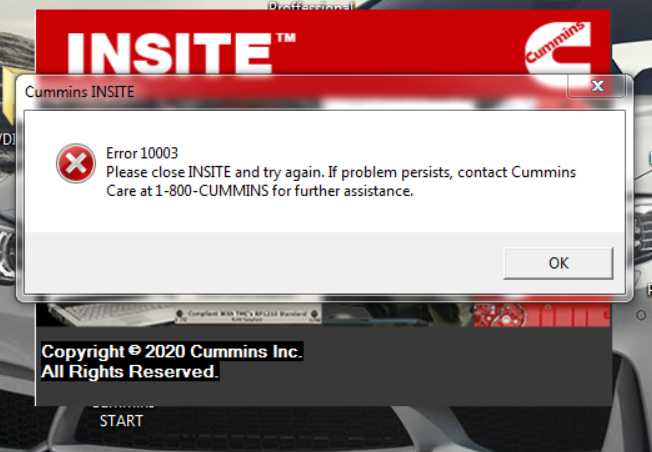
1. INSITE Error 10003 – Installation / Startup Failure
Problem:
INSITE fails to start or throws Error 10003 after installation.
Solution
Users reported the issue was caused by leftover installation files.
Fix steps:
- Delete all Cummins folders from:
C:\ProgramData\Cummins
- Delete temporary files.
- Restart the PC.
- Reinstall or run INSITE again.
This resolved the error for several users.
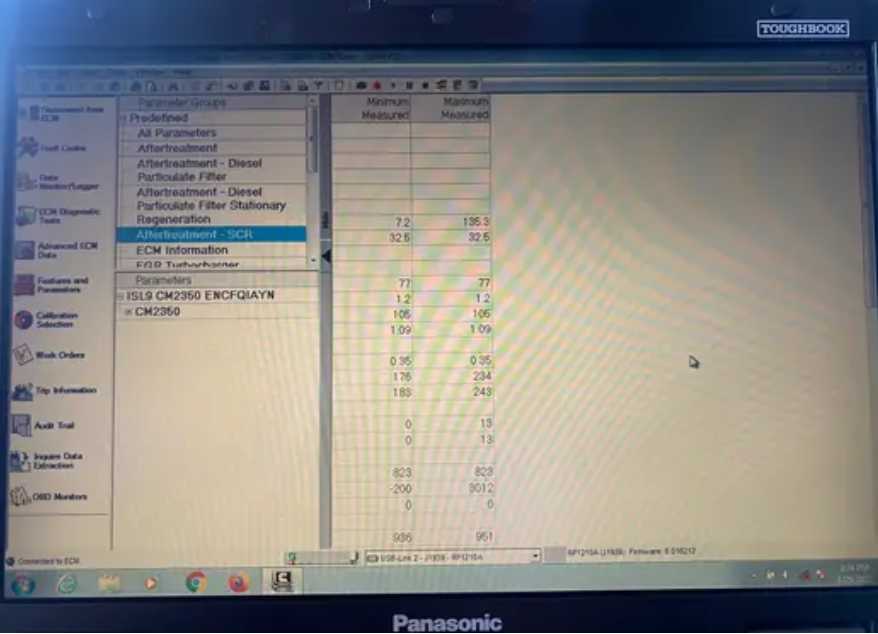
2. INSITE Data Monitor Not Showing Parameters
Problem:
In INSITE data monitor:
- Some parameter columns disappear
- Cannot read some engine data
Solution:
Users suggested resetting the data monitor configuration.
Steps:
- Open Data Monitor / Logger
- Remove the existing parameter group
- Create a new monitor group
- Add parameters again
After recreating the group the parameters reappeared.
3. INSITE Not Reading Sensor Data

Problem:
- INSITE connects to ECM
- Fault codes work
- But sensor data cannot be read
Error message example:
“Parameter defined for the selected group not supported by calibration.”
Diagnosis:
Experienced users explained the problem is usually caused by:
- Bad ECM programming
- Incorrect or modified calibration
Suggested fix:
- Export ECM calibration
- Verify programming
- Reinstall or correct the ECM calibration
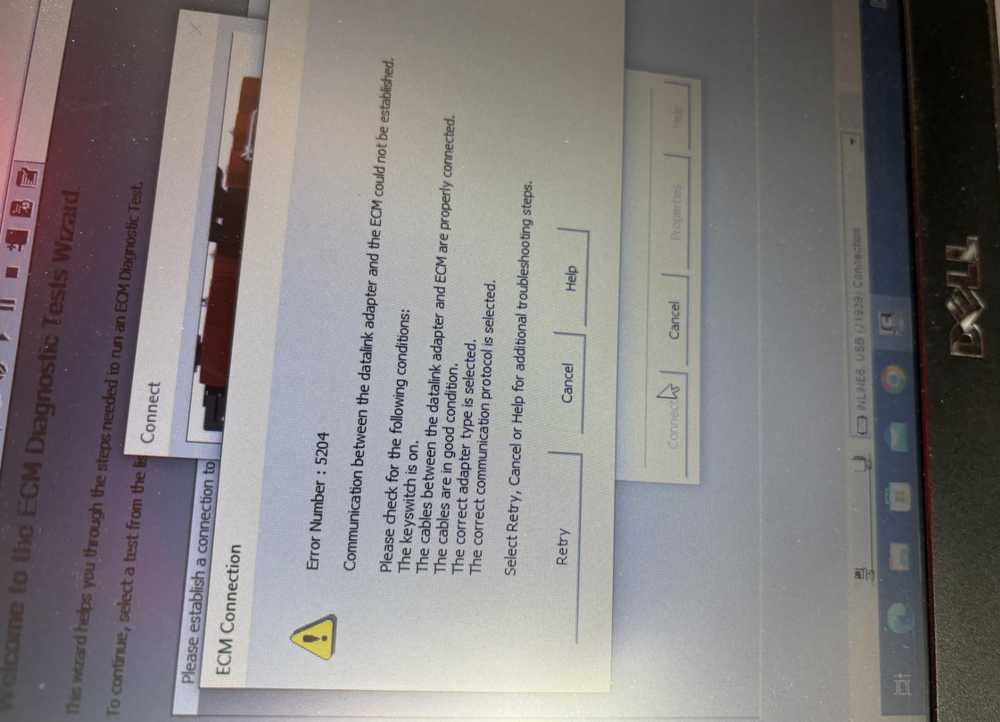
4. INSITE Communication / Hardware Connection Issues
Problem:
Users cannot communicate with the engine.
Advice / solution:
You must use a diagnostic communication adapter, for example:
- Nexiq USB Link
- Cummins Inline adapter
5. INSITE Running Problems on Older Systems
Official Cummins requirement mentioned in support pages
Common issues occur if:
- Windows version too old
- .NET Framework outdated
Solution:
Install:
- Windows 10 or newer
- .NET Framework 4.8.1+
Tools That Help You Diagnose Vehicles Faster
| Product | Key Feature | Link |
|---|---|---|
| Cummins INSITE Software | Dealer-level engine diagnostics | View Product |
| Nexiq USB Link 2 | Multi-brand truck diagnostics | View Product |
| JPRO Diagnostic Tool | Commercial truck troubleshooting | View Product |