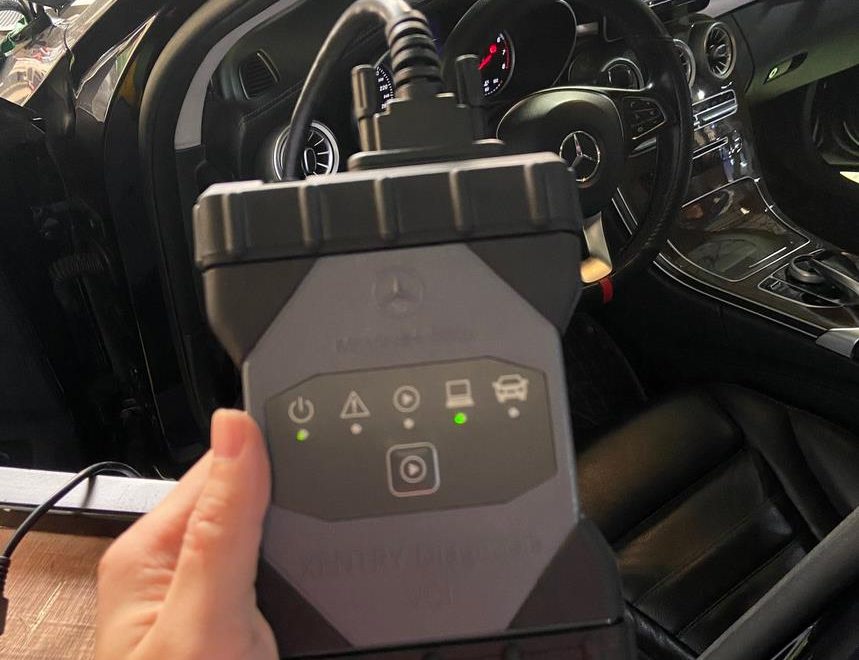
⚡ Quick Answer
If your MB Star C6 software cannot update or Xentry fails after update, the issue is usually caused by:
- Wrong Xentry version mismatch
- Missing or incorrect C6 driver
- Firmware not updated properly
- DoIP communication issue
- Windows system compatibility problem
👉 In most cases, the hardware is NOT broken.
🧠 What is MB Star C6 Software Update?
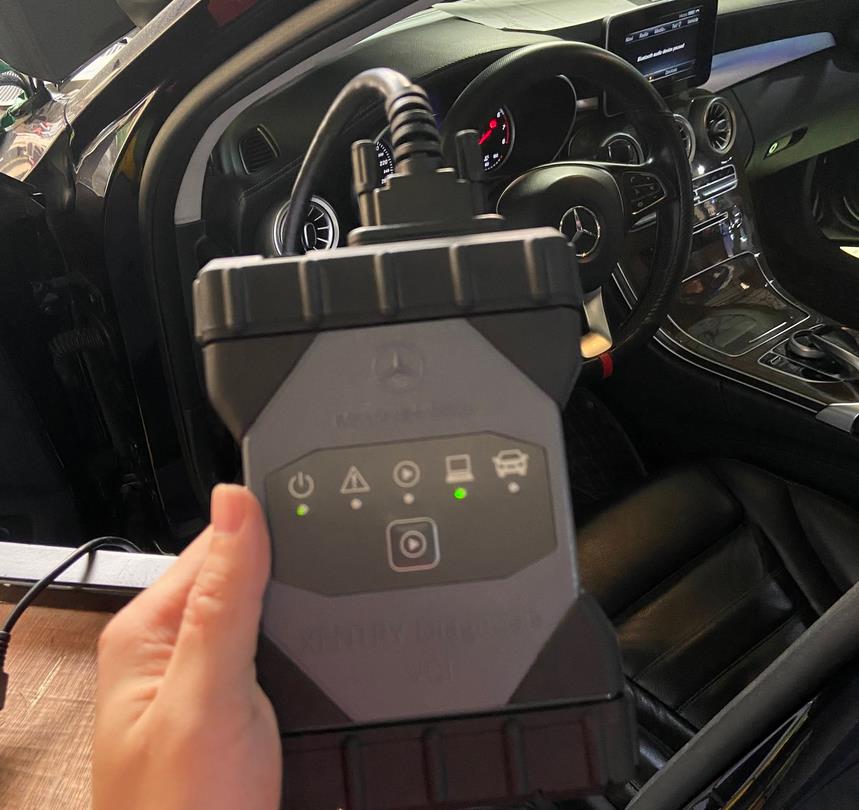
MB Star C6 uses:
- Xentry Diagnostics (main software)
- DAS (older systems)
- Vediamo / DTS (engineering mode)
- Firmware (VCI internal system)
- Drivers (Windows communication layer)
👉 A “software update” may include:
- Xentry version upgrade
- VCI firmware update
- Driver reinstall
- DoIP compatibility patch
⚠️ Common Problems After Update
After updating MB Star C6, users often face:
- Xentry cannot detect C6
- “No device found” error
- Vehicle VIN cannot be read
- DoIP connection failure
- Software crashes after startup
- License or certificate error
- Firmware update stuck or failed
🔍 Why MB Star C6 Update Fails
1. Driver Mismatch (Most Common Issue)
If Windows driver is wrong:
- C6 is detected as USB only
- Xentry cannot communicate
- DoIP mode fails
2. Wrong Xentry Version
Typical mismatch cases:
- New software installed on old firmware
- Old Xentry with new C6 hardware
- Truck + car version mismatch
3. Firmware Update Failure
Caused by:
- Low battery voltage during update
- USB cable disconnected
- Interrupted firmware flashing
4. DoIP Network Issue
For newer Mercedes models:
- IP not configured correctly
- Network adapter conflict
- Firewall blocking communication
5. Windows System Issue
MB Star C6 requires:
- Windows 10 / 11 64-bit
- Stable driver environment
- No conflicting diagnostic software
🛠 Step-by-Step Fix Guide
Step 1: Check Hardware Connection
- Connect C6 to vehicle OBD
- Connect USB to laptop
- Confirm LED lights are stable
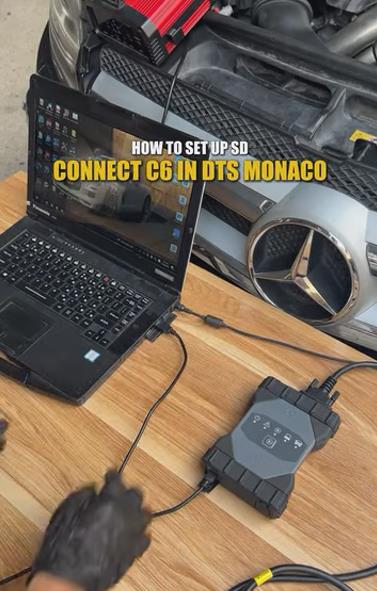
Step 2: Reinstall Driver
- Remove old C6 driver
- Install latest J2534 / C6 driver package
- Restart PC
Step 3: Match Xentry Version
- Use correct version matching your SSD package
- Avoid mixing old DAS + new Xentry
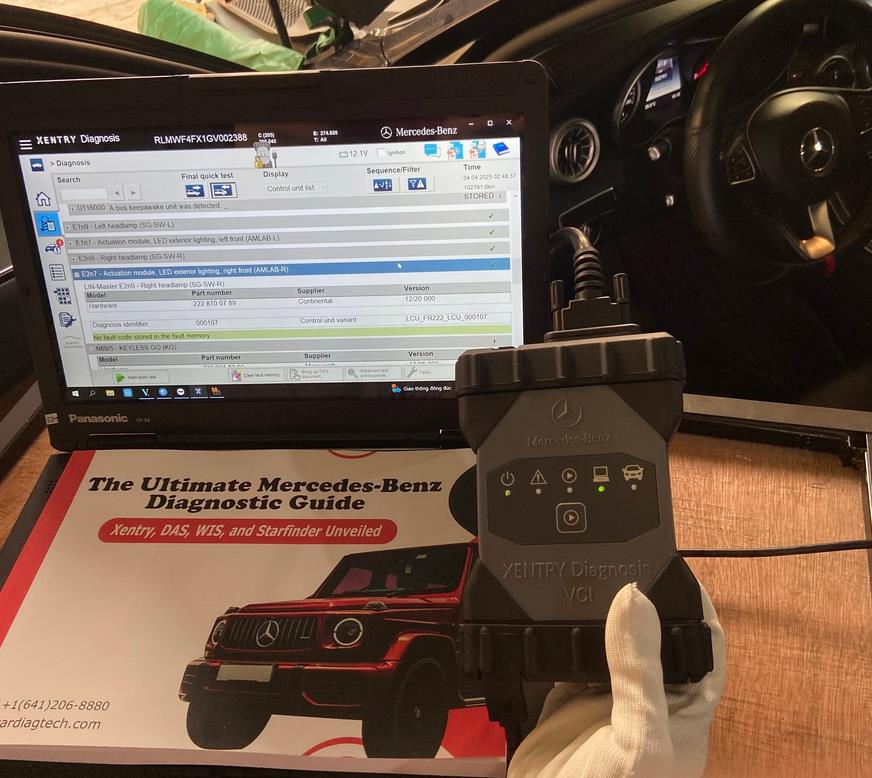
Step 4: Fix Firmware Update
If firmware failed:
- Reconnect C6
- Ensure stable power supply
- Re-run firmware update tool
Step 5: Configure DoIP (New Cars)
- Set correct IP address
- Disable VPN
- Allow Xentry through firewall
Step 6: Restart System
- Restart laptop
- Restart vehicle ignition
- Reconnect C6
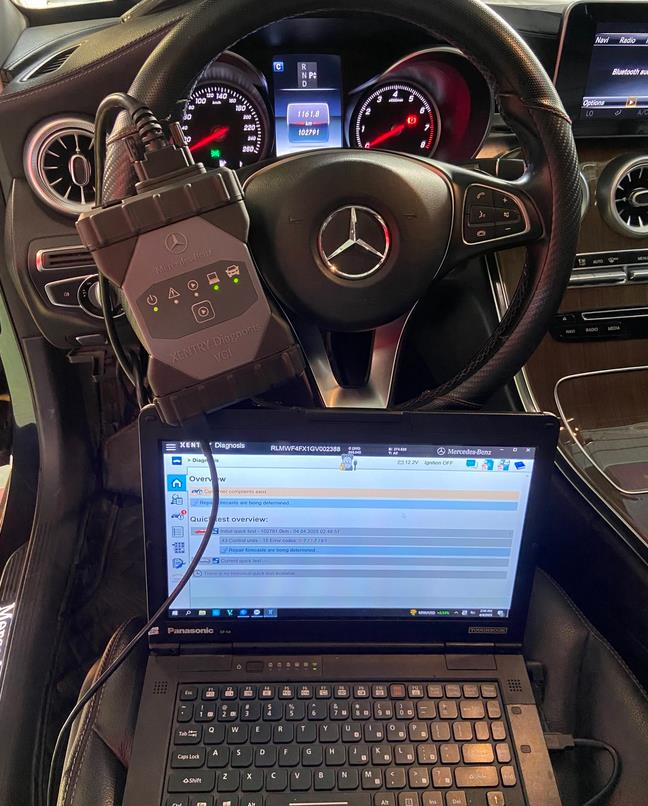
🔥 Recommended MB Star C6 Solutions (High Conversion Section)
If your MB Star C6 software update keeps failing, the issue is often caused by incorrect package or driver mismatch.
🧰 Recommended Product: MB Star C6 DoIP Diagnostic Tool
✔ Supports Xentry 2025–2026
✔ DoIP + CAN compatible
✔ Works with new Mercedes models
👉 Best for:
- Software update issues
- New Mercedes diagnostics
- ECU communication errors
👉 View MB Star C6 DoIP Tool
📊 Update Problem Checklist
| Problem | Cause | Solution |
|---|---|---|
| C6 not detected | Driver missing | Reinstall driver |
| Xentry crash | Version mismatch | Match correct software |
| Firmware failed | Power loss | Retry update |
| No ECU access | DoIP issue | Fix IP settings |
❓ FAQ (AI Overview Optimized)
Why does MB Star C6 fail after software update?
Because of driver mismatch, firmware error, or incorrect Xentry version.
Do I need internet for MB Star C6 update?
No, most updates are offline via SSD or USB package.
Why is my C6 not detected after update?
Usually driver installation or USB port issue.
Can firmware update damage MB Star C6?
No, unless power or connection is interrupted.
What is the best setup for MB Star C6?
Correct Xentry version + correct driver + stable Windows system.
🚀 Final Summary
MB Star C6 software update issues are usually caused by:
👉 Driver mismatch
👉 Wrong Xentry version
👉 Firmware interruption
👉 DoIP configuration error
✔ Hardware is rarely the problem
✔ Correct setup fixes 90% of cases