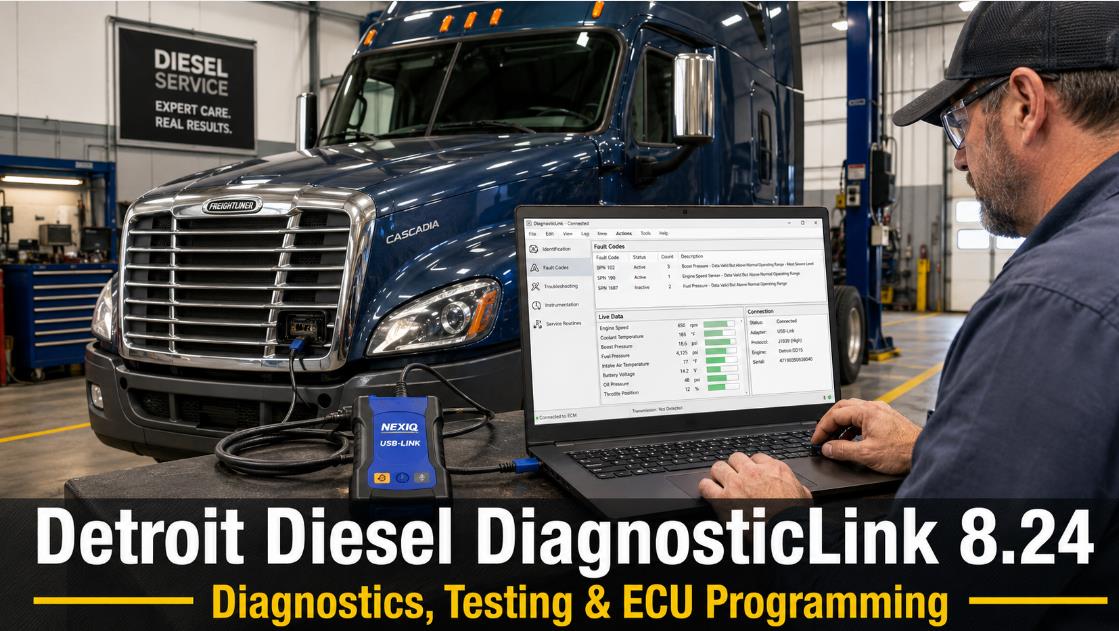
 Detroit Diesel DiagnosticLink 8.24 is the latest version of the professional diagnostic application used to diagnose, service, configure, and program supported Detroit engines and Daimler Truck North America vehicle systems.
Commonly known as DDDL 8.24, the software is designed for diesel technicians, Freightliner repair shops, fleet maintenance departments, and independent heavy-duty truck service providers.
Depending on the license, connected vehicle, controller type, and user authorization, DiagnosticLink can read fault codes, display live ECU data, perform system tests, run service routines, change supported parameters, and reprogram compatible controllers.
What Is the Latest Detroit Diesel DiagnosticLink Version?
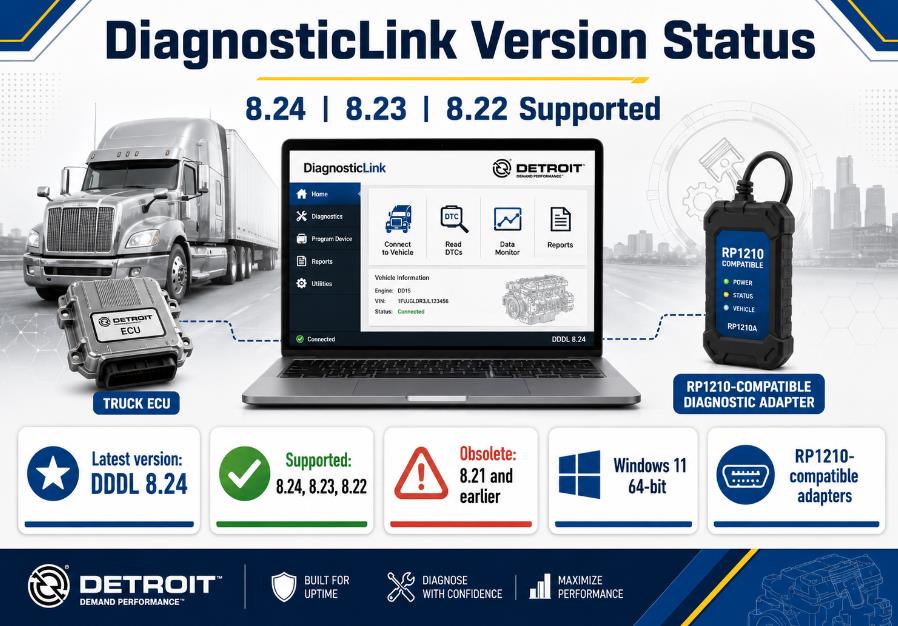
The current version is:
- Software: Detroit Diesel DiagnosticLink
- Latest version: DiagnosticLink 8.24
- Commercial package date: August 2026
- Edition: Professional
- Software type: Truck diagnostic and programming software
- Language: English
- Operating system: Windows 11 64-bit, officially recommended
- Communication protocol: RP1210
- Installation instructions: Included with the package
- Remote installation: Available for eligible orders
DTNA currently classifies the following DiagnosticLink releases as supported:
- DiagnosticLink 8.24
- DiagnosticLink 8.23
- DiagnosticLink 8.22
DiagnosticLink 8.21, 8.20, 8.19, 8.18, 8.17, and all earlier 8.x versions are classified as obsolete. Workshops using an older version should upgrade to a currently supported release whenever possible.
What Is Detroit Diesel DiagnosticLink 8.24?
Detroit Diesel DiagnosticLink 8.24 is a Windows-based diagnostic application for supported Detroit engines, transmissions, aftertreatment systems, and vehicle controllers.
DTNA states that DiagnosticLink supports the following emissions and engine generations:
- Detroit EPA 2007
- Detroit EPA 2010
- GHG14
- GHG17
- GHG21
- Gen 5 engine platforms
Supported vehicle brands and applications include:
- Freightliner vehicles
- Western Star trucks
- Thomas Built Buses
- Fifth Generation Freightliner Cascadia vehicles
- Detroit DD-series engine applications
- Detroit DT12 transmission systems
Exact coverage depends on the vehicle model, production year, VIN, engine serial number, installed controllers, ECU software, and DiagnosticLink authorization level.
DiagnosticLink 8 Standard vs. Professional
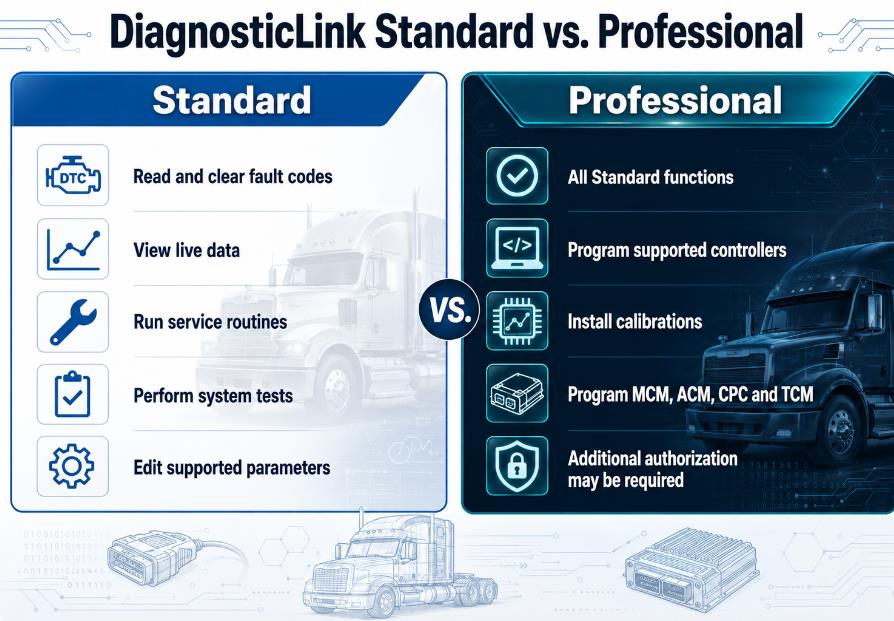
Detroit Diesel DiagnosticLink is available in Standard and Professional editions.
DiagnosticLink 8 Standard
DiagnosticLink Standard is designed mainly for vehicle diagnosis, troubleshooting, system testing, and parameter configuration.
Its functions include:
- Reading ECU identification information
- Reading active and inactive fault codes
- Viewing instrumentation and live data
- Running supported service routines
- Performing controller and system tests
- Viewing input and output signals
- Changing supported ECU parameters
- Recording and reviewing diagnostic log files
DiagnosticLink Standard replaced the older DDDL 7.x diagnostic platform.
DiagnosticLink 8 Professional
DiagnosticLink Professional includes all Standard-edition diagnostic functions and adds authorized controller-reprogramming capabilities.
Professional-edition functions may include:
- ECU identification
- Fault-code reading and clearing
- Live instrumentation
- System and actuator testing
- Service routines
- Parameter configuration
- Engine-controller programming
- Calibration installation
- Supported CPC, MCM, ACM, and TCM programming
- ECU software compatibility checking
Controller programming may require an active license, a DTNA account, an internet connection, a programming event, or additional vehicle authorization.
DiagnosticLink should not be described as providing unrestricted access to every controller or parameter. Available functions depend on the manufacturer’s security, vehicle configuration, user permissions, and server authorization.
Detroit Diesel DiagnosticLink 8.24 Function List
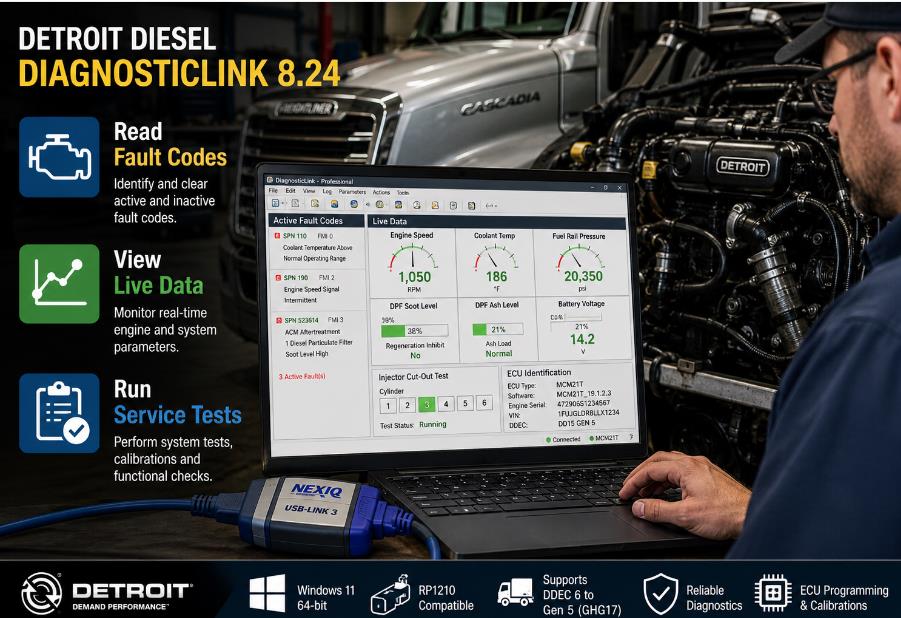
1. Read and Clear Diagnostic Fault Codes
DiagnosticLink can identify active and stored diagnostic trouble codes from supported controllers.
Available fault information may include:
- SPN and FMI numbers
- Fault-code descriptions
- Fault status
- Occurrence count
- Controller source
- Related troubleshooting information
- Logged vehicle conditions
This allows technicians to identify faults affecting the engine, transmission, aftertreatment system, vehicle network, or electronic accessories.
2. View Live ECU Information
DiagnosticLink displays real-time vehicle and engine operating information.
Available data may include:
- Engine speed
- Coolant temperature
- Fuel pressure
- Engine oil pressure
- Boost pressure
- Turbocharger position
- Injector information
- Battery voltage
- Sensor voltages
- Aftertreatment temperatures
- DPF soot and ash information
- DEF system data
- EGR system information
- Transmission status
- PTO status
- Switch and actuator states
The exact live-data list depends on the connected controller and vehicle configuration.
3. Run Service Routines
Supported service routines may include:
- DPF regeneration
- Fuel System Integrity Check
- Injector cut-out testing
- Relative compression testing
- Cylinder performance testing
- EGR actuator routines
- Exhaust-gas-flap learning
- Turbocharger actuator testing
- Aftertreatment component replacement
- DPF serial-number entry
- SCR serial-number entry
- Sensor calibration
- Component initialization
- Transmission service functions
Not every service routine is available on every engine generation.
4. Perform Injector Cut-Out Tests
Injector cut-out testing can help technicians identify cylinders that are contributing less power than expected.
During the test, DiagnosticLink can disable individual injectors while monitoring engine performance. The technician can compare responses from each cylinder to identify possible injector, compression, fuel delivery, or mechanical problems.
5. Perform System and Actuator Tests
DiagnosticLink includes controller-specific testing panels for supported components.
These panels may be used to test:
- Fuel-system components
- EGR actuators
- Exhaust flaps
- Turbocharger actuators
- Cooling fans
- Engine brakes
- PTO systems
- Switch inputs
- Solenoids
- Relays
- Aftertreatment components
- Transmission controls
6. Edit Supported ECU Parameters
Authorized users can view and edit supported engine and vehicle parameters.
Depending on the controller, these may include:
- Maximum vehicle speed
- Cruise-control settings
- PTO settings
- Idle parameters
- Engine-protection settings
- Driver-alert settings
- Engine-brake configuration
- Transmission settings
- Vehicle input and output configuration
Password-protected or security-restricted parameters may require the correct authorization. DiagnosticLink does not guarantee that every parameter will be editable.
7. Program Supported Controllers
DiagnosticLink Professional can reprogram supported powertrain controllers when the user has the required license and authorization.
Supported programming operations may include:
- MCM programming
- ACM programming
- CPC programming
- TCM programming
- Engine-calibration installation
- Controller software updates
- Parameter restoration
- Vehicle-configuration programming
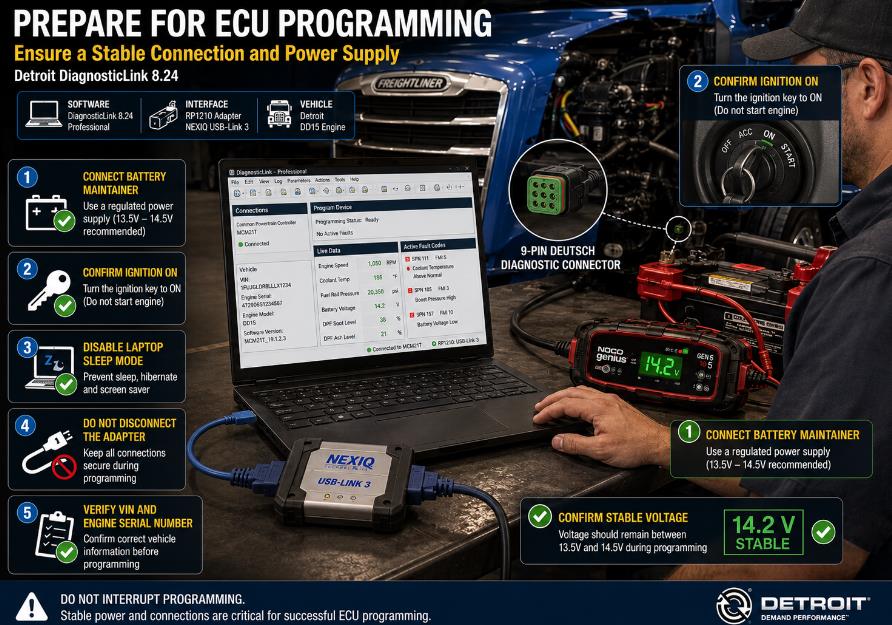
Always maintain a stable vehicle voltage while programming. Do not disconnect the diagnostic adapter, switch off the ignition, allow the laptop to sleep, or interrupt the internet connection during a programming operation.
Supported Detroit Engines and ECUs
EPA 2007 Applications
Coverage may include:
- Detroit DD13
- Detroit DD15
- Detroit DD16
- Detroit Series 60
- Mercedes-Benz MBE 900
- Mercedes-Benz MBE 4000
EPA 2010 Applications
Coverage may include:
- Detroit DD13
- Detroit DD15
- Detroit DD16
GHG14 Applications
Coverage may include:
- Detroit DD13
- Detroit DD15
- Detroit DD16
- Detroit DT12 transmission
GHG17 Applications
Coverage may include:
- Detroit DD5
- Detroit DD8
- Detroit DD13
- Detroit DD15
- Detroit DD16
- Detroit DT12 transmission
GHG21 and Gen 5 Applications
Coverage may include later Detroit engines, powertrain controllers, aftertreatment systems, and Fifth Generation Cascadia vehicle systems.
Gen 5 vehicles may use certificate-based controller protection. Certain diagnostic, configuration, or programming functions may require an authorized login and a connection to DTNA servers.
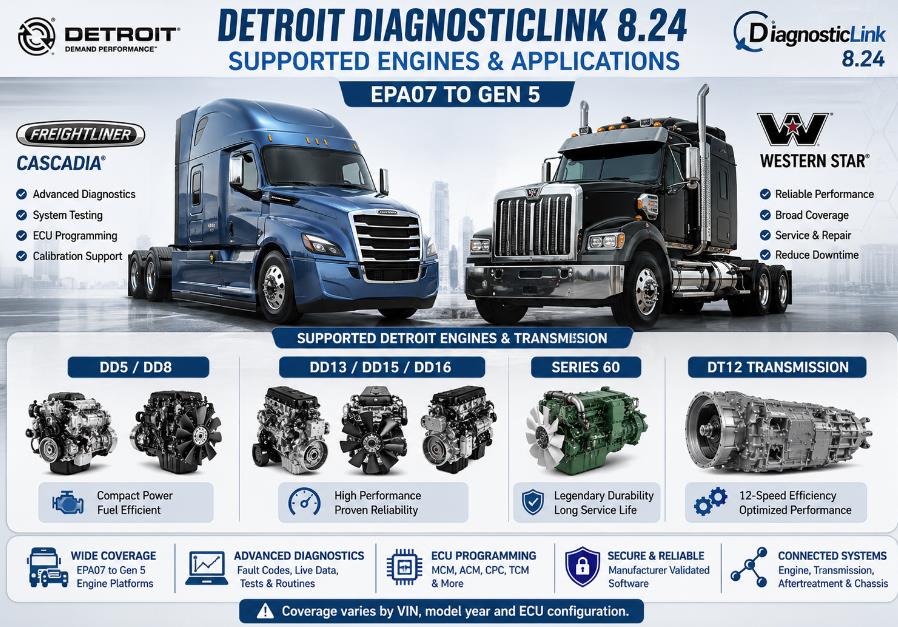
Supported Truck Applications
DiagnosticLink is commonly used with the following:
- Freightliner Cascadia
- Freightliner Fifth Generation Cascadia
- Freightliner Business Class M2
- Freightliner 108SD and 114SD
- Western Star 4700
- Western Star 49X
- Western Star 5700XE
- Thomas Built Buses
- Detroit-powered vocational trucks
- Detroit-powered fleet vehicles
Coverage must be confirmed by VIN, engine serial number, controller type, and model year.
DiagnosticLink 8 vs. Legacy DDDL 6.x
DiagnosticLink 8 and the legacy DDDL 6.x application should not be treated as the same program.
DiagnosticLink 8 is intended for newer Detroit and DTNA vehicle systems. Legacy DDDL 6.x is used for older Detroit engine platforms.
Legacy DDDL coverage may include:
- DDEC III
- DDEC IV
- DDEC V
- EPA 1998 engines
- EPA 2004 engines
- Older Detroit Series 60 applications
- MBE 900
- MBE 4000
- PLD and MR2 systems
- Selected VCU applications
DTNA currently lists DDDL 6.51 and 6.50 as supported legacy versions.
Technicians working on both older and newer Detroit engines may need DiagnosticLink 8.24 and a supported legacy DDDL installation.
Compatible Diagnostic Adapters
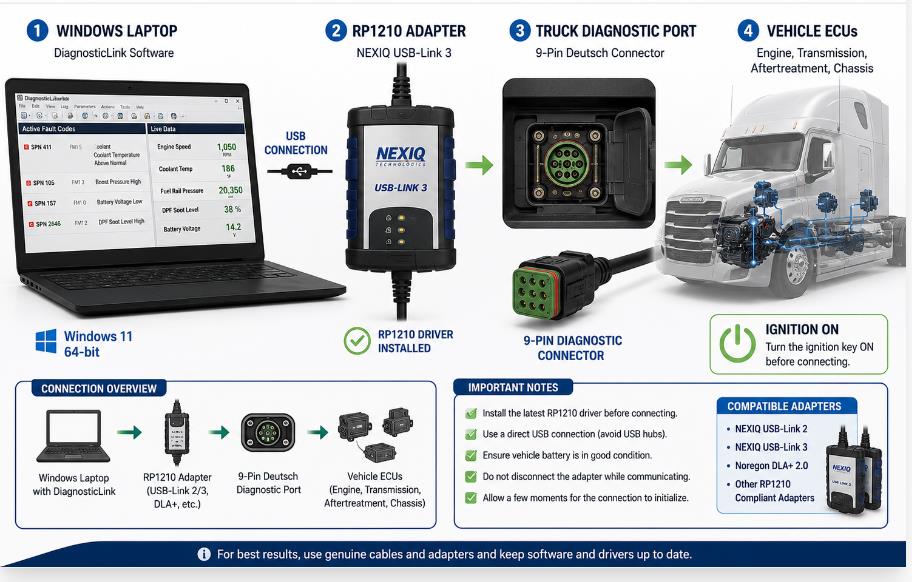
DiagnosticLink requires an RP1210-compatible vehicle communication adapter.
Common supported hardware includes:
- NEXIQ USB-Link 2
- NEXIQ USB-Link 3
- Noregon DLA+ 2.0
- Other compliant RP1210 communication adapters
The appropriate adapter driver must be installed before DiagnosticLink can connect to a vehicle.
When the software displays “No Compatible RP1210 Devices Found,” check the following:
- Confirm that the adapter driver is installed.
- Install the latest driver from the interface manufacturer.
- Restart Windows.
- Open DiagnosticLink.
- Go to Tools > Options > Hardware > SID Configuration.
- Select the correct RP1210 device.
- Reconnect the adapter and switch the ignition on.
DTNA’s support page currently lists NEXIQ USB-Link 2 and USB-Link 3 driver versions known to work with supported DiagnosticLink releases.
DiagnosticLink 8.24 System Requirements
The current official DiagnosticLink requirements include:
- Windows 11, 64-bit
- 2.0 GHz dual-core processor or faster
- At least 4 GB RAM
- 100 GB hard drive with at least 20 GB free
- Display resolution of 1366 × 768 or higher
- One available USB port
- Broadband internet connection of approximately 10 Mbps or faster
- Administrator rights for installation
- RP1210-compatible diagnostic adapter
- Microsoft .NET Framework 4.8 or later
These are DTNA’s current requirements for supported DiagnosticLink installations. A third-party offline package may also operate on certain Windows 10 computers, but compatibility should be confirmed before ordering.
DiagnosticLink 8.20 Feature Summary
Several useful features introduced or improved in DiagnosticLink 8.20 remain relevant in later releases.
Support for MY2022 Powertrain Software
DiagnosticLink 8.20 added or improved support for:
- DD15TCO
- DD13TCO
- DD16 MY2022 HDEP
- DD13 MY2022 HDEP
- MY2022 MDEG packages
- MCM21T
- ACM301T
- ACM21T
- ACM03T
- CPC501T
- CPC04T
- CPC05T
- TCM01T
Decoded VIN Information in Log Files
The Open Log File window was improved to display decoded VIN information.
This helps technicians:
- Locate logs for a particular vehicle type.
- Compare previous vehicle connections.
- Identify the truck associated with a diagnostic record.
- Organize workshop troubleshooting files.
PTO1 and PTO2 Engagement Panel
A diagnostic panel was added for monitoring PTO1 and PTO2 engagement signals on supported CEEA+ vehicles.
This panel helps diagnose:
- PTO engagement problems
- PTO switch inputs
- Speed-control operation
- Interlock conditions
- Controller commands
- PTO status signals
Gen 5 Fuel System Integrity Check Improvements
Earlier Fuel System Integrity Check routines could occasionally fail because the fuel rail did not reach the commanded 800-bar pressure.
The improved routine can increase engine speed as needed, allowing the ECU to raise fuel pressure during the automatic FSIC and FSIC Leak Test.
DD13 Exhaust Gas Flap Slow Learn
A slow-learn panel was introduced for the high-pressure exhaust-gas-flap actuator on supported DDEC20 DD13 engines.
The process is similar to the EGR Slow Learn routine but uses the appropriate exhaust-flap actuator selection.
View and Compare Part-Number Data
DiagnosticLink added better tools for viewing part-number information before data is uploaded.
Technicians can use this function to:
- Review ECU parameter data.
- Compare live controller data with downloaded data.
- Verify parameter changes
- Confirm programmed values
- Identify missing part-number definitions.
- Detect configuration data inconsistencies
DPF and SCR Serial-Number Entry
The DPF Ash Accumulator and SCR Replacement panels were updated to accept less restrictive serial-number formats.
The applicable fields can accept alphanumeric entries containing three or more characters.
PartsPro Reference Shortcut
Older shortcuts to eParts and vehicle literature were removed or replaced with updated access to PartsPro.
Is DiagnosticLink 8.24 an Offline Version?
Some commercial DiagnosticLink packages are described as offline installations because many diagnostic functions can be used without maintaining a constant server connection.
Offline functions may include:
- Reading existing fault codes
- Viewing live data
- Running supported local tests
- Reviewing log files
- Accessing installed troubleshooting information
- Viewing controller identification
However, some operations may still require internet access, including:
- License registration
- Subscription renewal
- Software updates
- Calibration downloads
- Programming-event validation
- Server-based troubleshooting content
- Secured Gen 5 controller access
- Certificate authorization
- Certain parameters or programming operations
For this reason, “offline” should not be interpreted as unrestricted access to every diagnostic or programming function.
How to Download and Install DiagnosticLink 8.24
https://www.obd2tool.com/goods-10547-DDDL-Detroit-Diesel-DiagnosticLink.html
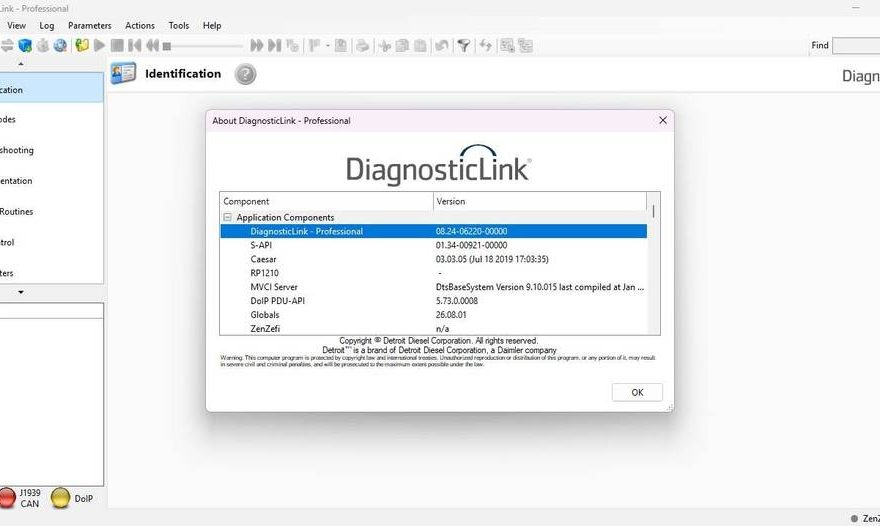
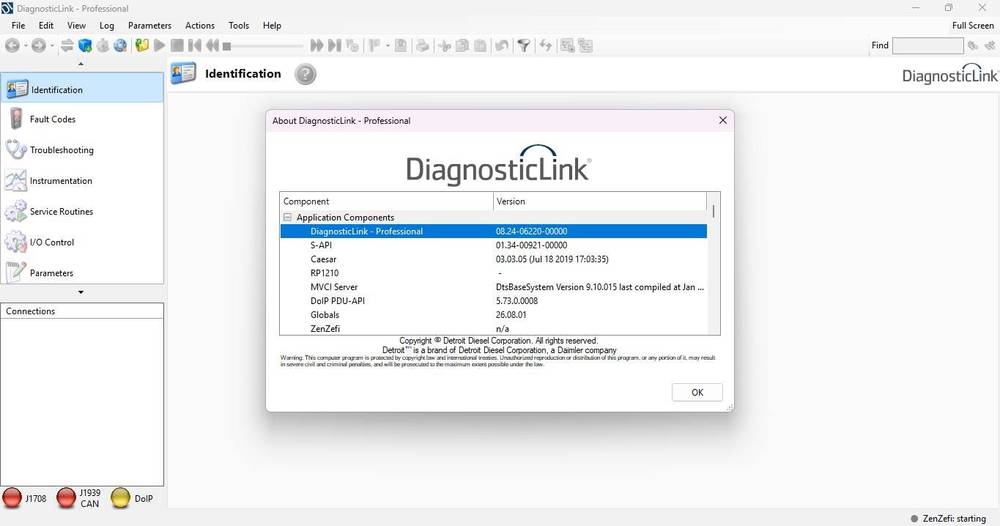
Software Display
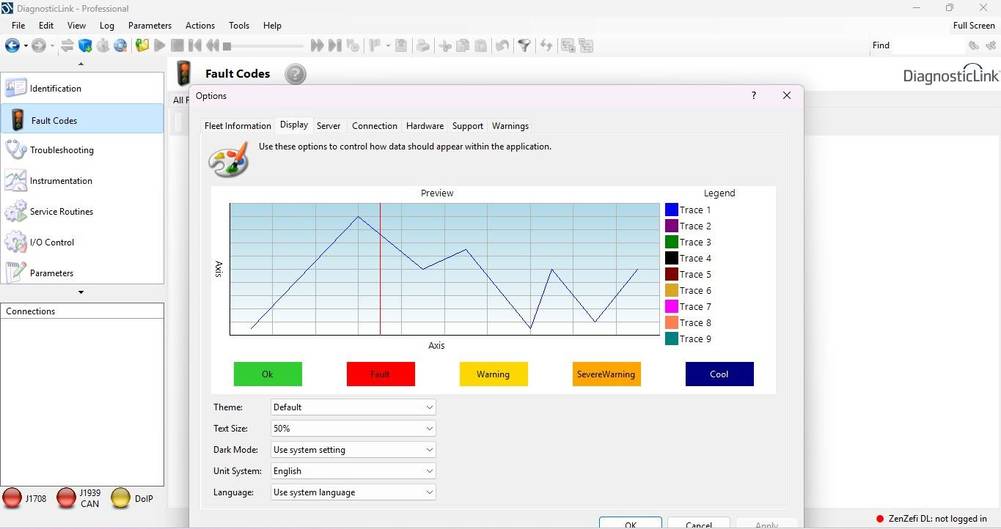
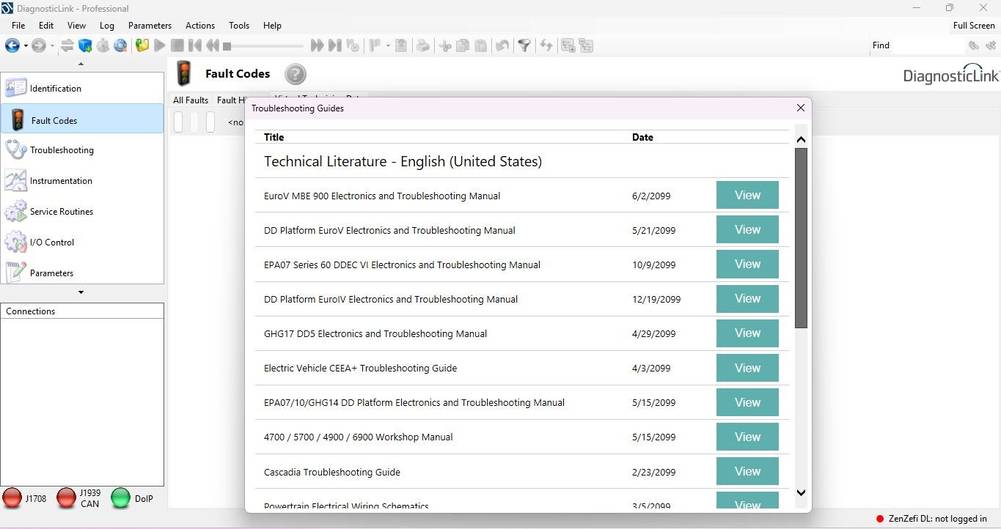
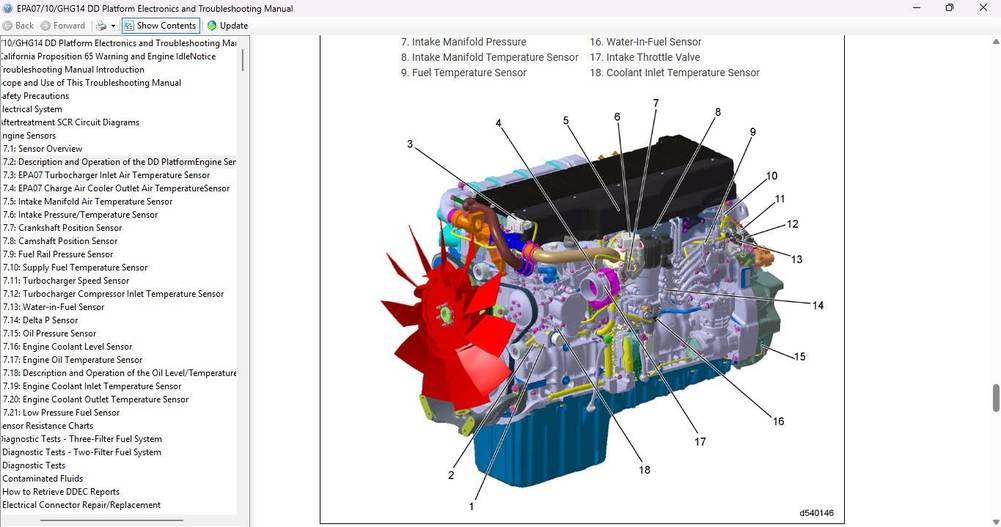
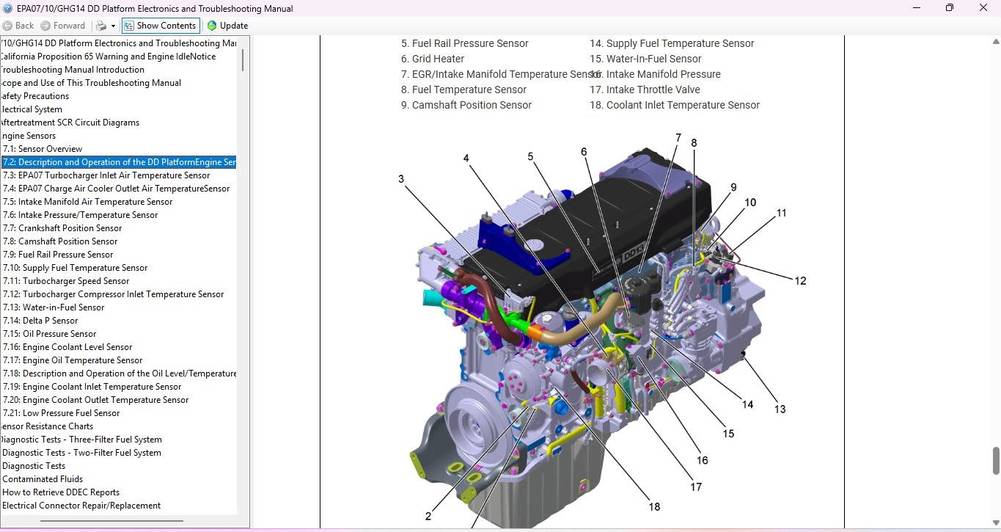
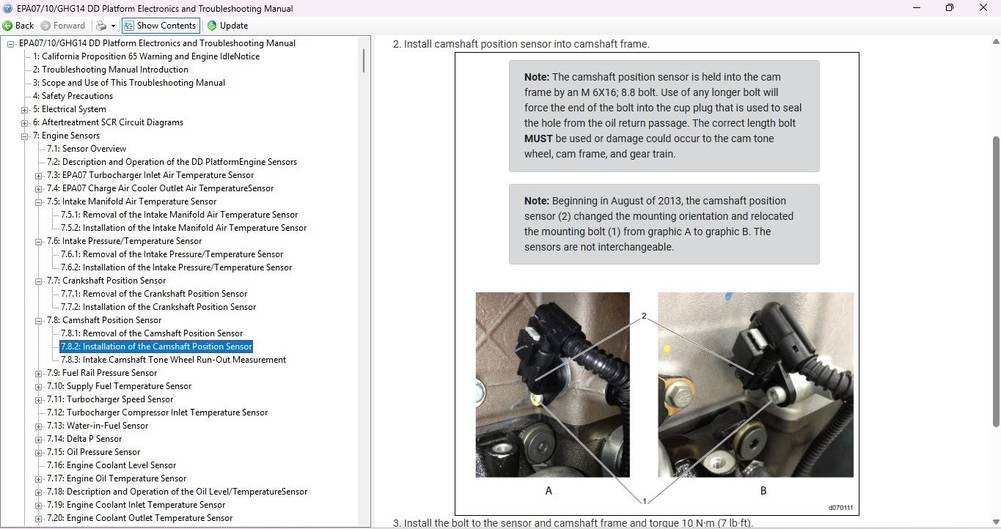
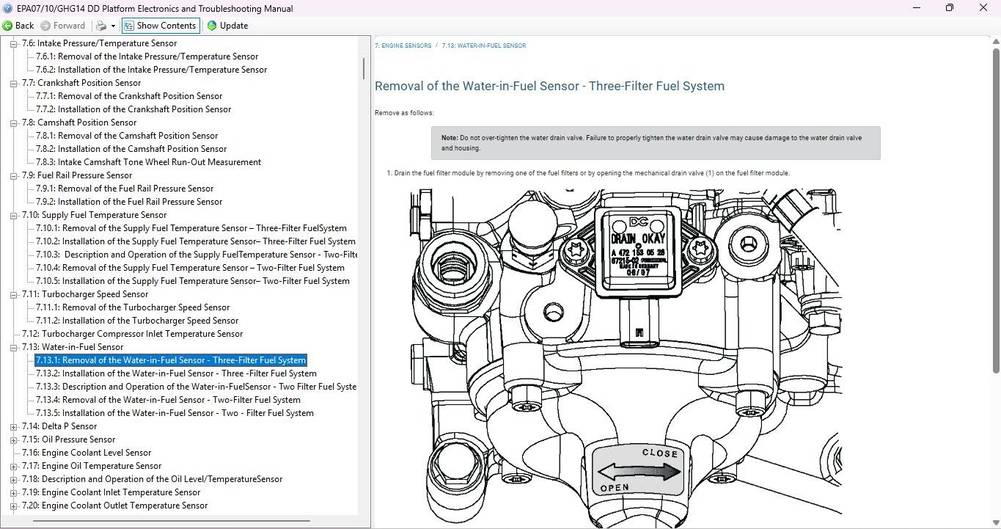
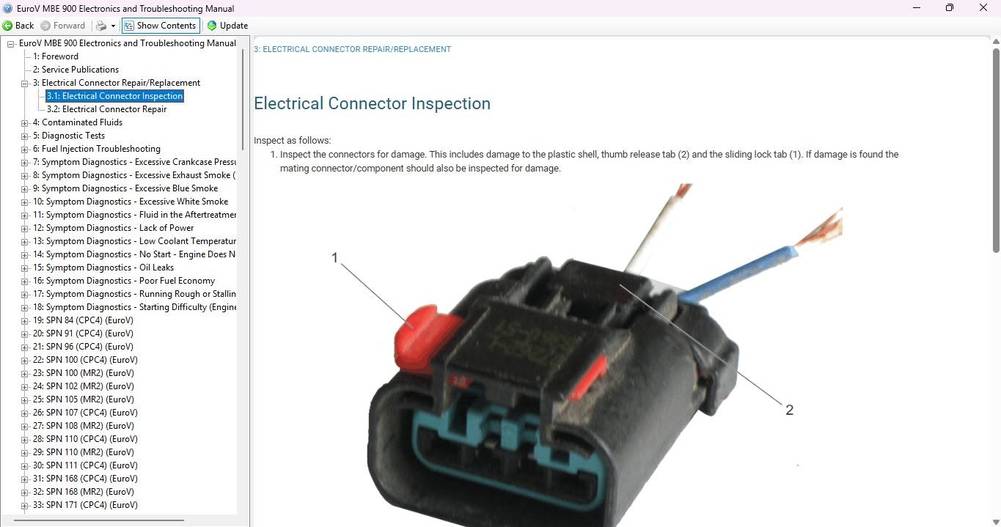
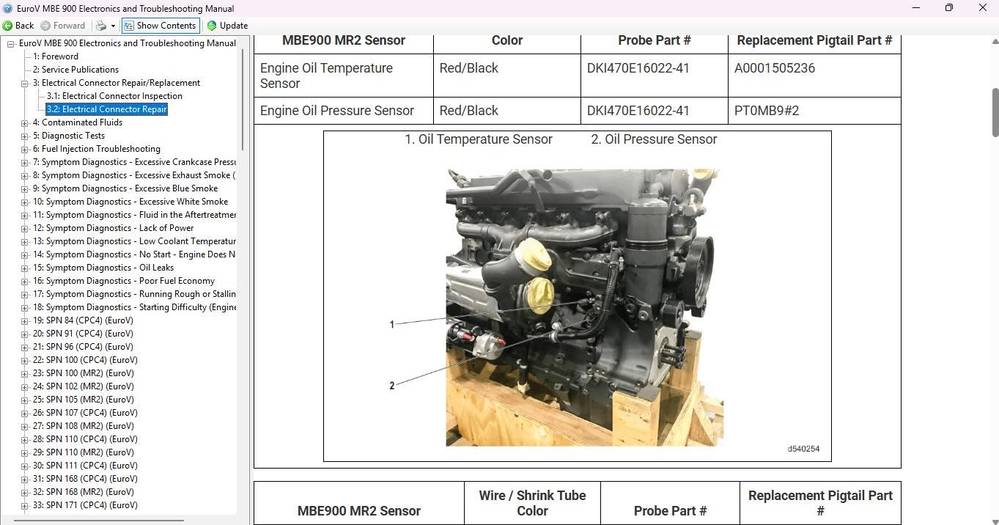
Common DiagnosticLink Problems
No Compatible RP1210 Devices Found
Install or update the adapter driver and select the correct device under:
Tools > Options > Hardware > SID Configuration
Unable to Reach Server
Possible causes include:
- Internet connection failure
- DTNA server outage
- Firewall restrictions
- Proxy settings
- Blocked server endpoints
- Expired or unauthorized account
Run the network test under:
Tools > Options > Server > Test Network
User ID Is Not Authorized
This error may occur when the user account does not have access to the selected VIN or server data.
Test another engine serial number or contact the appropriate DTNA support channel to verify the account and VIN authorization.
Program Block Error
When a Program Block error occurs while programming an MCM, ACM, or CPC:
- Update the RP1210 adapter driver.
- Restart Windows.
- Use a direct USB connection.
- Avoid USB hubs.
- Maintain stable vehicle voltage.
- Reconnect the adapter.
- Confirm that the internet connection is stable.
- Retry only after verifying the programming conditions.
Cannot load the Schema for the Namespace
This error may appear when a log file was created with a newer DiagnosticLink version.
Upgrade the workstation to the latest supported DiagnosticLink release and reopen the file.
DiagnosticLink Copy Has Been Disabled
This message normally indicates that the installed version is obsolete or no longer supported.
Uninstall the obsolete version and install DiagnosticLink 8.24, 8.23, or another currently supported release.
Important Programming Precautions
Before programming a Detroit controller:
- Connect a regulated battery maintainer.
- Confirm that vehicle voltage is stable.
- Use the latest adapter driver.
- Connect the adapter directly to the computer.
- Disable computer sleep and hibernation.
- Close unnecessary applications.
- Confirm the correct VIN and engine serial number.
- Back up existing parameters when possible.
- Do not disconnect cables during programming.
- Do not turn off the ignition unless instructed.
- Do not interrupt a calibration download.
An interrupted programming process can leave a controller unable to communicate or start the engine.
Get Detroit Diesel DiagnosticLink 8.24
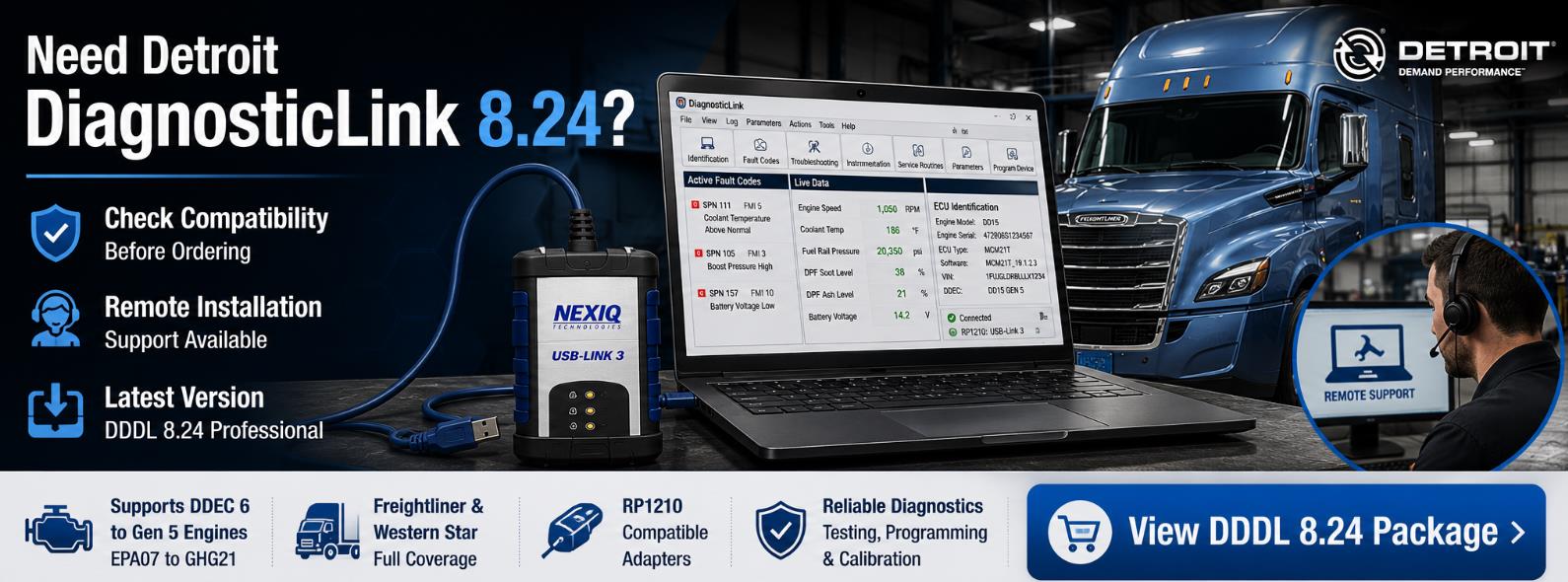
The latest DiagnosticLink package is suitable for professional technicians who work on Detroit-powered Freightliner and Western Star vehicles.
Before ordering, provide the following information:
- Laptop operating system
- Diagnostic-adapter model
- Truck model
- Vehicle year
- Engine model
- Engine serial number, when available
- Required diagnostic functions
- Whether programming is needed
This helps confirm compatibility among software, hardware, and the vehicle before installation.
Detroit Diesel DiagnosticLink DDDL 8.24 product page:
Remote installation and activation support may be available. Confirm the package version, supported functions, computer requirements, and installation conditions before purchasing.
Frequently Asked Questions
What is the latest Detroit Diesel DiagnosticLink version?
DiagnosticLink 8.24 is the latest version currently listed as supported by DTNA.
Are DiagnosticLink 8.21 and 8.18 still supported?
No. DTNA classifies DiagnosticLink 8.21, 8.18, and earlier 8.x releases as obsolete. DiagnosticLink 8.24, 8.23, and 8.22 are currently supported.
Does DiagnosticLink 8.24 support Windows 11?
Yes. DTNA currently specifies Windows 11 64-bit as the supported operating system.
Can DiagnosticLink 8.24 run on Windows 10?
Some third-party installations may operate on Windows 10 64-bit, but Windows 11 64-bit is the current official requirement. Confirm package compatibility before purchasing.
Can DDDL 8.24 program an MCM, an ACM, a CPC, or a TCM?
DiagnosticLink Professional can program supported controllers when the user has the necessary license, programming event, internet connection, and authorization.
Does DiagnosticLink work with NEXIQ USB-Link 2?
Yes. The NEXIQ USB-Link 2 is a commonly used RP1210 communication adapter. Install a compatible driver before connecting to a vehicle.
Does DiagnosticLink work with NEXIQ USB-Link 3?
Yes. DiagnosticLink supports USB-Link 3 when the correct device driver is installed and selected in SID Configuration.
Does DDDL 8.24 support Freightliner Cascadia?
Yes. DiagnosticLink supports selected Freightliner Cascadia systems, including supported Fifth Generation Cascadia applications. Coverage varies by year, controller, and vehicle configuration.
Does DiagnosticLink 8.24 support older DDEC III and DDEC IV engines?
Older DDEC III, DDEC IV, and DDEC V platforms are generally diagnosed using the legacy DDDL 6.x application rather than the main DiagnosticLink 8 interface.
Is every ECU parameter editable?
No. Parameter access depends on the ECU, vehicle configuration, password protection, license, and user authorization.
Can DiagnosticLink 8.24 be used completely offline?
Many diagnostic functions may work offline. Registration, updates, calibration downloads, programming, and secured Gen 5 functions may require internet access.
Is the installer alone enough to program a truck?
No. Programming may also require a Professional license, an authorized user account, a programming event, a compatible adapter, stable internet access, and correct vehicle authorization.
Editorial and Technical Note
This guide was updated using current DTNA DiagnosticLink support information and the details of the listed commercial software packages. Diagnostic coverage and programming access can change with software updates, controller revisions, vehicle security policies, and subscription requirements.
Always verify compatibility using the exact VIN, engine serial number, model year, ECU type, and required service function before purchasing or programming.