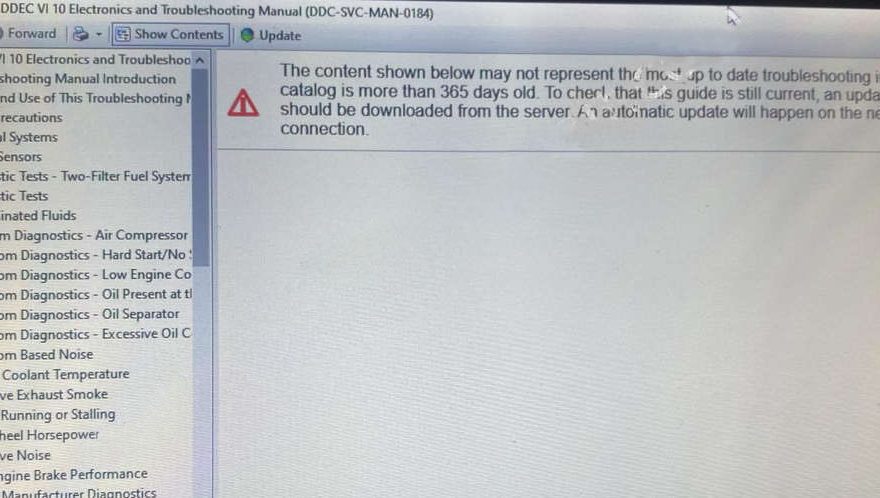
This guide provides a step-by-step solution for resolving the Detroit Diesel Diagnostic Link (DDDL) 8.21 / 8.20 / 8.19 “Troubleshooting files are more than 365 days old” error.
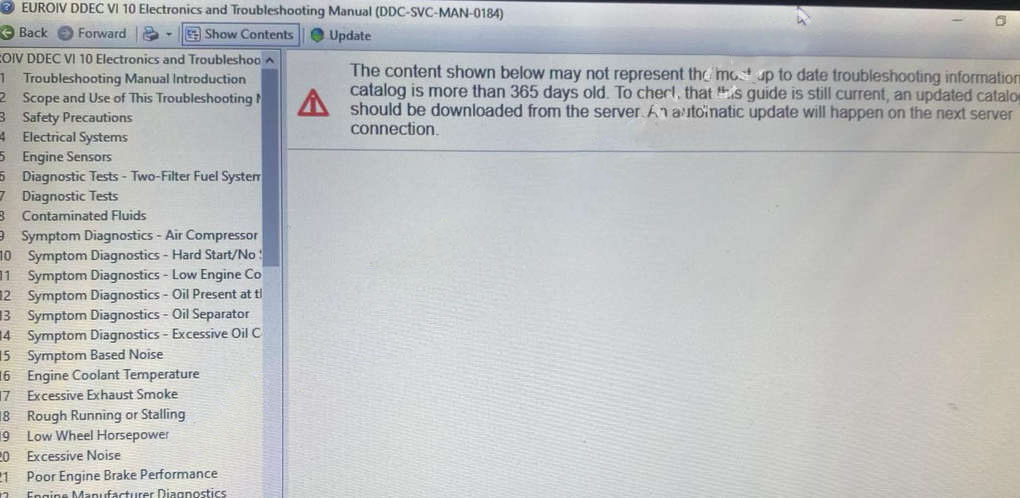
When the Error Appears
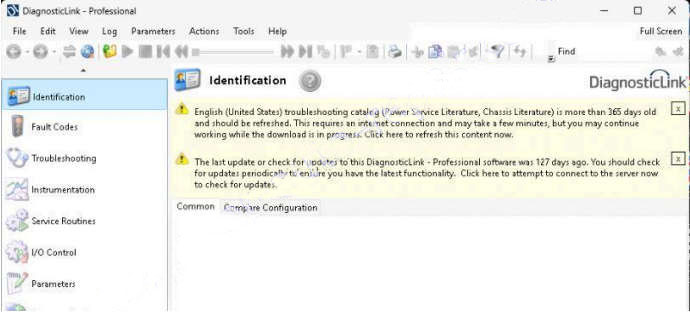
If you receive the message stating that the troubleshooting files are more than 365 days old, access to the troubleshooting section will be restricted or blocked.
This issue occurs because the software checks the publish date of catalog files and prevents access once they exceed a year in age.
Temporary Solution
You can bypass this restriction by updating the catalog downloaded date in the relevant catalog files.
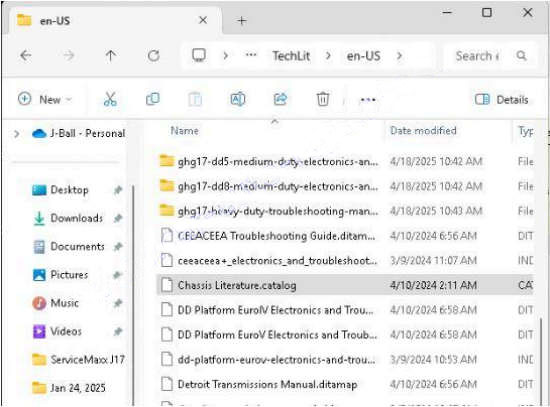
Step 1. Locate the File
Go to the following folder:
C:\ProgramData\TechLit\en-US
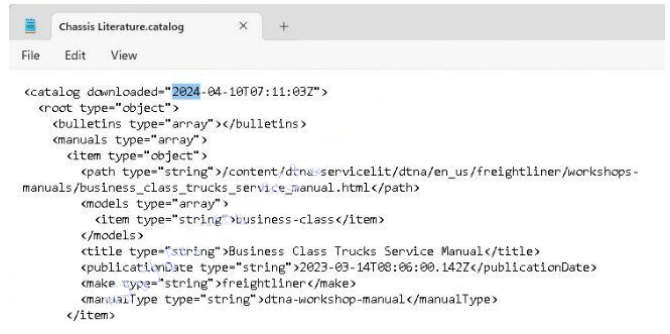
Step 2. Edit the Chassis Literature Catalog
- Open Chassis Literature.catalog using Notepad.
- Find the line that looks like this:
<catalog downloaded="2023-04-10T07:11:02Z">
- Change the date to today’s date (or a future date). For example:
<catalog downloaded="2025-04-10T07:11:02Z">
- Save the file and close Notepad.
Step 3. Edit the Power Service Literature Catalog
- Open Power Service Literature.catalog in the same folder.
- Apply the same date modification and save the file.
Step 4. Restart DDDL
Close and reopen Detroit Diesel Diagnostic Link.
You should now have full access to the troubleshooting section without the expiration error.
Important Note
This method does not update the actual troubleshooting content. It only temporarily bypasses the expiration check, allowing you to use the existing files.
For long-term reliability, replace the TechLit folder with an updated version once available.
Related Topics: