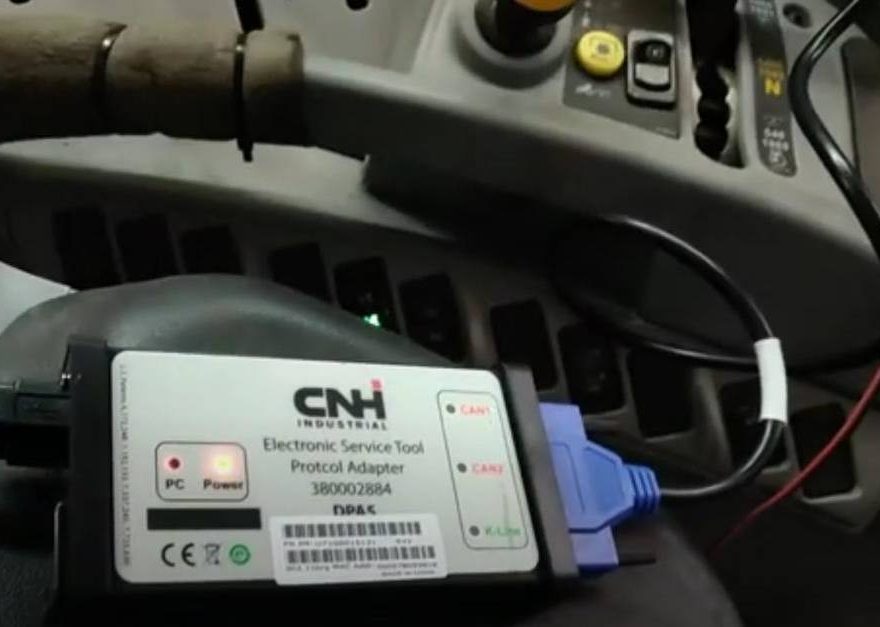
Problem: CNH Software Cannot Connect to the Diagnostic Tool
- CNH software opens normally.
- The diagnostic interface is connected.
- The software cannot communicate with the tool correctly.
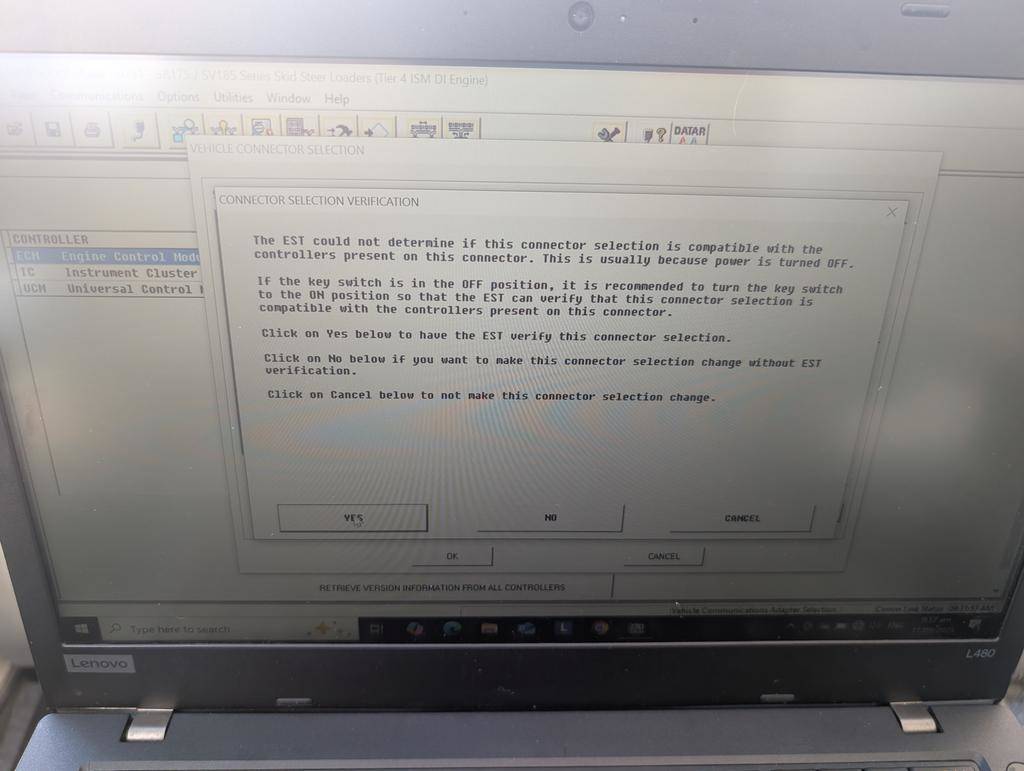
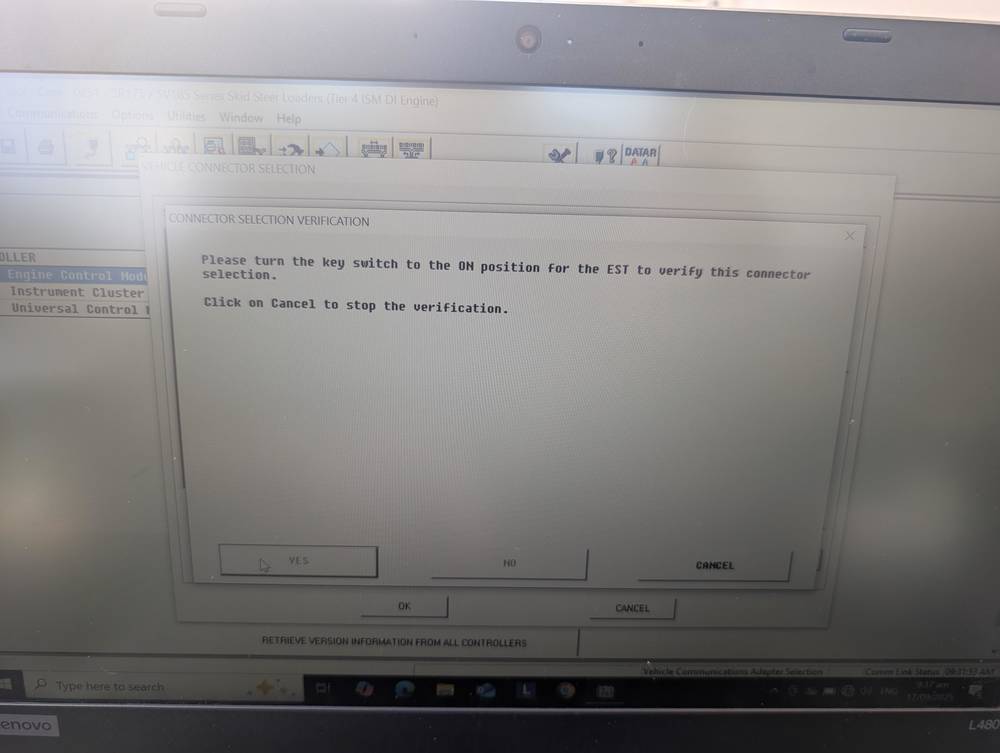
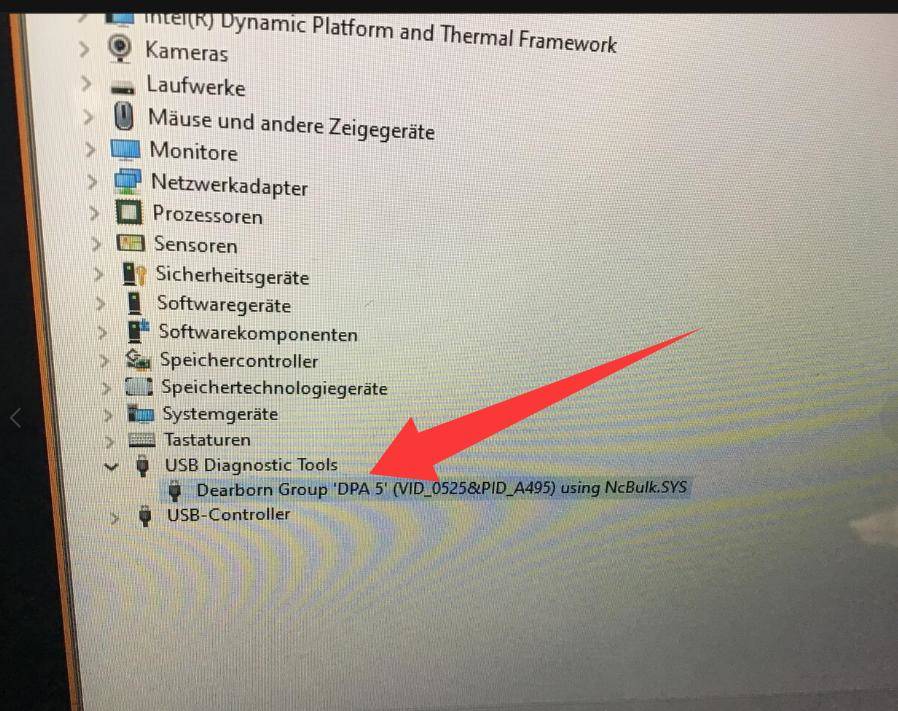
Step 1 — Check the CNH Tool in Windows Device Manager
- USB cable
- USB port
- Diagnostic interface power
- Driver installation
- Windows device status

Step 2 — Connect the Machine, CNH Tool and Laptop
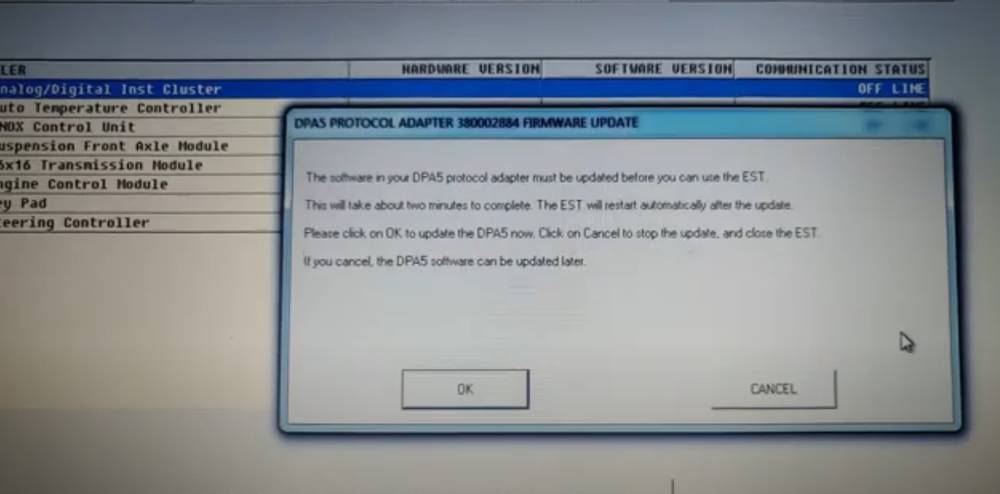
Recommended CNH Diagnostic Interface
If your current interface is unstable, not detected correctly, or you need a dedicated CNH communication tool for New Holland and Case equipment, consider the:
New Holland Electronic Service Tools White CNH DPA5 Kit
This interface is used to connect a diagnostic laptop to supported CNH machines for service and diagnostic work.
Before ordering, confirm:
- Machine brand and model
- Model year
- Controller/ECU
- Diagnostic connector
- CNH software version
- Required diagnostic or programming function
A compatible interface and stable power supply are especially important before attempting a firmware update.
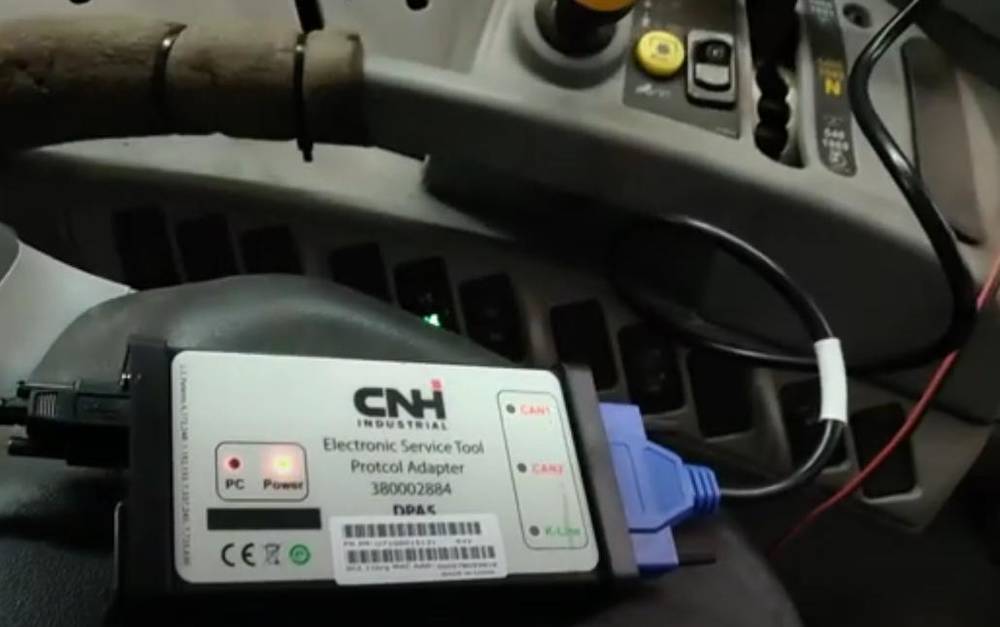
Step 3 — Keep the CNH Tool Powered During the Firmware Update
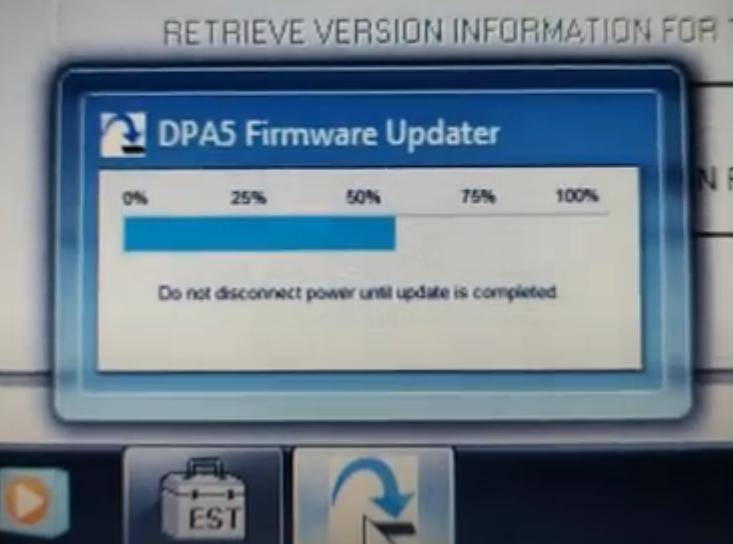
Do not disconnect power while the firmware is being updated.
- Disconnect the diagnostic cable.
- Turn off the machine power.
- Unplug the USB cable.
- Close the CNH software.
- Shut down the laptop.
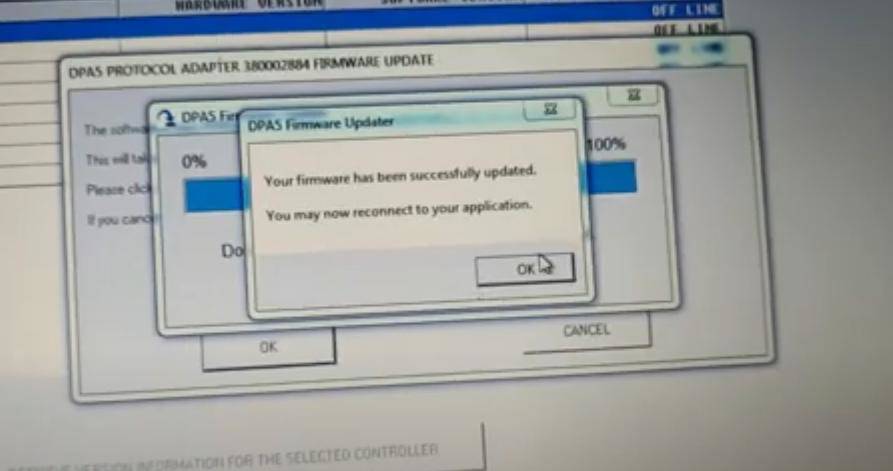
Step 4 — Wait for the Firmware Upgrade to Complete
Step 5 — Check the Indicator Lights
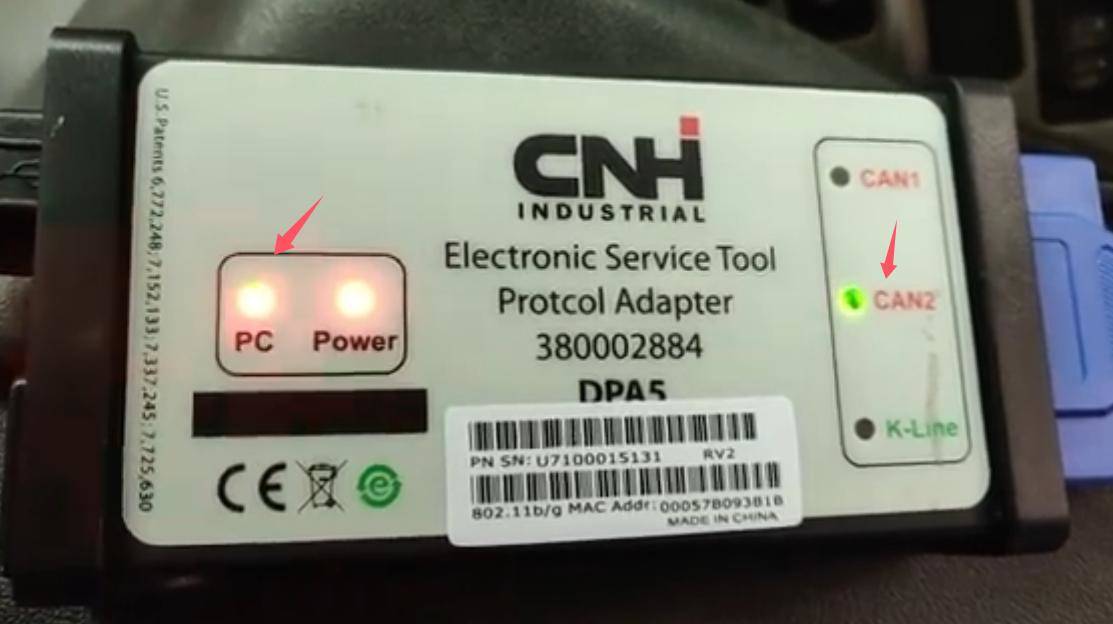
Step 6 — Confirm the Firmware Upgrade
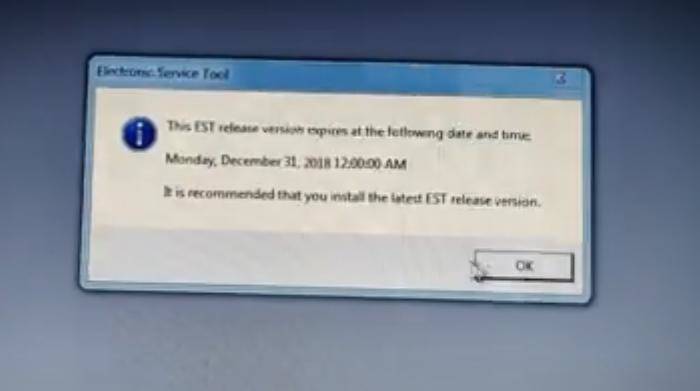
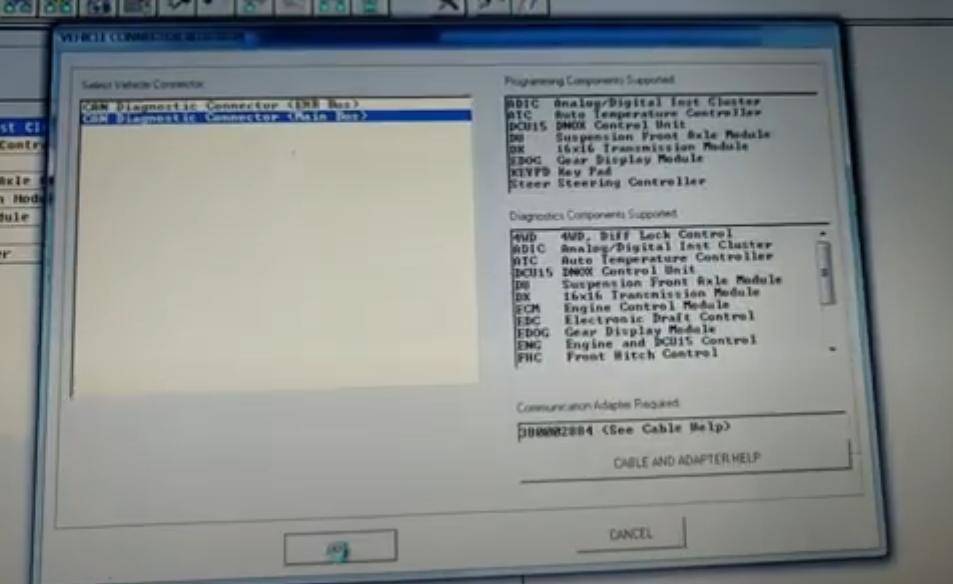
Step 7 — Test the CNH Diagnostic Connection
- Keep the CNH interface connected to the machine.
- Restart the diagnostic software if required.
- Select the correct machine or controller.
- Start a new diagnostic session.
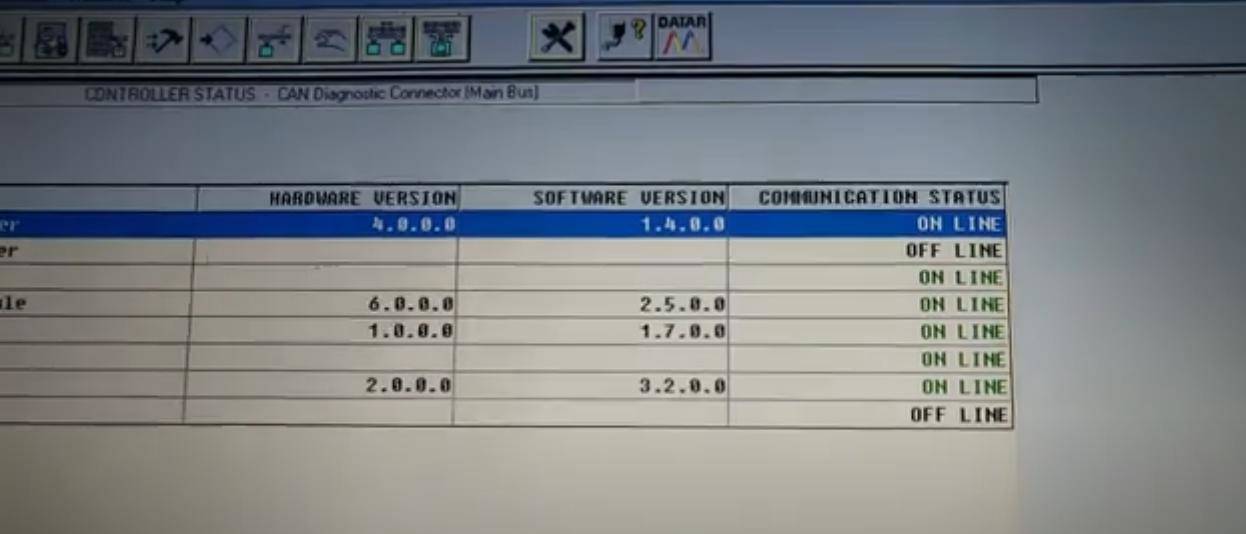
- Confirm that the software communicates with the tool correctly.
If the CNH Tool Still Does Not Connect
- Whether the tool is still visible in Device Manager
- USB cable and USB port
- CNH interface driver
- Tool power supply
- Correct interface selection in the software
- Machine diagnostic connector
- Machine power and ground
- CAN communication
- Correct machine/controller selection
→ Check USB, driver, Windows, and interface hardware.
→ Check machine power, diagnostic connector, CAN network, and software compatibility.
CNH EST Diagnostic Software Option
If the diagnostic interface is detected correctly but your current software version is outdated or incompatible with the tool firmware, check the available:
New Holland Electronic Service Tools CNH EST Diagnostic Software
CNH EST software is used for supported Case IH, New Holland and other CNH equipment diagnostics and service procedures.
Before purchasing or updating the software, confirm:
- Target machine
- Model year
- ECU/controller
- Existing interface
- Windows environment
- Software version
- Required function
Do not assume that a newer software version automatically supports every older interface or controller without a compatibility check.
Firmware Update Safety Checklist
Conclusion
Need a CNH Diagnostic Setup?
For CNH machine diagnostics, OBD2Tool offers both hardware and software options:
- White CNH DPA5 Diagnostic Kit — for supported CNH machine communication and diagnostic workflows.
- CNH EST Diagnostic Software — for supported CNH diagnostics, service procedures and software-based troubleshooting.
Before ordering, provide:
Machine Brand + Model + Year + Engine + ECU/Controller + Diagnostic Connector + Current Software Version + Required Function
This helps confirm that the interface, firmware and CNH EST software are suitable for the machine you need to service.