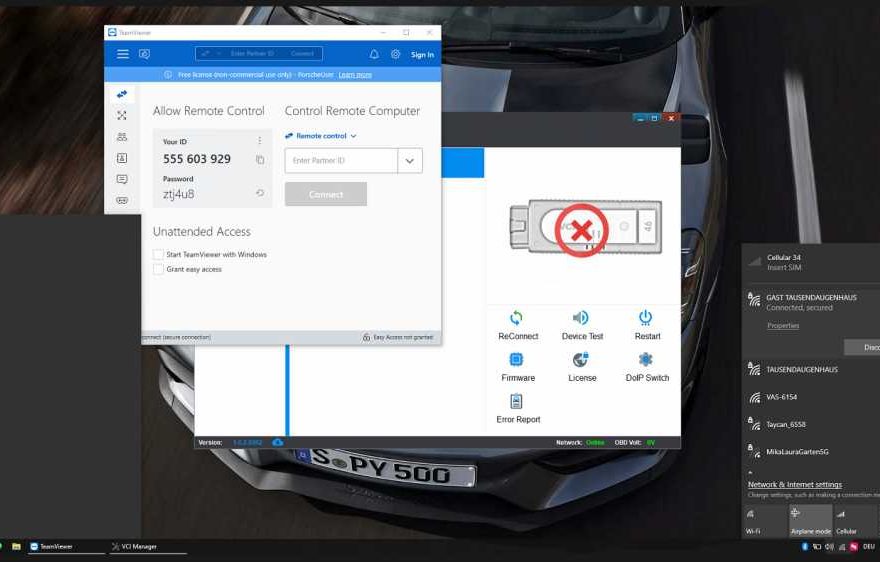
Before activating your Porsche PIWIS 3 diagnostic software, it is important to perform a self-test on the PIWIS 3 VCI device. This helps confirm that the VCI hardware and communication functions are working correctly and ensures a smooth remote activation process.
Step 1: Check Whether the Computer Detects the VCI
Connect the PIWIS 3 VCI to your laptop using the USB cable.
- If Windows Device Manager cannot detect the VCI through USB connection, try connecting the VCI via WiFi instead.
- In some cases, USB communication may be affected by cable interference or driver issues.
USB Connection Failed
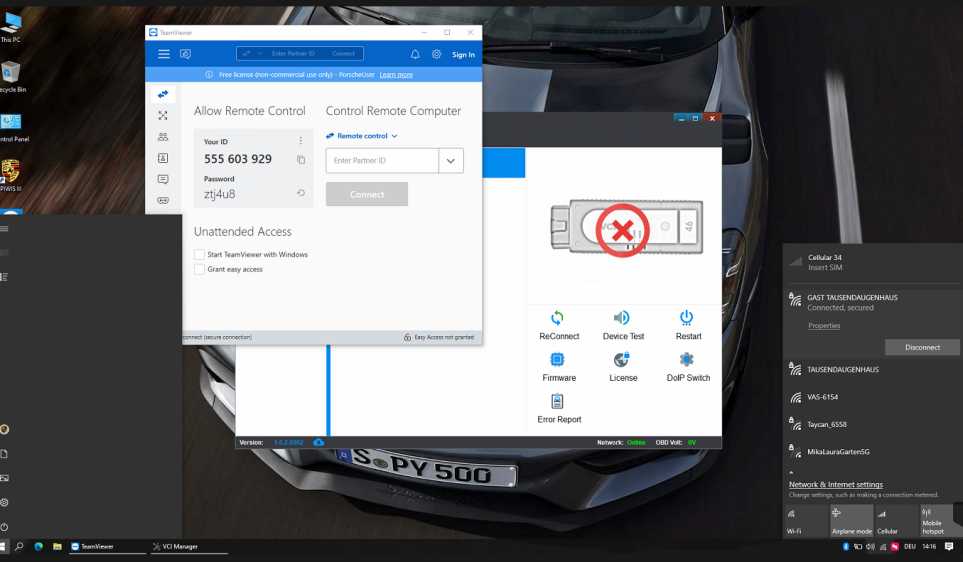
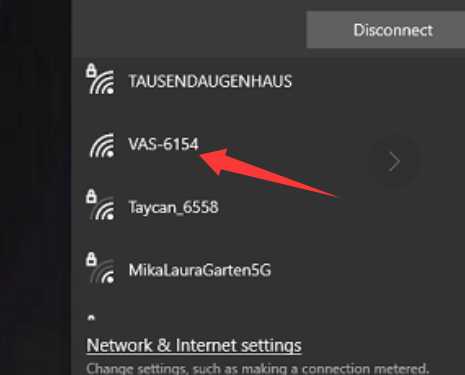
Step 2: Connect the PIWIS 3 VCI via WiFi
If the VCI can be detected through WiFi connection, this indicates the device itself is functioning properly. The issue may simply be related to USB interference, cable quality, or driver configuration.
Connect PIWIS 3 VCI by WiFi
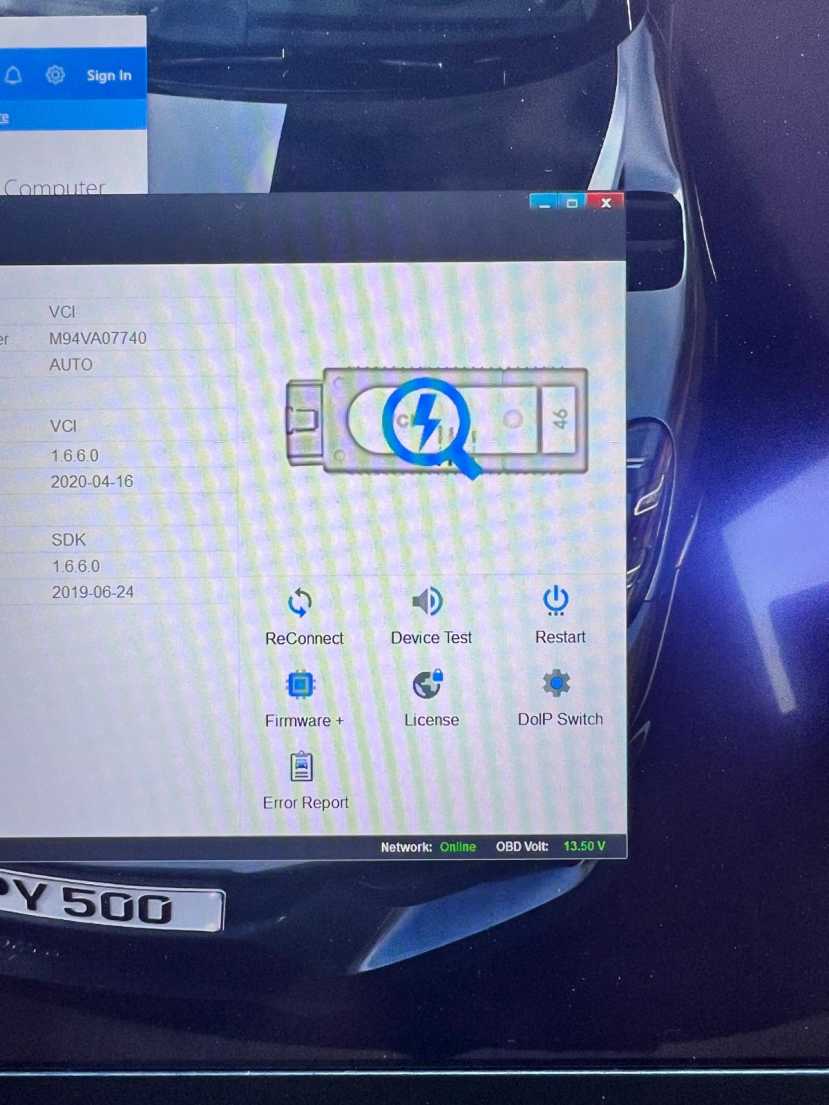
Step 3: Open the PIWIS Diagnostic Test Tool
After the VCI is successfully recognized by the computer:
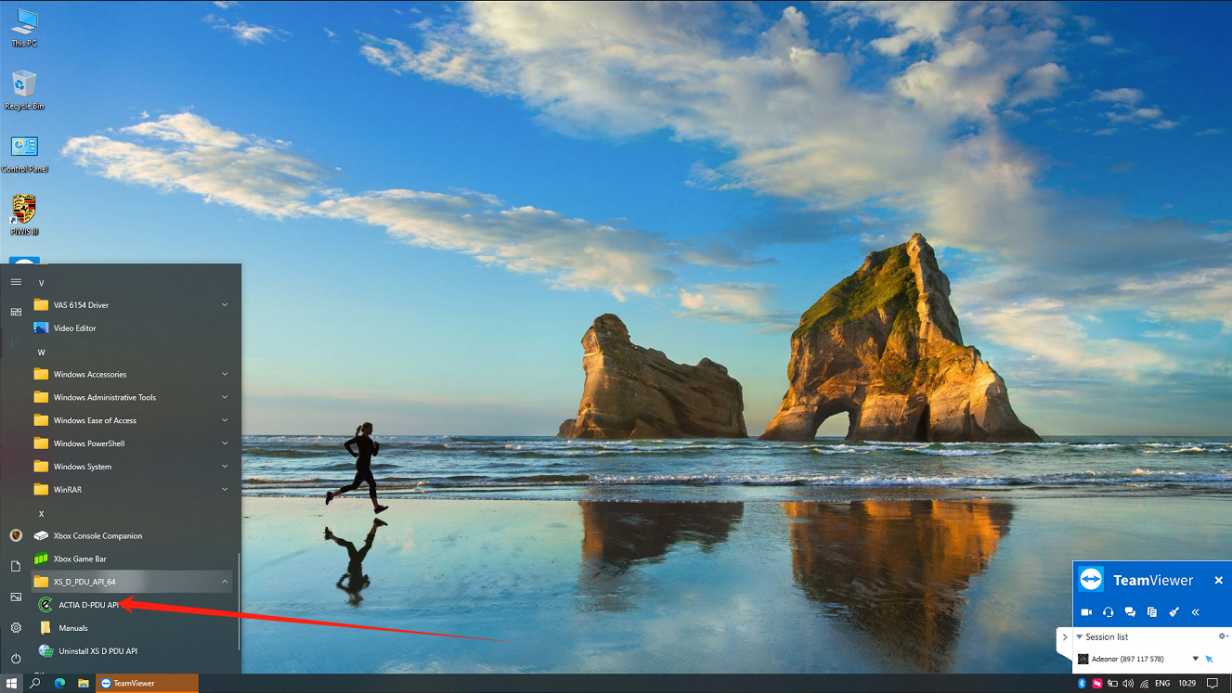
- Open Windows Start Menu.
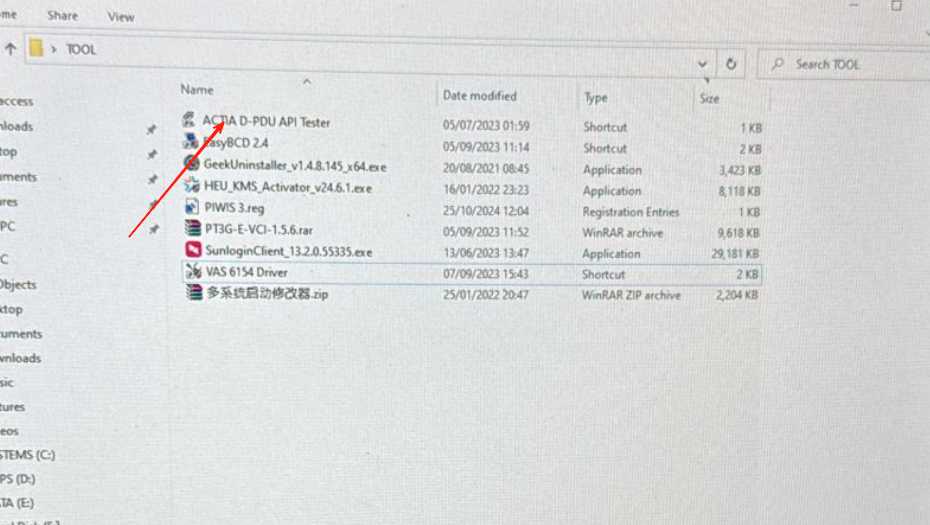
- Find the program named XS_D_PDU_API_64 or locate the TOOL folder manually.
- Right-click the program and select Run as Administrator.
This tool is used to test communication between the computer and the PIWIS 3 VCI device.
Step 4: Start the Self-Test
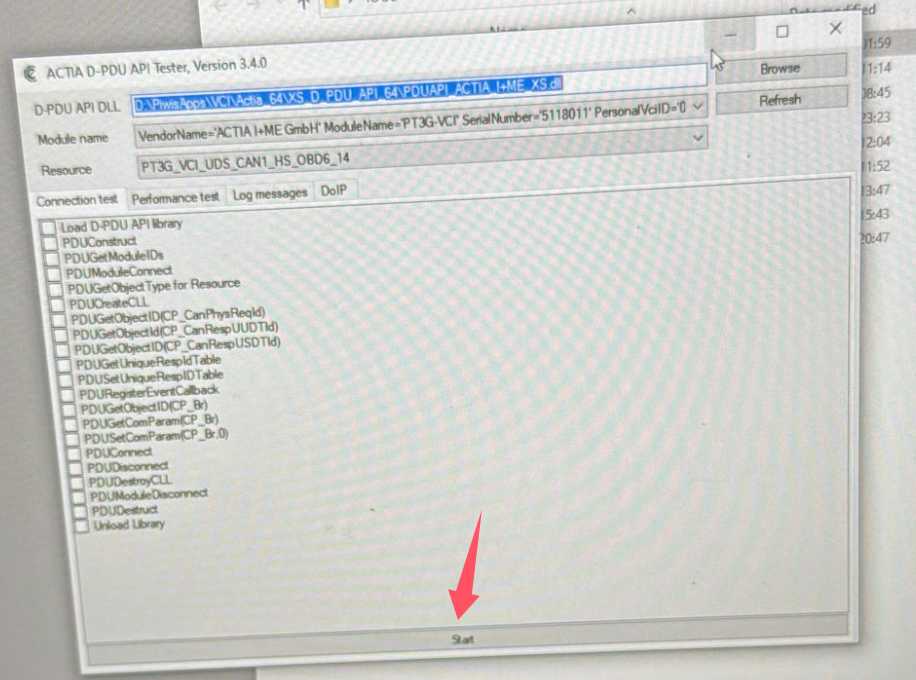
Inside the diagnostic tool:
- Click the Start button.
- Wait for the system to complete all communication and hardware checks.
PIWIS 3 Self-Test Process
Step 5: Confirm Test Results
If all test items show Passed, the PIWIS 3 VCI is working normally and is ready for software activation and vehicle diagnostics.
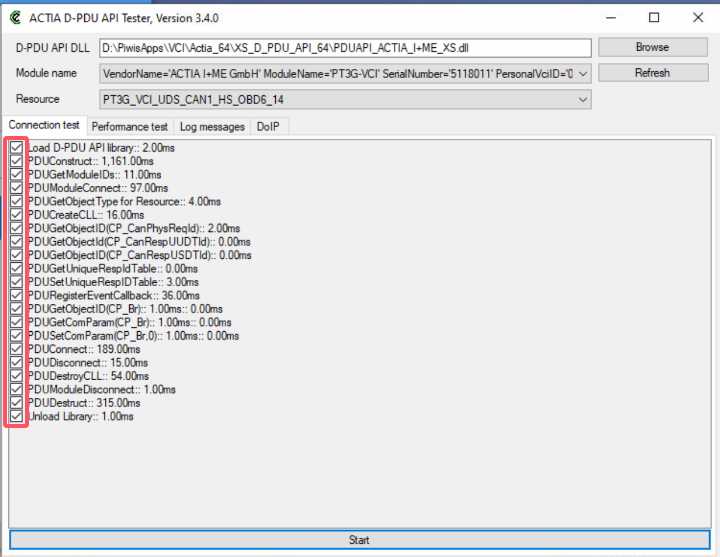
A successful self-test means:
- The VCI hardware is functioning correctly
- Communication between laptop and VCI is stable
- The software environment is properly configured
Step 6: Send TeamViewer Information for Activation
After completing the self-test successfully, send your:
- TeamViewer ID
- TeamViewer Password
to our technical support team so we can remotely activate your PIWIS 3 software.
Contact Information
For more information or technical support, please contact us directly:
- Email: sales@obd2tool.com
- Website: OBD2TOOL Official Website
FAQ
1. Why is my PIWIS 3 VCI not detected by USB?
If Windows Device Manager cannot detect the PIWIS 3 VCI through USB, the issue may be caused by USB driver conflicts, cable interference, or unstable USB communication. Try connecting the VCI through WiFi to verify whether the device is functioning normally.
2. Can I use PIWIS 3 VCI through WiFi connection?
Yes. PIWIS 3 VCI supports WiFi connection. If the VCI works properly through WiFi, it usually indicates that the hardware is normal and the issue is related to the USB connection.
3. What is XS_D_PDU_API_64?
XS_D_PDU_API_64 is the PIWIS diagnostic communication test tool used to check whether the VCI device can communicate correctly with the computer before software activation.
4. Why should I run the PIWIS test tool as Administrator?
Running the tool as Administrator ensures the software has full system permissions to access drivers and communication interfaces required for the VCI self-test.
5. What should I do if the PIWIS 3 self-test fails?
If one or more test items fail, check the USB cable, WiFi connection, drivers, and power supply. Restart the device and repeat the test. If the problem continues, contact technical support for assistance.
6. What does “Passed” mean in the self-test results?
“Passed” means the PIWIS 3 VCI hardware and communication functions are working properly and the device is ready for software activation and vehicle diagnostics.
7. What information is needed for remote software activation?
You need to provide your TeamViewer ID and password so the technician can remotely connect to your computer and complete the software activation process.
8. Does PIWIS 3 support all Porsche models?
PIWIS 3 supports diagnostics, coding, and programming for most modern Porsche vehicles, including newer models with advanced electronic systems.